Calendar Overview
The calendar answers one question: what is happening, and when?
Everything you have booked sits on a timeline. You choose how much time is on screen, whether you want to see the bookings or what you have free, and whether you are looking at your rental items, your experiences, or both at once.
Opening the calendar
Click Calendar in the left sidebar.
The three tabs
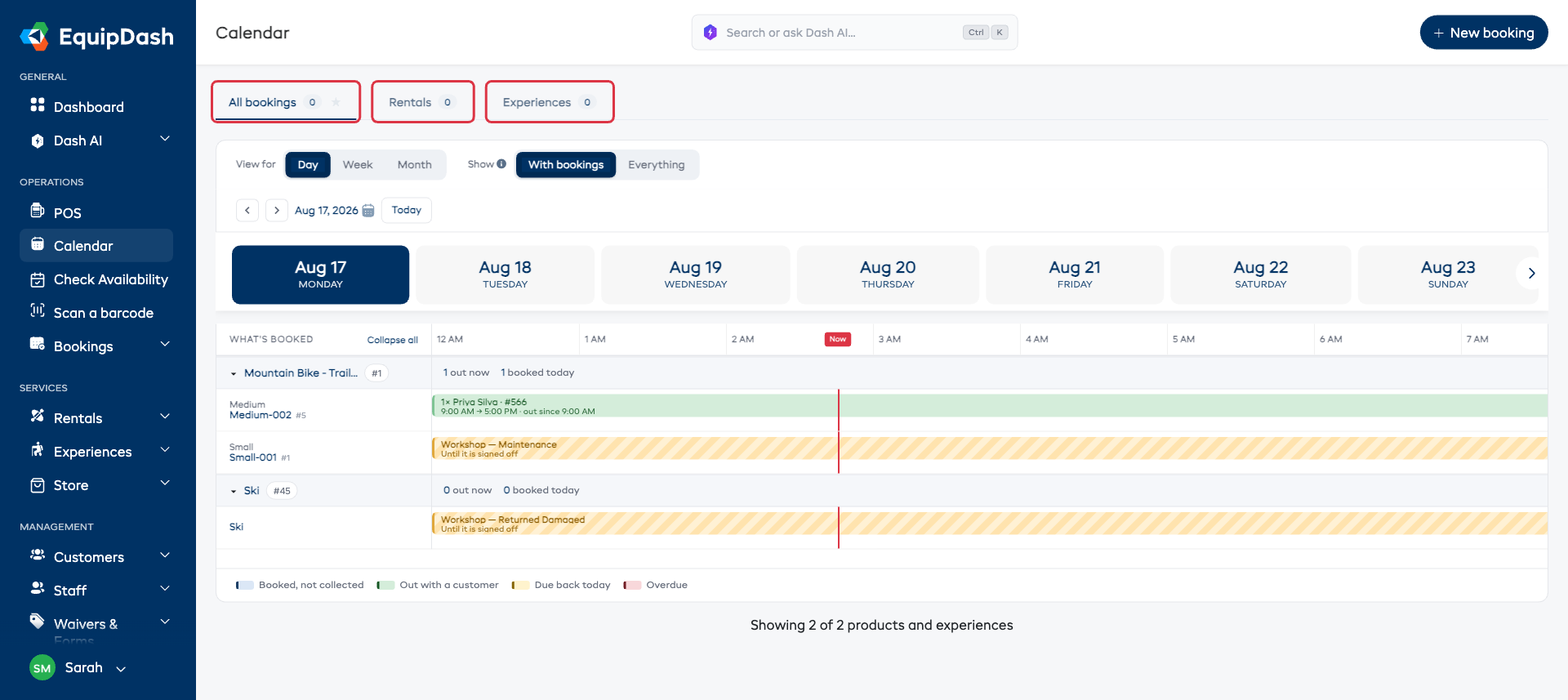
| Tab | What it shows |
|---|---|
| All bookings | Everything you sell, side by side - rental items and experiences on the same timeline |
| Rentals | Only your rental items, with the extra tools that go with them |
| Experiences | Only your experiences and their departures |
Each tab carries a small number beside its name - how many bookings fall in the period you are looking at.
All bookings only appears when both the Rentals and the Experiences module are turned on - it is the tab that mixes the two, so there is nothing to mix if you only run one of them. With just one module on, the calendar opens straight onto that tab and there is nothing to switch between. See Modules.
When you do have both, All bookings sits first and is where the calendar opens by default.
Two switches on every tab
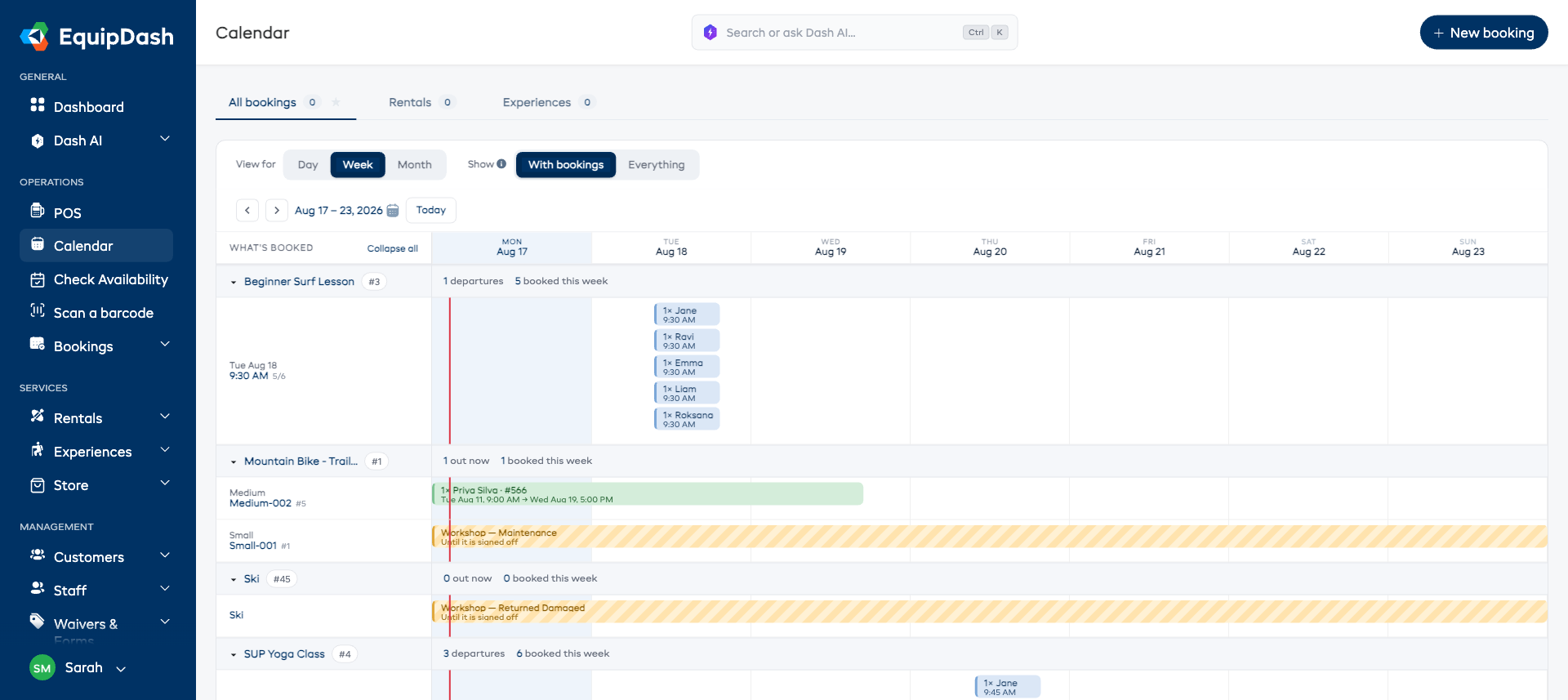
Every tab has the same pair of switches, and they are the main thing to learn:
View by - what you want to see. On Rentals it is Bookings or Inventory; on Experiences it is Bookings or Experiences. Bookings is the default and always the left-hand button.
View for - how much time is on screen: Day, Week or Month.
The All bookings tab has no View by - it always shows bookings - so it only has View for.
Where to look for what
| You want to know… | Go to |
|---|---|
| What is going out today, and who is collecting it | All bookings or Rentals → Bookings · Day |
| Whether a particular item is free next week | Rentals → Inventory · Week |
| How many of something you still have free on a given day | Rentals → Inventory · Week or Month |
| Which departures still have seats | Experiences → Experiences · Week |
| Who is coming on a departure | Experiences → Bookings · Day |
| How busy the month is overall | Any tab → Month |
Rows come in two levels
Every row on the calendar belongs to one of two levels:
- The group row is the product or the experience. It carries a running summary - how many are out right now, how many bookings fall in the period, or how many departures are scheduled.
- The rows underneath are the individual things. For a rental product that is one row per item you own, labeled with its own identifier. For an experience it is one row per departure, labeled with its date, its start time, and how many seats are taken.
Click a group row to fold it away, or open it back up. Collapse all at the top of the row labels folds everything at once - handy when you want a quick overview of the whole month - and turns into Expand all so you can open it all back up.
Bookings are bars you can read
Each booking is drawn as a bar sitting on the days or hours it actually covers. A booking that runs Wednesday to Friday is one bar across those three days, not three separate blocks.
Hover a bar and a card opens beside it with the whole booking: the reference, the customer, their email, everything that is on the booking with quantities and prices, the totals, and a warning if the collection is running late.
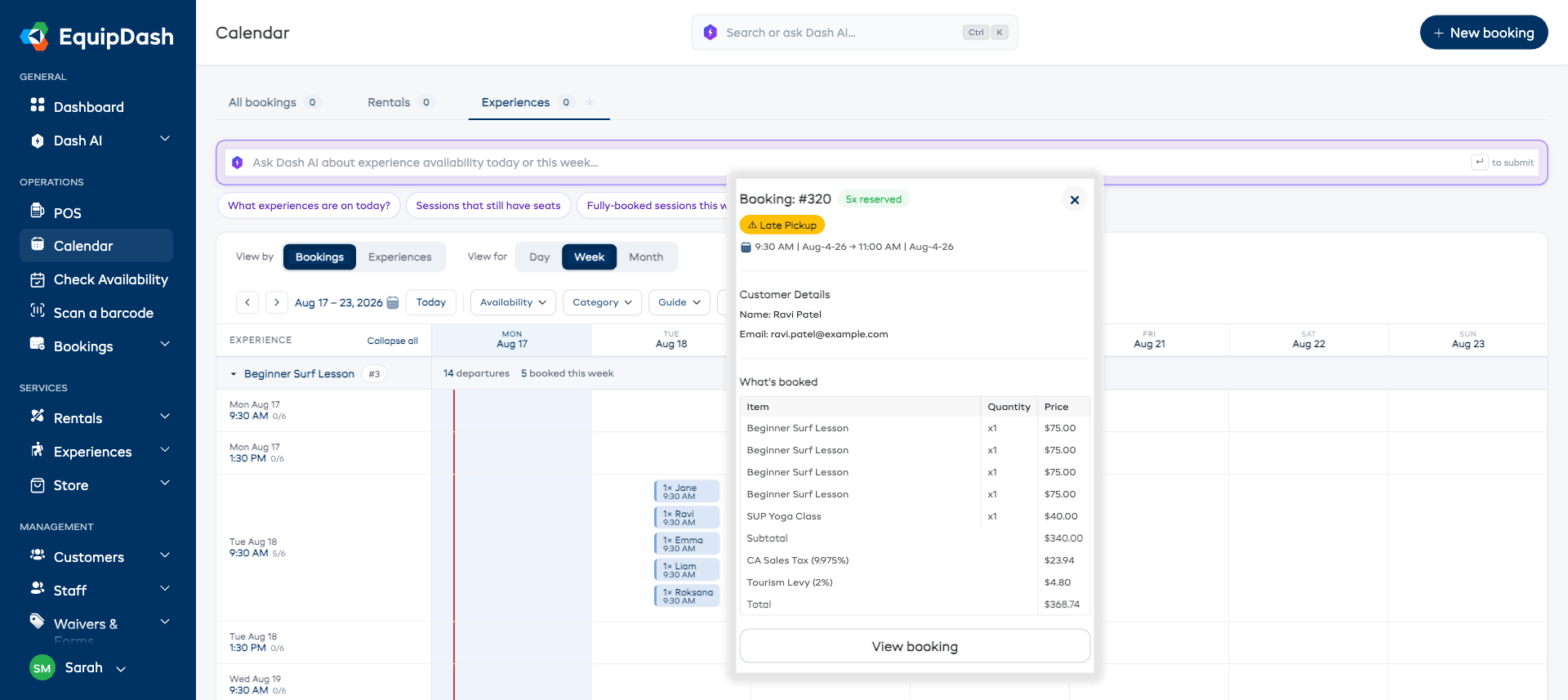
Click the bar to open the booking itself.
The day strip
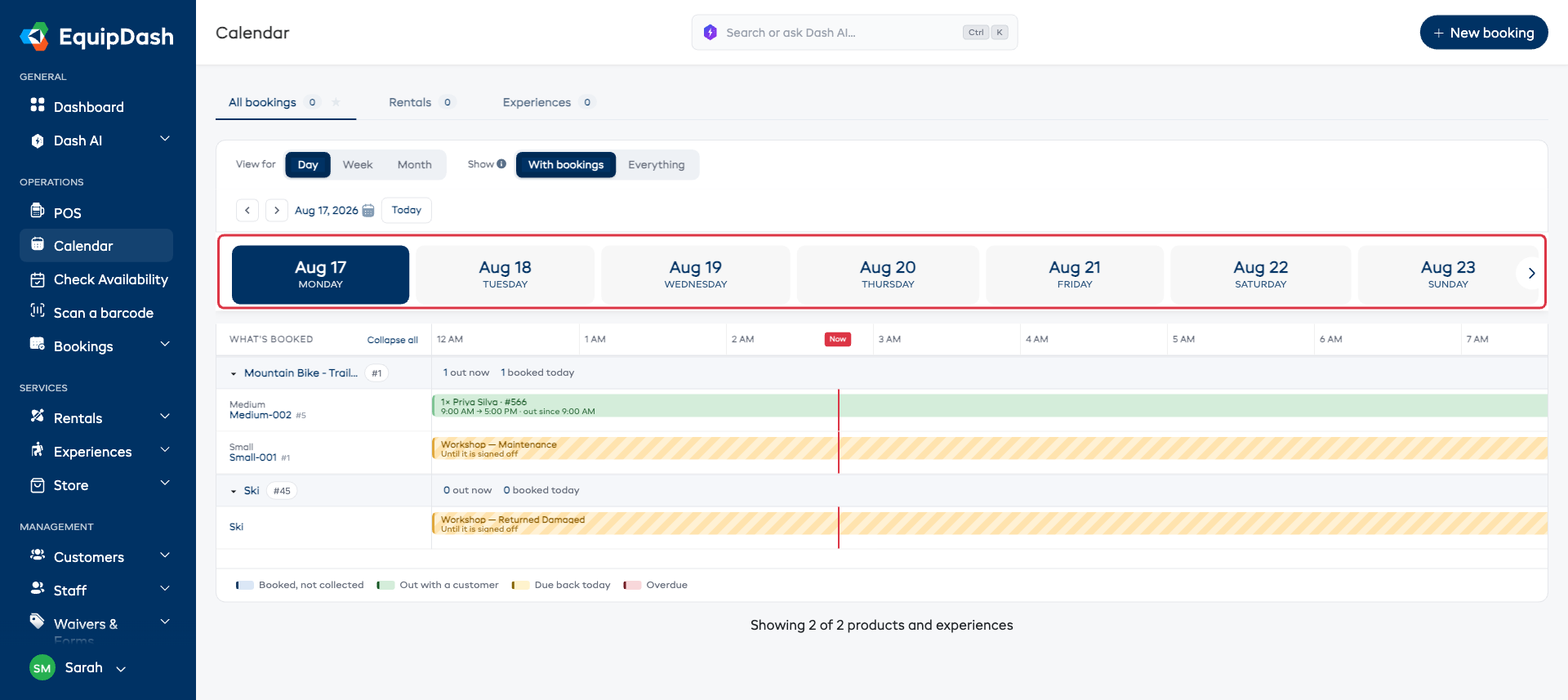
In Day view every tab shows the week across the top. Today is highlighted, and clicking any day jumps straight to it - quicker than stepping through with the arrows.
Show only what is booked
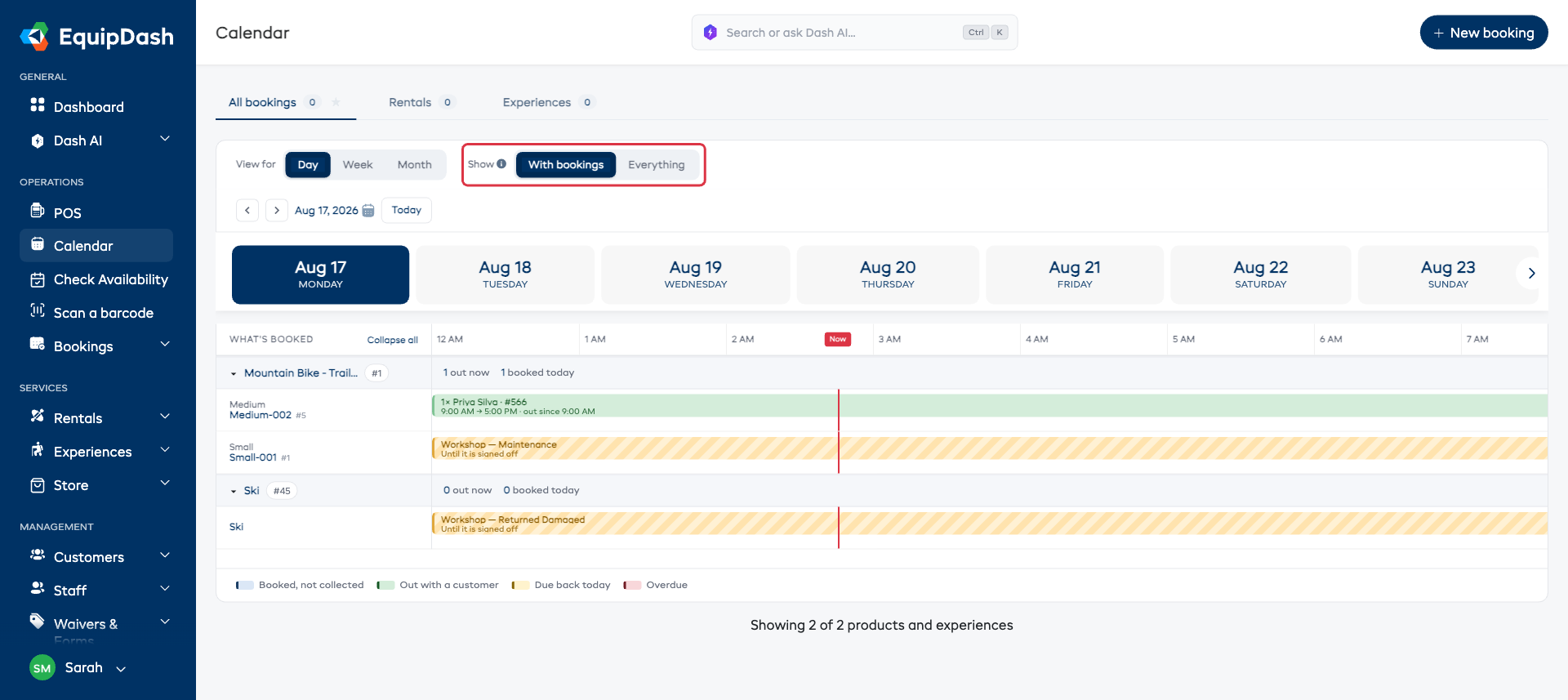
The All bookings tab has one extra switch, Show:
- With bookings (the default) lists only the products and experiences that have something booked on these dates. Most days that is a short, readable list.
- Everything lists your whole catalog, booked or not - use it when you are looking for a gap.
The (i) beside Show repeats the same thing if you forget.
If a long list is showing, the calendar loads the first rows and tells you how many there are - Showing 15 of 40 products and experiences - with a Load more link underneath.
Moving around the dates
- ‹ › step by whatever is on screen - one day, one week, or one month.
- The date beside the arrows tells you where you are (
Aug 17, 2026,Aug 17 – 23, 2026,August 2026). Click it to pick any date from a small calendar. - Today brings you straight back.
- In Day view, click a day in the strip.
A red Now line runs down the timeline so you can see where you are in the day at a glance. It follows your shop's own time zone, so a late-evening return still counts as today.
Make the calendar open where you want it
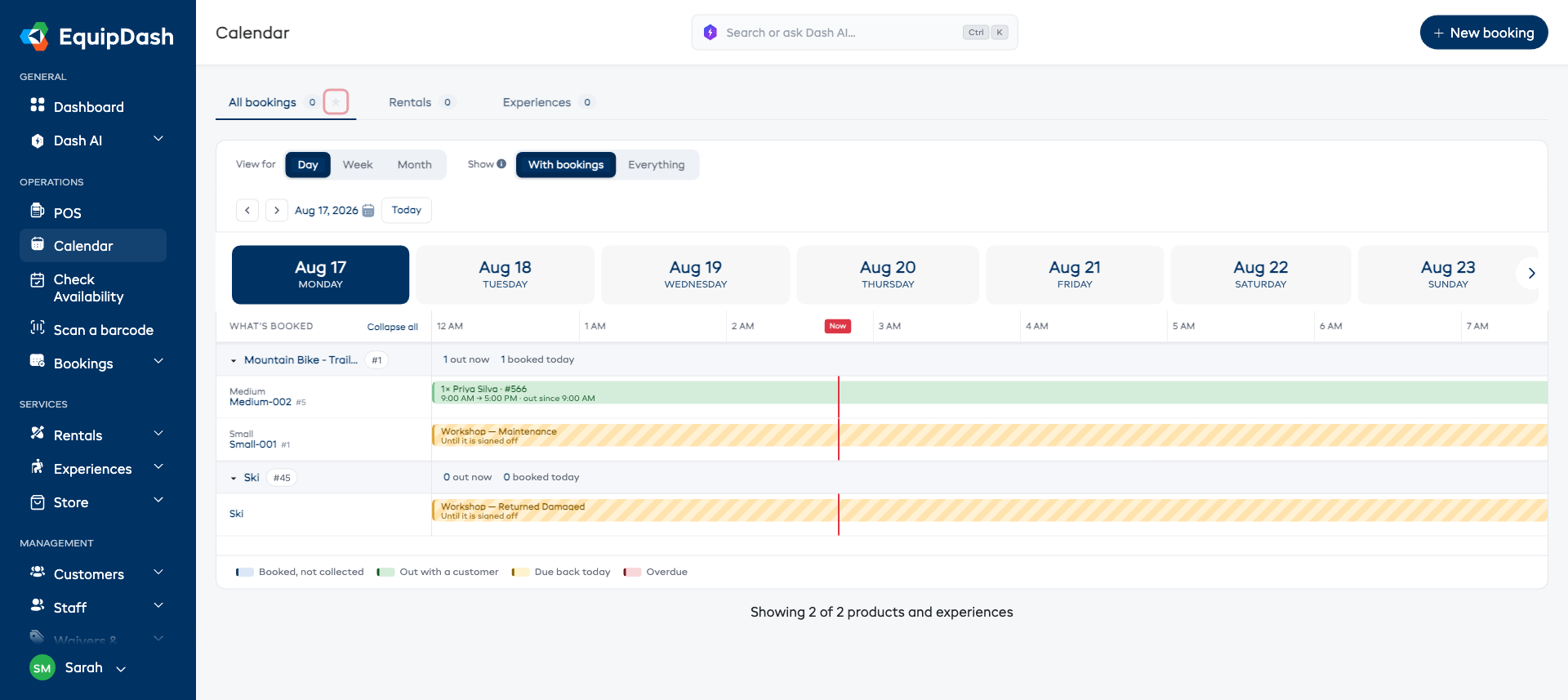
Click the star beside a tab's name to make the calendar open there every time. Click it again to stop. It works the same way as the star on your dashboard tabs, and it is personal to you - your colleagues keep their own.
The calendar also remembers the view you last used on each tab. If you always work in Inventory · Week on the Rentals tab, that is what you will get next time you open it, without setting anything up.
If you open a link that already names a view, that link wins. Otherwise your starred tab decides which tab opens, and your last-used settings decide the view.
Related Guides
- Rental Calendar - the Rentals tab in detail.
- Experience Calendar - the Experiences tab in detail.
- List View - the two-panel list of experiences and their bookings.
- Quick Actions from Calendar - what you can do without leaving the page.