Your Dashboard Explained
The dashboard is the first thing you see when you log in. It answers the morning question every owner has: "What's happening across my business today, and what needs me?"
What your dashboard looks like depends on how many parts of your business you run in EquipDash:
- You run one line of business (only rentals, only experiences, only store, or only services) — you get a focused dashboard for that line, with no extra tabs. It matches the corresponding tab described below.
- You run two or more lines — you get one combined dashboard for everything: a Summary view of your whole business, plus a full tab for each line you run.
Either way, there's nothing to configure — EquipDash shows the right dashboard automatically based on which modules you have enabled.
What You'll Learn
- How the Summary view shows your whole business at once
- How the Rentals, Experiences, Store, and Services tabs work
- How to use the date filter to look at different time periods
- How to read the upcoming bookings, returns, and workshop job tables
- Who can see revenue figures
Dashboard Tabs
When you run more than one line of business, tabs sit at the top of the dashboard. Summary shows everything blended together; each other tab is a full dashboard for one line.
| Tab | What It Shows |
|---|---|
| Summary | Today's worklist across every line, whole-business numbers, and a snapshot card per line |
| Rentals | Rental sales, upcoming pick ups, next returns, and product availability |
| Experiences | Experience sales, upcoming bookings, active sessions, and experience availability |
| Store | Store revenue, recent orders, and low stock alerts |
| Services | Workshop jobs — awaiting drop-off, in workshop, overdue, and ready for pickup |
Each tab displays a badge with the number of bookings (or orders) in the currently selected date period, so you can see at a glance how busy each area is. The Services badge counts jobs currently in the pipeline instead — everything awaiting drop-off, on the bench, or ready to be collected.
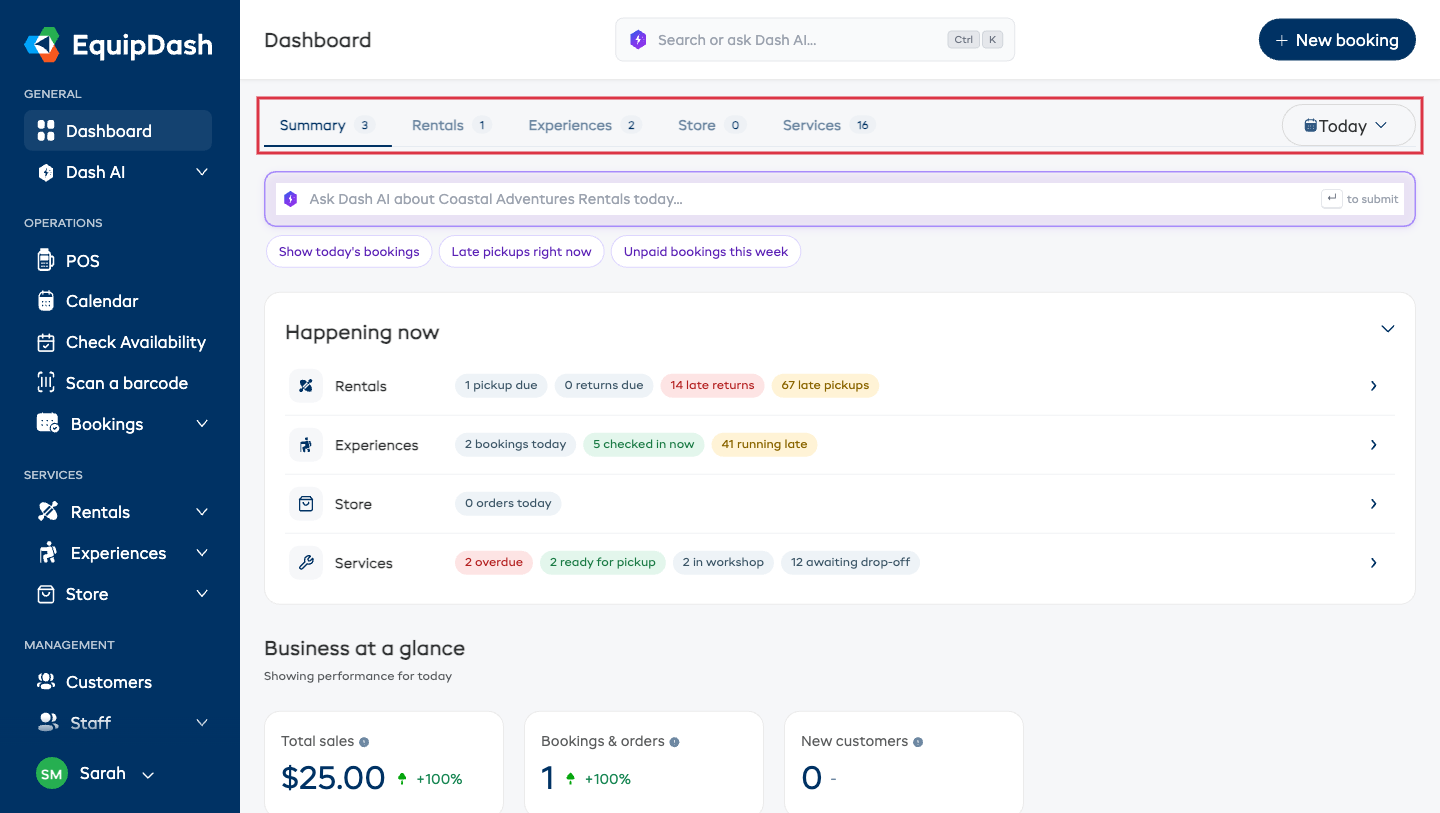
A tab only appears when its module is enabled. Rentals, Experiences, Store, and Services can each be turned on or off independently from their settings page. See Modules for the full picture.
Overview and Today
In the sidebar, Dashboard opens to two pages: Overview is the dashboard this guide describes, and Today is the counter's view of the day, with what needs someone, the gear to get out, and every session, pickup and return. See The Today Screen.
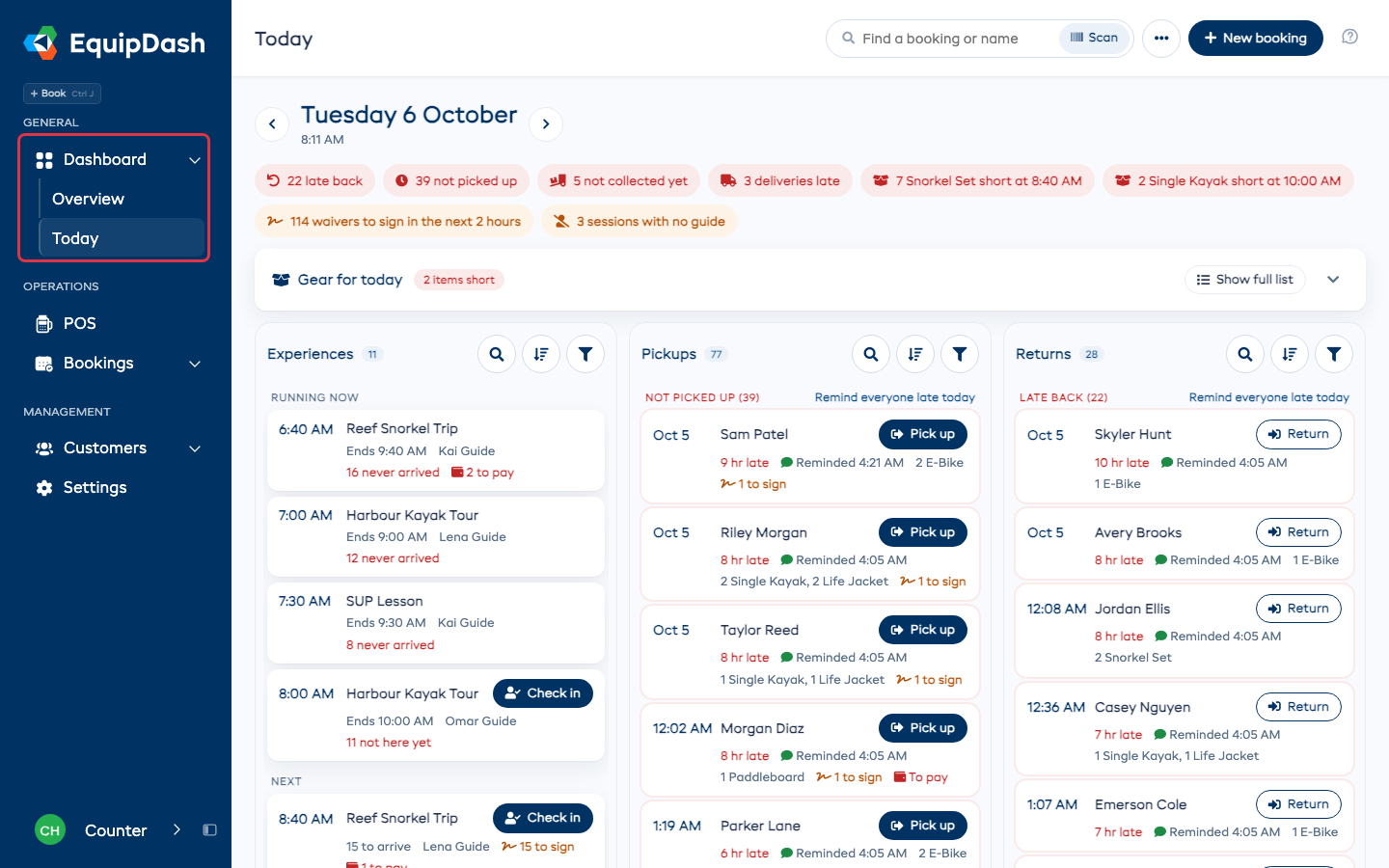
Staff who can't see your takings start on Today when they sign in, and everyone else starts on Overview. Anyone can change it for their own sign-in with Open Today when I sign in on the Today screen.
Choose Which Tab Opens First
The dashboard opens on Summary by default, but if you spend most of your day in one part of the business, you can make that tab your starting view:
- Open the tab you want — for example, Rentals.
- A small hollow star appears next to the tab's name (hover it and it says Make default view).
- Click the star. From now on, your dashboard opens on that tab.
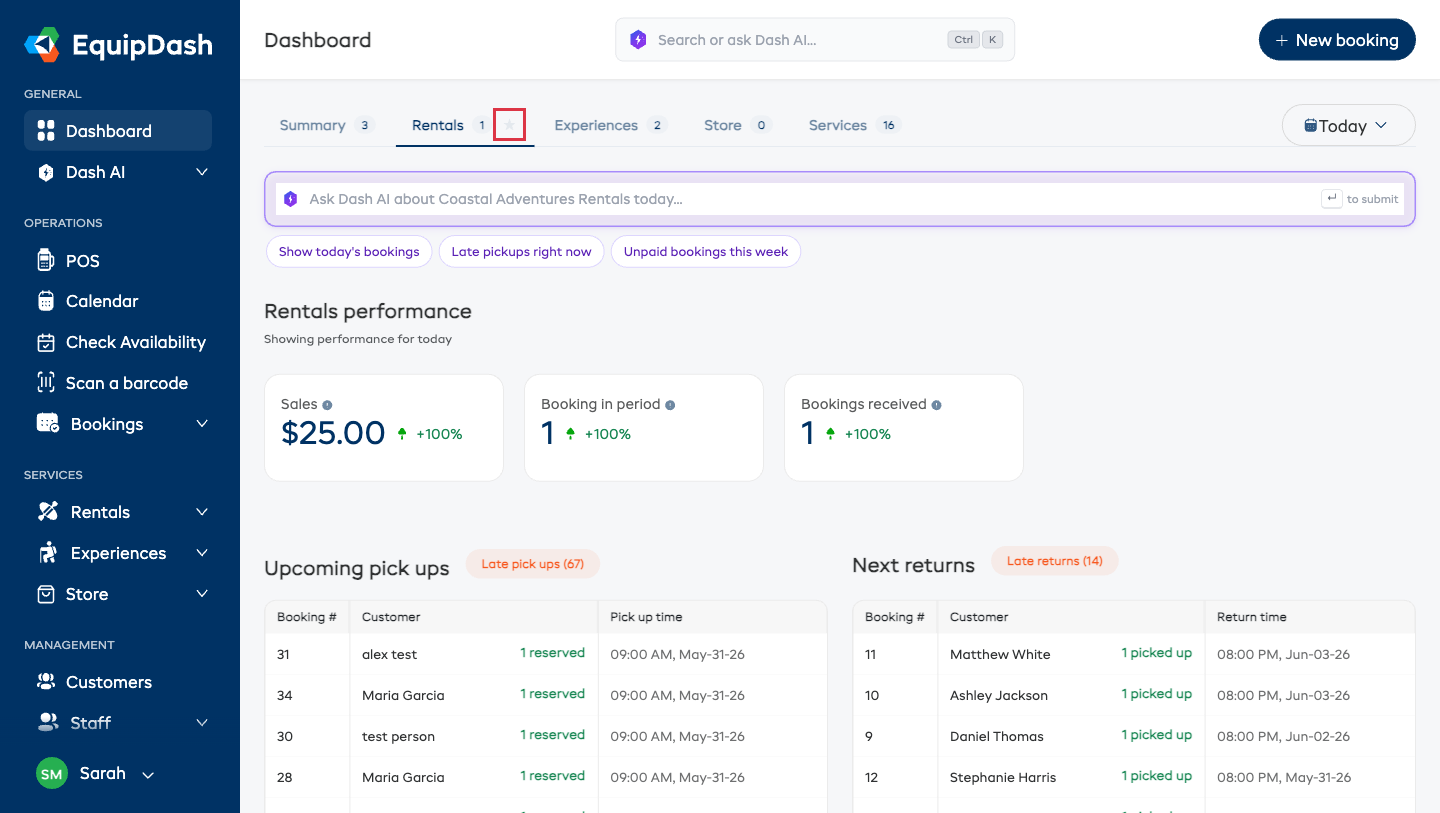
Once a tab is your default, its star disappears — no clutter — and the star only ever shows on the tab you're currently viewing. To change back, open Summary (or any other tab) and click its star.
A few things to know:
- It's personal. Your choice only affects your own login — each teammate can pick their own starting tab.
- Links still win. A link that points at a specific tab (from an email, a chip, or a bookmark) opens exactly where it points.
- It fails safe. If the line of business you starred is later switched off, your dashboard quietly goes back to opening on Summary.
Date Filter
One date filter, at the right-hand end of the tab bar, controls the entire page — every number on every tab reads from the same period, so nothing gets out of sync.
The available options are:
- Today
- Last 7 days
- Last 30 days
The default when you first load the dashboard is Today. Below each section heading, a subtitle confirms the active filter — for example, "Showing performance for today".
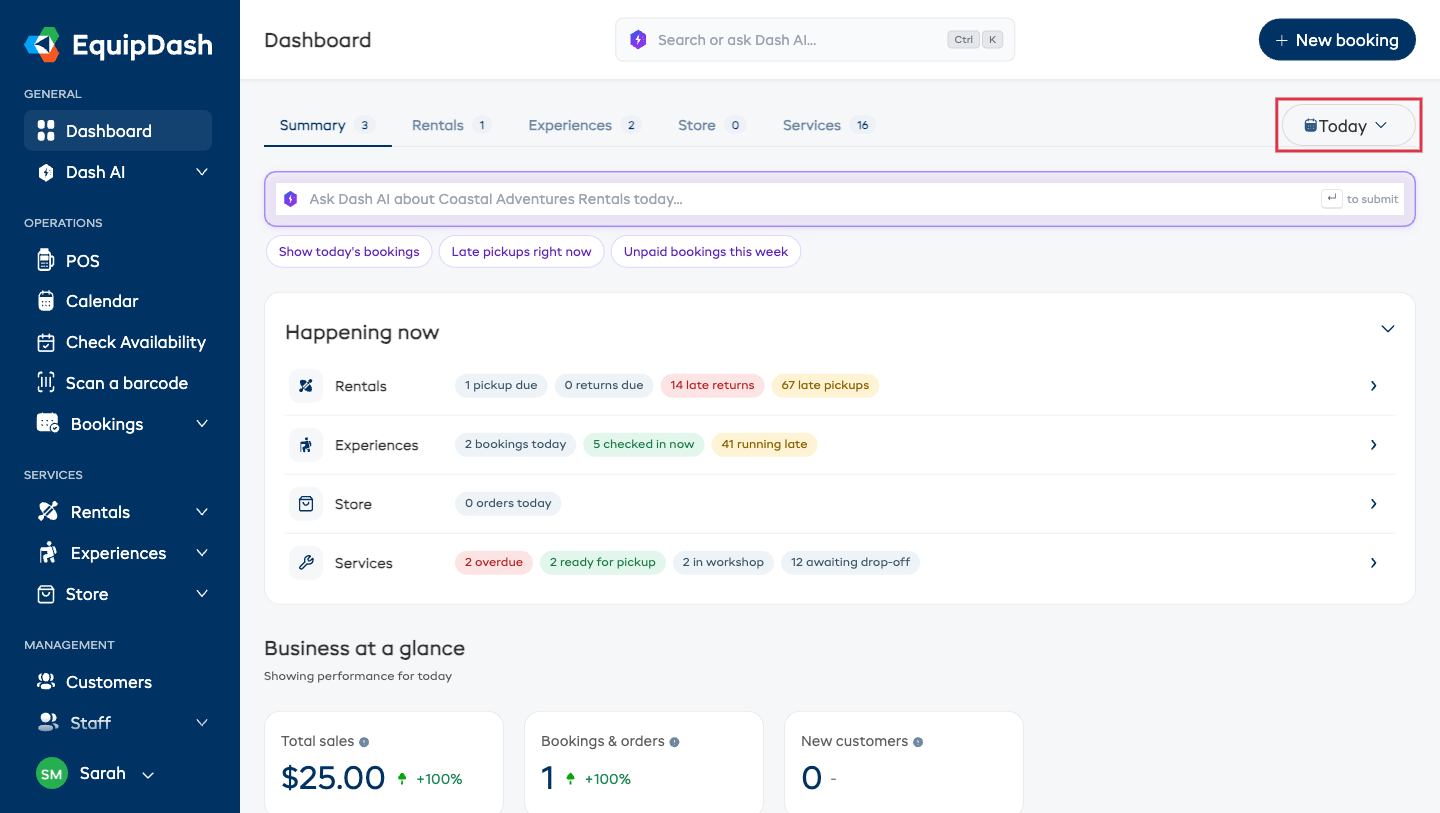
Performance cards show a percentage change compared to the equivalent previous period. For example, if you select "Last 7 days", the comparison is against the 7 days before that. This helps you quickly spot whether things are trending up or down.
Summary Tab
The Summary tab is your zero-click morning glance. It has three sections, top to bottom: Happening now, Business at a glance, and a snapshot card for each line you run.
Happening Now
One card lists every line of your business with live counts of what needs doing right now — today's worklist:
| Line | What the chips show |
|---|---|
| Rentals | Pick ups due, returns due, plus late returns and late pick ups |
| Experiences | Bookings today, who's checked in now, and anyone running late |
| Store | Orders today and low stock warnings |
| Services | Overdue jobs, jobs ready for pickup, jobs in the workshop, and gear awaiting drop-off |
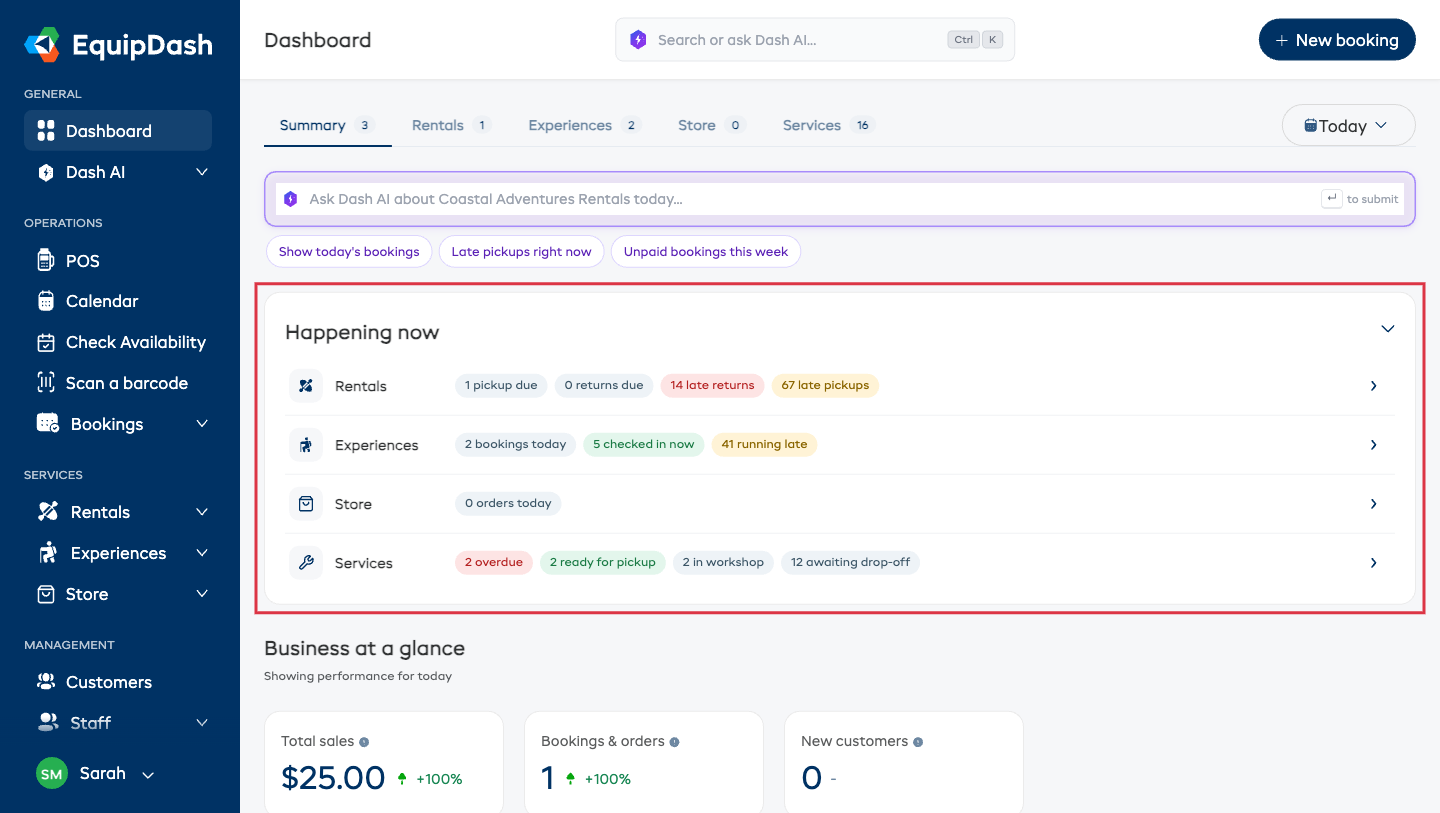
The chips are color-coded so problems stand out: red means someone is waiting on you (late returns, overdue jobs), amber means running behind (late pick ups, low stock), and green is good news (checked in, ready for pickup).
Every chip is a link — click "5 orders today" and you land on that list, filtered and ready to work. Click a line's name (or the arrow at the end of its row) to open its bookings list. If there's nothing going on, the card simply says so.
Use the chevron in the card's top-right corner to collapse Happening now — EquipDash remembers your choice.
Business at a Glance
A small strip of whole-business numbers for the selected period:
| Card | What It Shows |
|---|---|
| Total sales | Sales across every line of business combined |
| Bookings & orders | All bookings and orders received in the period |
| New customers | Customers whose first-ever booking with you was in the period |
Each card includes a percentage change against the previous period and a tooltip (hover the ⓘ icon) explaining exactly what's counted.
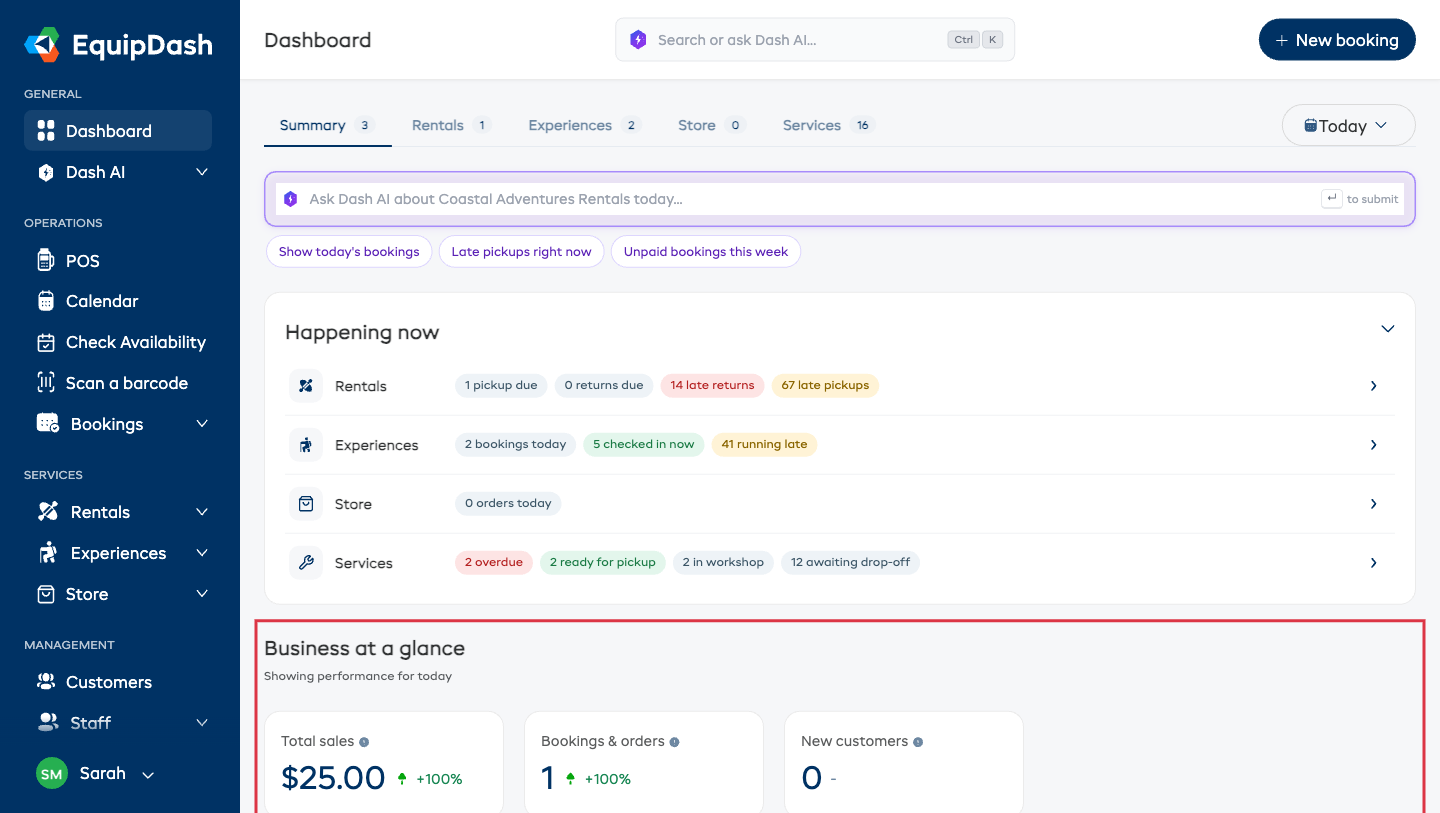
Total sales is your whole business for the period. Each line's own card (below) shows that line's share. Because a single booking can span more than one line — a rental and an experience together, for example — the per-line figures aren't meant to be added up; the blended total is already correct.
One Card Per Line
Below the glance strip, each line of business gets a compact card: its sales for the period, two live counts, and one plain-language line about what needs attention — "All clear", "14 overdue returns to chase", or "2 jobs past the promised date".
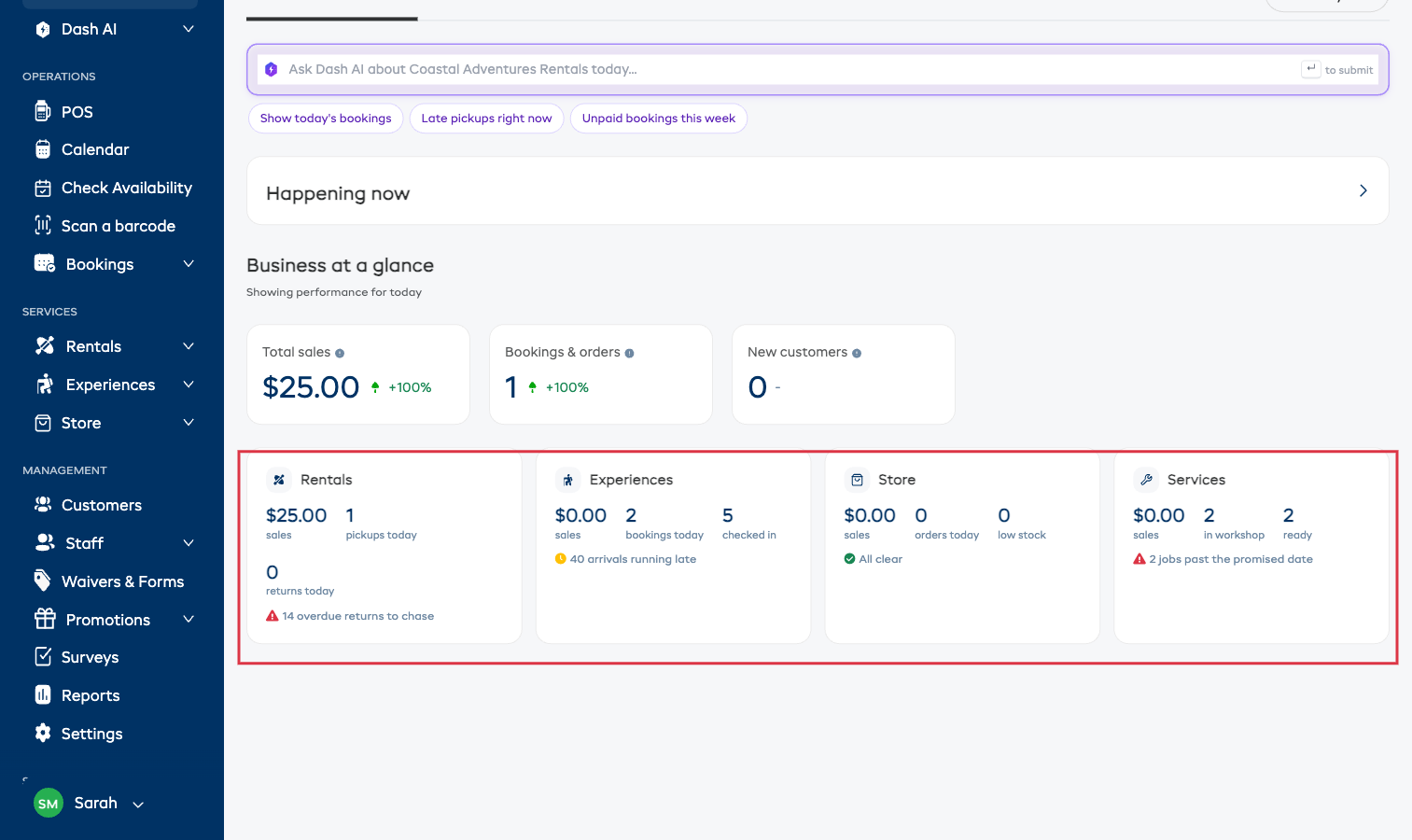
Click anywhere on a card (or its Open link) to jump to that line's full dashboard tab.
Rentals Tab
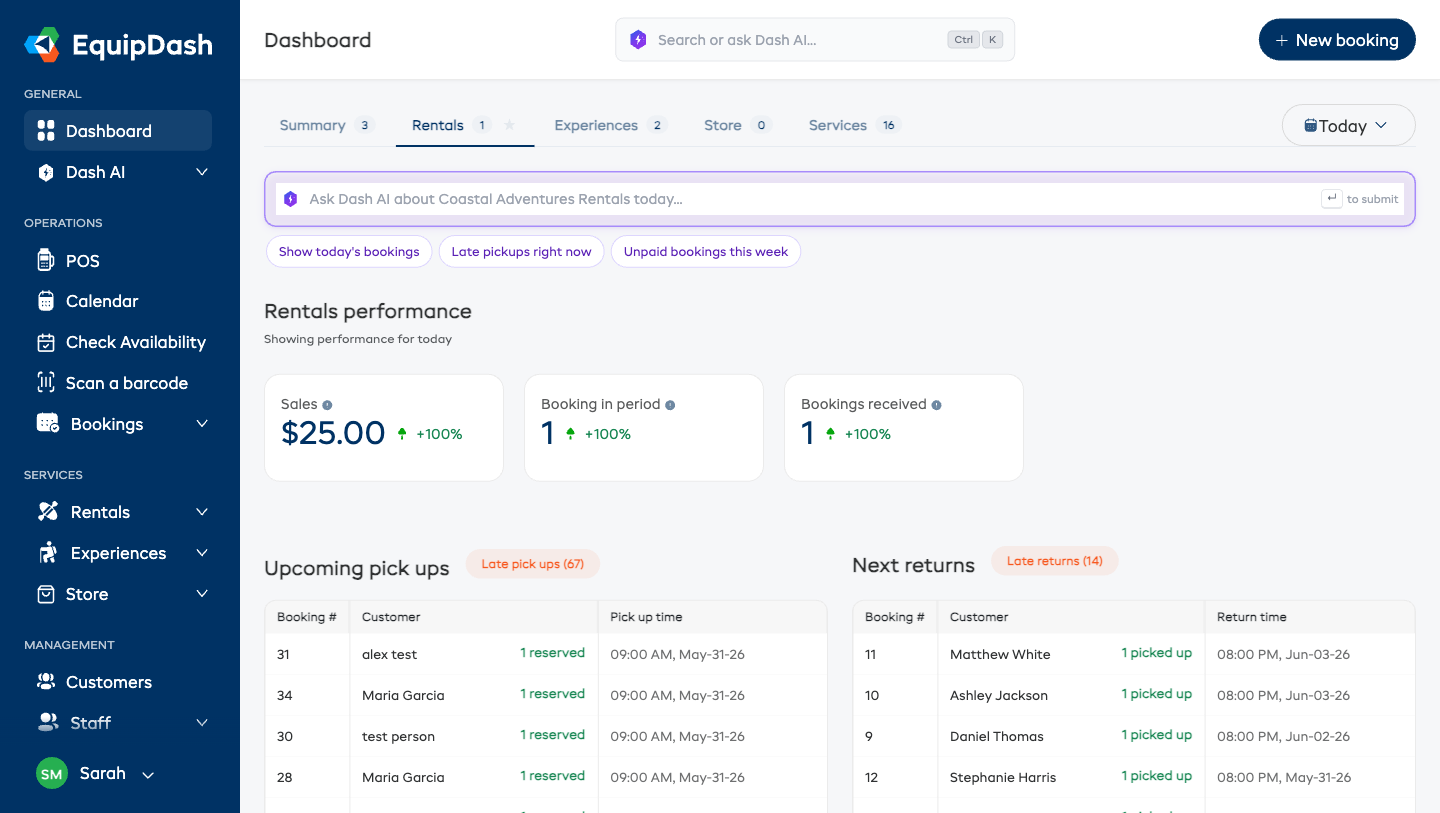
Performance Snapshot Cards
The Rentals tab shows three cards across the top:
| Card | What It Shows |
|---|---|
| Sales | Total revenue from rental bookings received in the selected period |
| Booking in period | Number of rental bookings with a pick-up date falling within the selected period |
| Bookings received | Number of rental bookings created during the selected period |
Each card includes a percentage change indicator and a tooltip (hover the ⓘ icon) explaining exactly what's being compared. Click a card to open the bookings list filtered to the same dates.
The Sales and Bookings received cards are only visible to users with the Dashboard Revenue permission. Without it, you'll only see the Booking in period card.
Upcoming Pick Ups
The left-hand table shows rentals that are due to be picked up soon. Each row displays:
- Booking # — click to open the full booking
- Customer — the customer's name, plus a count of how many items are reserved
- Pick up time — the scheduled pick-up date and time
If any pick ups are overdue, a red Late pick ups badge appears in the table header showing how many.
At the bottom, click View all upcoming pickups to jump to the full bookings list filtered to upcoming pick ups.
Next Returns
The right-hand table shows rentals that are currently out and due to be returned. Each row displays:
- Booking # — click to open the full booking
- Customer — the customer's name, plus a count of how many items are picked up
- Return time — when the rental is due back
If any returns are overdue, a red Late returns badge appears in the table header.
At the bottom, click View all upcoming returns to jump to the full bookings list filtered to upcoming returns.
Product Availability Calendar
Below the tables, the Rentals tab includes an embedded Product availability calendar showing your rental inventory for the current day. This gives you a quick view of what's available and what's booked out.
Click View rental calendar to open the full calendar page.
Experiences Tab
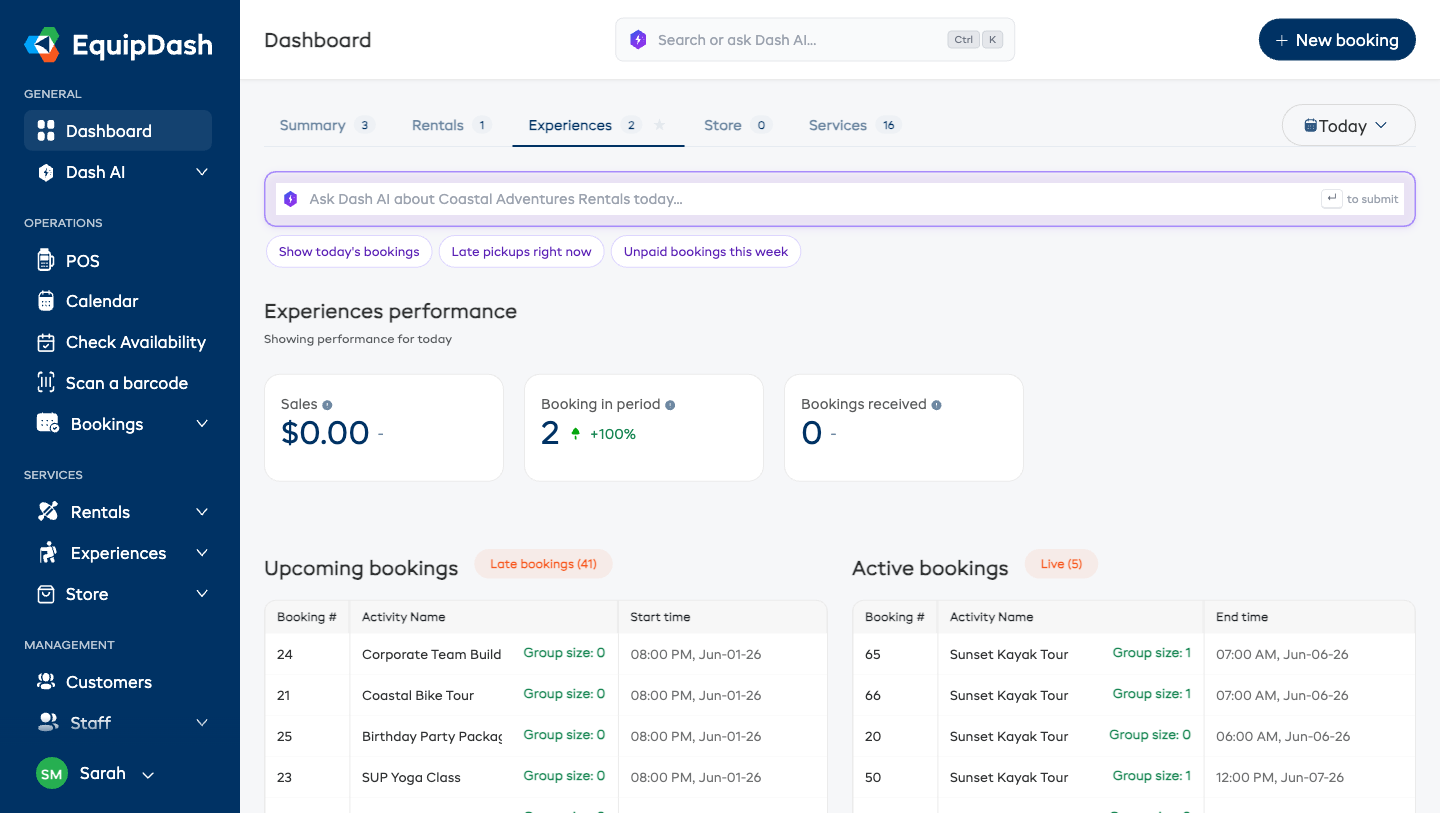
Performance Snapshot Cards
The Experiences tab shows three cards with the same layout as Rentals, but filtered for experience bookings:
| Card | What It Shows |
|---|---|
| Sales | Total revenue from experience bookings received in the selected period |
| Booking in period | Number of experience bookings with a start date in the selected period |
| Bookings received | Number of experience bookings created during the selected period |
As with Rentals, the Sales and Bookings received cards require the Dashboard Revenue permission.
Upcoming Bookings
The left-hand table shows experience bookings that are about to start. Each row displays:
- Booking # — click to open the full booking
- Activity Name — the name(s) of the experience(s) booked, plus the group size
- Start time — when the session begins
If any bookings are overdue to start, a red Late bookings badge appears in the header.
At the bottom, click View all upcoming bookings to jump to the full experiences bookings list.
Active Bookings
The right-hand table shows experience sessions that are currently in progress. Each row displays:
- Booking # — click to open the full booking
- Activity Name — the experience name(s), plus the group size
- End time — when the session is scheduled to finish
A Live badge in the header shows how many sessions are currently running.
At the bottom, click View all active bookings to jump to the full list of ongoing sessions.
Experience Availability Calendar
Below the tables, the Experiences tab includes an embedded Experience availability calendar. This shows upcoming session times and available spots.
Click View experience calendar to open the full calendar page.
Store Tab
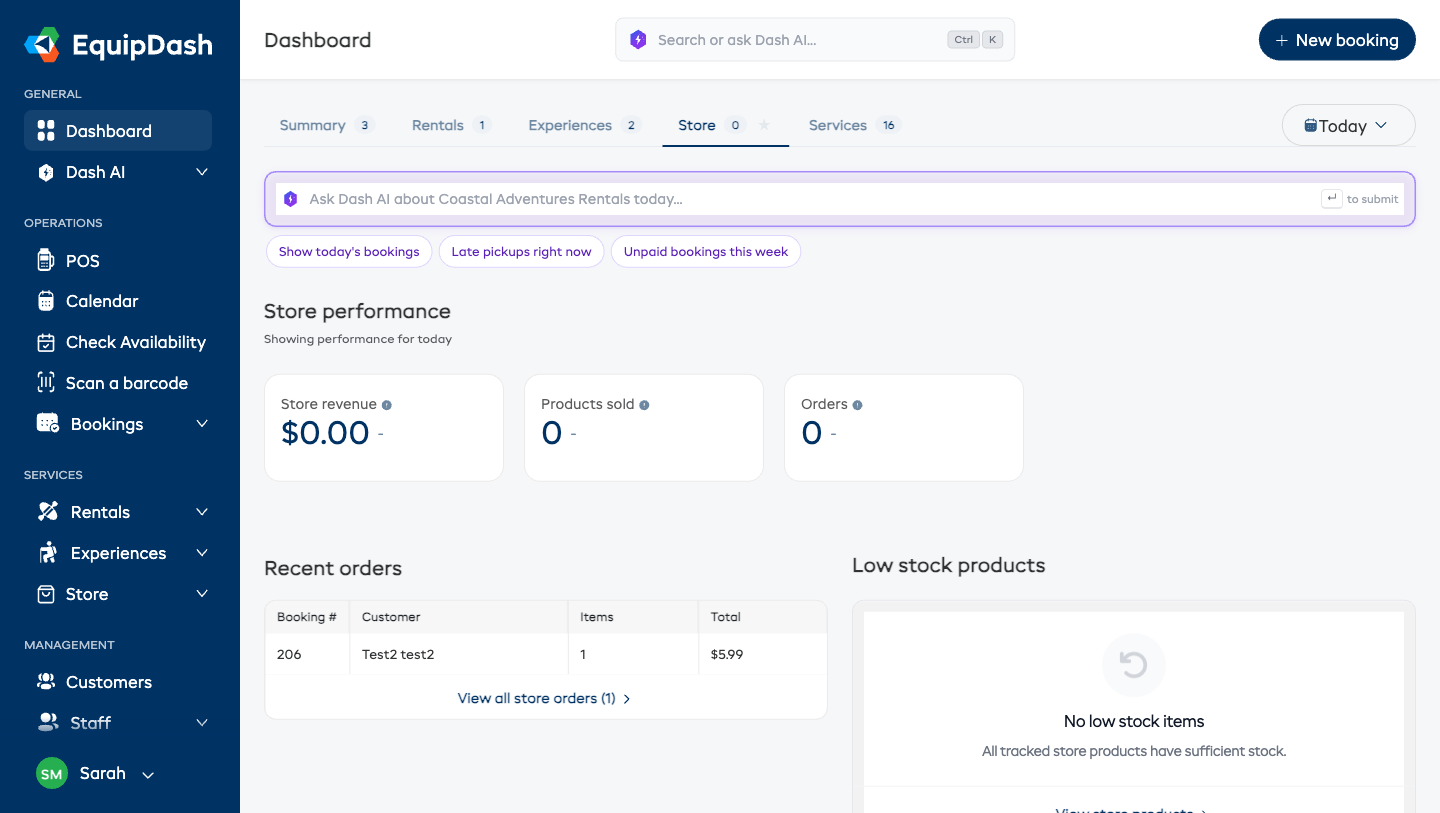
Performance Snapshot Cards
The Store tab shows three cards with different metrics:
| Card | What It Shows |
|---|---|
| Store revenue | Total revenue from store product sales in the selected period |
| Products sold | Total number of individual items sold in the selected period |
| Orders | Number of distinct orders containing store products in the selected period |
The Store revenue and Orders cards require the Dashboard Revenue permission. Without it, you'll only see Products sold.
Recent Orders
The left-hand table shows the most recent orders that include store products. Each row displays:
- Booking # — click to open the full order
- Customer — the customer's name (or "Walk-in" for in-person sales)
- Items — total number of items in the order
- Total — the order total
At the bottom, click View all store orders to jump to the full store orders list.
Low Stock Products
The right-hand table shows store products that are running low on inventory. Each row displays:
- Product — the product name, linked to the product detail page
- SKU — the product SKU (or a dash if none is set)
- Stock — the current stock level, highlighted in red if at zero or below
Products appear here when their stock falls at or below your low stock threshold. At the bottom, click View all store products to see your full product inventory.
You can adjust your low stock threshold in Settings > Store to control when products appear in this table.
Services Tab
The Services tab is the workshop's run sheet — every job on the books, grouped by where it is in its life: Awaiting drop-off → In workshop → Ready for pickup → Picked up. See How Services Work for the full flow.
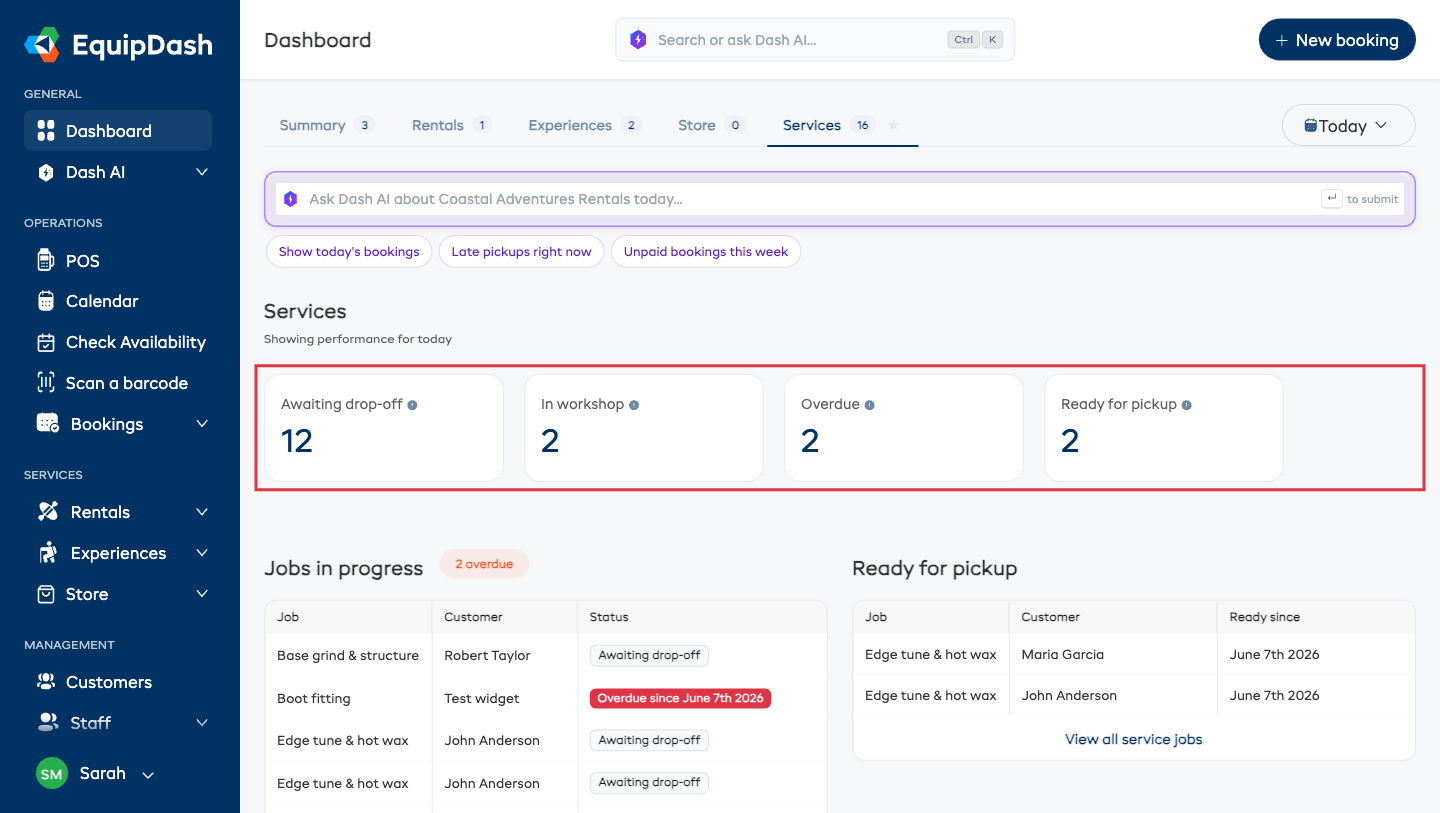
Lifecycle Counters
Four cards across the top count your jobs:
| Card | What It Shows |
|---|---|
| Awaiting drop-off | Booked jobs the customer hasn't brought in yet — who to expect at the counter |
| In workshop | Jobs on the bench right now |
| Overdue | Jobs past their promised ready-by date — the customer is waiting |
| Ready for pickup | Finished jobs waiting to be collected — let the customer know |
Jobs In Progress
The left-hand table lists jobs that aren't finished yet. Each row shows the job name (click to open the booking), the customer, and a status badge — Awaiting drop-off, In workshop, or a red Overdue since [date] when a job has blown past its promised date. If anything is overdue, a red overdue badge also appears next to the table heading.
Ready For Pickup
The right-hand table lists finished jobs waiting to be collected, with the customer's name and how long each job has been ready — your call-the-customer list.
Both tables link to View all service jobs for the full list.
The Services tab is only visible to team members who have permission to view services.
Booking Detail Popup
On the Rentals and Experiences tabs, hovering over a row in any of the booking tables shows a detail popup with a quick summary of that booking. The popup includes:
- The booking reference and status
- Start and end dates
- Customer name and email
- A line-by-line breakdown of products or experiences, quantities, and pricing (subtotal, discounts, deposits, tax, and total)
- A View booking button to open the full booking detail page
This lets you quickly check booking details without leaving the dashboard.
Also On Your Dashboard
- Morning Briefing Growth+This feature requires the Growth+ plan or higher — a daily AI-written summary of what matters today, shown at the top of the dashboard for admins. See Morning Briefing.
- Heads-up banners — warnings such as weather threshold breaches and expiring staff certifications appear at the top of the dashboard whenever they apply to your business. A boat whose inspection or insurance needs renewing is a line on the Dash card instead.
- Ask Dash AI — the ask bar under the tabs answers questions about your business in plain language. See AI Assistant.
Dashboard Permissions
What you see on the dashboard depends on your role and permissions:
| Permission | What It Controls |
|---|---|
| Dashboard Revenue | Whether money figures are visible anywhere on the dashboard — Total sales, per-line Sales, Store revenue, Orders, and Bookings received |
| View services | Whether the Services tab and its worklist rows appear |
All team members can open the dashboard — everyone needs the day's worklist. Without the Dashboard Revenue permission, a team member sees all the operational counts and tables (pick ups, returns, check-ins, workshop jobs) but no revenue figures. If you're an Admin, you see everything by default.
See Roles & Permissions Explained to learn more.
Tips for Getting the Most from Your Dashboard
- Start on Summary each morning — the Happening now card is your whole day in one glance: red chips first, then amber.
- Click the chips, don't go hunting — every count on the Summary tab links straight to the filtered list it describes.
- Star your busiest tab — if you live in one part of the business, open its tab and click the hollow star to make it your starting view.
- Use the date filter to compare today against the last week or month — every tab follows it.
- Hover over bookings to preview details without navigating away.
- Watch the red badges — late pick ups, late returns, and overdue workshop jobs are flagged everywhere they appear.