Login & Access Issues
If you are having trouble logging in to EquipDash or accessing certain pages once you are logged in, this guide covers the most common causes and how to fix them.
Forgotten Password
If you cannot remember your password, you can reset it in a few steps:
- Go to the EquipDash login page.
- Click Forgot Password? below the password field.
- Enter the email address you use to log in to EquipDash.
- Click Send Reset Link.
- Check your inbox for a password reset email from EquipDash.
- Click the Reset Password link in the email and choose a new password.
The reset link expires after 60 minutes. If it has expired, simply go back to the login page and request a new one.
Reset Email Not Arriving?
If you do not receive the password reset email:
- Check your spam and junk folders. The email may have been filtered.
- Confirm you are using the right email address. The reset email is sent to the address associated with your EquipDash account. If you are unsure which email you signed up with, ask your account admin.
- Wait a few minutes. Email delivery can occasionally be delayed.
- Try again. If the email does not arrive after 5 minutes, go back to the login page and request another reset link.
- If you still do not receive it, contact support for help.
Locked Out of Your Account
If you have tried logging in multiple times with the wrong password, your account may be temporarily locked for security.
What to Do
- Wait 15 minutes. The lockout is temporary and will clear automatically.
- After the lockout period, try logging in again with the correct password.
- If you are not sure of your password, use the Forgot Password? link to reset it (see above).
Do not keep trying to log in while your account is locked. Each failed attempt may extend the lockout period. Wait for it to clear, then try once with the correct credentials.
Still Cannot Log In After Waiting?
If you are sure you are using the correct email and password but still cannot log in:
- Clear your browser cache and cookies. Outdated session data can sometimes cause login problems.
- Try a different browser or an incognito/private window to rule out extension conflicts.
- Check that Caps Lock is off. Passwords are case-sensitive.
- If none of this helps, contact support.
Permission Denied Errors
If you can log in but see a "Permission Denied" or "403 Forbidden" message when trying to access a page, it means your user role does not include permission for that action.
Understanding Roles and Permissions
EquipDash uses a role-based permission system. Each team member is assigned a role that determines what they can see and do:
- Admin — Full access to everything
- Manager — Operational access (some restrictions on revenue data and sensitive settings)
- Staff — Day-to-day operations only
- Custom — A tailored set of permissions defined by an Admin
What to Do
- Check which role you have. Ask your account admin what role you are assigned, or check with them directly.
- Ask your Admin to update your role. If you need access to a page or feature you currently cannot reach, an Admin can change your role under Settings > Team by clicking the edit icon (pencil) next to your name.
Admins can view and edit any team member's role by going to Settings > Team, clicking the edit icon next to the team member's name, and selecting a different Role (Admin, Manager, Staff, or Custom Role).
A Team Member Cannot Access Certain Pages
If you are an Admin and one of your team members reports that they cannot access a feature:
1. Check Their Role
- Go to Settings in the sidebar and select Team.
- Click the edit icon (pencil) next to the team member's name in the Actions column.
- Review their Role in the Edit team member panel — if they are set to Staff, they will have limited access by default.
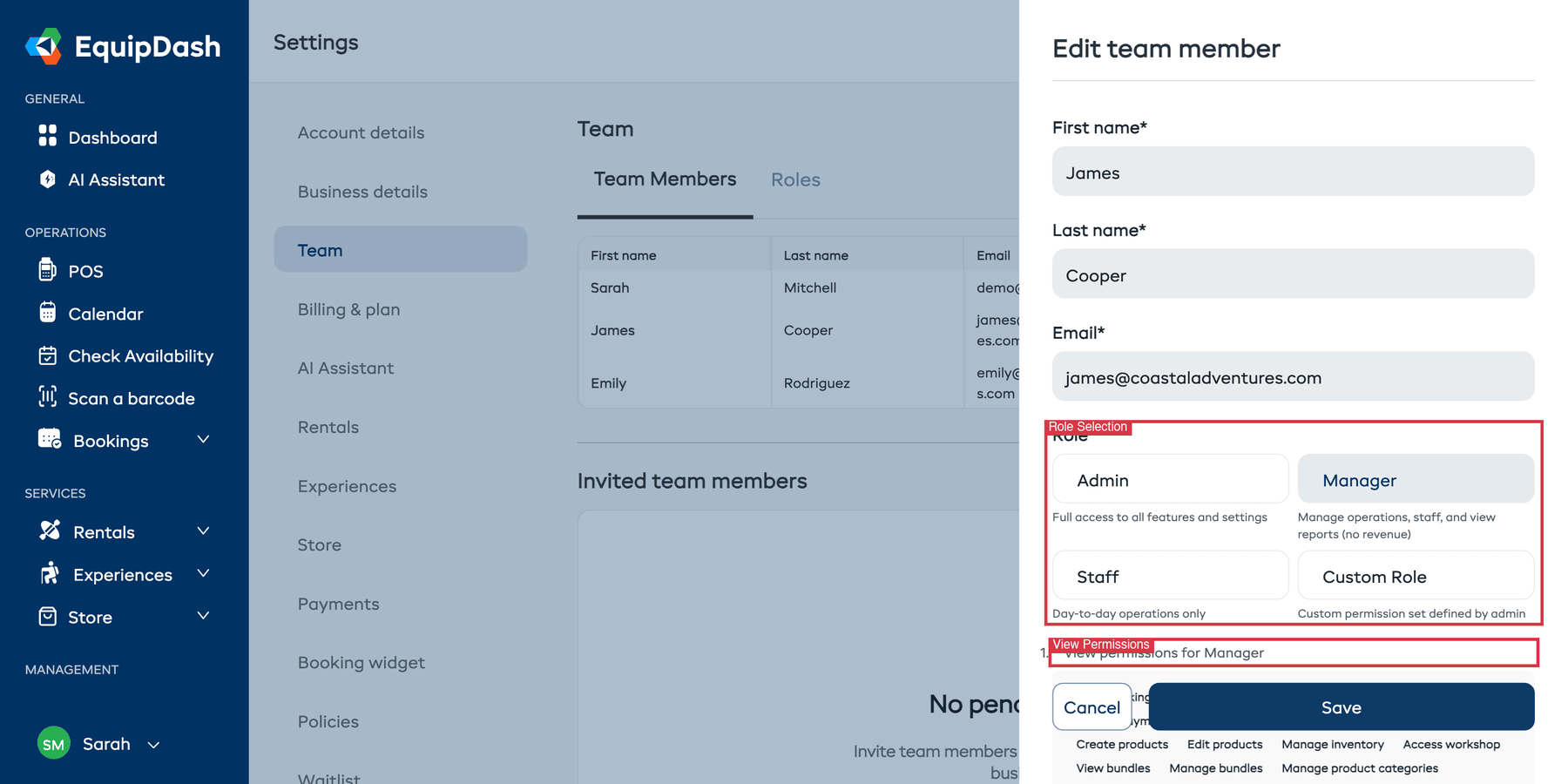
2. Review Permissions for Their Role
Each role comes with a predefined set of permissions. To see what a role includes:
- In the Edit team member panel, click View permissions for [Role] at the bottom to expand the permission list.
- Review the permission tags shown. If the permission they need is missing from their current role, consider changing them to a role with broader access (e.g., from Staff to Manager).
3. Check for Custom Roles
If the team member is assigned a Custom Role:
- Go to Settings > Team and click the Roles tab.
- Find and open the custom role to review its permission set.
- Add any missing permissions and click Save.
Changes to permissions take effect immediately. The team member does not need to log out and back in — they can simply refresh the page.
Invited Team Member Cannot Log In
If you have invited someone to join your EquipDash account but they cannot log in:
- Check that they accepted the invitation. They should have received an email with a link to set up their account. Ask them to search their inbox (and spam folder) for an email from EquipDash.
- Resend the invitation. Go to Settings > Team, scroll down to the Invited team members section, find the pending invitation, and click Resend.
- Check the email address. Make sure the invitation was sent to the correct email. If there is a typo, delete the invitation and send a new one.
- Check your plan limits. Some plans have a maximum number of team members. If you have reached your limit, you may need to upgrade your plan or remove an inactive member before the new invitation will work.
Logging In from a New Device
If you are logging in from a device you have not used before:
- You may be asked to verify your identity via email as a security measure. Check your inbox for a verification code.
- Make sure your browser allows cookies from EquipDash. Blocking cookies can prevent the login session from being saved.
Still Having Login or Access Problems?
If none of the steps above resolve your issue, please contact support with:
- The email address you are trying to log in with
- The error message you see (a screenshot is ideal)
- Whether the issue is with logging in or with accessing a specific page after login
- The browser and device you are using