Global Search & Command Bar
The command bar at the top of every page is two tools in one. Use it to find records — bookings, customers, products, experiences, staff, categories, waivers, and tags — or to ask Dash AI a question about your business in plain English. It is the fastest way to jump to what you need without navigating through menus.
Where to Find It
The command bar is always visible in the top bar of every page, with the placeholder Search or ask Dash AI... and the small Dash AI hexagon icon on the right. You can also open it instantly with a keyboard shortcut.
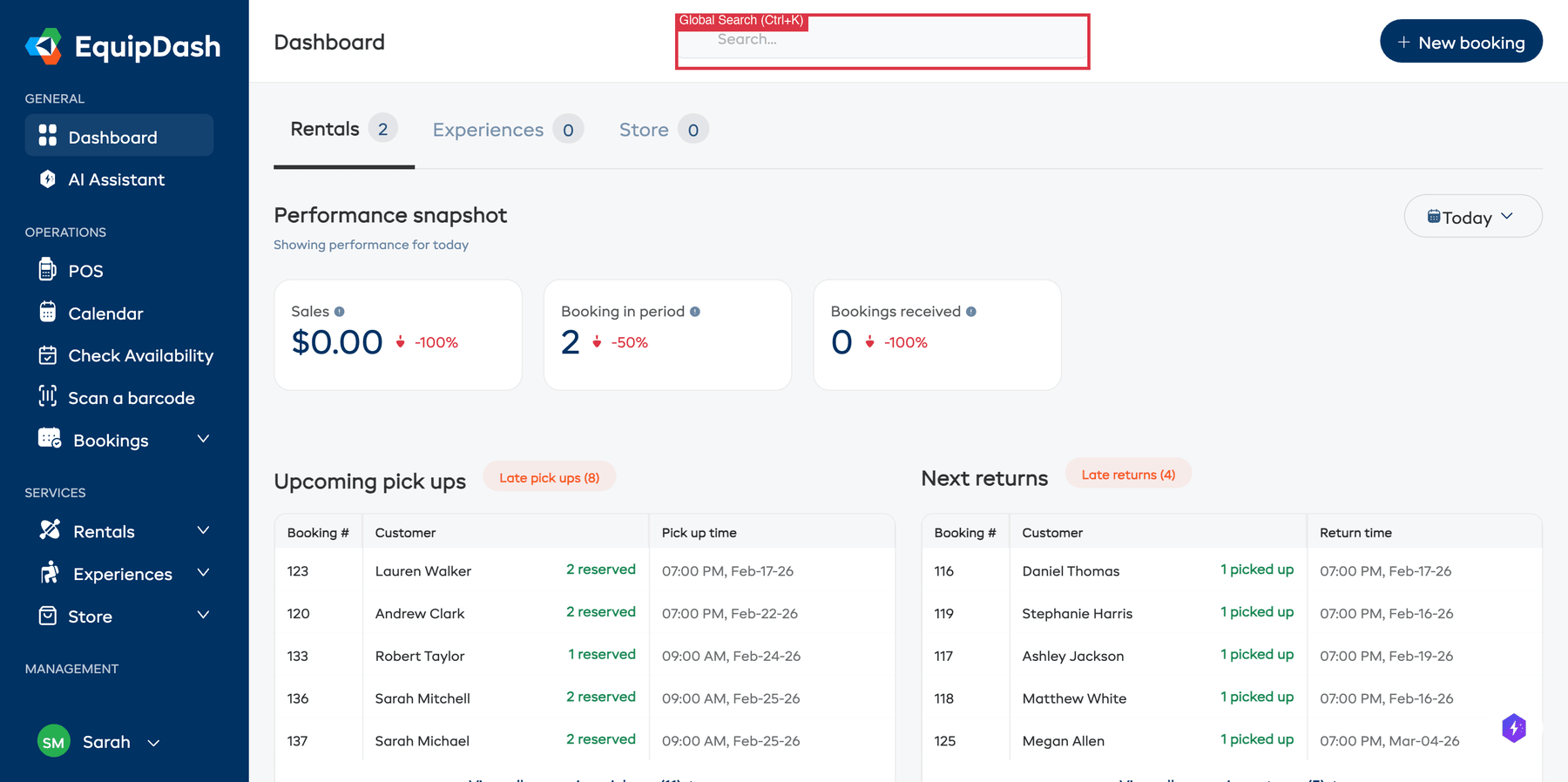
Opening the Command Bar
- Click the search bar in the top bar, or press Ctrl+K (Windows/Linux) / Cmd+K (Mac) from anywhere in EquipDash.
- Before you type anything, a dropdown opens with two helpful sections: Recent and Suggested.
Recent
The Recent section shows your last 3 questions to Dash AI. Click any entry to re-open it as a fresh Dash chat so you can tweak the question or dig deeper into the answer.
Suggested
The Suggested section shows 2–3 starter prompts that are tailored to the page you are currently on. They change as you move around the app so the ideas are always relevant to what you are doing. For example:
- On Bookings, you might see "What's due for return today?", "Show unpaid bookings this week", and "Late returns right now".
- On Customers, you might see "Top customers by revenue", "New customers this month", and "Repeat customers".
- On Products, you might see "Low-stock products", "Most booked this month", and "Products in workshop".
Similar contextual prompts appear on Experiences, Staff, Calendar, Store, Waivers, Reports, and the Dashboard. Click any suggested prompt to send it straight to Dash AI.
Searching for Records
Typing a keyword still works exactly the way it always has — it searches your account for matching records.
- Click the search bar or press Ctrl+K / Cmd+K.
- Start typing at least 2 characters. Results appear in a dropdown as you type.
- Results are grouped by type — for example, Bookings, Products, Customers, and Product Categories.
- Click a result to navigate directly to that item.
- Click View all results (or press Enter without selecting a result) to open the full results page with more detail.
Asking Dash AI a Question
When you want an answer instead of a record, ask Dash AI in plain English and the command bar will hand the question over to the Dash AI sidebar with a brand-new conversation.
- Click the search bar or press Ctrl+K / Cmd+K.
- Type a natural-language question — for example "how many customers do I have", "show me unpaid bookings", or "which products are low on stock".
- Press Ctrl+Enter (Windows/Linux) / Cmd+Enter (Mac), or click the Dash AI hexagon icon, to send the question to Dash AI. The Dash AI sidebar slides open on the right with a fresh chat and starts answering using your live data.
Not sure whether to search or ask? Short, specific strings like booking numbers, SKUs, customer names, or email addresses work best as a search. Anything that sounds like a question — starting with what, how, show me, which, or why — is a great fit for Dash AI.
Full guide: AI Assistant Overview
What You Can Search For
Global Search looks across the following areas of your account:
| Type | What It Searches |
|---|---|
| Bookings | Booking number, customer name, customer email |
| Products | Product name, SKU, ID |
| Store Products | Product name, SKU, ID |
| Experiences | Experience name, unique code, ID |
| Staff | Staff member name, email |
| Customers | Customer name, email, phone number |
| Product Categories | Category name |
| Experience Categories | Category name |
| Waivers & Forms | Waiver and form name |
| Tags | Booking tag name |
Each result in the dropdown includes helpful details. For example, product results show their SKU and an Active badge, booking results show the customer name and a booking type badge (Rental, Experience, or Store), and customer results show their email address.
Results are always scoped to your current business account — you will only see items that belong to your business.
Keyboard Navigation
You can drive the command bar entirely from the keyboard:
| Key | Action |
|---|---|
| Ctrl+K / Cmd+K | Open the command bar from anywhere |
| Arrow Down | Move to the next result or suggestion |
| Arrow Up | Move to the previous result or suggestion |
| Enter | Navigate to the selected result, or open the full results page if nothing is selected |
| Ctrl+Enter / Cmd+Enter | Send what you typed to Dash AI in the sidebar |
| Escape | Close the command bar dropdown |
This makes the command bar especially fast for power users who prefer keyboard navigation.
Full Results Page
If you press Enter without selecting a specific result, or click View all results at the bottom of the dropdown, you will be taken to a full results page. This page shows all matching items grouped by type, with a count badge next to each group heading. It is useful when your search returns many results and you need more context to find the right one.
Tips for Effective Searching
- Be specific — Searching for "mountain" will find all products, experiences, categories, and customers with "mountain" in the name. Adding more words narrows the results.
- Use booking numbers — If you know the booking number, type it directly (e.g. "137") for the fastest lookup.
- Search by email — Customer email addresses are searchable, which is handy when a customer contacts you.
- Search by SKU — Product SKU codes are searchable, useful when you have a product in hand.
- Use keyboard shortcuts — Press Ctrl+K / Cmd+K to open the command bar without moving your hands from the keyboard, and Ctrl+Enter / Cmd+Enter to ask Dash AI.
- Minimum 2 characters — Record search activates after you type at least 2 characters to keep results relevant.
- Let the Suggested prompts guide you — If you are new to Dash AI, the Suggested prompts on each page are a great way to see what it can answer.
Permissions
Global Search respects your account permissions. You will only see results for areas you have access to. For example, if you do not have permission to view customers, customer results will not appear in your search.