Navigating EquipDash
EquipDash is designed to put everything within a click or two. This guide explains every part of the interface so you can move around confidently.
What You'll Learn
- How the sidebar navigation is organized
- How to use Quick Actions to jump to common tasks
- How to search across your entire account with Global Search
- How the account menu and breadcrumbs work
- How to navigate on mobile devices
The Sidebar
The sidebar is your main navigation panel. It runs down the left side of the screen and stays visible on every page.
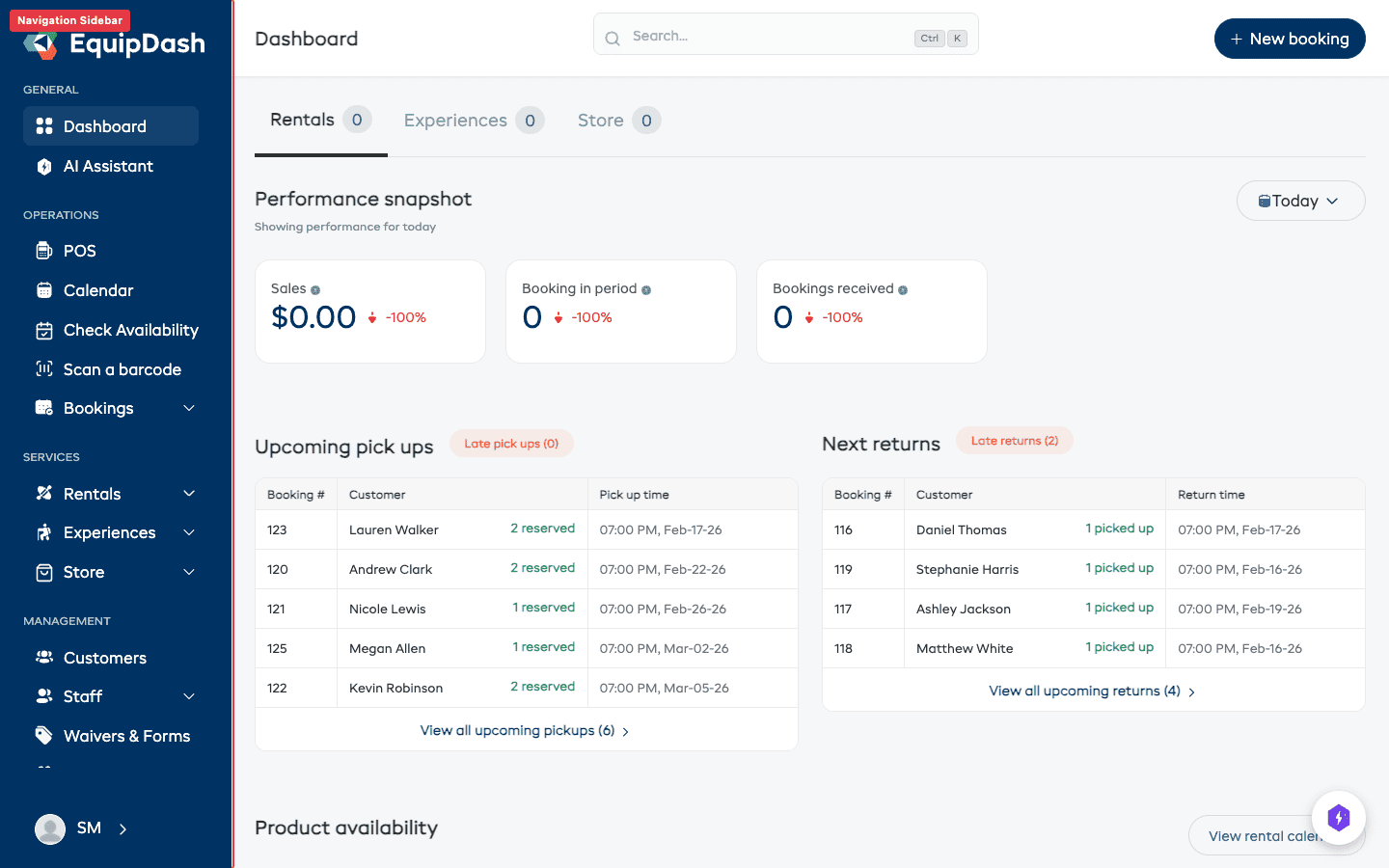
The Rentals, Experiences, and Store sections only appear in the sidebar when their module is enabled. If you don't offer one of them, turn it off in its settings page and the sidebar gets cleaner. See Modules.
Here is what each item leads to:
| Sidebar Item | What It Does |
|---|---|
| Dashboard | Takes you to the main dashboard with your stats, charts, and recent bookings |
| Bookings | View and manage all your bookings — rental and experience |
| Calendar | See your bookings in a visual calendar layout (day, week, month, or list) |
| Rentals | Manage your products, categories, bundles, and workshop |
| Experiences | Manage your activities and tours, schedules, and pricing |
| Customers | Browse and manage your customer database |
| Staff | Manage your team members, roles, availability, and schedules |
| Waivers & Forms | Opens into two pages: digital waivers and forms to build them, and the Consent tracker to see who still hasn't signed Growth+This feature requires the Growth+ plan or higher |
| Promotions | Manage promo codes, vouchers, and campaigns Growth+This feature requires the Growth+ plan or higher |
| Surveys | Create and send customer surveys Growth+This feature requires the Growth+ plan or higher |
| Reports | Access reporting and analytics for your business |
| Settings | Configure your account, business, payments, taxes, team, and more |
Collapsing the Sidebar
On desktop, you can collapse the sidebar to give yourself more screen space. Click the collapse icon at the bottom of the sidebar to switch between the full-width and icon-only views.
Quick Actions
Quick Actions let you jump straight to common tasks without navigating through the sidebar first. You will find the Quick Actions button in the top navigation bar.
- Click the Quick Actions button (or use the keyboard shortcut).
- A menu appears with options like:
- New Booking — Jump to the booking creation form
- New Customer — Add a new customer
- Check Availability — Open the availability checker
- Click the action you want and you will be taken straight there.
Learn about all shortcuts: Keyboard Shortcuts
Global Search Growth+This feature requires the Growth+ plan or higher
Global Search lets you find anything in your account — bookings, customers, products, experiences — from a single search bar.
- Click the Search icon in the top navigation bar, or press the keyboard shortcut to open it.
- Start typing a name, booking reference, email address, or product name.
- Results appear instantly as you type, grouped by category (Bookings, Customers, Products, Experiences).
- Click a result to jump directly to that item.
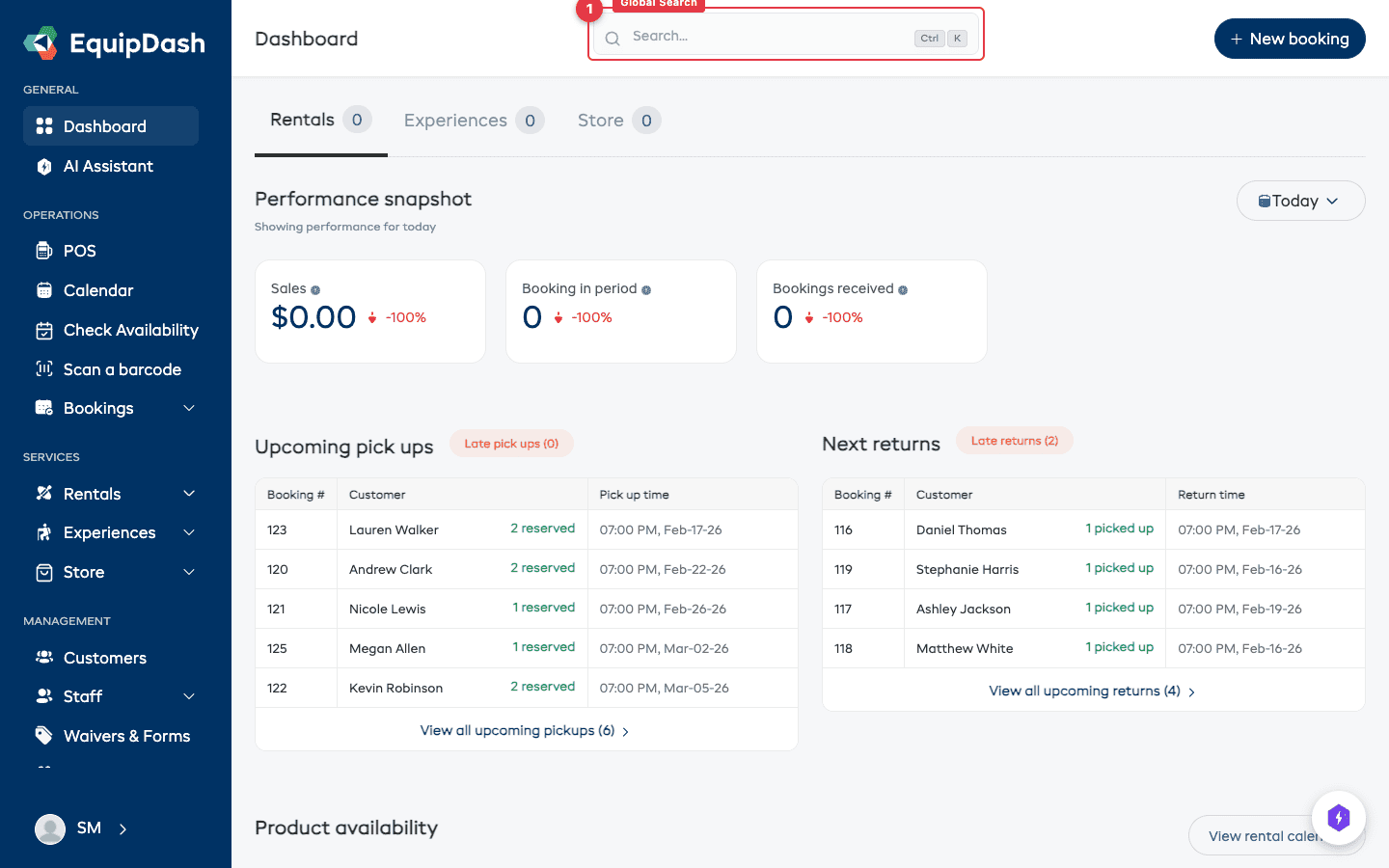
Global Search is the fastest way to find a specific booking or customer. Instead of navigating to the bookings list and filtering, just search for the reference number or customer name directly.
Full guide: Global Search
Account Menu
The Account Menu is located in the top-right corner of the screen. Click your avatar or initials to open it.
From here you can:
- View your profile — See and update your personal details. See Profile Settings.
- Change your password — Update your login credentials. See Change Password.
- Switch Supplier — If you have access to more than one business, switch between them here.
- Log out — End your current session.
Breadcrumbs
Breadcrumbs appear at the top of most pages, just below the top navigation bar. They show you exactly where you are in the app and let you jump back to parent pages with a single click.
For example, when viewing a specific product, you might see:
Rentals > Products > Mountain Bike
Clicking Products would take you back to the products list. Clicking Rentals would take you to the rentals overview.
AI Assistant
The AI Assistant gives you a conversational way to interact with your business data. You can open it from the sidebar or as a floating panel.
- Ask questions like "How many bookings do I have this week?" or "Show me overdue returns"
- The AI uses the same data as the rest of the app, so answers are always up to date
- Your questions and the AI's responses are saved in conversation threads you can revisit
Full guide: AI Assistant Overview
Mobile Navigation
EquipDash works on tablets and phones. On smaller screens, the layout adapts:
- The sidebar collapses into a hamburger menu. Tap the menu icon in the top-left corner to open it.
- Tables become horizontally scrollable so you do not lose any columns.
- Modals and forms stack vertically for easier input.
- Quick Actions and Global Search remain accessible from the top bar.
For the best experience when doing detailed work (building waivers, editing pricing tables, managing schedules), we recommend using a tablet or desktop. The mobile view is great for quick checks and on-the-go management.
Keyboard Shortcuts
Power users can move even faster with keyboard shortcuts. Here are the most useful ones:
| Shortcut | Action |
|---|---|
| / or Cmd+K | Open Global Search |
| N | New Booking (from the bookings page) |
| Esc | Close the current modal or panel |
Full list: Keyboard Shortcuts
Summary
| Interface Element | Where to Find It | What It Does |
|---|---|---|
| Sidebar | Left side of the screen | Main navigation to all sections |
| Quick Actions | Top bar | Jump to common tasks |
| Global Search | Top bar (search icon) | Find any booking, customer, product, or experience |
| Account Menu | Top-right corner | Profile, password, switch supplier, log out |
| Breadcrumbs | Top of each page | Shows your location and lets you go back |
| AI Assistant | Sidebar / floating panel | Ask questions about your data |
| Mobile Menu | Top-left hamburger icon (mobile/tablet) | Opens the sidebar as a drawer |