Creating a Waiver or Form Growth+This feature requires the Growth+ plan or higher
Creating a waiver or form in EquipDash takes just a few minutes. You give it a name, choose what it applies to — or make it a standalone form that isn't tied to anything you sell — and then design the layout in the form builder.
Step-by-Step: Creating a New Form
- Click Waivers in the left sidebar, then Waivers & forms.
- Click the + New waiver/form button in the top-right corner.
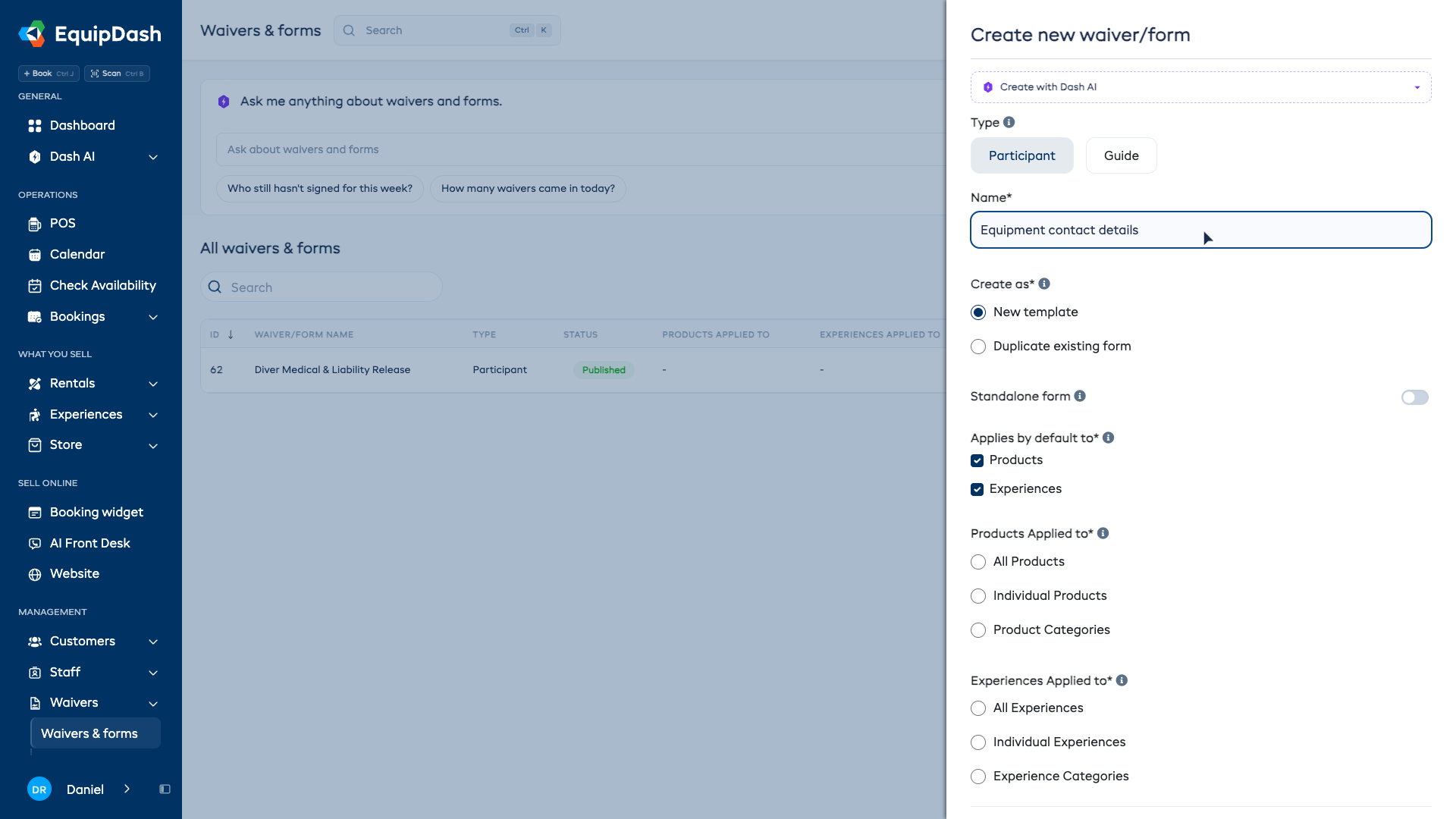
- A sidebar panel opens titled "Create new waiver/form".
-
Enter a Name for the form (e.g., "Liability Waiver", "Health Questionnaire", "Emergency Contact Form").
-
Under Create as, choose one of:
- New template — Start with a blank form.
- Duplicate existing form — Copy the layout from an existing form. When selected, a dropdown appears where you can search and select the form to duplicate.
-
Leave Standalone form off unless this form isn't tied to anything you sell. Switch it on and the Applies by default to section disappears entirely — see Standalone forms below.
-
Under Applies by default to, tick the checkboxes for where this form should be used:
- Products — If ticked, choose how to apply: All Products, Individual Products, or Product Categories, then select the specific items.
- Experiences — If ticked, choose how to apply: All Experiences, Individual Experiences, or Experience Categories, then select the specific items.
noteOnly options for enabled modules appear. If you only have one of Rentals or Experiences enabled, that option is pre-selected for you.
-
Click Create (open form builder).
You are taken to the form builder where you can start adding fields.
Standalone Forms — Not Tied to Anything You Sell
Most forms are attached to what you sell, so they go out automatically with the booking. Some aren't attached to anything — a photo consent, a membership application, a contract you email when someone asks for one. That's a standalone form.
Switch Standalone form on in the create panel and the Applies by default to section disappears — there is nothing to pick, because the form isn't tied to a product or an experience. Nobody is sent it automatically. You decide who gets it, and when:
- Send its link whenever you need it — every published form has a shareable link and a QR code. See Sharing Form Links.
- Attach it to a quote as the agreement — the customer signs it before they can accept the quote. See Agreements on a Quote.
A few things to know:
- The switch is off by default, so nothing about your existing forms changes.
- In the form builder, the Assigned to box reads "Standalone form — sent on its own" instead of listing products and experiences.
- You can change your mind at any time. Open the Assigned to box, switch Standalone form off, and pick what it applies to — or switch it on to detach a form from everything it currently covers. See Assigning Forms.
- A standalone form skips the Advanced settings (signature validity and signing on behalf), because both of those describe how a signature behaves on a booking.
Adding Fields to Your Form
Once you are in the form builder, drag fields from the Form elements panel on the left onto the form canvas on the right. See Form Fields & Builder for a complete guide to all available field types and how the builder works.
Assigning to Products and Experiences
The product and experience assignments you set during creation can be changed at any time from within the form builder. Click the edit icon (pencil) on the Assigned to box in the top-left of the form builder to update assignments. See Assigning Forms for more details.
Publishing Your Form
When your form is ready for customers:
- Click the Publish button in the top-right corner of the form builder.
- Once published, the button changes to Share. Use it to reopen the sharing options.
- A modal opens with the shareable link and QR code for your form.
Published forms can be shared with customers via link or QR code. See Sharing Form Links.
Signing on Behalf of the Participant
Sometimes the person who needs to sign isn't the one who can — a dependent, a group member, anyone who needs an authorized adult to sign for them. Turn on Allow signing on behalf of the participant in the form's settings, and the public form page gets a "Who is signing?" section:
- The signer picks The participant (the default — nothing changes) or An authorized adult.
- For an authorized adult, EquipDash captures their name, email, and relationship to the participant (parent, guardian, carer, partner, or other) before they can submit.
- The response then records who signed and their relationship, shown on the response view and the signed PDF — a clear audit trail.
A few things to know:
- One signature covers one participant. On a booking with several participants, each participant needs their own signed response — a booking is only complete once everyone is signed.
- The setting is off by default; forms work exactly as before until you switch it on.
Consent on File — Keep Signatures Valid for a Period
If the same customers come back again and again, asking them to sign every single time gets old fast. Set Signature valid for on the form and a signature stays valid for that period — 3 months, 6 months, or 12 months — instead of just one booking.
While a signature is valid:
- The customer's next booking shows their waiver as On file until … instead of asking them to sign again.
- They are not re-sent the waiver request and are not chased by consent reminders.
- Their customer profile's Waivers tab shows each signature's validity, with an On file or Expired badge.
When the period runs out, they're simply asked to sign again on their next booking. The default, This booking only, keeps today's behavior — every booking asks for a fresh signature.
Previewing Your Form
Before publishing, preview how the form will look to customers:
- Click the Preview form button in the top-right corner of the form builder.
- A preview panel opens showing the form exactly as customers will see it.
- Close the preview to return to the builder.
Next Steps
After creating your form, you will typically want to:
- Add and arrange fields in the form builder. See Form Fields & Builder.
- Assign it to products or experiences if you did not do so during creation. See Assigning Forms.
- Share a standalone link if you want customers to fill it out independently. See Sharing Form Links.