Viewing Responses Growth+This feature requires the Growth+ plan or higher
Every time a customer fills out one of your forms or signs a waiver, their response is stored in EquipDash. You can view all responses for each form, drill into individual submissions, link them to bookings, and edit them if needed.
Getting to the Responses Page
- Click Waivers & Forms in the left sidebar, then Waivers & forms.
- Click on any row in the table (except the Action column).
- You are taken to the Responses page for that form.
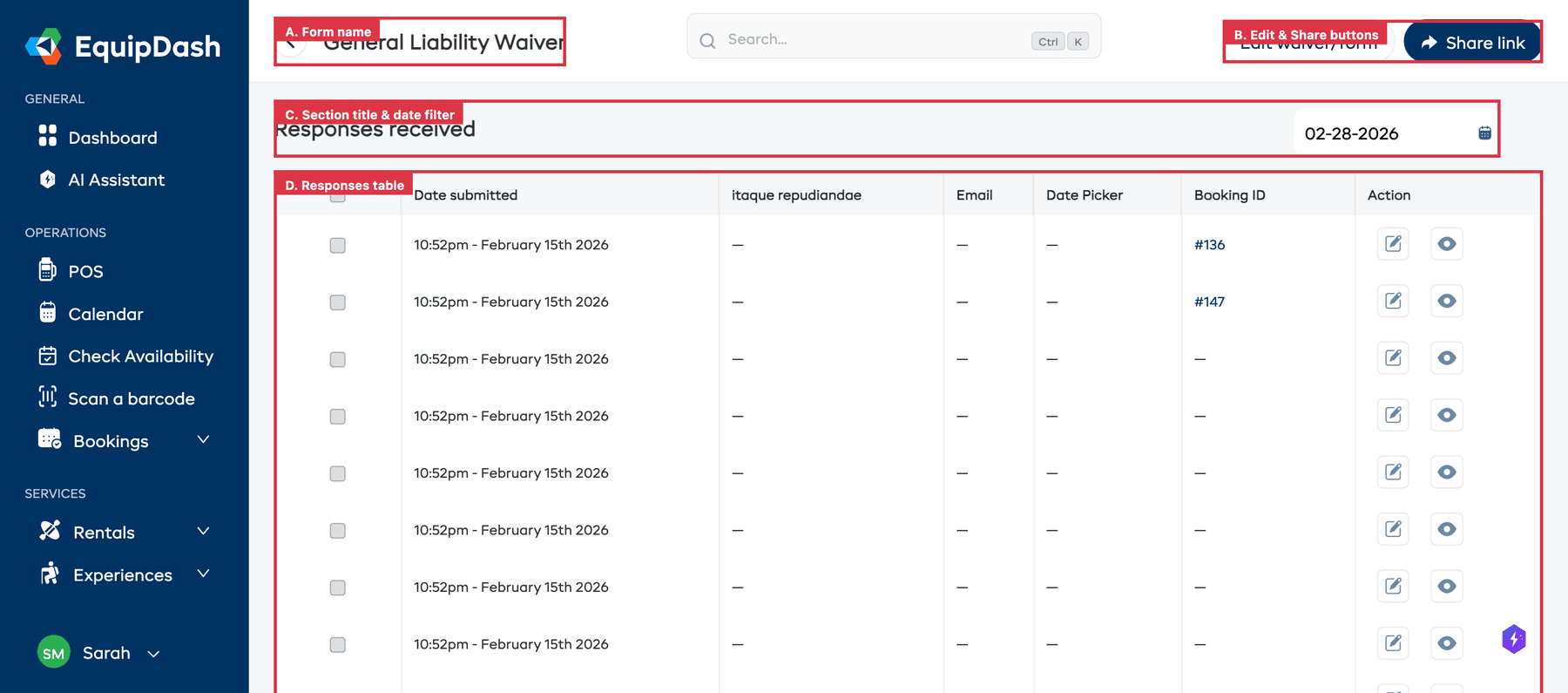
The page shows the form name in the header with a back arrow, and two buttons in the top-right: Edit waiver/form (to jump to the form builder) and Share link (to open the sharing modal).
Understanding the Responses Table
The section is titled "Responses received" and has a date filter in the top-right corner.
| Column | What It Shows |
|---|---|
| Checkbox | Select responses for bulk actions |
| Date submitted | The date and time the response was submitted (e.g., "10:52pm - February 15th 2026") |
| Dynamic field columns | Up to 3 columns showing answers from the form's fields (column names match your form field labels). Choice questions (single choice, multiple choice, dropdown) show the chosen option by name — e.g. "Driver" or, for multiple choice, "Tires, Brakes" — not a number |
| Booking ID | The linked booking reference (e.g., "#136") as a clickable link, or an em-dash if not linked |
| Action | Edit (pencil icon), View (eye icon), and Download PDF (download icon) buttons |
Click the gear icon near the top of the table to customize your columns. Tick a column under Available columns to show it, untick one under Active columns to hide it, and drag columns into the order you prefer. Your layout is saved and shared with your whole team.
Viewing an Individual Response
- Click the view icon (eye) in the Action column for the response you want to see.
- A sidebar panel opens showing the response details.
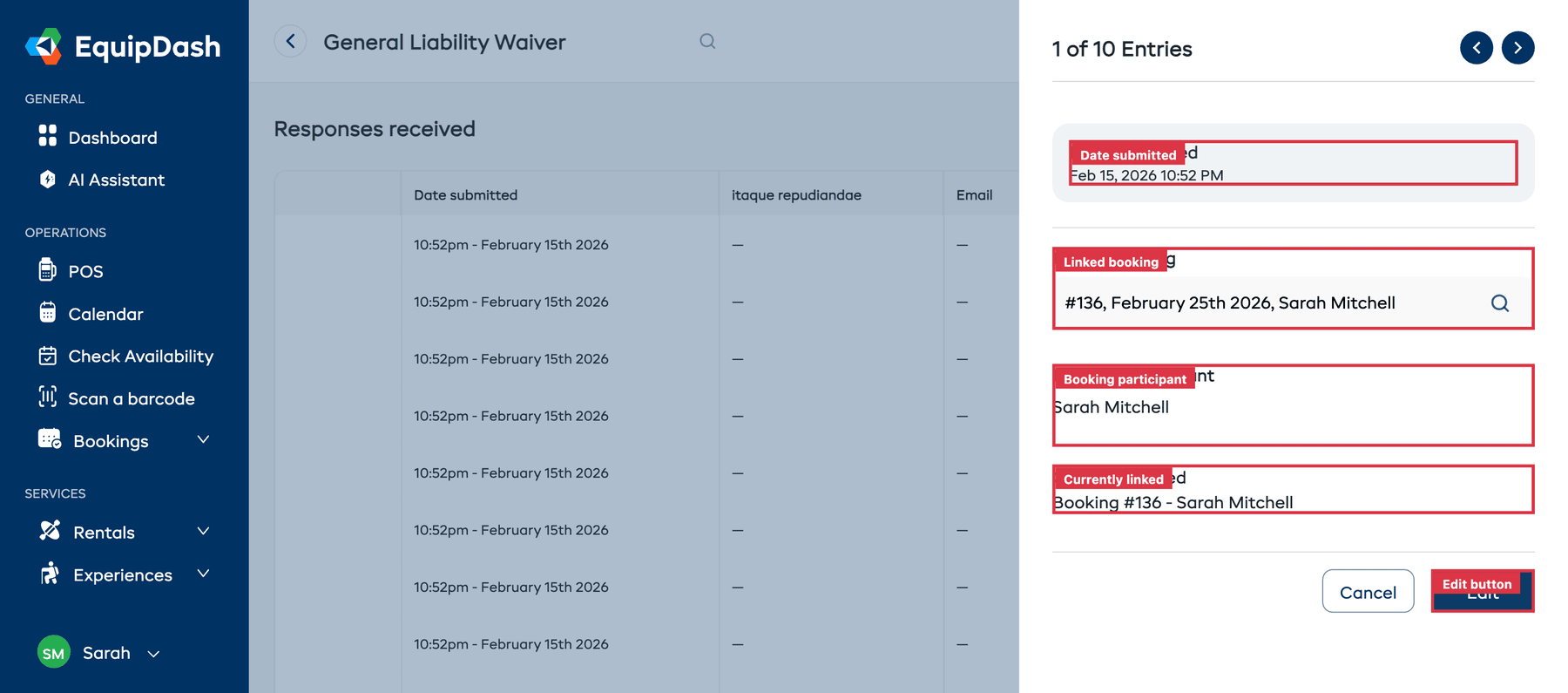
The panel shows:
- Entry counter — e.g., "1 of 10 Entries" with left/right arrows to navigate between responses.
- Date Submitted — When the response was submitted.
- Response data — The customer's answers to each field in the form.
- Linked booking — A searchable dropdown showing which booking this response is linked to. You can search by booking ID or customer name to link/relink it.
- Booking participant — The name of the participant from the linked booking.
- Currently Linked — Shows the current booking link (e.g., "Booking #136 - Sarah Mitchell").
- Click Cancel to close, Download PDF (bottom-left) to save a copy of the signed response, or Edit to switch to edit mode and modify the response data.
Downloading a Response as a PDF
You can download any response as a clean, branded PDF — with every question shown next to the customer's answer, including their signature. This is perfect for keeping a signed contract on file or sending a copy to a customer.
There are two places to do this:
- From the responses table — click the download icon in the Action column of any row.
- From the view panel — click Download PDF in the bottom-left of the response sidebar.
The PDF carries your business name, logo, and contact details at the top, lists each question with its answer, shows the signature image, and includes the response ID and signing date in the footer.
Customers Automatically Get a Signed Copy
When a customer completes a waiver, EquipDash automatically emails them a copy of their signed PDF along with their confirmation email — no action needed from you. It's their proof of what they agreed to, and a tidy record for you.
Surveys don't include a PDF copy (they're feedback, not a signed agreement).
Editing a Response
- Click the edit icon (pencil) in the Action column, or click Edit in the view panel.
- The sidebar switches to edit mode where you can modify the response field values.
- Click Update to save your changes.
Linking a Response to a Booking
From the view/edit panel, you can link or change which booking a response is associated with:
- Open the response (click the view or edit icon).
- In the Linked booking field, use the search dropdown to find a booking by ID or customer name.
- If the booking has multiple participants, select the correct Booking participant from the dropdown.
- Click Update to save the link.
Filtering Responses by Date
Use the date filter in the top-right corner of the Responses page:
- Click the date picker field.
- Select a date or date range.
- The table filters to show only responses submitted on or before that date.
- Click Clear filters to reset.
Bulk Deleting Responses
To delete multiple responses at once:
- Tick the checkboxes on the left side of the rows you want to delete.
- A "Delete X entries" button appears.
- Click it and confirm the deletion.
Deleted responses are permanently removed and cannot be recovered.
Checking Completion from a Booking
You can also check form completion from the booking side:
- Open a booking's detail page and scroll to Booking participants.
- The card header shows the booking's overall progress, e.g. 1 of 2 signed, and each person shows their own count.
- Under each person, one line per form: Signed, On file (signed earlier and still valid), or Pending.
- Next to a signed line, click the download icon to grab that participant's signed PDF without leaving the booking. Next to a pending one, copy the signing link or click Open to fill it in on the spot.
- Click the history icon beside anyone's name to see their full record — what was sent, whether they opened it, and when the next reminder is due.
This two-way link makes it easy to verify that a customer has completed their required forms before their booking starts — and to pull their signed contract on the spot. See Following One Person's Consent for the full picture.
Tips
- Use the entry navigation arrows. When viewing a response, use the left/right arrows in the header to quickly move through all responses without closing the panel.
- Link responses to bookings. Linking responses to their bookings makes it easy to verify that a customer has completed their required forms before their booking starts.
- Link standalone responses to bookings. If customers fill out forms via shared links before booking, link the responses to their bookings later so everything is connected.
- Review responses before the booking date. For critical waivers, check that all participants have submitted their responses before the activity or rental starts.
- Check the Booking ID column. Responses with a linked booking show a clickable booking reference (e.g., "#136") that takes you directly to that booking's detail page.
- Keep signed contracts on file. Use Download PDF to save a signed waiver as a branded document — handy for disputes, insurance, or your own records.
- Clean up test data. Use bulk delete to remove any test submissions you made while setting up your forms.