Form Fields & Builder Growth+This feature requires the Growth+ plan or higher
The form builder is where you design the layout of your waivers and forms. You can add, arrange, and configure fields to collect exactly the information your business needs.
The Builder Interface
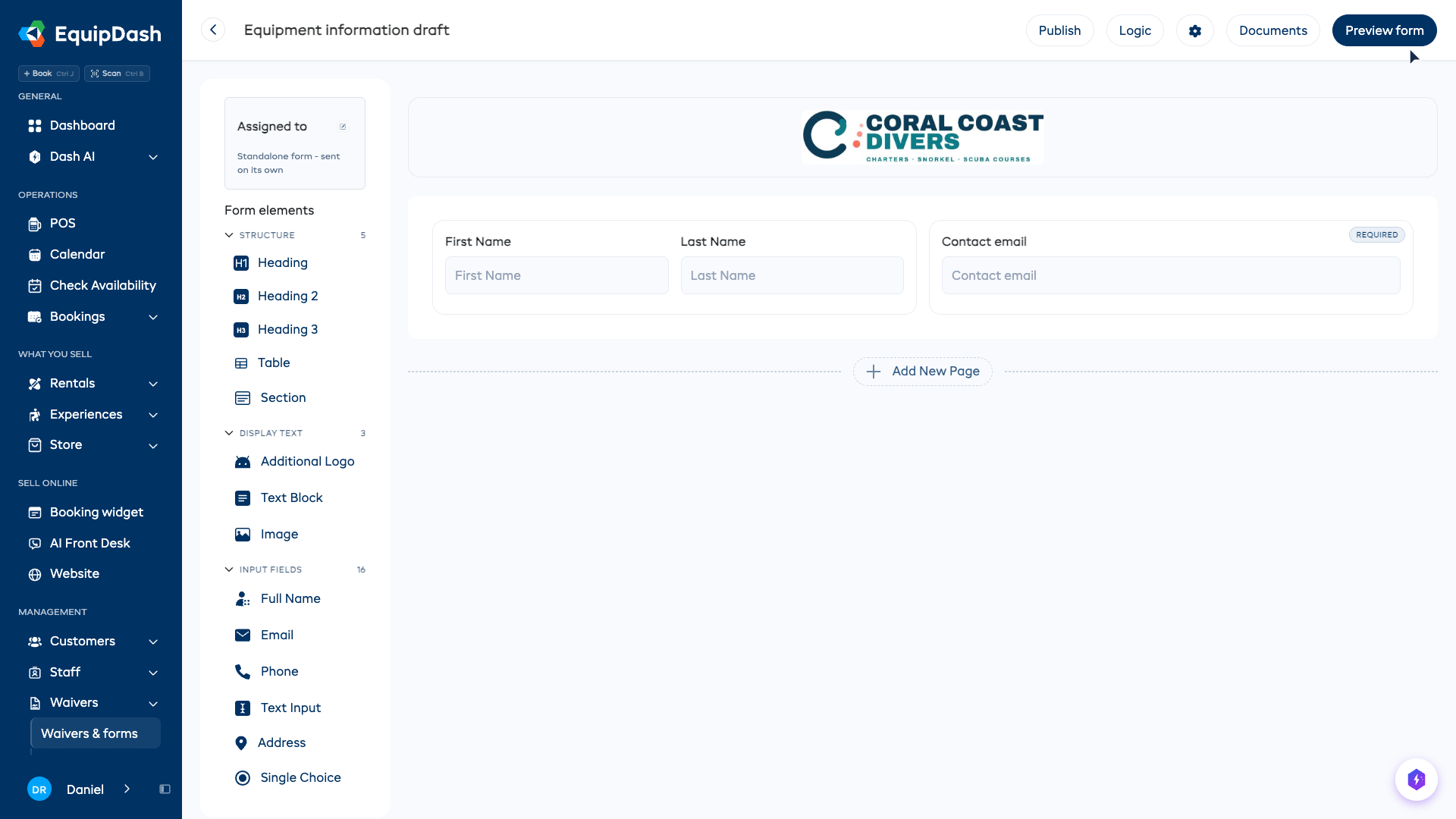
The form builder is split into several areas:
-
Top bar — Shows the form name (with a back arrow), plus Publish (or Share, once the form is live), Logic, Documents and Preview form buttons.
-
Assigned to (top-left) — Shows which products and experiences the form is currently assigned to, with an edit icon to change assignments.
-
Form elements panel (left sidebar) — All the elements you can add, grouped under four headings so the list is quick to scan:
- Structure — Heading, Heading 2, Heading 3, Table, Section
- Display text — Additional Logo, Text Block, Image
- Input fields — everything the customer fills in (Full Name, Email, Date Picker, Single Choice, and so on)
- Signatures — Signature, Initials
Click a heading to fold that group away. EquipDash remembers which groups you folded, so the list looks the same next time you open the builder.
-
Form canvas (center) — The main area where your form takes shape. Fields appear here in the order customers will see them. Your business logo is shown at the top.
Available Field Types
The following elements are available in the Form elements panel:
| Element | Description | Use Case |
|---|---|---|
| Heading | A large heading with an optional sub-heading, for organizing form sections | Separating form sections (e.g., "Personal Details", "Health Information") |
| Heading 2 | A medium sub-section heading | Sub-sections under a main heading (e.g., "On the water") |
| Heading 3 | A smaller sub-section heading | Finer sub-sections (e.g., "2.1 Speed limits") |
| Full Name | A combined first name and last name field | Collecting the customer's full name |
| A text input with email validation | Collecting email addresses | |
| Phone | A text input for phone numbers | Contact numbers |
| Signature | A signature pad for e-signatures | Waivers, rental agreements, liability releases |
| Text Input | A multi-line text area | Comments, special requests, medical notes, legal text |
| Address | A structured address field with multiple sub-fields | Collecting full mailing addresses |
| Single Choice | A set of options shown as radio buttons where only one can be selected | Yes/No questions, skill level, t-shirt size |
| Multiple Choice | A set of options where multiple can be selected | Interests, dietary requirements, equipment needed |
| Dropdown | A drop-down list where the customer picks one option — tidier than radio buttons when there are several choices. Configure the list of options | Relationship to an emergency contact, how they heard about you, country |
| Additional Logo | Adds an extra logo or image to the form | Branding, partner logos |
| Date Picker | A date selection field | Date of birth, arrival date |
| Time Picker | A time-of-day field | Planned departure time, return time, pickup time |
| Initials | A short field for a customer's initials, shown in uppercase. Place one after each section a customer must initial | Section-by-section acknowledgement of risk clauses, contract terms |
| Short Text | A single-line text input | Names, short answers, reference numbers |
| Long Text | A larger multi-line text area | Detailed descriptions, additional information |
| Star Rating | A 1–5 star rating selector | Feedback ratings, experience ratings |
| Text Block | A block of formatted text that is not a form field. Use the toolbar for bold, italic, underline, bullet and numbered lists, and links | Instructions, rental conditions, codes of conduct, legal disclaimers |
| Agreement | A single tick-to-agree checkbox. Set the statement the customer must accept | "I accept the rental conditions", code-of-conduct acknowledgements |
| File Upload | An upload field for images (JPG, PNG, HEIC, WEBP) or PDFs, up to 10 MB | Driver's license photos, boater's safety or dive certifications, proof of insurance |
| Table | A grid of rows and columns. Each cell holds either words you type or a question you drag in — see Build a Table | Kit checklists, condition grids, a row per person, sign-out sheets |
| Image | A picture you upload to show on the form — decoration only, not something the customer fills in. Align it left, center, or right | A partner logo, a safety diagram, a sponsor banner, a map |
Adding a Field
- Drag the field type from the Form elements panel on the left onto the form canvas.
- The field appears where you drop it.
- Hover over the field in the canvas. Move up and Move down appear on the left; Edit, Duplicate, Columns, and Delete appear on the right.
Editing a Field
- Click on a field in the form canvas to select it.
- Click the edit icon (pencil) that appears on the right side.
- The Edit Field sidebar panel opens with settings for that field.
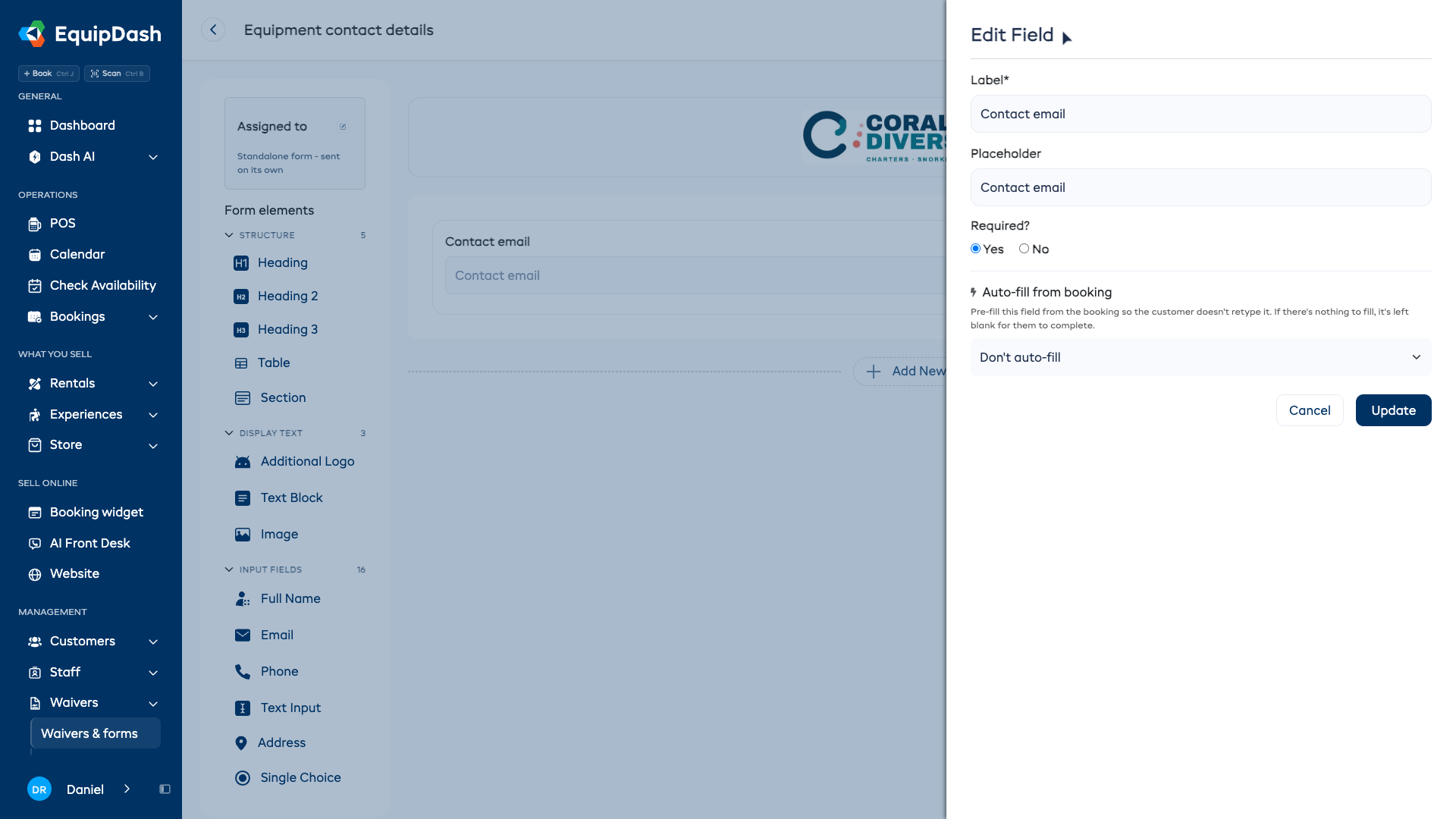
Common settings include:
- Label — The question or label shown to the customer (e.g., "Full Name", "Do you have any medical conditions?").
- Placeholder — Hint text inside the field before the customer types. As you type the Label, the Placeholder fills in to match — so you usually don't need to touch it. The moment you write your own Placeholder it stops following, and it starts following again if you clear it.
- Required? — Choose Yes or No to set whether the field must be filled in before the form can be submitted.
- Options — For Single Choice and Multiple Choice fields, enter the list of choices.
- Content — For a Text Block, write the text in the formatting editor (bold, italic, underline, bullet and numbered lists, and links). Keep long terms in a Text Block and pair it with a short Agreement checkbox below.
- Agreement text — For an Agreement field, enter the statement the customer ticks to accept. Agreements are required by default, so the customer must tick the box before submitting.
- Click Update to save your changes, or Cancel to discard them.
Place Two Fields Side by Side (Columns)
By default every field takes the full width of the form, stacked one above the other. You can put two fields side by side on the same row to make the form shorter and tidier — for example a short "City" next to a "Zip/Post Code", or a date next to a reference number.
To set it up:
- Click a field in the form canvas to select it.
- Click the columns icon (two bars) that appears on the right side. The field shrinks to half-width and an empty "Drag a field here" box appears beside it.
- Drag a field into that empty box — either a new field from the Form elements panel on the left, or an existing field already on the form. The two fields now sit side by side on one row.
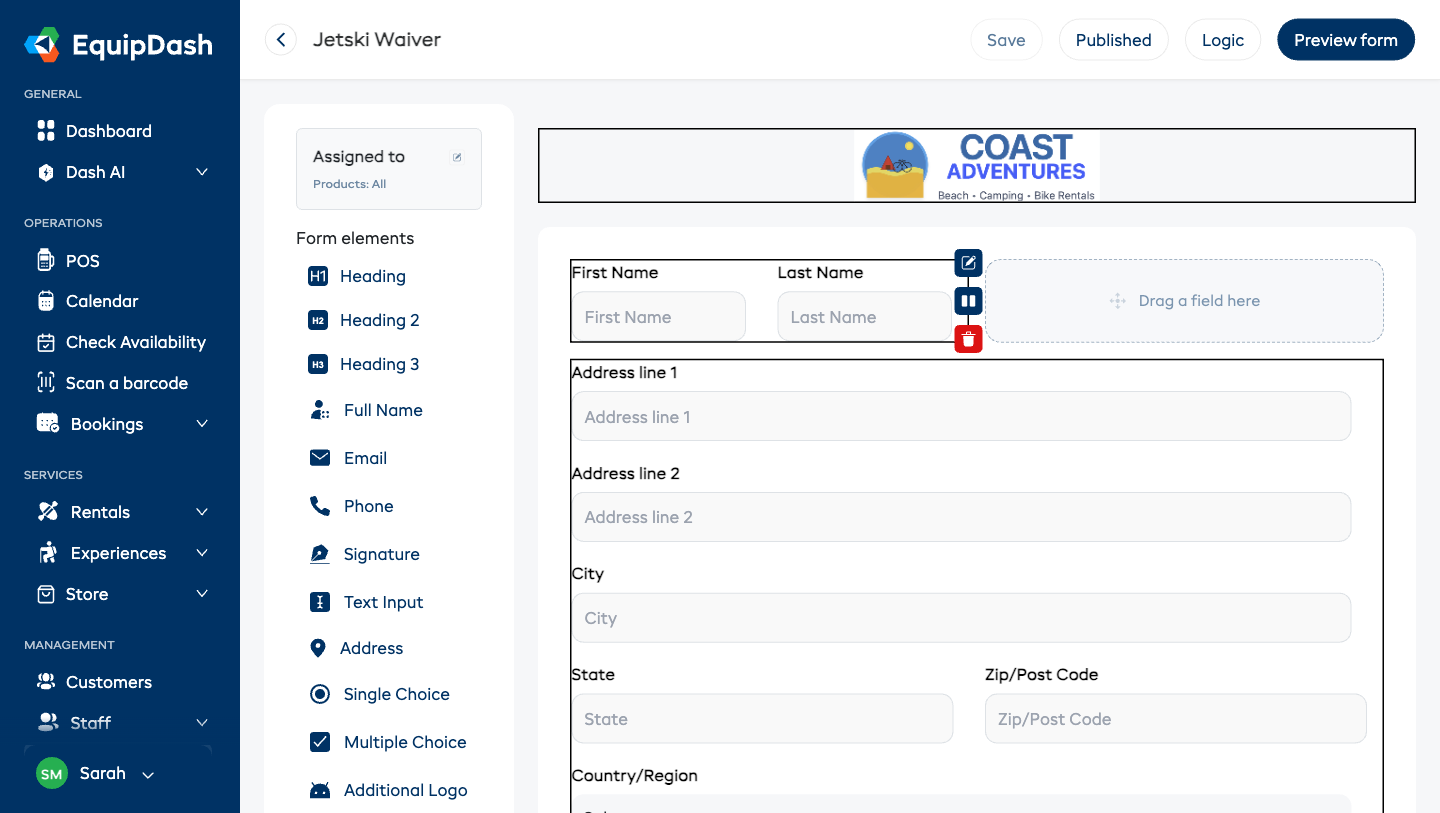
To go back to full width, select either of the side-by-side fields and click the columns icon again — the row un-splits and both fields return to full width, stacked.
A few things to know:
- Two columns, not three. A row holds at most two fields side by side. Make a third field a column and it starts a new row.
- On phones, side-by-side fields stack. Customers on a small screen always see one field per line, so nothing is squashed.
- An empty second column never shows a gap. If you split a field but leave the second column empty, customers simply see that field at normal full width.
Reorder Fields With the Arrows
Dragging is fine for a short form, but on a long one it's fiddly — especially on a tablet. Every field has move up and move down arrows in its hover buttons, so you can nudge it a place at a time.
- The arrows move a field within its own list. A question inside a section moves among that section's questions; everything else moves among the fields on the page.
- A Section moves as a whole — its questions travel with it.
- The up arrow is hidden on the first field and the down arrow on the last, so there's never a button that does nothing.
To move a question into or out of a section, drag it — that's a different kind of move, and the arrows deliberately leave it alone.
Build a Table
A Table lays out a grid on your form. Each cell holds either words you type or a question the customer answers — so you can build a kit checklist, a condition grid, or a row per person, instead of a long list of separate questions.
To add one:
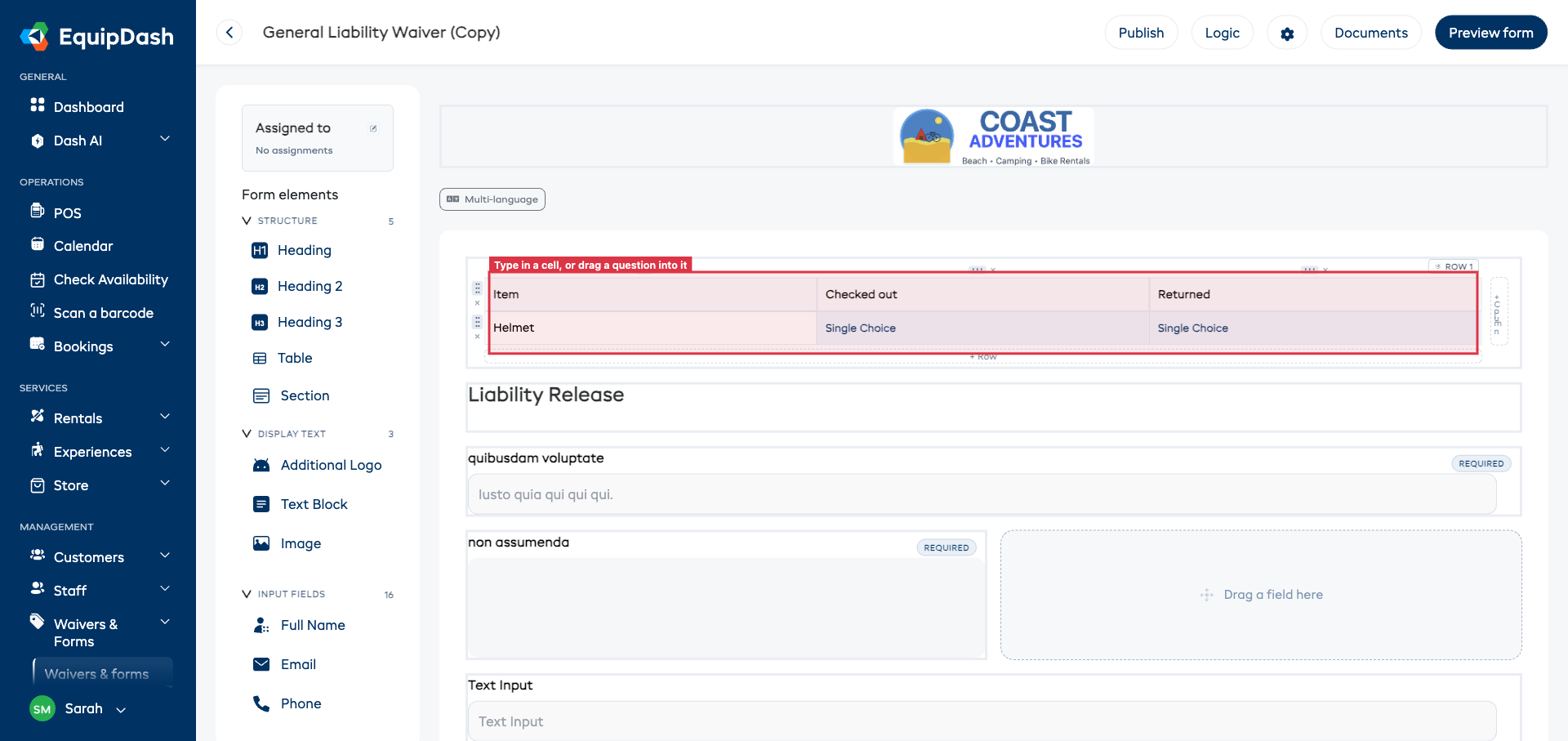
- Drag Table from Structure in the elements list onto the form. You get a small grid with a bold first row.
- Click any cell and type to put words in it — column headings like "Item", "Checked out", "Returned".
- Drag a question into a cell from the elements list. That cell becomes something the customer fills in.
- Hover the table to reveal its controls:
- + Row along the bottom edge and + Column along the right edge.
- A grip above each column and beside each row — drag it to move that whole row or column.
- An × next to each grip to delete that row or column.
- Row 1 (top-right) to turn the bold first row on or off.
A few things to know:
- Not every element fits in a cell. A cell holds one question or some words, so Full Name, Address, a Section, or another Table can't go in one. Drag one over a table and the grid turns red to tell you before you let go — the element isn't added anywhere, and EquipDash names the one it refused.
- Deleting a row or column asks first if there's anything in it. An empty one goes straight away.
- Tables can be half-width too — use the columns button, exactly like any other field.
- On phones the table scrolls sideways rather than squashing, so the columns stay readable.
- Each cell question is its own question. It keeps its own label, its own Required setting, and its own answer — the table is just how they're arranged.
Put Booking Details Into Your Wording
You can drop a live detail from the booking straight into your text — the customer's name, the organization they booked for, the dates, the balance — and EquipDash fills it in when they open the form.
- Click into a Text Block, or a table cell you're typing in.
- Click Insert a booking detail.
- Pick the value you want. It appears as a small blue chip in your sentence.
For example: "This agreement is between us and Organization name." — the customer sees their own organization's name in that spot.
A few things to know:
- You never type any codes. Pick from the list and EquipDash handles the rest.
- In the builder you see the chip; the customer sees the value. The preview shows the chip too, because there's no real booking to fill in yet.
- If there's nothing to fill in, nothing shows. A customer who isn't booking on behalf of an organization simply sees the sentence without it — no gap, no leftover code.
- It works everywhere the form does — the shared link, checkout, the response you read back, and the signed PDF.
Group Fields Into Sections
When a form gets long, you can group related questions into a Section — for example "Emergency contact", "Rental period", or "Health details". Sections make a big form much easier to build and rearrange: you can move a whole group of questions at once, and collapse groups you're not working on.
Sections are a building tool only — your customers never see a "section" box. The form they fill in is still one clean list of questions; sections just help you organize and control them behind the scenes.
To add a section:
- Drag the Section element from the Form elements panel onto the form.
- Click the section's title to rename it (e.g. "Emergency contact").
- Drag questions into the section's dashed area — either existing questions already on the form, or a brand-new element dragged straight from the Form elements panel.
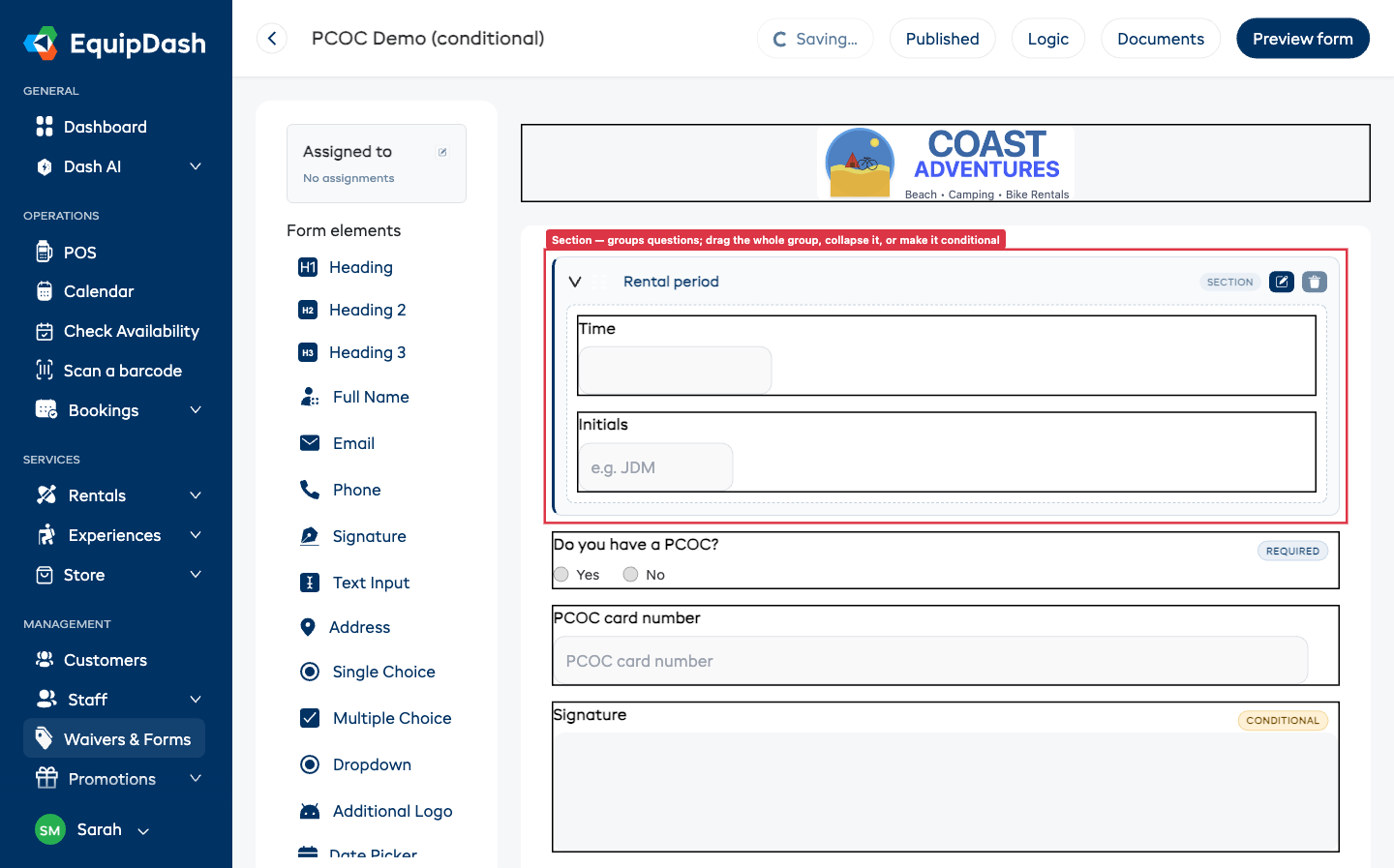
To move the whole group, drag the section by its header — every question inside moves with it. To take a question out, drag it out of the section's area.
A few things to know:
- Customers never see sections. The live form, the signed PDF, and checkout all show a normal flat list of questions — sections only exist in the builder.
- Deleting a section keeps its questions. Remove a section (the trash icon in its header) and the questions inside simply become ungrouped — they stay on the form.
- Two half-width questions can sit side by side inside a section too — use the columns button on each, just like elsewhere on the form.
Show or Hide a Whole Section
You can make an entire section appear only when an earlier answer matches — handy when a whole block of questions only applies in certain cases (e.g. show the "PCOC details" section only if the customer said they have one).
- Click the pencil icon in the section's header.
- Tick "Show this question only if…" and build the rule — choose the earlier question, the comparison, and the answer to match.
- Click Update.
Now the whole section — every question in it — stays hidden until the customer's answer matches, and appears together when it does. A section with a rule shows a Conditional tag in its header.
Collapse a Section While Building
Click the chevron on the left of a section's header to collapse it — the questions inside fold away and the header shows how many fields it holds (e.g. "3 fields"). This is purely to keep a long form tidy while you build; it has no effect on what customers see. Click the chevron again to expand it.
Field Tags: Required & Conditional
In the builder, each question shows small tags in its top-right corner so you can see its setup at a glance:
- A Required tag means the customer must answer it before submitting.
- A Conditional tag means the question only shows when an earlier answer matches (see Show a Field Only When Needed above).
A question can show both tags at once. Change either setting from the question's Edit Field panel (the pencil icon).
Duplicate a Field
To reuse a question's setup, hover over it and click the duplicate icon (two overlapping squares) on the right. An exact copy — same label, options, required setting, and any rule — is added right below the original, ready for you to tweak. This is the fastest way to build several similar questions (e.g. one for each traveller).
It works on the bigger pieces too:
- Duplicate a Section and you get the whole group — the section and every question inside it.
- Duplicate a Table and you get the same grid: the same rows and columns, the words you typed, and the questions in their cells.
Duplicate a Whole Form
To start a new form from one you've already built, use Duplicate on the row in Waivers & Forms. The copy is a complete, independent form — change it as much as you like and the original is untouched.
Everything comes across: your sections and the questions in them, tables with their rows, columns and cell contents, any Show this only if… rules (pointing at the questions in the copy, not the original), and any booking details you inserted into your wording — those stay live, so the copy fills them in from its own bookings.
Adding Images & Aligning Them
You can place your own pictures on a form for decoration — a partner logo, a safety diagram, a sponsor banner. These are display only: customers see them but don't fill anything in, and they never appear in a customer's submitted answers or the signed PDF.
- Drag the Image element from the Form elements panel onto the form.
- Click the upload box (the dashed area with a +) and choose a JPG or PNG.
- With the image selected, a small left / center / right toolbar appears at the top — click to align the picture.
- Resize it: hover over the image and drag the small square at its bottom-right corner up or down to make it smaller or bigger — exactly like the logo.
- Want two pictures side by side? Use the columns button (just like fields) and drop a second Image beside the first.
Two Images in the Header (Logo + a Second Image)
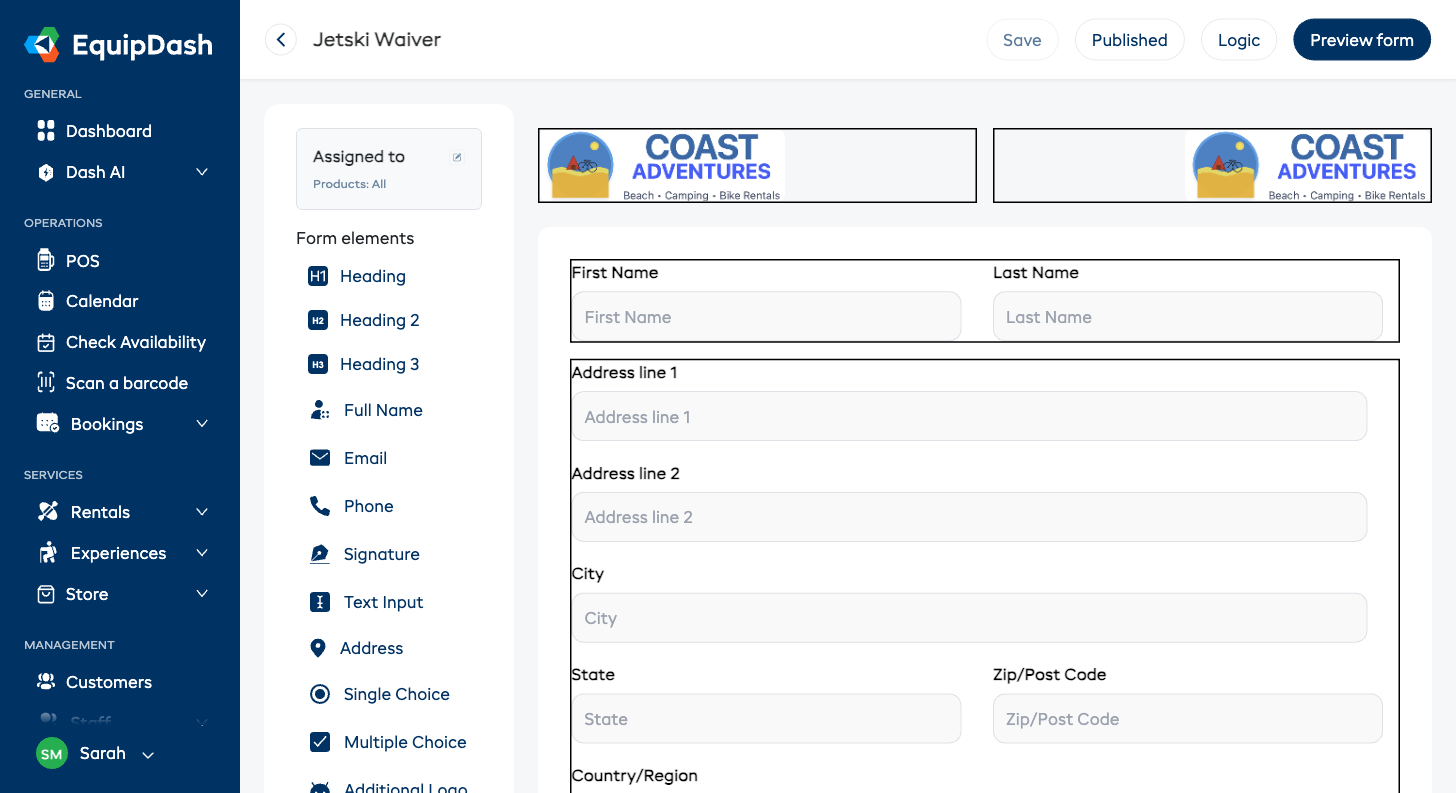
The logo at the very top works the same way. Select it and click the columns icon — the logo moves to the left half and an "Upload an image" box appears on the right. Upload a second picture there to show, say, your logo on the left and a partner's logo on the right. Each one can be aligned left, center, or right and resized (drag the small square at its bottom-right corner) independently.
A few things to know:
- Your customers' saved answers and PDFs are unchanged. Decorative images are just for the look of the form — they're never recorded as an answer.
- On phones, side-by-side images stack so nothing is squashed.
- The logo, emails, and the printed waiver still use your main business logo from Settings — adding a second header image here only changes how the form itself looks.
Show a Field Only When Needed (Conditional Logic)
Sometimes a question only makes sense based on a previous answer. For example, you only need a customer to upload their PCOC (Pleasure Craft Operator Card) if they answered "Yes" to having one. Conditional logic lets you keep a field hidden until an earlier answer matches — so customers only ever see the questions that apply to them.
To set it up:
- Add the field you want to show conditionally (e.g., a File Upload for the PCOC).
- Add the question it depends on above it (e.g., a Single Choice "Do you have a PCOC?" with options Yes/No).
- Open the conditional field's Edit Field panel and tick "Show this question only if…".
- Build the rule in plain English: choose the earlier question, the comparison (is, is not, is at least, etc.), and the answer to match.
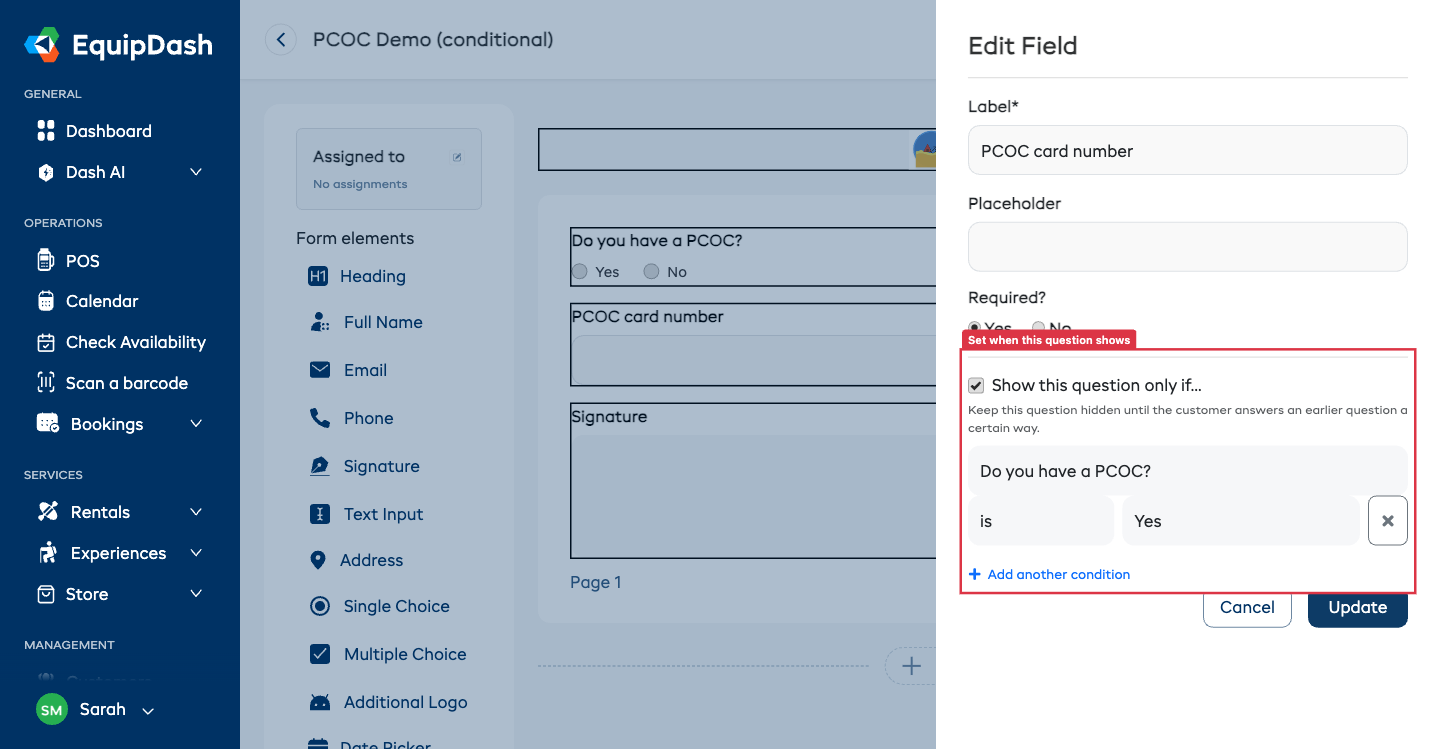
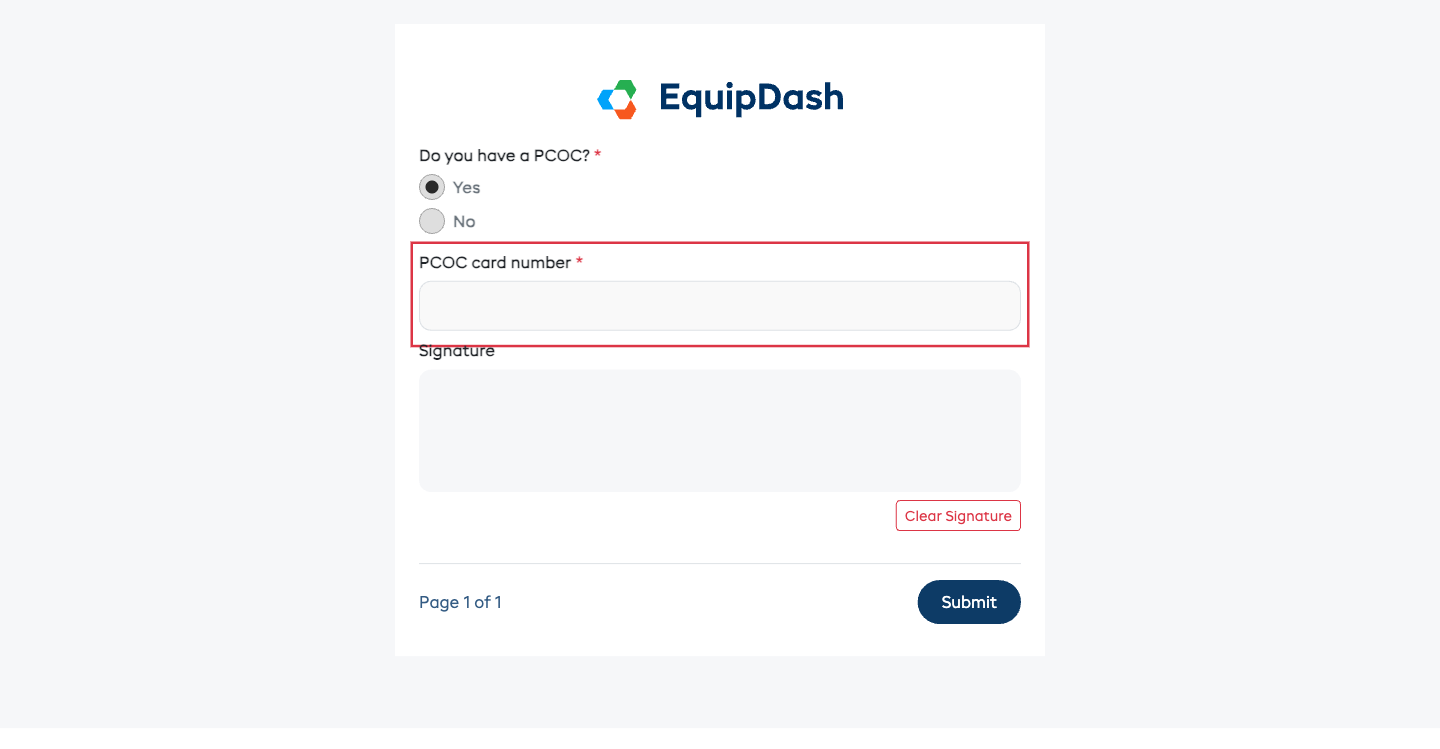
The field stays hidden until the customer's answer matches your rule — and appears instantly when it does. Here's what the customer sees once they answer "Yes":
A few things to know:
- You can only depend on earlier questions. The question dropdown lists fields that appear before this one, which keeps your form logic clear and prevents loops.
- Add more than one condition. Click Add another condition to add a second rule. A Match all / any option appears so you can require all rules to match or any one of them.
- Hidden questions are never required. If a field is hidden, the customer can submit without it — even if it's marked Required — and no answer is stored for a question they never saw.
- Works everywhere. Conditional logic applies on the shared form link, at widget checkout, and in survey questions — the same rule, everywhere.
Show or Hide Several Fields With One Rule (Logic)
The per-field setting above is perfect for a single question. When you want one answer to control a whole group of fields, use the Logic panel instead — set the condition once and pick all the fields it should show or hide.
A classic example: when a participant is under 14, you want to hide the driver questions, the license uploads, and the adult signature all at once.
To set it up:
- Click Logic at the top of the form builder.
- Click Add a rule.
- Under IF, choose the question, the comparison (is at most, is, includes, etc.) and the answer — for example Age is at most 13.
- Under THEN, choose Hide these fields (or Show these fields).
- Under FIELDS, add every field the rule should affect. Each one appears as a chip you can remove with the ×.
- Click Save.
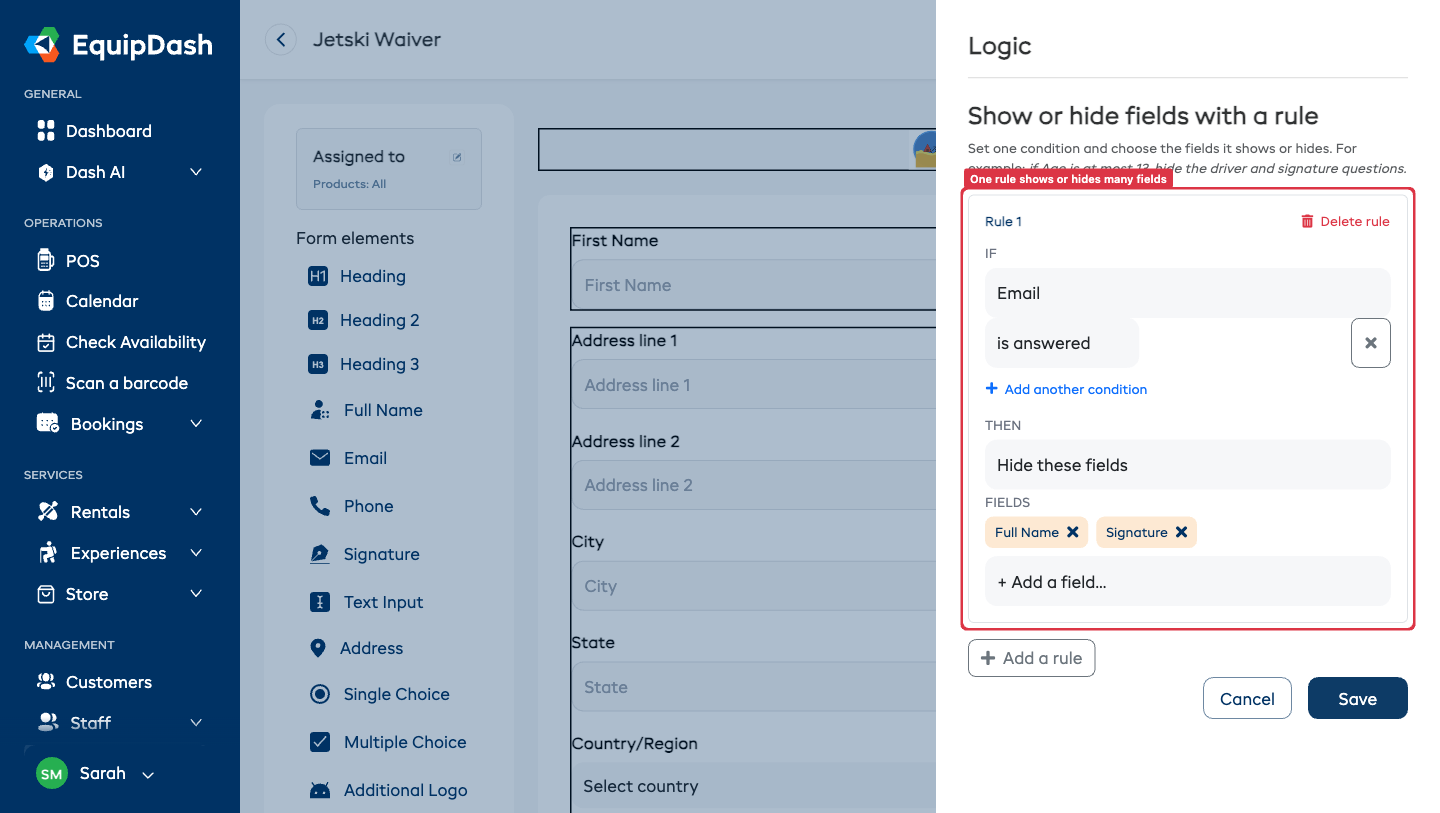
That's it — every field you picked now follows the same rule. A field controlled by a rule shows a "This question's visibility is controlled by a rule" note in its own Edit Field panel, so you always know where to change it: back in Logic.
A few things to know:
- Hide or show. Pick Hide these fields to remove fields when the answer matches (the most common case), or Show these fields to reveal them only when it matches.
- One rule, many fields. Add as many fields as you like to a single rule. To split them later, remove a chip or add another rule.
- Add more than one condition. Just like per-field logic, a rule can combine conditions with Match all / any.
- Same engine, everywhere. Logic rules apply on the shared form link, at widget checkout, and through the API and AI assistant — identical to the per-field setting.
Auto-fill a Field From the Booking
When a waiver is sent for a specific booking — at checkout, or via a link tied to a booking — you can have fields pre-fill from what you already know about that customer, so they don't retype it.
- Name and email fill in automatically. A First/Last Name or Email field fills from the booking with no setup.
- So do date of birth, emergency contact and phone, when the field is named that way. A Date field called "Date of birth", a text field called "Emergency contact name" or "Emergency contact phone", and a Phone field called "Phone" or "Mobile" fill from what the participant gave at checkout. The Auto-fill from booking picker still wins, and Don't auto-fill turns it off. A Full Name field defaults to the participant too, but its Edit Field panel has an Auto-fill from booking picker so you can point it at the participant (the person signing), the booking contact (the booker), the participant's emergency contact, or Don't auto-fill (for a name they must type themselves).
- Map any other field to a booking detail. Open a text, phone, number or date field's Edit Field panel and use Auto-fill from booking to pick what it pulls in. The sources are grouped into:
- Participant — the person signing: their first/last/full name, email, date of birth, phone, emergency contact name & phone, and comments.
- Booking contact — the person who made the booking: their name, email, phone and address.
- Booking — the booking's start date, end date or today's date, plus any of your booking custom fields.
- Address fields default to your country. On an Address field, the Country dropdown pre-selects your business's country (set in Settings → Business details), so most signers don't have to scroll the list — they can still change it.
To set it up:
- Add the field (e.g. a Short Text field labelled "Hotel name", or a Date field). Fields named like the ones above fill on their own.
- Open its Edit Field panel and, under Auto-fill from booking, choose the detail to pull in (or leave it on Don't auto-fill).
A few things to know:
- It's a starting point, not a lock. Pre-filled values can still be changed by the person signing — handy if a detail has changed since they booked.
- Empty stays empty. If there's nothing on the booking to fill a field with, it's left blank — so a required field still has to be completed before signing.
- No booking, no pre-fill. A waiver opened on its own (not tied to a booking) simply shows blank fields as usual.
Signature Options
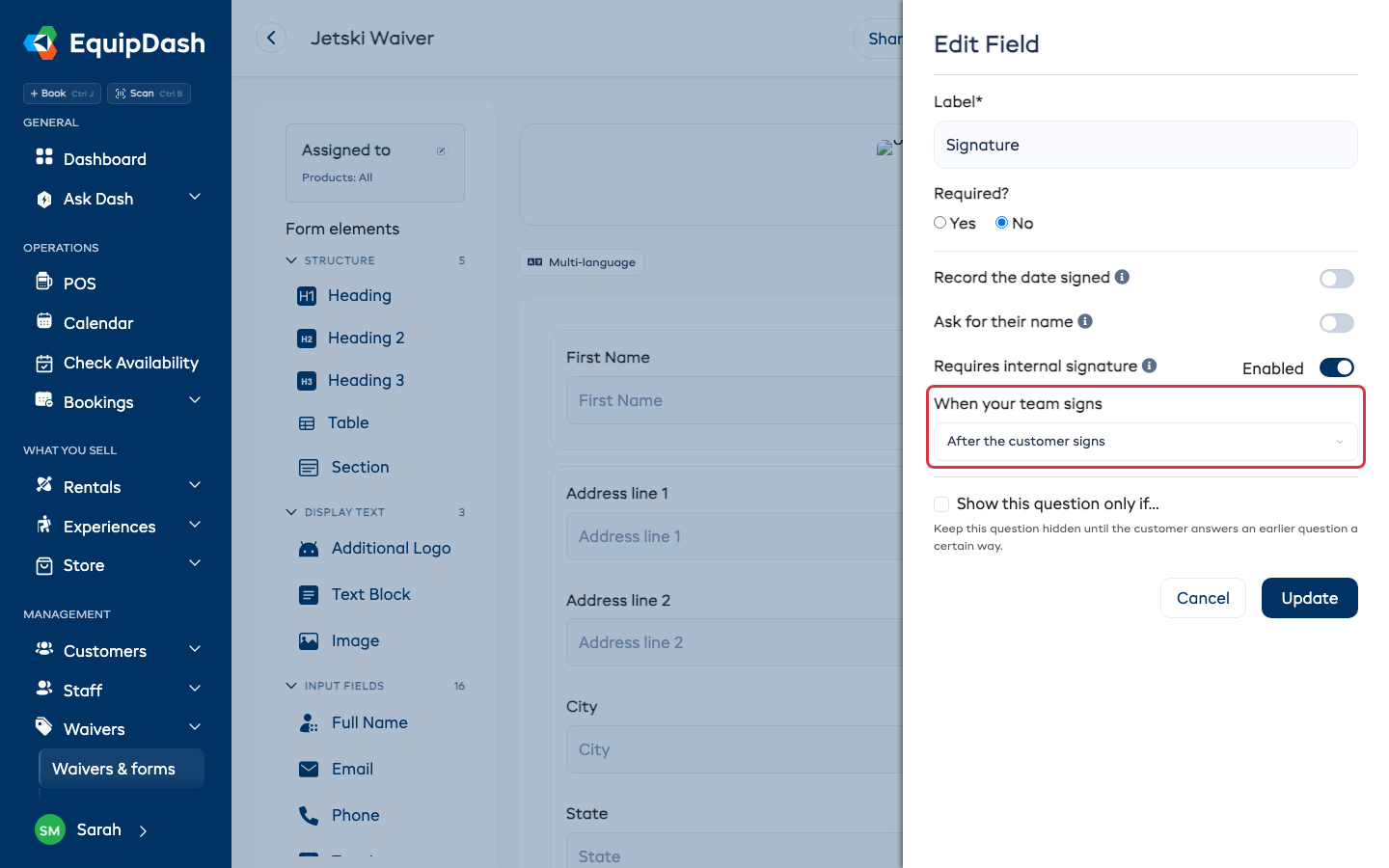
Open a Signature or Initials field's Edit Field panel and you'll find three optional settings. All three are off unless you turn them on, so existing forms keep behaving exactly as they always have.
Record the date it was signed
Turn on Record the date signed and the date is stamped the moment the person signs, and printed under their signature everywhere the signed form is shown — the response viewer, the PDF, and the copy attached to a quote.
The date comes from your business's own timezone, and it's stamped by EquipDash rather than typed by anyone — so it can't be back-dated.
Ask for their name
Turn on Ask for their name and a Name box appears beside the signature. Useful when a scrawled signature isn't enough on its own and you need the name in readable letters — company approvals, contracts, anything that later has to be matched to a person.
The box can pre-fill from the booking, exactly like any other field: use Auto-fill from booking in the same panel to point it at the participant, the booking contact, and so on. Whoever signs can still change it.
Requires internal signature ProThis feature requires the Pro plan
Turn on Requires internal signature when the signature belongs to your business, not the customer — a director approving a contract, a manager authorising a group booking.
- On the customer's copy the box is locked, with a short note telling them you'll sign that part. It never holds up their submission — they sign their own parts and carry on.
- You then sign it yourself from a link, without touching their copy. Both signatures end up on the same finished document.
When such a form is attached to a quote, saving the quote asks who signs it on your side and emails them their link — see Agreements on a Quote.
When your team signs
Under the switch, choose when your side gets asked:
- At the same time as the customer - the link goes out as soon as the quote is saved. Use this when whoever signs for you can get to it in their own time.
- After the customer signs - nothing is emailed until the customer has signed their part. Use this when there is no point signing a contract the customer has not agreed to yet.
You can send the link early either way. The row for your side on the quote page has a Send now button.
Deleting a Field
- Click on the field in the form canvas to select it.
- Click the delete icon (red trash) that appears on the right side.
- The field is removed from the form.
Multi-Page Forms
You can split longer forms into multiple pages:
- Scroll to the bottom of the form canvas.
- Click Add New Page to create a new page.
- Add fields to each page as needed.
- Each page shows a "Page X" header and a Delete Page button (if there is more than one page).
Customers will see one page at a time and navigate between them.
Tips for Building Great Forms
- Keep it short. Only ask for information you genuinely need. Long forms lead to lower completion rates.
- Use headings and text blocks. Break up longer forms into logical sections so they feel less overwhelming.
- Mark the right fields as required. Essential fields like name and signature should be required, but optional fields (like "any comments?") should not be.
- Preview before publishing. Always use the Preview form button to see what the form looks like to customers.