Sharing Form Links Growth+This feature requires the Growth+ plan or higher
Every published form and waiver in EquipDash can be shared three ways: a unique link you send to customers, a QR code they scan with their phone, or by embedding the live form right on your own website so customers fill it out without leaving your page. All three work independently of any booking, so customers can complete the form on their own time.
When to Use Shareable Links
Shareable links are useful when you want to collect responses outside the normal booking flow:
- Walk-in customers — A customer arrives without a booking and needs to sign a waiver on the spot. Share the link or display a QR code at your front desk.
- Pre-arrival forms — Send a form link via email or text before the customer arrives so they can fill it out in advance.
- Events and group bookings — Share a single link with a group so every participant can submit their own response.
- Social media and website — Post the link on your website or social channels to collect feedback, enquiries, or sign-ups.
If a form is never meant to attach to a product or experience, switch Standalone form on when you create it. It then has no "applies to" at all — its link is the only way it goes out. See Standalone forms.
Accessing the Share Link
There are two ways to open the share modal:
From the Responses Page
- Click Waivers & Forms in the left sidebar, then Waivers & forms.
- Click on the form row to open its Responses page.
- Click the Share link button in the top-right corner.
From the Form Builder
- Open the form in the form builder (click the edit icon on the form's row).
- Click the Publish button (or the green Published badge if already published) in the top-right corner.
Both options open the "Publish form" modal.
The Publish Form Modal
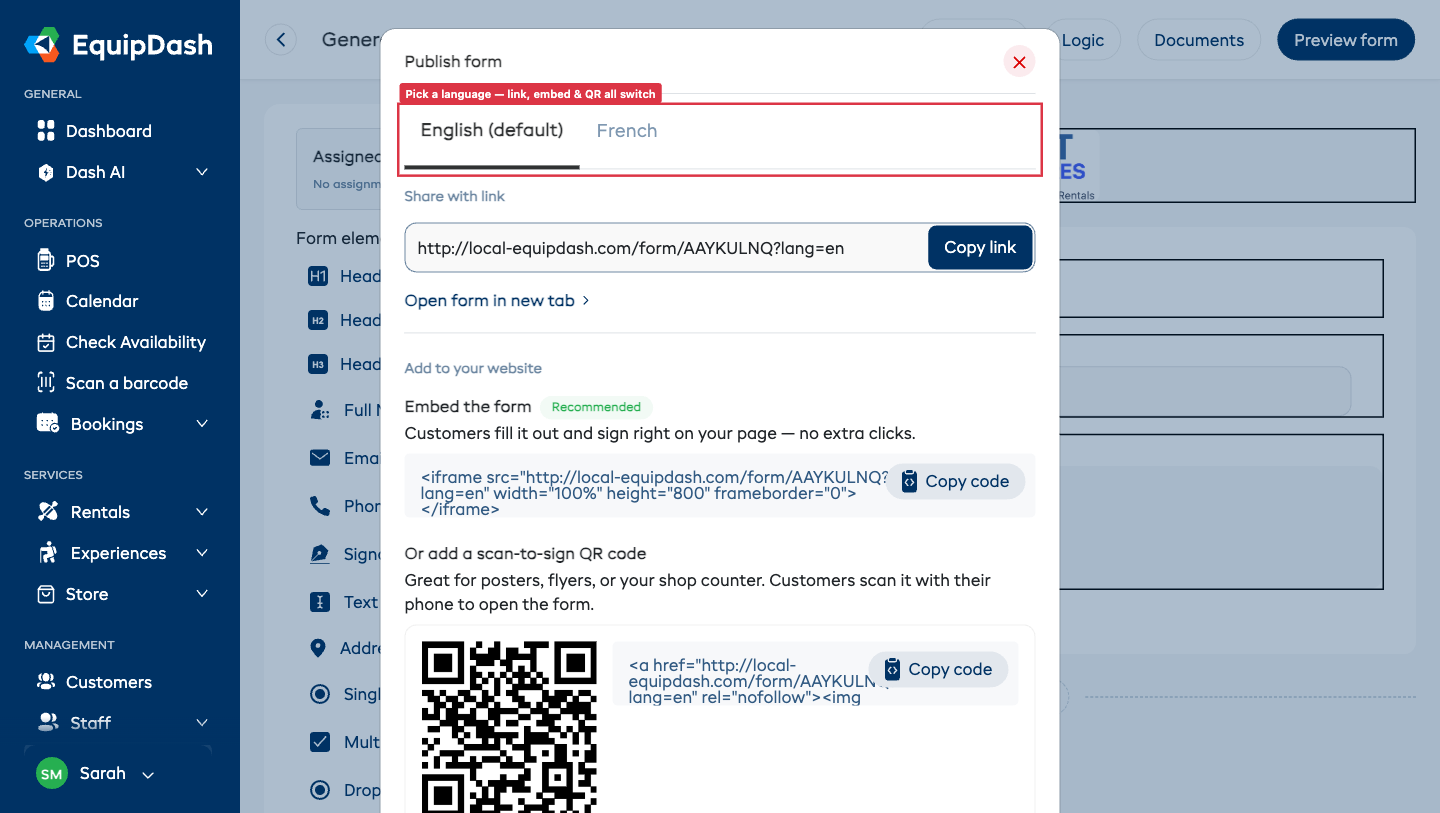
The modal contains:
- Language tabs — If your form is offered in more than one language, a row of tabs (English (default), French, and so on) appears at the top. Pick a tab and everything below it — the share link, the Open form in new tab link, the embed code, and the QR code — switches to open the form straight in that language. If you only offer one language, no tabs appear.
- Share with link — The form URL is displayed in a text field with a Copy link button. Click it to copy the link to your clipboard.
- Open form in new tab — A link to preview the form in a new browser tab.
- Add to your website — Two ways to put the form on your own website:
- Embed the form (recommended) — A code snippet that places the live, fillable form directly on your page. Customers sign without leaving your website.
- Scan-to-sign QR code — A QR code customers scan with their phone, plus a code snippet to display that QR code on your website, and a Download QR image button to print it.
Forms in More Than One Language ProThis feature requires the Pro plan
If you offer your form in more than one language, the share modal shows a language tab for each one at the top — English (default), French, and so on. Pick a tab, and everything below it — the share link, the QR code, and the embed code — updates to open the form straight in that language. The customer never has to switch languages themselves.
This is handy when you serve customers in different languages:
- Print a QR code per language — Switch to French, click Download QR image, and you get a QR code that opens the French version. Print one poster per language and put them side by side at your counter.
- Embed the right language on the right page — If your website has an English page and a French page, copy each language's embed code onto its matching page.
If you only offer one language, no tabs appear — you simply get the standard options. To turn on extra languages, see your widget language settings.
Adding the Form to Your Website
Under Add to your website, you have two options. Pick whichever fits your page — you can use both. When more than one language is enabled, first pick the language tab for the version you want, then copy its code.
Embed the Form (Recommended)
This places the whole form on your website so customers fill it out and sign right there, without being sent anywhere else.
- Open the share modal (see above).
- Under Embed the form, click Copy code.
- Paste the code into a code/embed block on your website (for example, a Squarespace, Wix, or WordPress page), then save.
The live form now appears inline on your page, branded with your logo.
Scan-to-Sign QR Code
A QR code is great for posters, flyers, or your shop counter — customers scan it with their phone to open the form.
- Open the share modal (see above).
- To print it: click Download QR image to save the QR code as an image file, then print it and display it wherever customers can scan it.
- To put it on your website: under the QR code, click Copy code and paste the snippet into a code/embed block on your site.
The QR code snippet contains the image directly, so it displays reliably on any website — including Squarespace — with no extra setup.
What Customers See
When a customer opens the shareable link, they see a clean, branded version of your form:
- Your business logo appears at the top.
- The form fields are displayed in the order you designed them.
- After submitting, they are taken to a thank you page.
Responses submitted through shareable links are stored in the same Responses page as booking-linked responses.
Identifying Standalone vs. Booking-Linked Responses
In the responses table, you can tell the difference:
- Booking-linked responses show a booking reference (e.g., "#136") in the Booking ID column.
- Standalone responses (from shareable links) show an em-dash (—) in the Booking ID column.
Deactivating a Form
If you no longer want customers to access a form via its link, you can delete or deactivate the form from the Waivers & Forms table. Inactive forms cannot be accessed via their shareable link.
Tips
- Use QR codes at your front desk. Print the QR code on a small sign so walk-in customers can scan and fill out the waiver on their own phone while they wait.
- Include the link in pre-arrival emails. If you send manual pre-trip emails, drop in the form link so customers can complete paperwork before they arrive.
- Test the link yourself. Click Open form in new tab to see exactly what your customers will see.
- Embed the form on your check-in page. Use Embed the form to drop the live waiver onto your website so customers sign before they arrive — no extra clicks, no leaving your site.