Quick Actions from Calendar
Most of what you want from the calendar you can get without opening anything: hover for detail, click to go there, and set it up once so it opens the way you work.
Check a booking without leaving the page
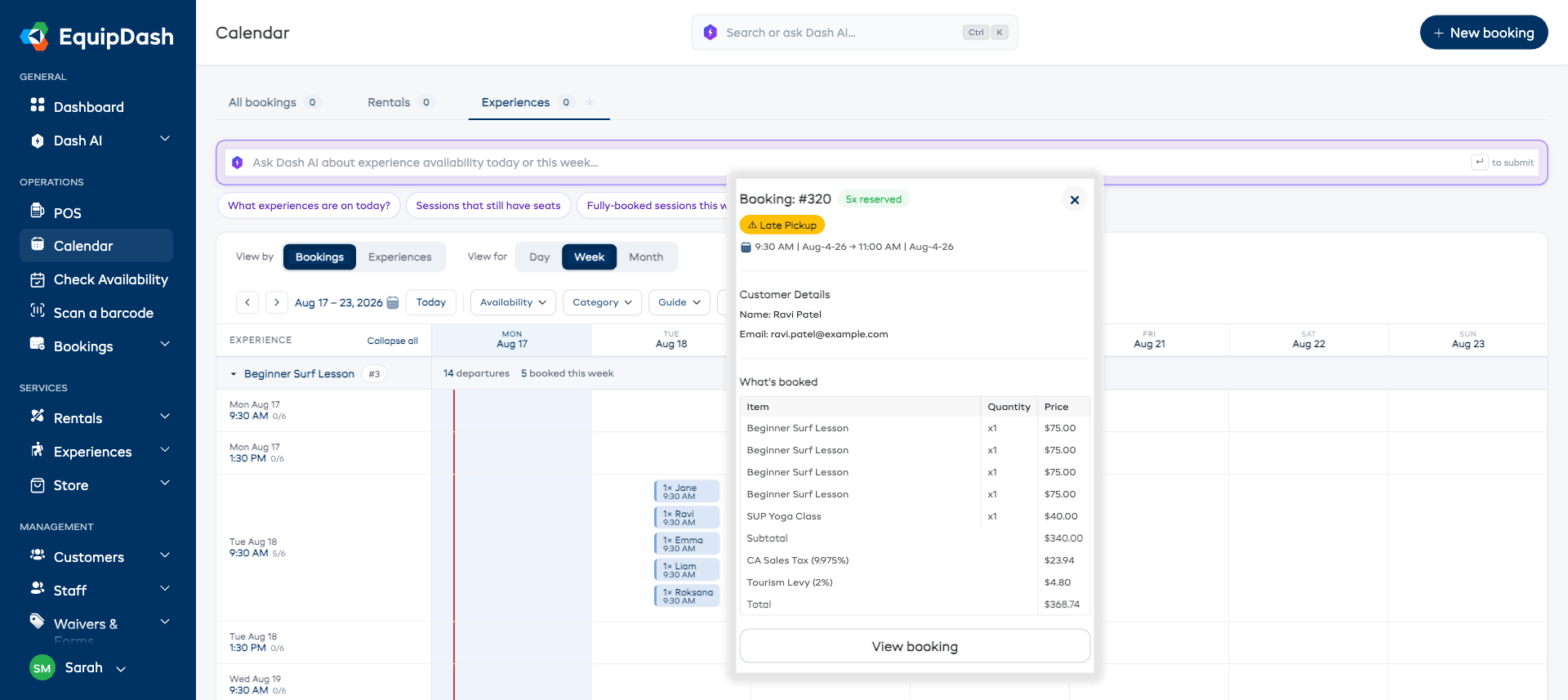
Hover any booking bar and a card opens beside it with the whole booking:
| On the card | What it tells you |
|---|---|
| Booking reference and quantity | Which booking, and how many are reserved or picked up |
| Late warning | A yellow flag if the collection or the return is running behind |
| Dates and times | When it starts and when it is due back |
| Customer details | Name and email |
| What's booked | Every line on the booking, with quantity and price |
| Pickup location | Which site it goes out from, if you run more than one |
| Totals | Subtotal, any discount, deposit, tax, and the total |
Move the mouse away and it closes. Press Escape to close it straight away.
Click View booking, or click the bar itself, to open the booking in full.
This works the same on all three tabs.
Check an item without leaving the page
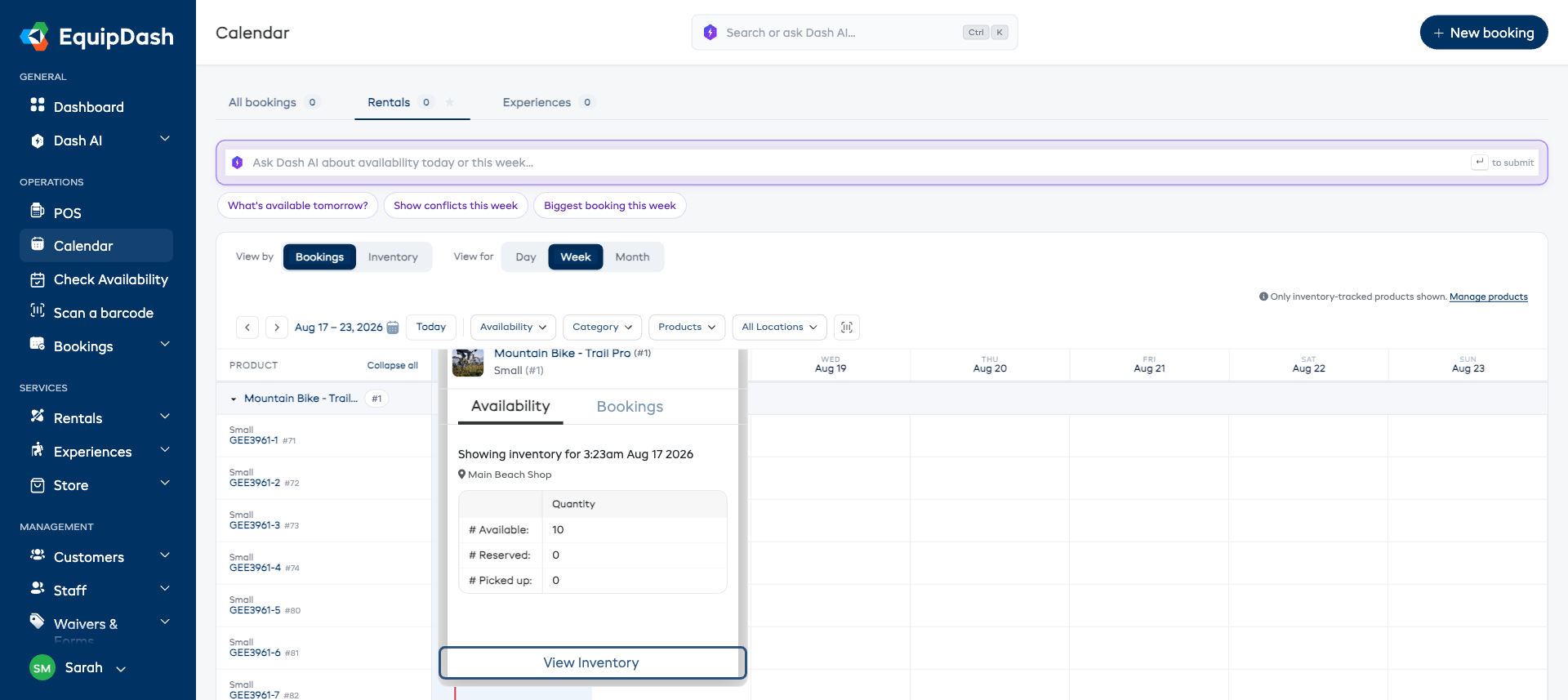
On the Rentals tab, hover an item's name in the left-hand column and a card opens with two tabs:
- Availability - how many are Available, Reserved and Picked up at that moment, and which location they are at.
- Bookings - the bookings on that item for the day.
View Inventory takes you to the full record.
In Inventory · Day you can also click any colored strip on the timeline to open the same card for that moment.
Open a product, an experience or a booking
- Click a product or experience name on a group row to open its detail page.
- Click a booking bar to open the booking.
- On the Rentals tab, Manage products above the grid goes to your product list - useful when something is missing because it does not have inventory turned on.
- In the list view, View manifest on a departure card opens its run sheet, and any booking reference in the participant table opens that booking.
Start a new booking
+ New booking sits in the top-right corner of every calendar tab and takes you straight to the booking screen.
Find an item by scanning it
On the Rentals tab, the barcode button at the end of the filter row lets you scan an item and have the calendar jump straight to that product - the fastest way to answer "when is this one due back?" while you are holding it.
Make the calendar open the way you work
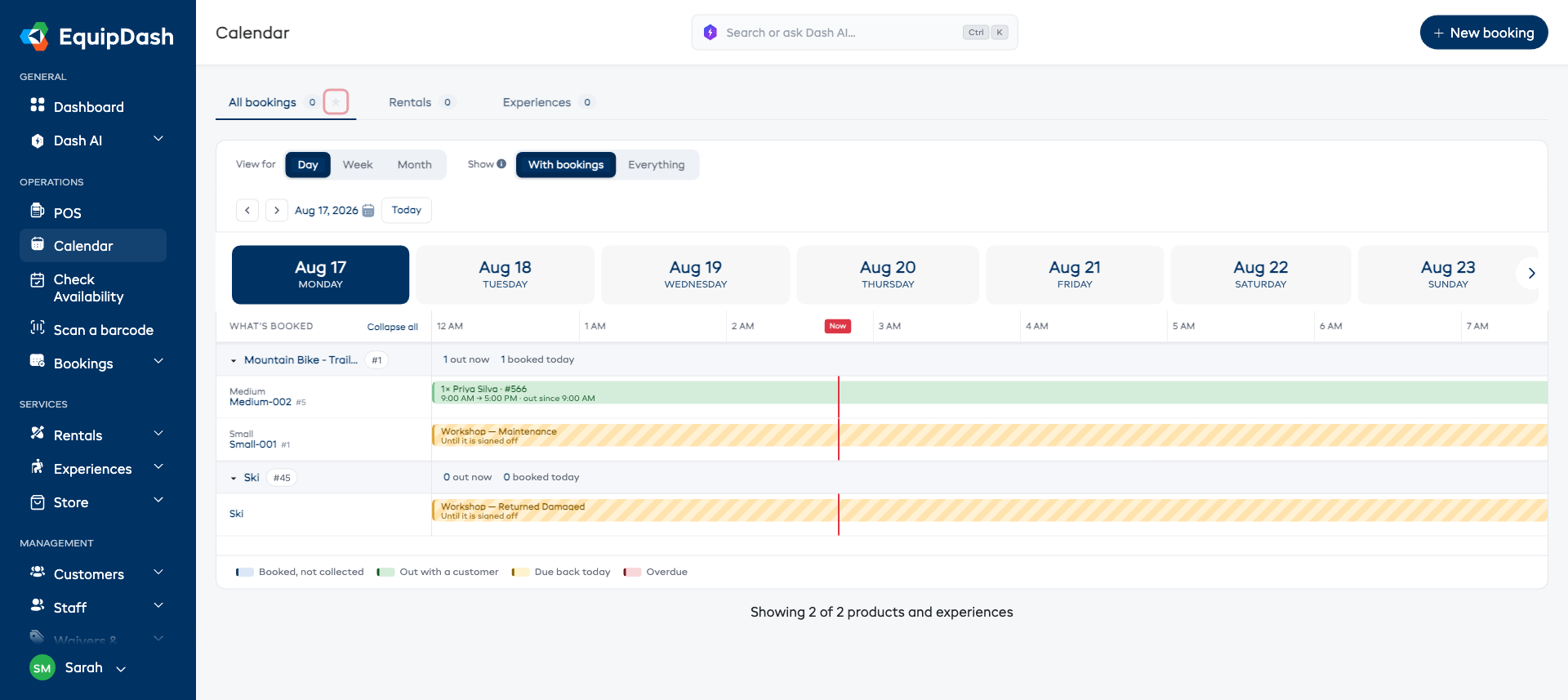
Star a tab. Click the star beside a tab's name and the calendar opens there every time. Click it again to stop. It is personal to you - your colleagues keep their own - and it works the same way as the star on your dashboard tabs.
The view is remembered for you too. Whatever you last had set on a tab - Bookings or Inventory, Day, Week or Month, List or Calendar - is what you get back next time. Nothing to set up.
If you open a link that already names a view, that link wins. Otherwise your starred tab decides which tab opens, and your last-used settings decide the view.
Jump to a date
- ‹ › step by whatever is on screen - a day, a week, or a month.
- Click the date beside the arrows to pick any date.
- Today brings you back.
- In Day view, click any day in the strip across the top.
- In the experience month grid, click a date to open that day.
Related Guides
- Calendar Overview - the tabs, the switches, and the star.
- Rental Calendar - the Rentals tab.
- Experience Calendar - the Experiences tab.
- List View - the two-panel list and its participant tables.
- Creating a Booking - the full booking guide.
- Viewing & Managing Bookings - managing bookings from the bookings page.