Rental Calendar
The Rentals tab answers the two questions you get asked at the counter all day:
- What is going out today, and has it been collected?
- Have you got one of those free on Saturday?
One switch chooses between them.
Opening it
- Click Calendar in the left sidebar.
- Click the Rentals tab.
If Rentals is the only module you run, the calendar opens here and there are no tabs to switch between.
The two switches
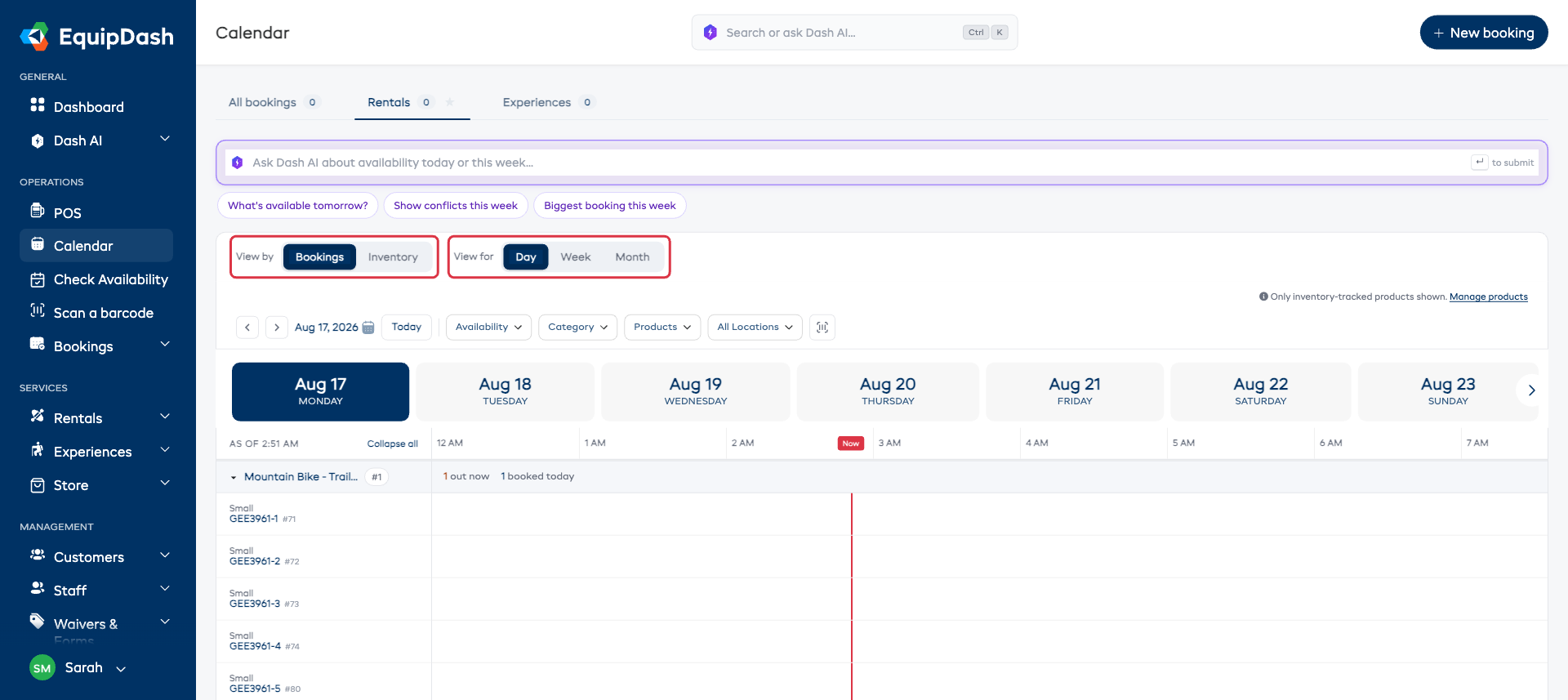
View by
| Setting | What you see |
|---|---|
| Bookings | What is going out. One bar per booking, with the customer's name and booking number on it. |
| Inventory | What you have got, and whether it is free. Green for free, red for taken, amber stripes for anything in the workshop. |
View for
| Setting | What you see |
|---|---|
| Day | A single day, hour by hour. Best at the counter - "is this free at 2pm?" |
| Week | Seven days across, one column per day. Best for planning the week ahead. |
| Month | The whole month across, one column per day. |
Bookings · Day is where a fresh calendar opens. After that it reopens on whatever you used last.
Rows: products, then the items themselves
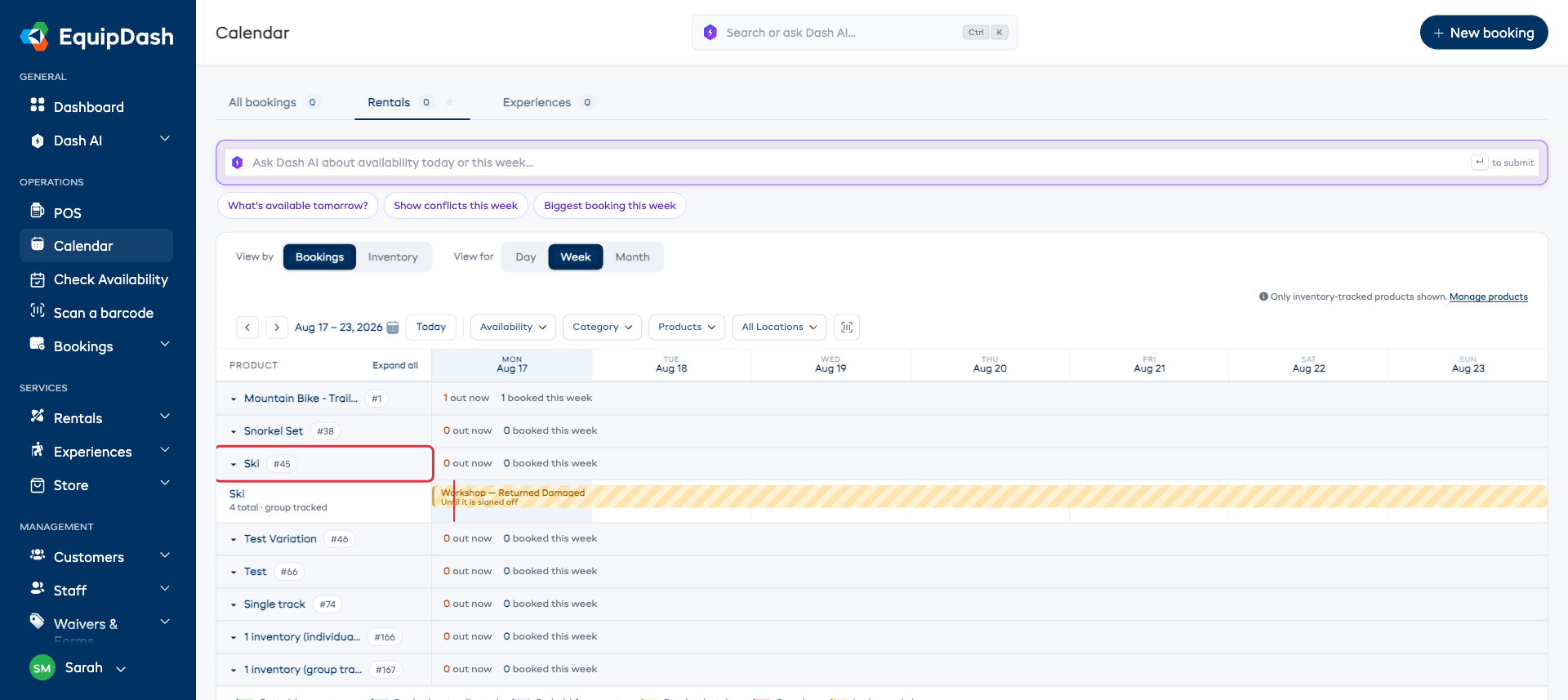
The product row carries the running totals - how many are out now and how many bookings fall in the period you are looking at. Click it to fold the product away or open it back up, or use Collapse all to fold everything at once.
Underneath, each item you own gets its own row, labeled with its own identifier so you can see exactly which one is where. If the product has sizes or variations, the variation shows above the identifier.
Products you count as a batch rather than one by one stay as a single row - the row says 4 total · group tracked so you know why there is nothing to open.
A product has to have inventory turned on to show up here. The note above the grid says so, with a Manage products link if something is missing.
The Bookings view
Each booking is one bar spanning the days it covers, carrying the quantity, the customer's name and the booking number - for example 1× Jane Doe · #1042. Click it to open the booking.
The color tells you where it has got to:
| Color | What it means |
|---|---|
| Blue | Booked, not collected yet |
| Green | Out with a customer right now |
| Amber | Due back today - worth chasing |
| Red | Overdue - it should already be back |
| Amber stripes | In the workshop, so it is not available |
| Pale blue | On hold for a quote |
A workshop block is not a booking - it has no customer and no booking number, and clicking it does nothing.
On Day the columns are hours, so a nine-to-five hire and a two o'clock collection look different at a glance. A bar also tells you where it is up to: out since 9:04 AM, due back 4:00 PM, or not collected.
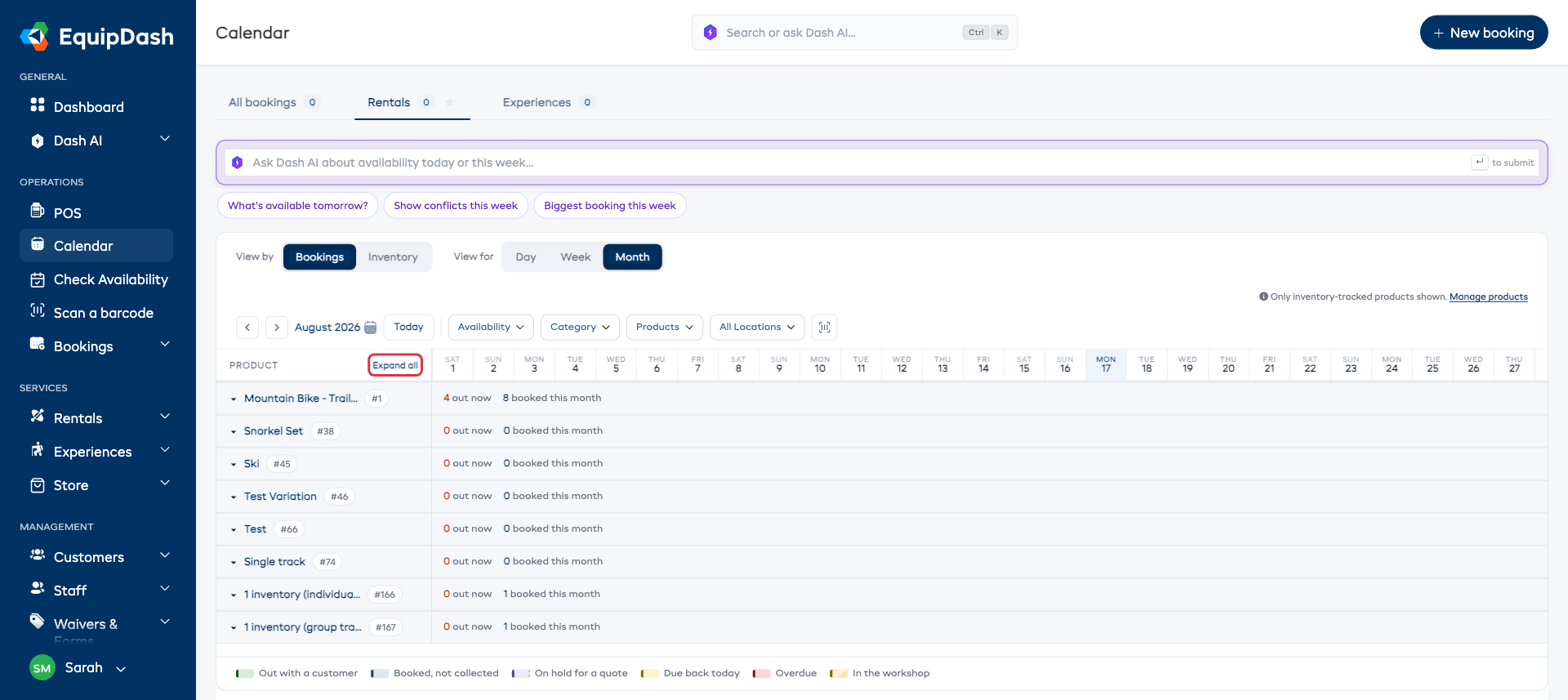
On Month, folding everything up with Collapse all gives you the whole month on one screen - one line per product, with how many are out and how many bookings it has taken.
The Inventory view
Inventory answers the other question: what have I got free?
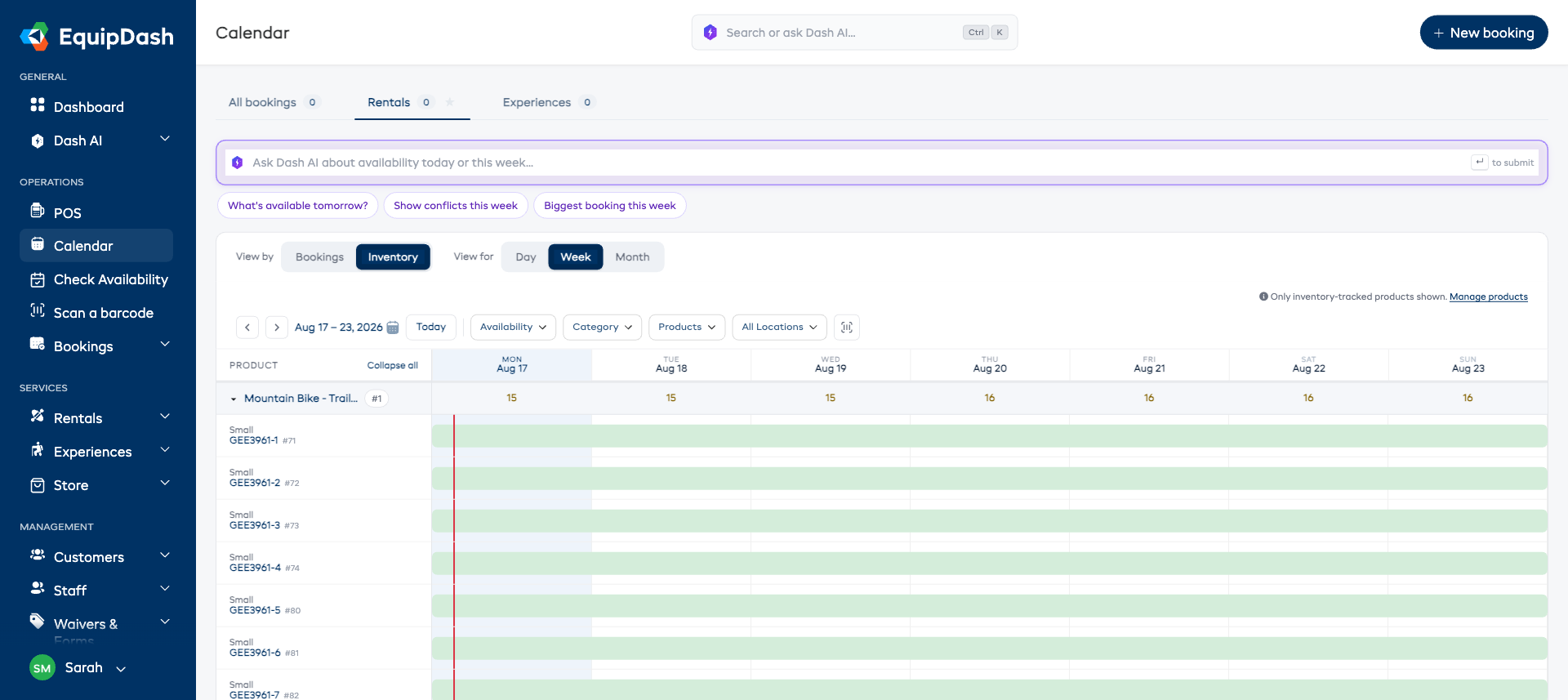
On Week and Month, the product row shows how many are still free on each day, and each item underneath gets a strip across the days - green where it is free, red where it is taken, amber stripes where it is in the workshop. Consecutive days join into one block, so a busy stretch is obvious.
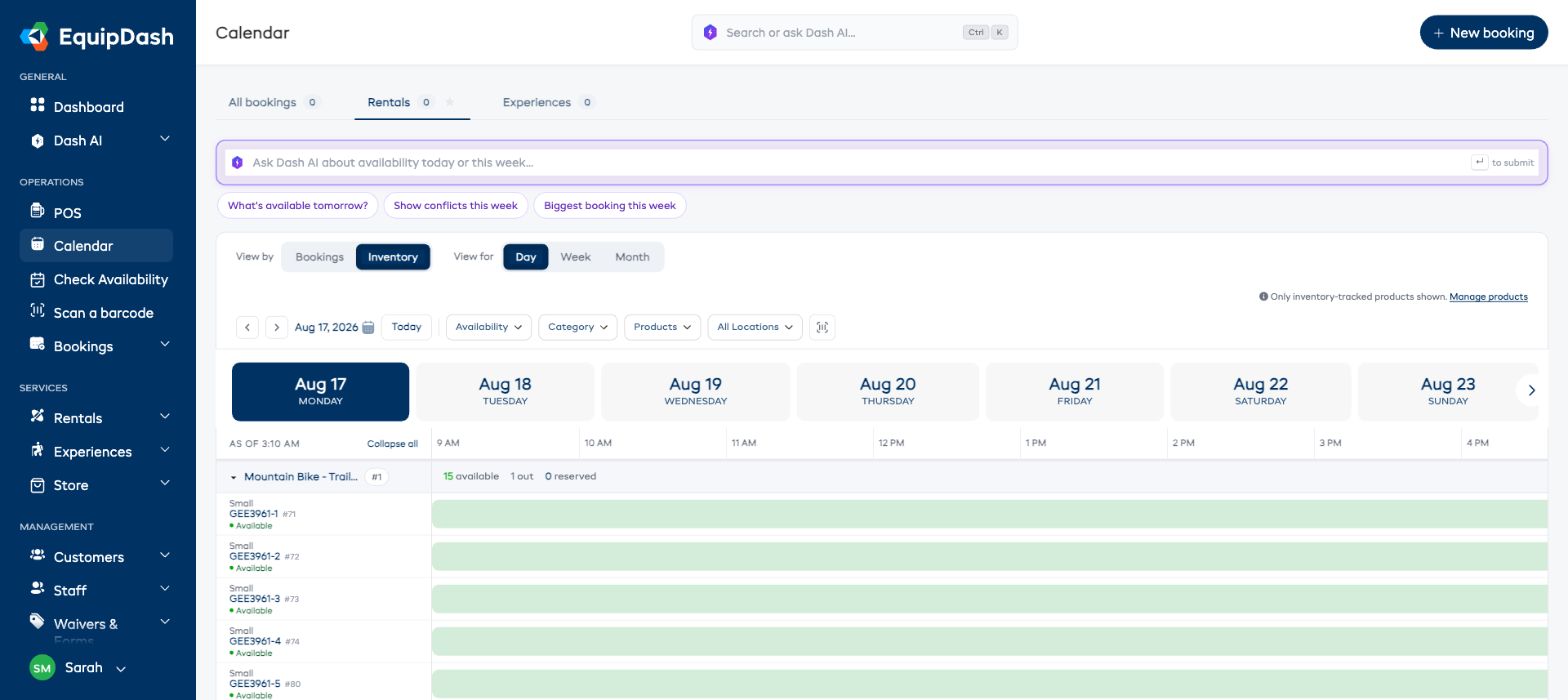
On Day you get the same picture hour by hour, across the hours you are open. The product row adds a live count - 15 available · 1 out · 0 reserved - and each item carries its own status: Available, Not available, or Workshop. The top-left corner shows As of 3:10 AM so you know how fresh the snapshot is.
Checking one item
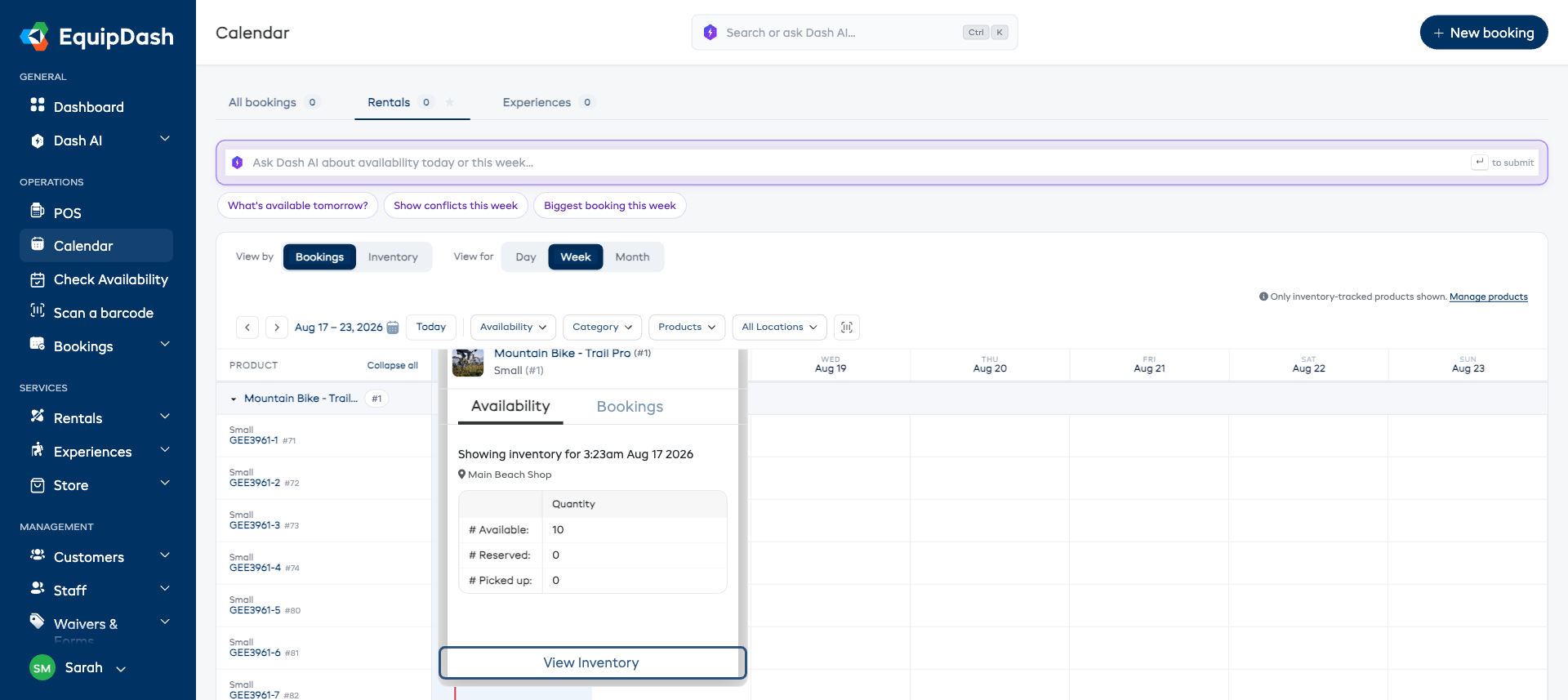
Hover an item's name on the left and a small card opens with:
- an Availability tab - how many are Available, Reserved and Picked up at that moment, and which location they are at
- a Bookings tab - the bookings on that item for the day
- a View Inventory button through to the full record
Move the mouse away and it closes.
Narrowing what you see
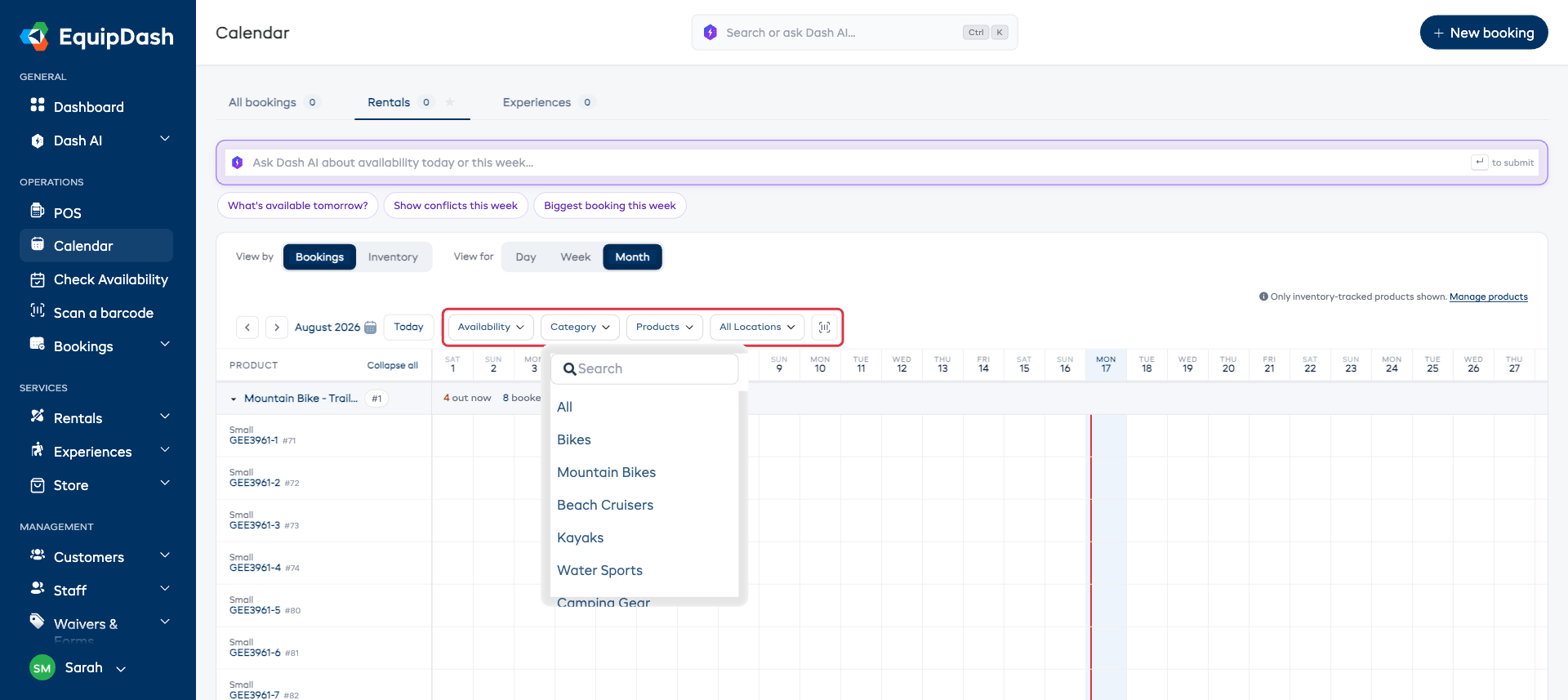
- Availability - only what is Available, or only what is Not available.
- Category - one group of products.
- Products - a single product.
- All Locations - one site. This only appears if you have more than one pickup location.
- Scan barcode - scan an item and the calendar jumps to it. Handy on the shop floor.
Clear filters appears as soon as anything is set.
Related Guides
- Calendar Overview - the tabs, the switches, and the star.
- Experience Calendar - the Experiences tab.
- Quick Actions from Calendar - what you can do without leaving the page.
- Understanding Availability - how inventory decides what is free.
- Pickup & Return Locations - the location filter.