Viewing & Managing Bookings
Once bookings start flowing in, you need an easy way to find, review, and act on them. This guide covers the bookings table and the booking detail page.
The Bookings Table
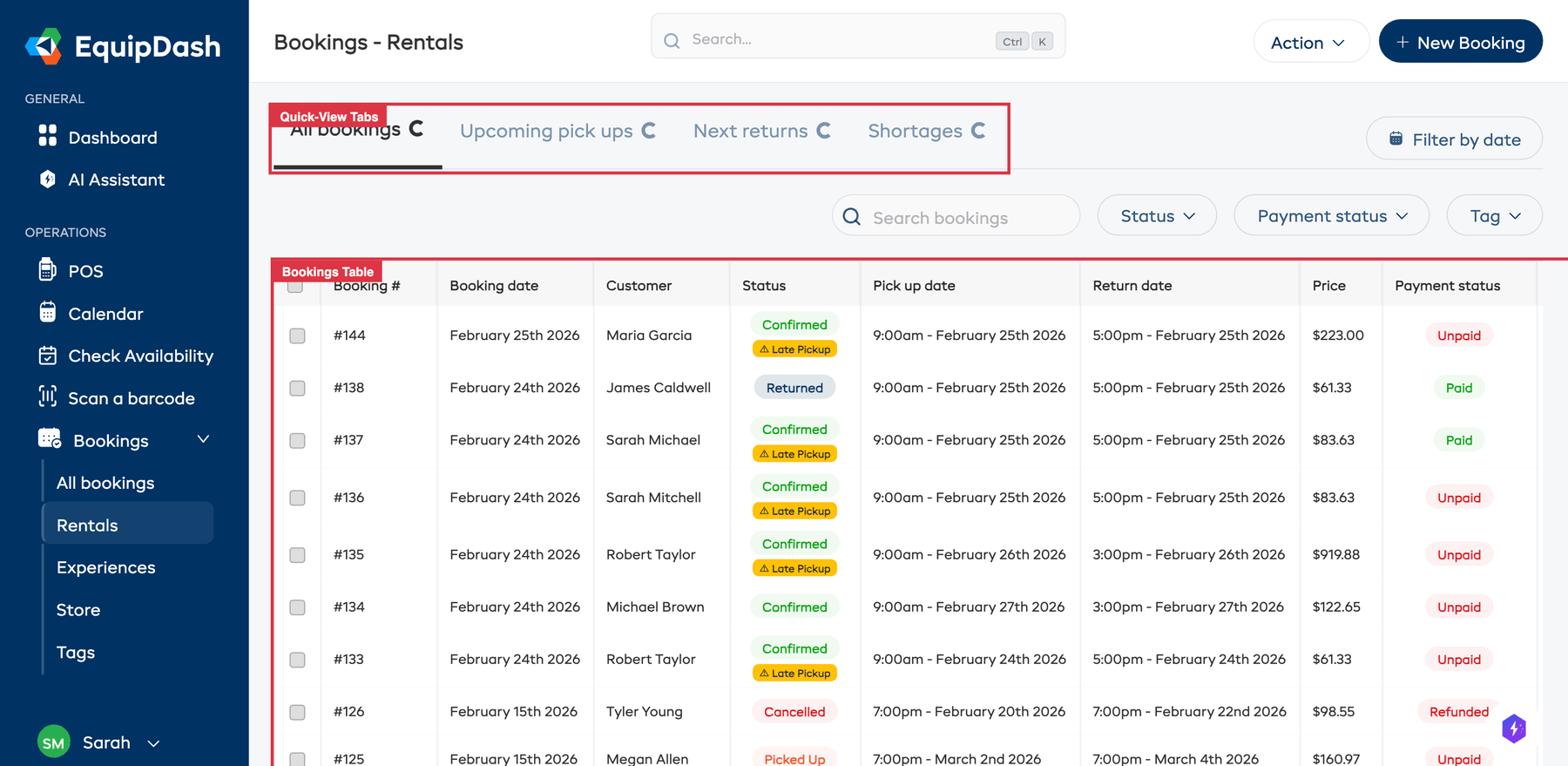
Navigate to Bookings > Rentals or Bookings > Experiences from the sidebar. The table lists all your bookings with the most recent ones first.
Table Columns
| Column | Description |
|---|---|
| Booking # | The unique booking reference number. |
| Booking date | When the booking was created. |
| Customer | The name of the customer. Click to jump to their profile. |
| Status | The current booking status, shown as a color-coded badge. |
| Pick up date | The scheduled pickup date and time. |
| Return date | The scheduled return date and time. |
| Price | The total booking price. |
| Payment status | Payment status -- Paid, Unpaid, Partially Paid, Refunded, or Partially Refunded. |
| Action | Quick action buttons for pickup and return. |
Click the gear icon near the top of the table to customize your columns. Tick a column under Available columns to show it, untick one under Active columns to hide it, and drag columns into the order you prefer. Your layout is saved and shared with your whole team. This works on all four bookings tabs — All, Rentals, Experiences, and Store.
Sorting
Click any column header to sort the table by that column. Click it again to toggle between ascending and descending order.
Searching
Type in the Search bookings bar to filter by:
- Booking ID
- Customer name
- Customer email
Results update instantly as you type.
Jump to the Calendar
On Bookings > Rentals and Bookings > Experiences a Calendar view button sits on the left of the filter row, above the table. It takes you to the same bookings drawn on the calendar -- the rental calendar for rentals, the experience calendar for experiences -- already switched to the bookings view.
Quick-View Tabs
The tabs above the table give you quick views into different booking states:
- All bookings -- every booking
- Upcoming pick ups -- bookings with upcoming pickup dates
- Next returns -- bookings due to be returned soon
- Shortages -- bookings with inventory shortage issues
Each tab shows a count of bookings in that state.
Filtering by Status
Use the Status dropdown above the table to filter by a specific booking status:
- Confirmed -- upcoming bookings
- Picked Up -- rentals currently out with customers
- Returned -- rentals that have been returned
- Completed -- finished bookings
- Cancelled -- canceled bookings
Filtering by Date
- Click the Filter by date button above the table.
- Select the date range you want to filter by.
- Click Apply.
The table updates to show only bookings that fall within your selected range.
Filtering by Tag
If you use booking tags, select a tag from the Tag dropdown to see only bookings with that tag.
Filtering by Payment Status
Use the Payment status dropdown to filter by Paid, Unpaid, Partially Paid, Refunded, or Partially Refunded.
The Booking Detail Page
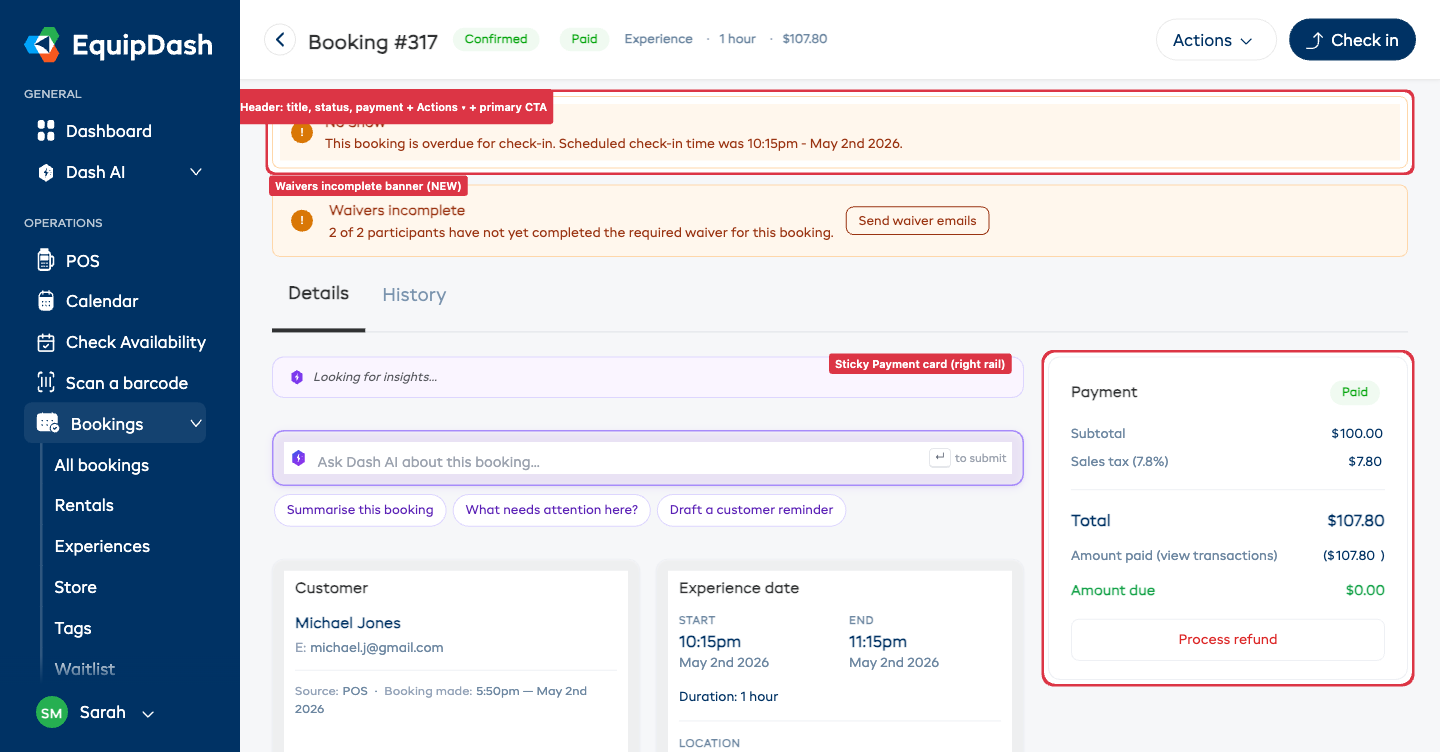
Click any booking row to open its detail page. This is where you manage everything about a single booking. The page is built around a two-column layout: the main column on the left has the booking content, and a sticky right rail keeps the Payment summary in view while you scroll.
Page Header
The header is one compact strip across the top:
- The booking number (e.g. Booking #144)
- A status pill (e.g. Confirmed, Picked Up, Cancelled) and a payment pill (Paid, Unpaid, Partially Paid, Refunded)
- An Archived badge if the booking has been archived
- A short meta strip: booking type · duration · total (hidden on smaller screens to keep the header tidy)
- An Actions ▾ dropdown — Edit, Download Packing Slip, Download Invoice, Download Tickets (experience bookings), Send survey and Don't send surveys for this booking (see Survey Actions on a Booking), Cancel booking, and Archive / Restore booking (when applicable)
- A primary action button that adapts to where the booking is in its lifecycle: Pick up, Return, Check in, or Mark as completed
Banners
Important alerts stack just below the header, so you see them immediately:
- No Show — the booking is overdue for check-in or pickup
- Inventory Shortage — one or more booked items don't have enough stock for the dates
- Booked past stock — inventory not assigned — the booking was deliberately taken past your stock because the product has Keep taking bookings when sold out switched on. It says how many you're short, and the units you're short have nothing assigned to them yet. Click Dismiss once you have sourced them
Missing signatures no longer get their own banner — the Booking participants card carries a live N of M signed count in its header, plus each person's own status and chase button. See Following One Person's Consent.
Details Tab
The Details tab is the default view. The main column contains, top to bottom:
- Dash AI insights & quick prompts — context-aware summaries and suggested actions for this booking
- Customer — name, email, phone, source, and "booking made" timestamp
- Rental period / Experience date / Order details — pickup and return (or start and end) date and time, duration, and pickup / return location (rentals and store products only)
- Cancellation (if cancelled) — the cancellation reason and any notes added at cancellation
- Custom Fields — any booking-level custom fields configured for your supplier
- Items in booking — the table of products / experiences / store products with quantities, unit prices, totals, and pickup / return status. On multi-participant rentals, each item also shows the participant assigned to it (and the specific unit number once it has been picked up). If a line went past your stock, its Inventory column carries an amber N not assigned flag — those units have no item against them until you source and assign them
- Condition Reports (rentals) — pickup and return condition photos and notes per inventory unit
- Booking participants — one row per participant with inline editing:
- Inline ticket-type select for experience bookings (assign to a rate option without leaving the page)
- Inline rental item select for multi-participant rental bookings — assign which item each participant gets (e.g. City Cruiser (M)) without leaving the page. See Assigning Items to Participants below
- Edit pencil to update first name, last name, email, notes, and any participant-scope custom fields in one save
- × remove for non-booker participants (the booker can't be removed)
- Consent, per person — a chip showing how far along they are (e.g. 1 of 2 signed), a chase button that sends a reminder for everything they still owe, and a history button that opens their consent timeline in place
- One line per applicable form underneath — Signed (with a PDF download), On file (signed earlier and still valid), or Pending (with a copy signing link button and an Open link). The card header shows the booking's overall progress, e.g. 1 of 2 signed
- + Add at the top of the card opens the bulk participants form (POS-style with customer autocomplete)
- Booking notes — notes from your team. Add new notes inline using the textarea at the bottom of the card.
- Booking tags — chips for every tag applied. Click the × on a chip to remove. Click + Add to open a popover and pick more tags.
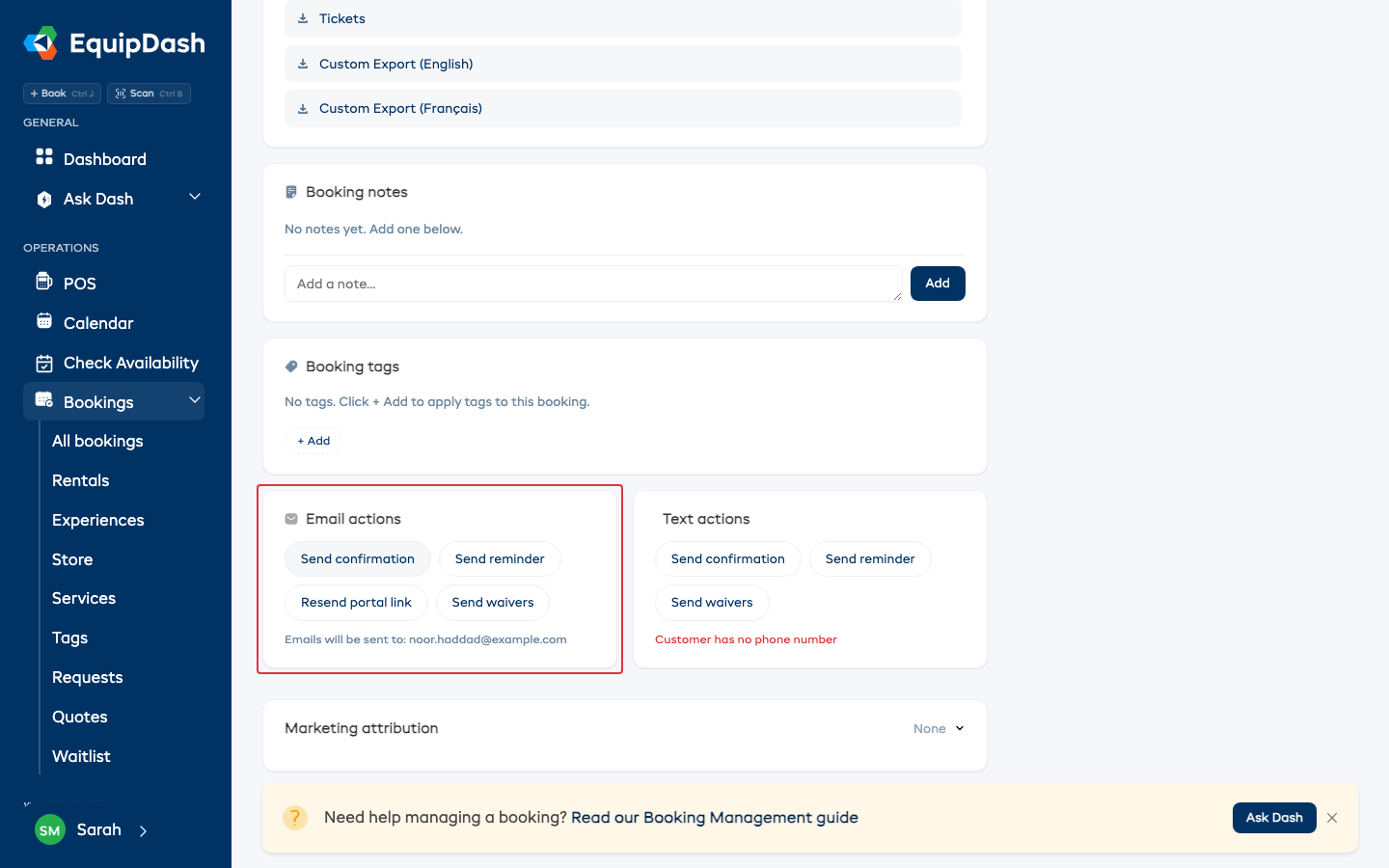
- Email actions — Send confirmation, Send reminder, Send cancellation (cancelled bookings), and Send waivers (when signatures are outstanding). Send waivers chases everyone on the booking who hasn't signed, using the same engine as the automatic reminders — so it counts as one reminder each and shows up on their timelines. It sends straight away, without waiting for the automatic schedule. Send confirmation, Send reminder and Send cancellation go out even if that email is switched off in Settings → Email templates. The switch only stops the automatic send. Each email you send is listed on the Messages and History tabs.
The right rail contains the Payment card and stays visible as you scroll:
- Subtotal, discount, taxes, total
- Amount paid (view transactions) — click to expand an inline ledger of every payment, refund, deposit movement, and voucher use
- Amount due — green when £0, red when there's a balance
- Add payment (if there's a balance) and Process refund (if anything has been paid)
- Security deposit row — collapsible, with Place hold / Charge deposit / Release / Capture buttons appropriate to the deposit's current status
Adding a Discount
You can take money off a booking from the Payment card, without editing the booking. You'll see this option while there's still a balance to pay.
- Click Add discount under Add promo code.
- Pick % for a percentage or your currency symbol for a fixed amount.
- Type the amount and click Apply.
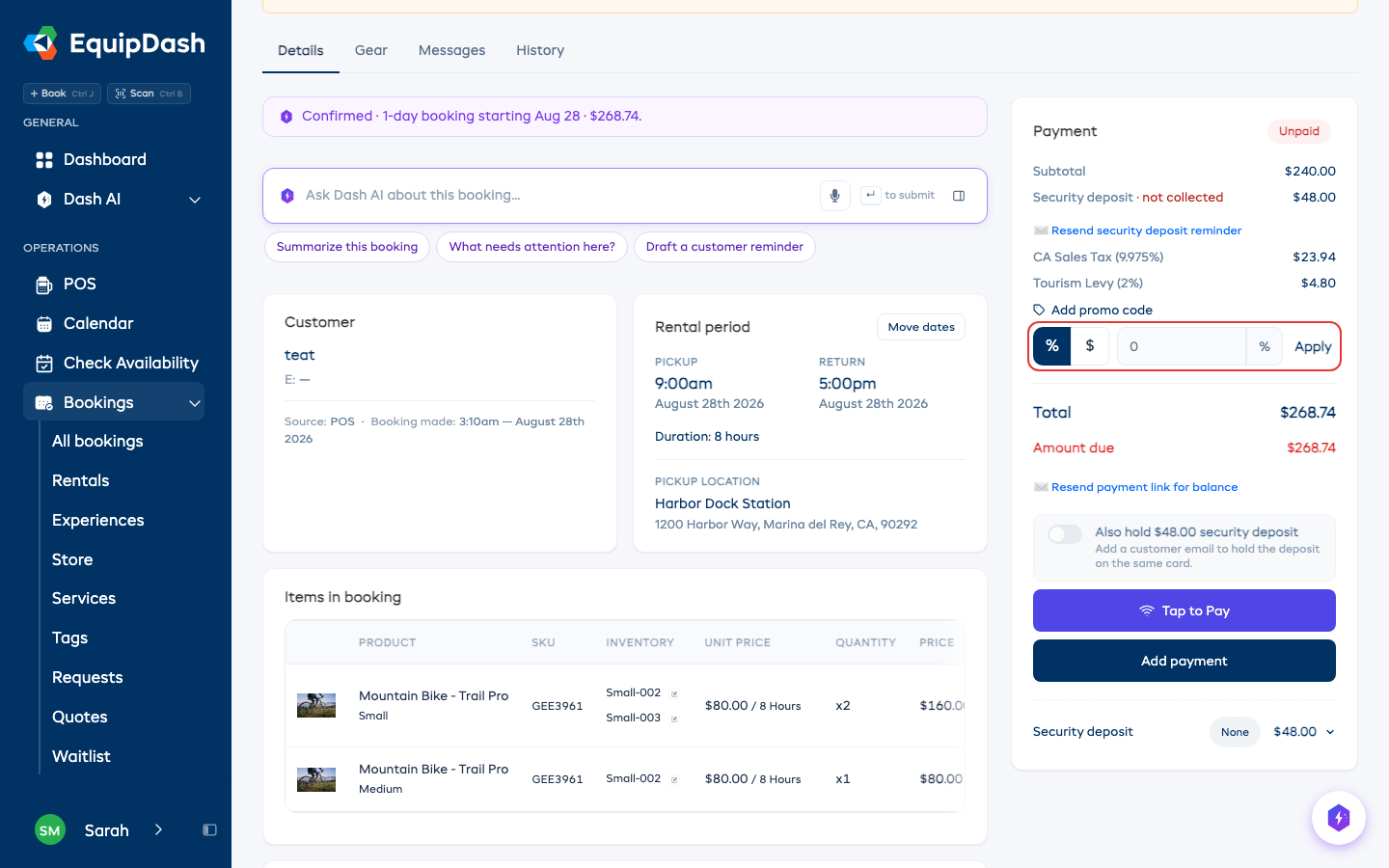
The discount shows on its own line, and tax and the total update straight away. A booking can carry one discount at a time. That can be a promo code or a discount you type in, but not both. To change it, click Remove beside the discount line and add the new one.
A discount can't take off more than is still owed. If the customer has already paid more than the new total would be, process a refund instead.
Assigning Items to Participants
When a rental booking has several participants — for example a family hiring four bikes on one booking — you can match a specific item to each person, so everyone is paired with their own gear and their own waiver under a single booking.
This is available when the rented product has Require participant details turned on (see Creating a Product). Add the people to the booking first — at checkout, in the POS, or with + Add on the Booking participants card.
To assign items:
- Open the booking and find the Booking participants card on the Details tab.
- On each participant's row, use the Rental item dropdown to pick the item that person is taking (e.g. City Cruiser (M)). Choose — No item assigned — to clear it.
- The assignment saves instantly — there is no separate Save step.
Once assigned:
- Each participant row shows → {item} next to their name.
- The Items in booking table shows the assigned participant under each item — and the specific unit number once the item has been picked up and scanned.
- Each participant keeps their own waiver, so the Booking participants card counts per person — its header reads 2 of 4 signed, and each row shows that person's own state. See Inline Waivers and Following One Person's Consent.
- The packing slip (Actions ▾ → Download Packing Slip) lists the assigned participant beside each item, so your counter staff hand the right gear to the right person.
A booking with no assignments behaves exactly as before — items stay at the group level, and nothing changes for single-participant or non-participant bookings.
Messages Tab
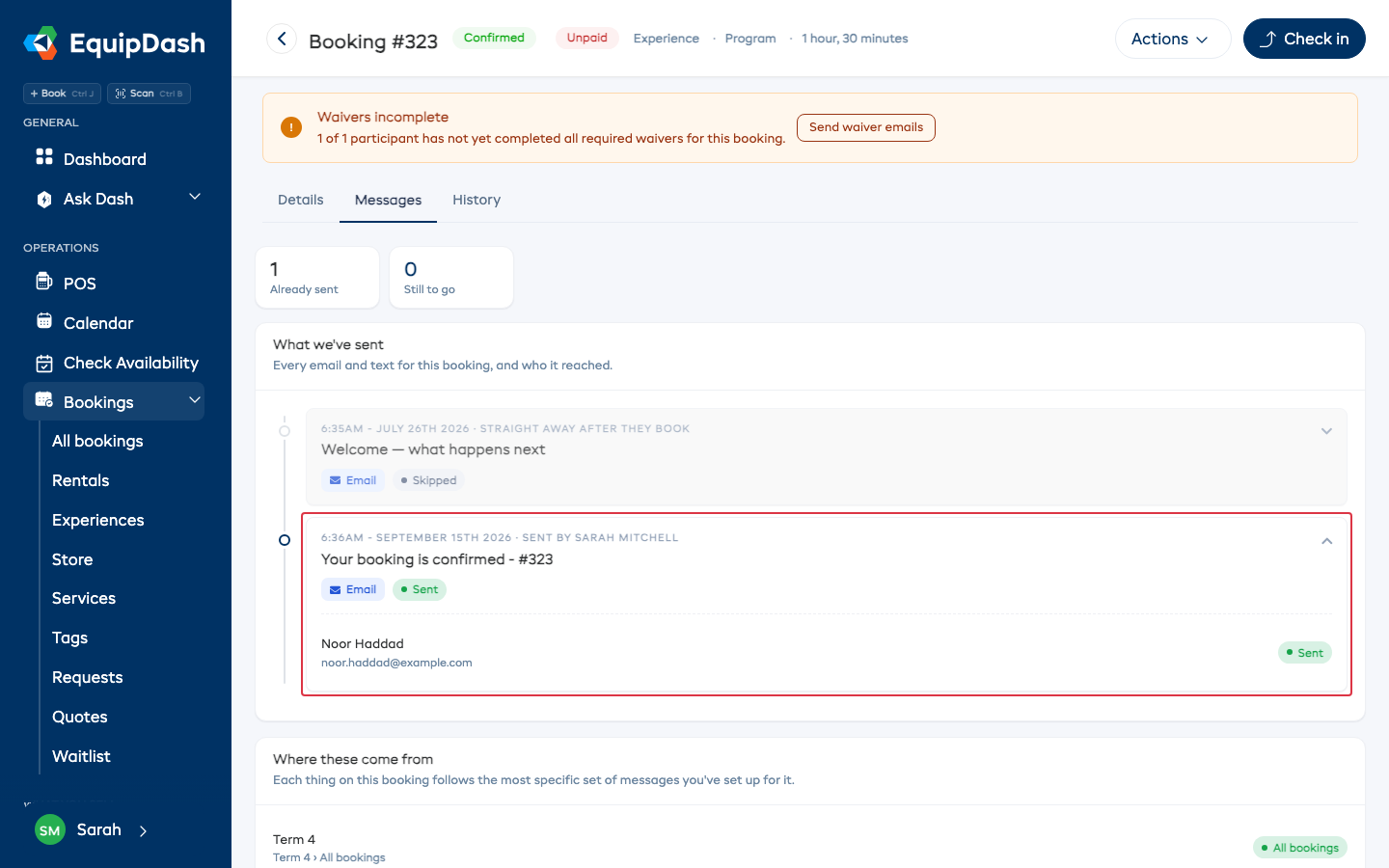
The Messages tab lists every email and text sent for the booking, oldest first, under What we've sent:
- Scheduled messages from Customer messages, with when they went out or when they're due
- Emails sent for the booking, like the confirmation, and the ones your team sends from Email actions, marked Sent by and the team member's name
- Texts sent for the booking, with the message itself on the row
- A Sent or Not sent status on each one
Click an entry to see who it went to. The counts at the top show how many have gone out and how many are still to go.
Writing the Customer Yourself
The scheduled messages cover the everyday things. When you need to tell someone something no plan covers, like their gear coming back early or a jacket they left behind, write it here.
- Open the booking and go to the Messages tab.
- Click Send a message in the top right of What we've sent.
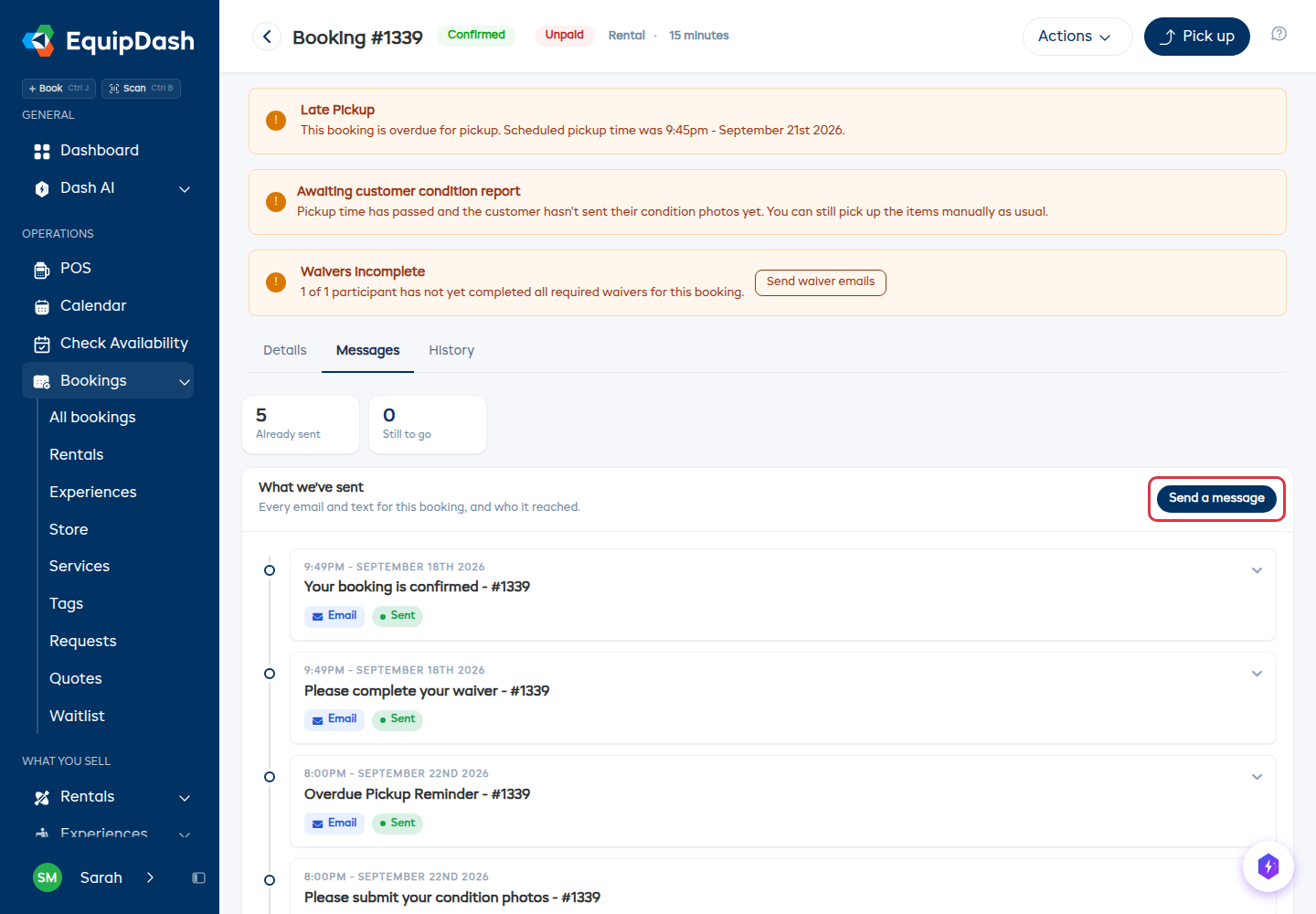
- Pick who it goes to under Send to. The booking contact and every participant are listed. Anyone without an email address (or without a phone number, if you are sending a text) is greyed out with the reason beside their name.
- Type a Subject and your Message, and attach files if you need to.
- Click Send email.
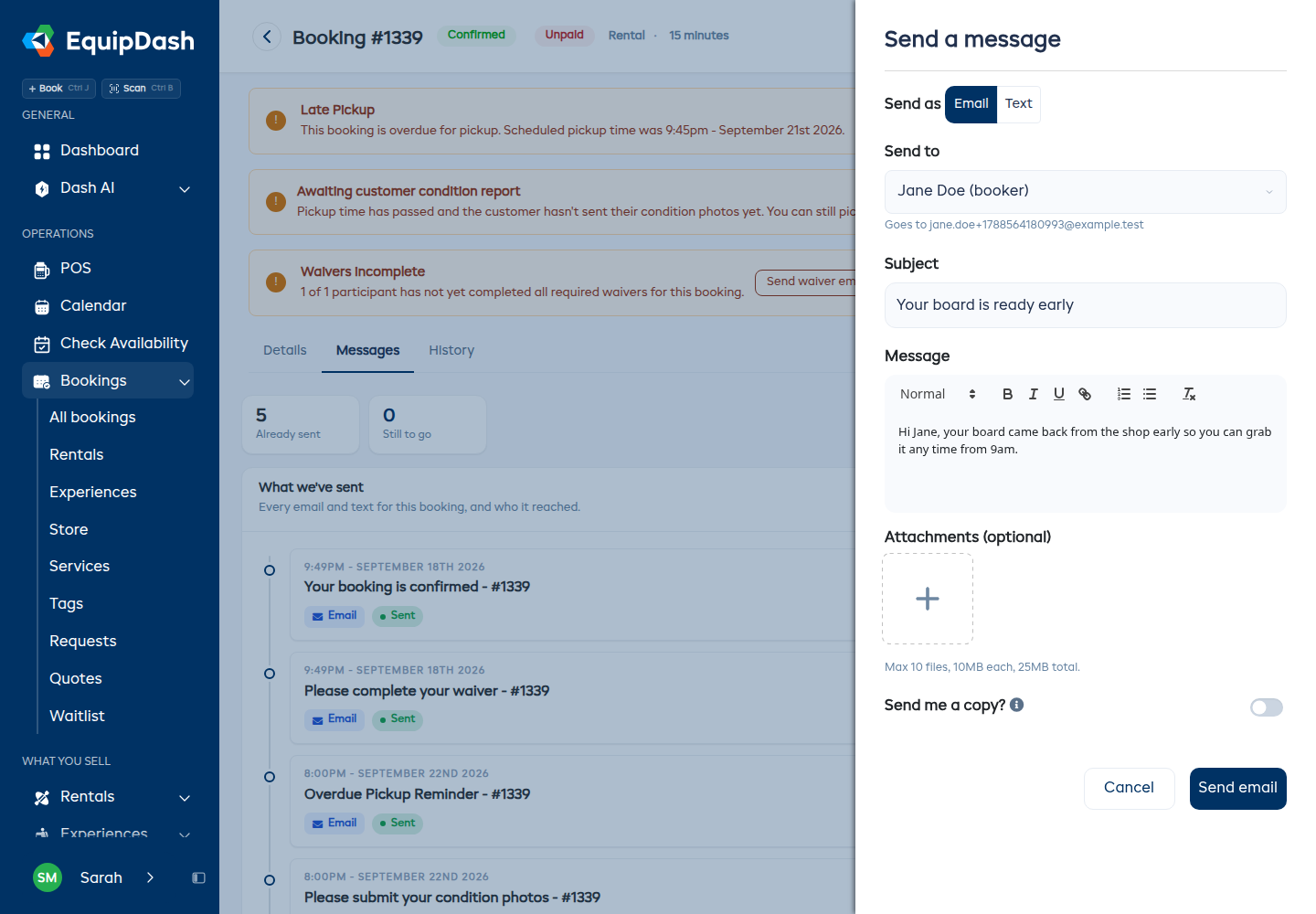
Turn on Send me a copy? to get the same email in your own inbox.
Whatever you send appears in What we've sent straight away, with your name on it, so the next person to open the booking can see it.
This is the same drawer you get from a customer's own page. Sending it from the booking is what ties it to that booking's history.
Sending a Text Instead
If you have text messages switched on, a Send as switch appears at the top of the drawer. Choose Text, pick who it goes to, and type your message. Texts come out of your SMS credit, the same as every other text EquipDash sends.
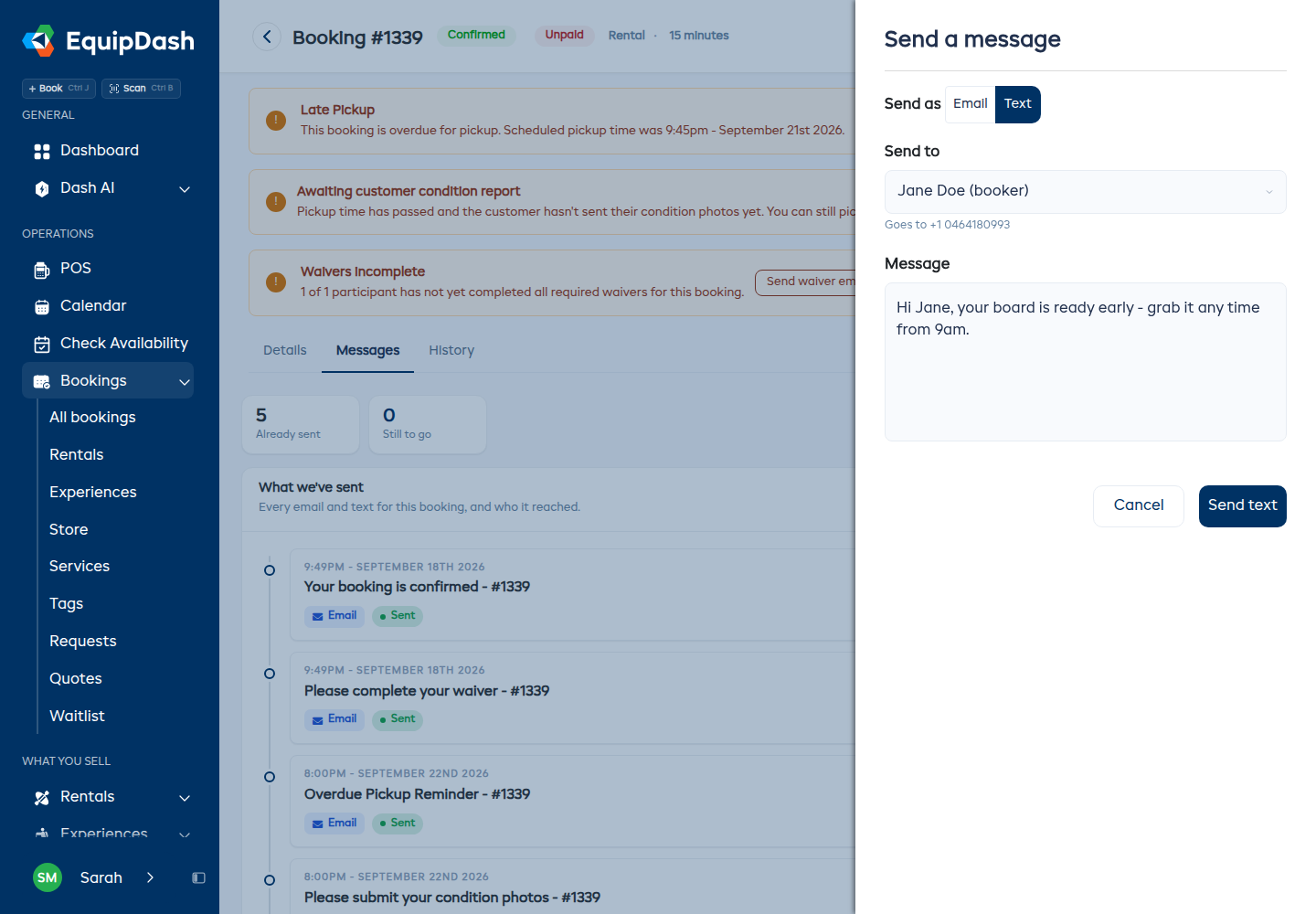
Someone who has opted out of texts, or who has no phone number on file, is greyed out in the list with the reason beside their name.
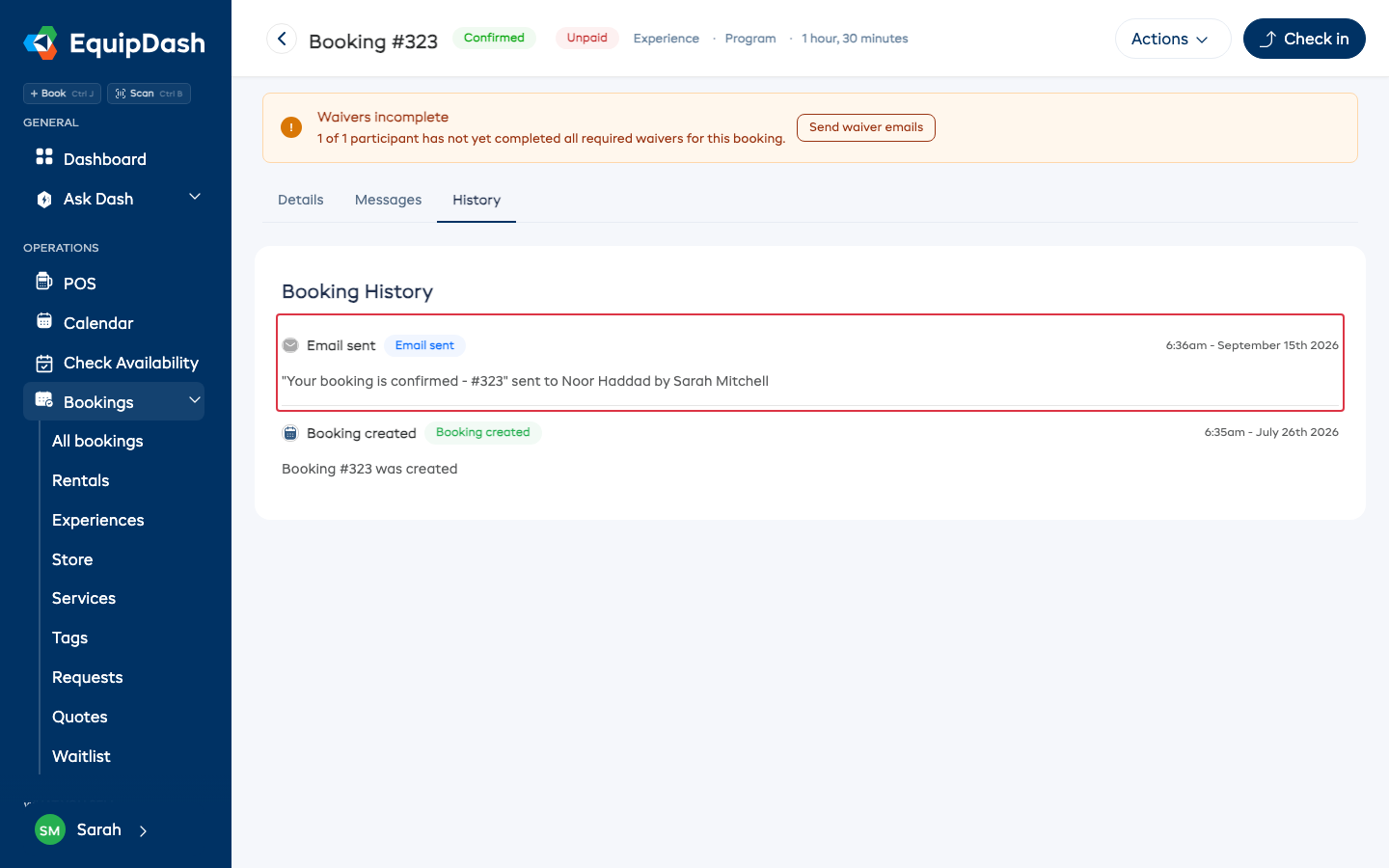
History Tab
The History tab shows a chronological timeline of every action taken on the booking, titled Booking History. Each entry includes:
- A description of the action (e.g. "Booking #144 was created")
- A status badge
- The date and time
Emails sent for the booking appear here too, as Email sent with the subject, who received it, and which team member sent it.
Survey Actions on a Booking
If your plan includes Surveys and you have the Manage Surveys permission, the Actions ▾ dropdown includes two survey actions for the booking in front of you:
Send survey
Sends a survey email to the customer right away — handy when a customer says "sure, send it over", or for surveys set to Manually, from a booking.
- Click Actions ▾ → Send survey.
- A Send survey modal lists your published surveys that apply to this booking. Pick one and it goes out immediately.
- If that survey was already sent for this booking, it shows an Already sent badge instead of a send button — the customer is never surveyed twice for the same trip.
If the modal says no published surveys apply, publish a survey first (see Creating a Survey), then send it from here.
Don't send surveys for this booking
The per-booking off switch — for the customer who asked not to be emailed, the weather-disaster trip you'd rather not ask about, or the regular who's answered ten times already.
- Click Actions ▾ → Don't send surveys for this booking.
- No survey (or reminder) will be sent for this booking, even if one was already queued.
- To reverse it, click Actions ▾ → Surveys off for this booking — turn back on.
Automatic sends already skip canceled bookings, no-shows, and OTA-sourced bookings (GetYourGuide, Viator, Manawa) on their own — this toggle is for everything else. See Sending Surveys.
Quick Actions from the Detail Page
From the booking detail page you can:
- Edit the booking — via Actions ▾ → Edit
- Move dates without editing items — click Move dates on the rental period or experience date card (faster than the full edit flow for date-only changes)
- Cancel the booking — via Actions ▾ → Cancel booking
- Archive the booking — via Actions ▾ → Archive booking (past or cancelled bookings)
- Add a payment — Add payment in the right rail
- Send a payment link — via the payment modal
- Process a refund — Process refund in the right rail
- Manage fulfillment — via the primary Pick up / Check in / Return button in the header
- Add notes — type into the textarea at the bottom of the Booking notes card
- Manage tags — use the + Add popover or click × on a chip to remove
- Download a packing slip, invoice, or tickets — via Actions ▾
- Send a survey or turn surveys off for this booking — via Actions ▾