Experience Calendar
The Experiences tab answers two questions:
- Who is coming today?
- Which departures still have seats?
One switch chooses between them.
Opening it
- Click Calendar in the left sidebar.
- Click the Experiences tab.
If Experiences is the only module you run, the calendar opens here.
The switches
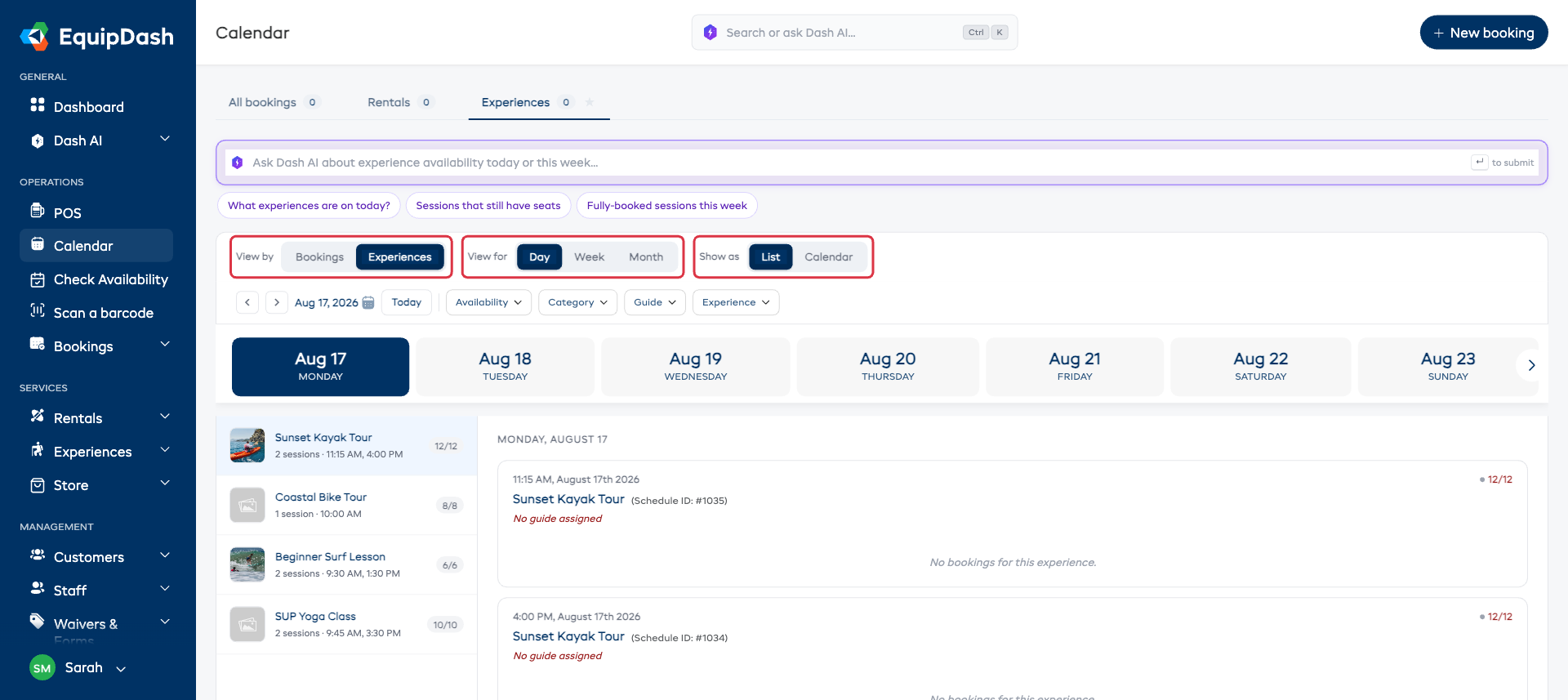
View by
| Setting | What you see |
|---|---|
| Bookings | Who is coming. One bar per booking, with the customer and how many people. |
| Experiences | What is scheduled and how full it is. One bar per departure, colored by how many seats have gone. |
View for - Day, Week or Month.
Show as - List or Calendar. This one only appears while you are on Experiences; looking at bookings, there is nothing to switch.
Bookings is the default and the left-hand button, the same as on the Rentals tab.
Rows: experiences, then departures
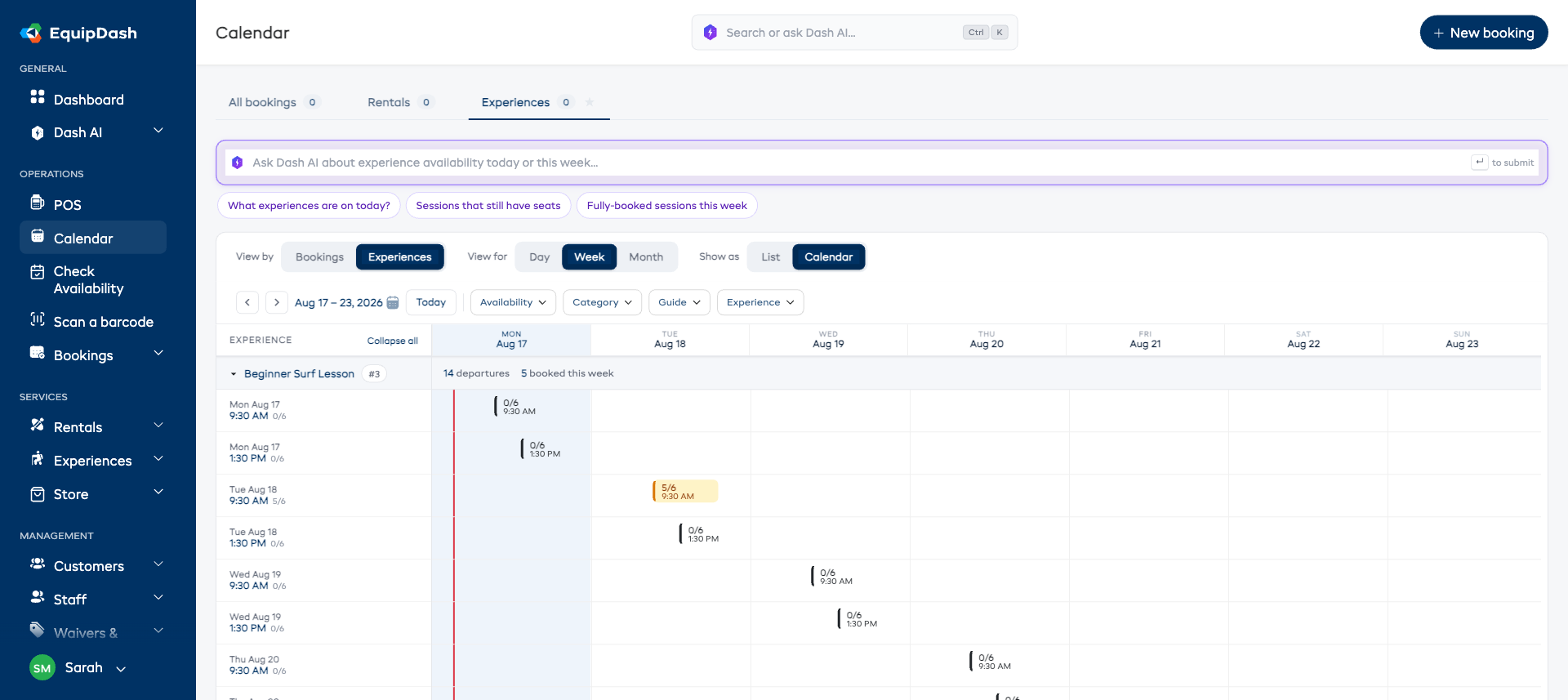
The experience row carries the summary - how many departures are scheduled and how many bookings they have taken in the period.
Underneath, each departure gets its own row, labeled with its date, its start time, and how full it is as a fraction (5/6). Click the experience row to fold it away, or use Collapse all.
Seeing how full things are
With View by: Experiences, every departure is colored by how many seats have gone:
| Color | Meaning |
|---|---|
| Gray | Nobody booked yet |
| Green | Room to spare |
| Amber | Filling up |
| Red | Full |
A departure that still has seats but cannot be sold also shows as Full, with the reason in place of the count: the boat or other shared item is out on another departure, no guide is free, or the day is closed. It is the same reason the booking page and POS give.
Each bar reads as booked-out-of-total, with the start time underneath. This is the view for "which departures still have seats" - a week of gray and green bars is a week that needs marketing.
Seeing who is coming
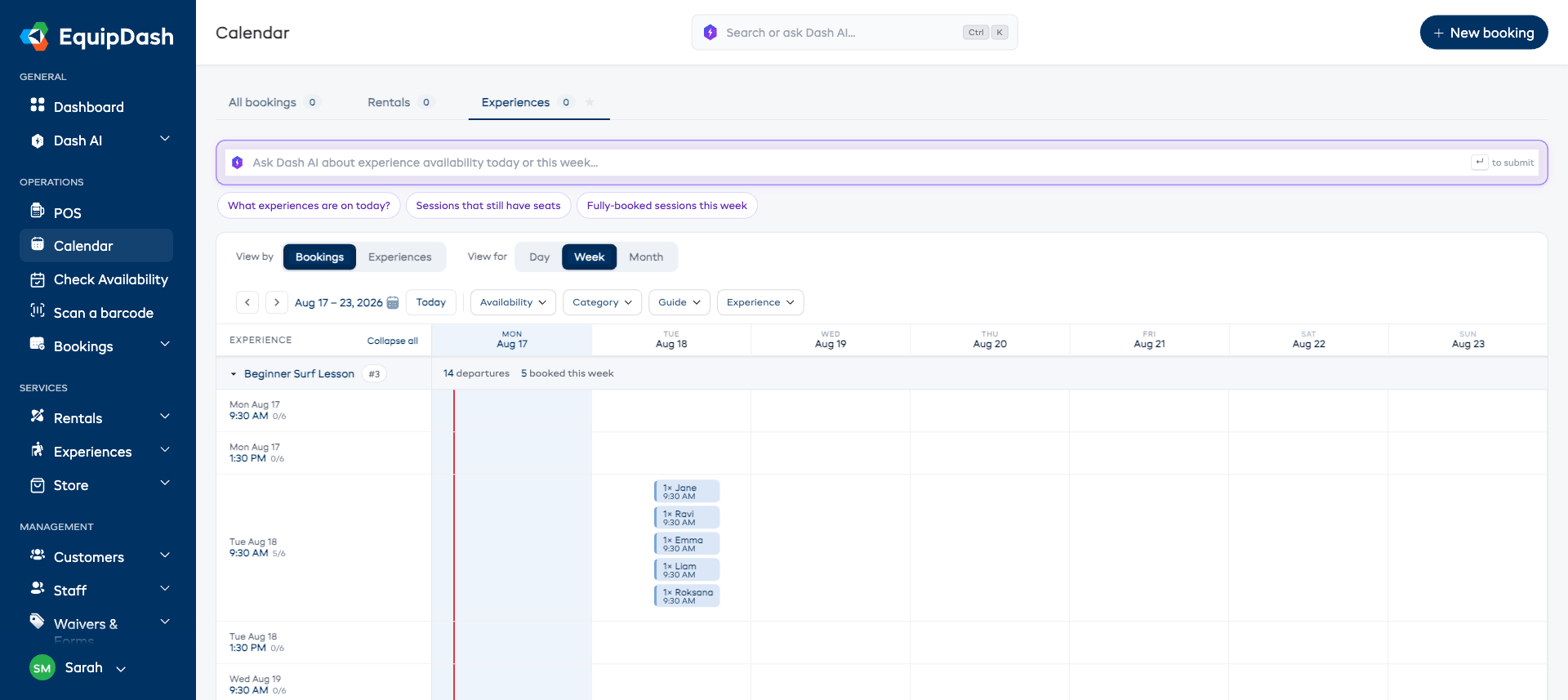
With View by: Bookings, the same departures fill with one bar per booking, showing how many people and who they are. Bars are colored by where the booking has got to - Booked, Checked in, Finished, or Quote or draft.
Hover any bar for the full booking card - the customer, their email, everything they have booked, and the totals. Click it to open the booking.
Reading it down a list instead
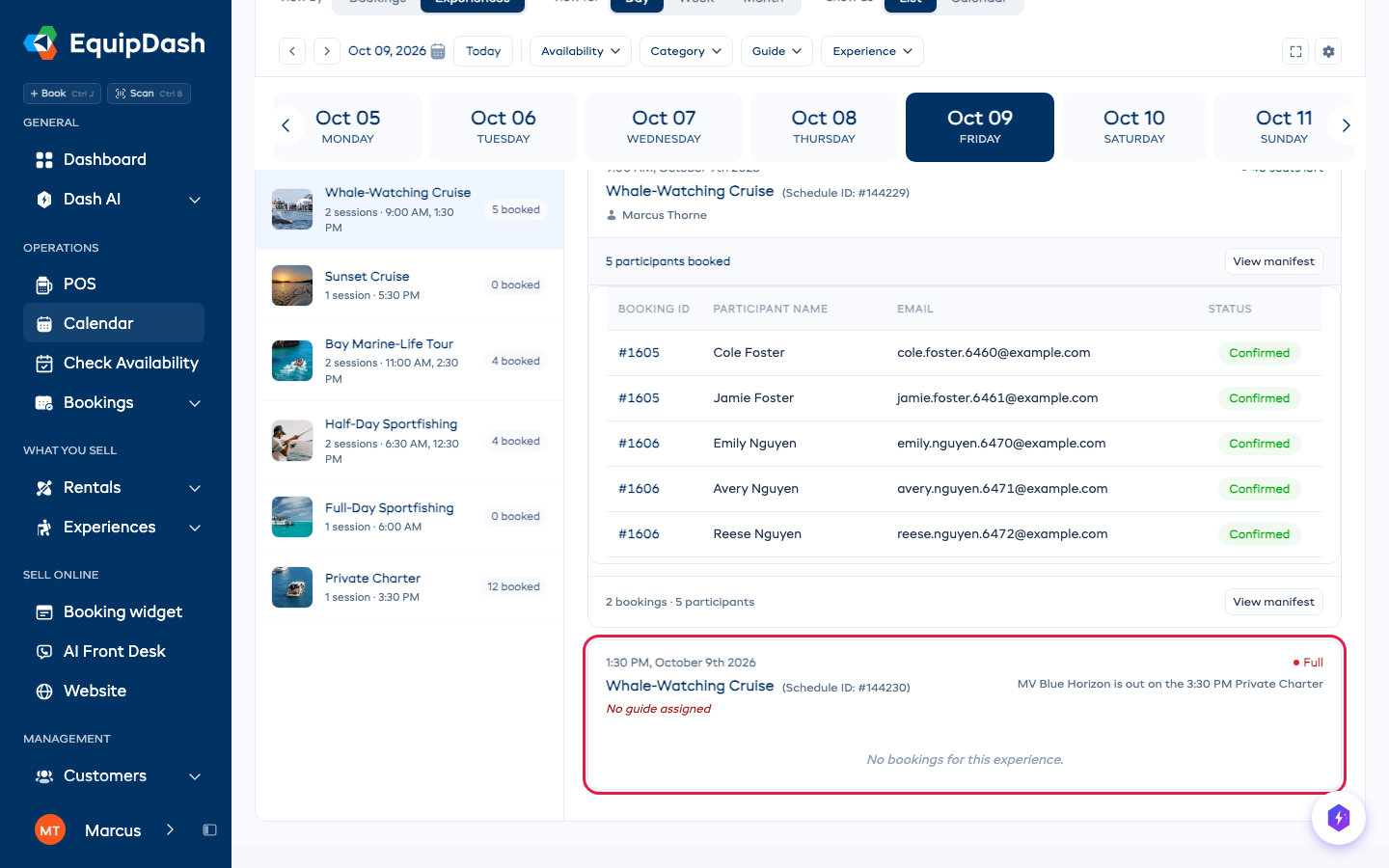
Choose View by: Experiences and Show as: List for a two-panel layout: your experiences down the left, and every departure for the chosen dates on the right with its participant list. See List View for the detail.
The calendar layouts
Choose View by: Experiences and Show as: Calendar:
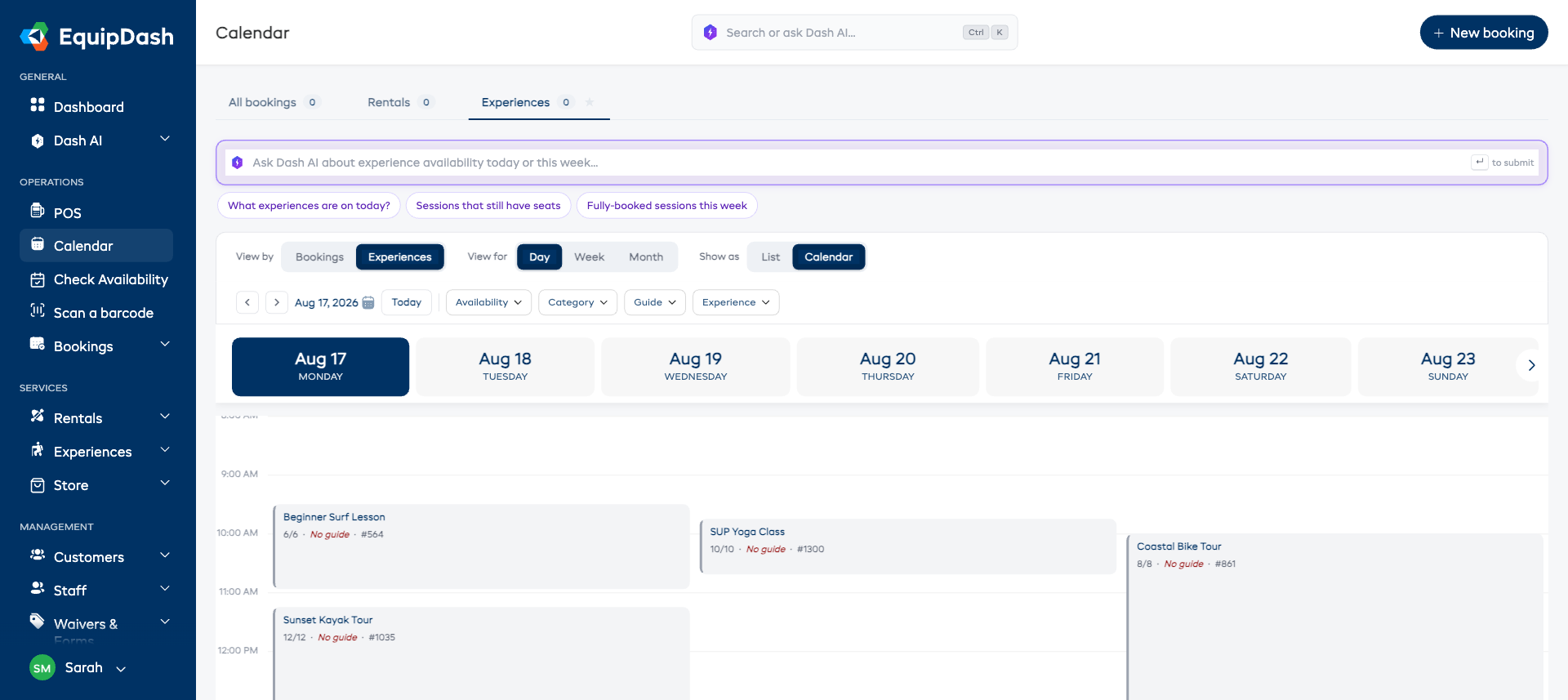
Switching Show as between List and Calendar keeps the day or week you are on.
Day gives you a vertical timeline. Hours run down the left, each departure sits at its scheduled time and is as tall as it is long, and anything overlapping sits side by side - so a clash is obvious. Each block shows the experience, how full it is, and the guide (or No guide in red if nobody is assigned yet). A red Now line marks the current time.
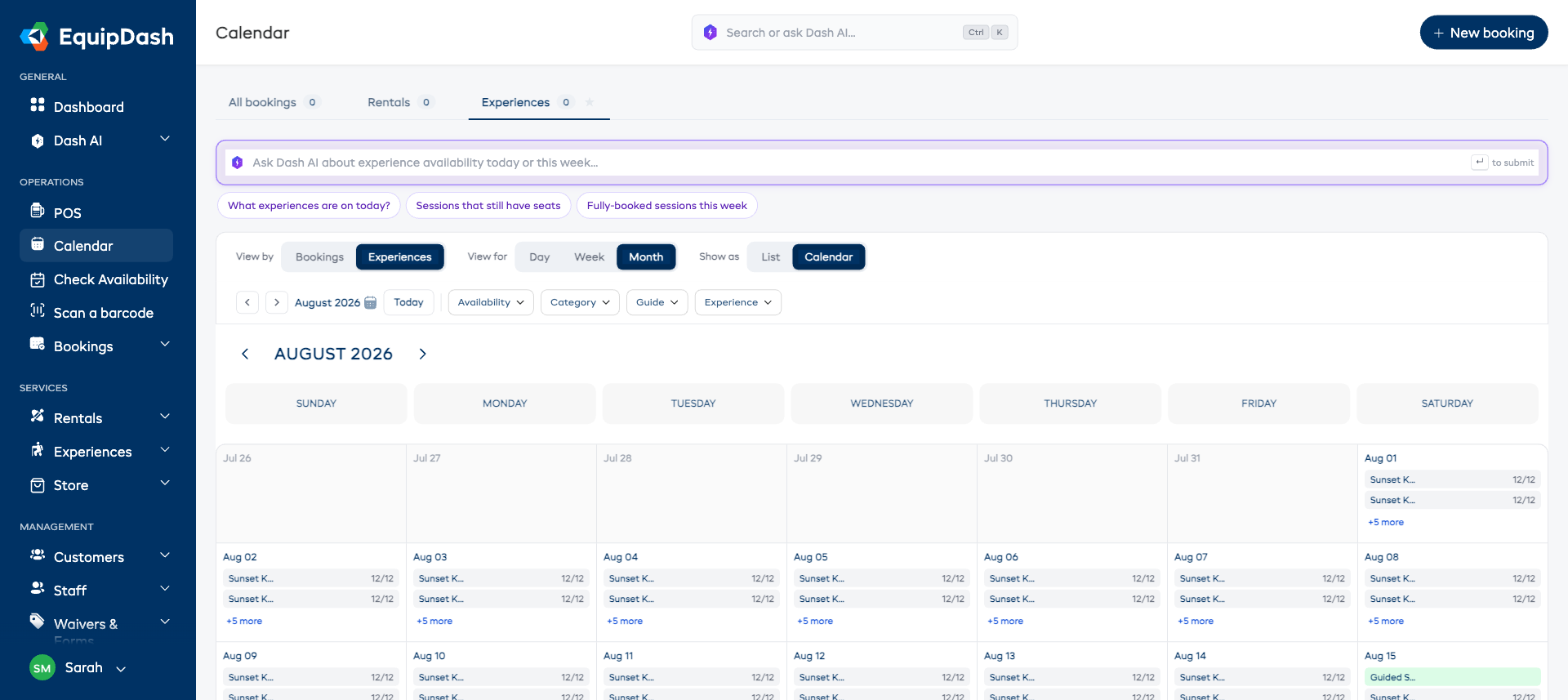
Month gives you the familiar month grid. Departures appear inside each date as small chips with the name and how full they are, and +N more opens the rest. Click a date to jump to that day.
Week shows seven days together. Choose Calendar for the timeline grid, or List for the session and participant lists.
Guides that are still missing
Any departure with nobody assigned says No guide assigned in red - on the list cards, on the timeline blocks, and in the detail card. Scan a week in the list view and the gaps jump out.
Narrowing what you see
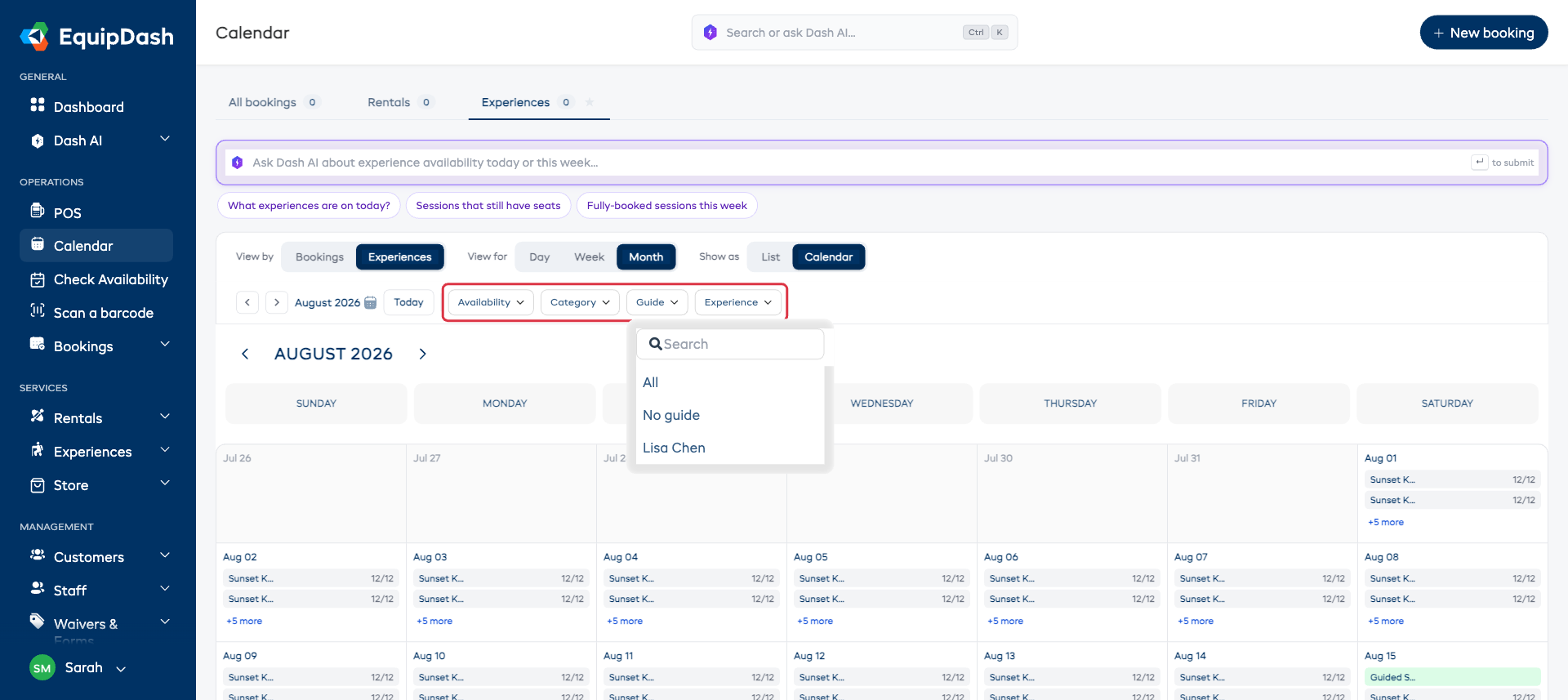
- Availability - only what is Available, or only what is Not available.
- Category - one group of experiences.
- Guide - one person, or No guide to find everything still unassigned.
- Experience - a single experience.
Clear filters appears as soon as anything is set.
Related Guides
- Calendar Overview - the tabs, the switches, and the star.
- Rental Calendar - the Rentals tab.
- List View - the two-panel list and its participant tables.
- Quick Actions from Calendar - what you can do without leaving the page.
- Viewing and Managing Bookings - the Calendar view button on the booking lists.