List View
The list view is the reading version of the experience calendar. Instead of bars on a timeline you get your experiences down the left and, on the right, every departure with the people booked on it - names, emails, and whether their paperwork is done.
It is the view to open before a shift: one scroll tells you who is coming and what still needs chasing.
Rental items do not have a list view - they use the timeline on the Rental Calendar.
Getting to it
- Click Calendar in the left sidebar, then the Experiences tab.
- Set View by to Experiences.
- Set Show as to List.
The Show as switch only exists while View by is set to Experiences - looking at bookings, there is nothing to switch. If you cannot see it, that is why.
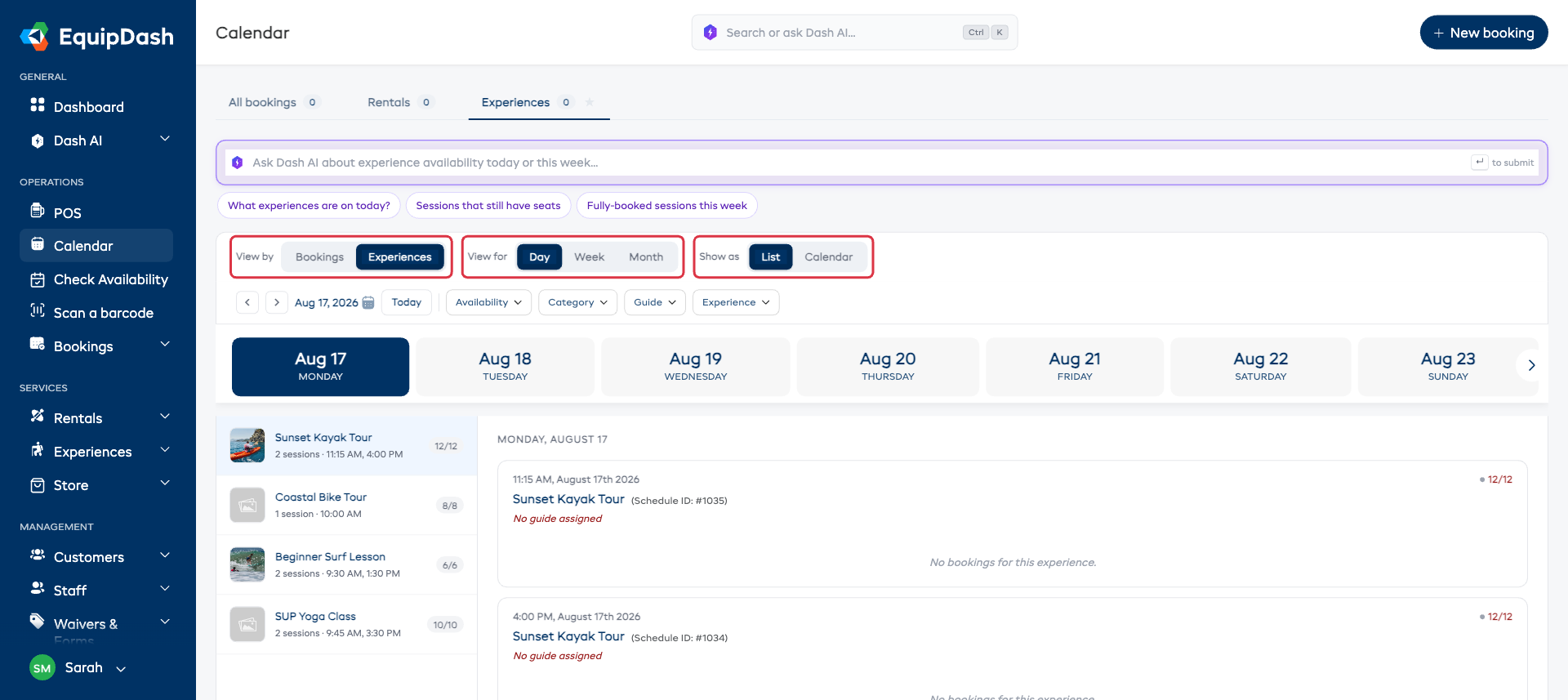
It works with Day, Week and Month, and the right-hand panel simply covers more dates as you widen the period.
The left panel - your experiences
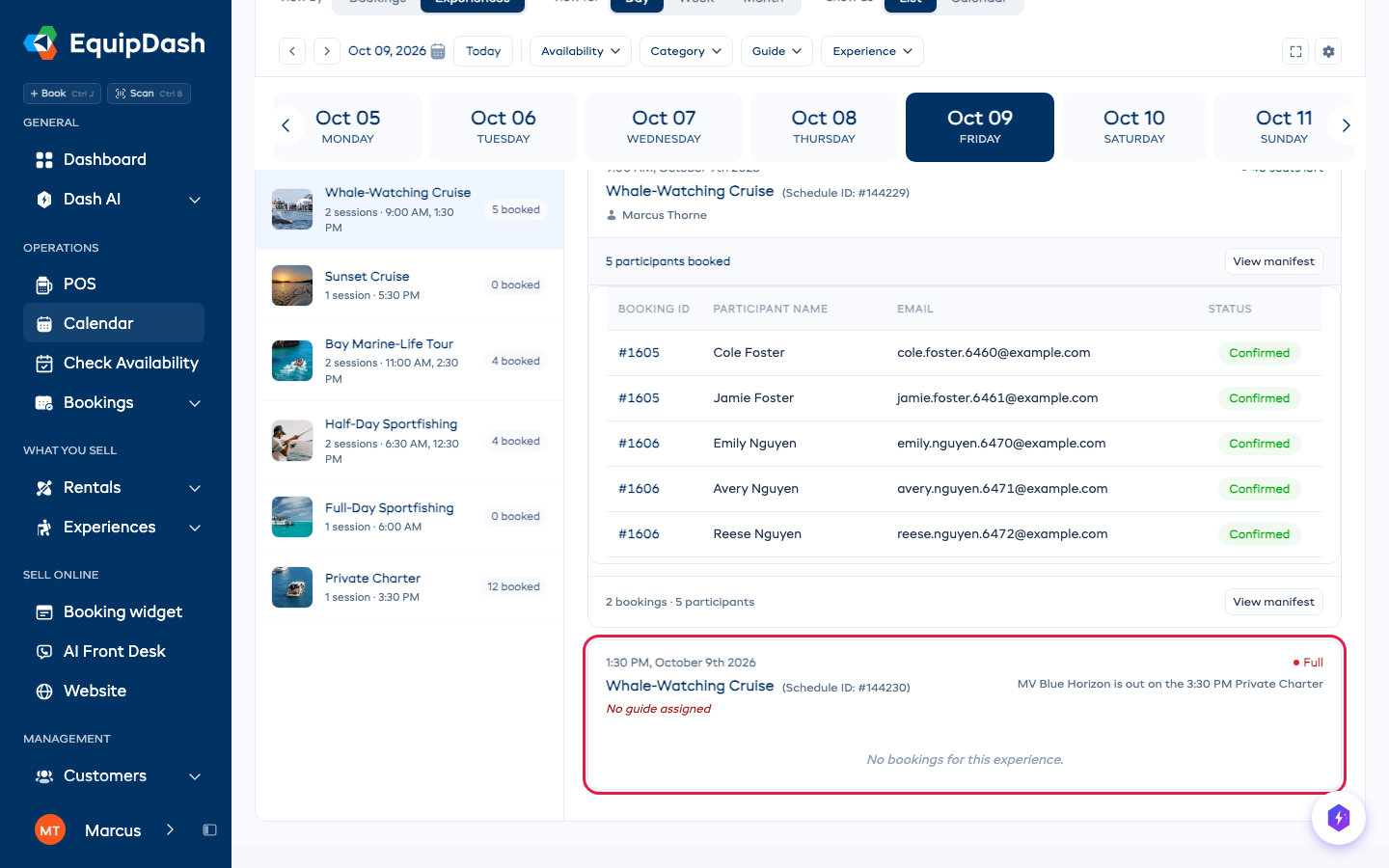
Each row is one experience:
| Element | What it tells you |
|---|---|
| Photo and name | Which experience it is |
| Sessions and times | How many departures fall in the period, which days they run and their start times, for example Every day · 9:00 AM, 1:30 PM |
| Booked badge | How many people are booked on those departures |
Click any experience to load it into the panel on the right.
The right panel - the departures
The heading tells you which dates you are looking at - a single day, or a span like Aug 17 – Aug 23. Underneath, each departure gets a card showing:
- the start time and date
- the experience name and its schedule reference
- the guide, or No guide assigned in red if nobody is on it yet
- how full it is, and how many people are waiting. A departure that has seats left but cannot be sold reads Full, with the reason under it, such as the boat being out on another departure
- a participant table - booking reference, name, email, status, and a column for each form or waiver that applies, so you can see at a glance who still has paperwork outstanding
- a View manifest button through to the full run sheet
If nothing is booked on a departure yet, the card says so rather than showing an empty table.
Click any booking reference in the table to open that booking.
Narrowing the list
The same filters apply as everywhere else on the tab - Availability, Category, Guide and Experience. Setting Guide to No guide is the quickest way to find everything that still needs someone assigned.
Clear filters appears as soon as anything is set.
Related Guides
- Calendar Overview - the tabs, the switches, and the star.
- Experience Calendar - the timeline and calendar layouts.
- Quick Actions from Calendar - what you can do without leaving the page.