Creating a Campaign Growth+This feature requires the Growth+ plan or higher
Sending a campaign takes three moves: say what it's for, say who gets it, then write it and send. The first two happen in a short panel; the writing happens on the campaign's own page, where the email you're editing is the email your customers receive.
Nothing needs saving as you go — everything is kept as a draft until you send or schedule it.
Step 1: What's this campaign for?
- In the left sidebar, click Promotions then Campaigns.
- Click New campaign.
- Give it a Campaign Name (what you'll recognize it by on the list — customers never see it). Description is optional and internal only.
- Choose what the campaign is for:
| Choice | What it sets up |
|---|---|
| Announce something | Announcement design, everyone who has booked with you |
| Fill slow days | Promo blast design, local customers, and a nudge to attach a promo code |
| Win back customers | Win-back design, people who haven't booked in a while |
| Create from scratch | Plain email, no design — just your words |
Each choice fills in a name, a design, a starting subject and message, and a suggested audience. All of it is editable.
- Click Continue.
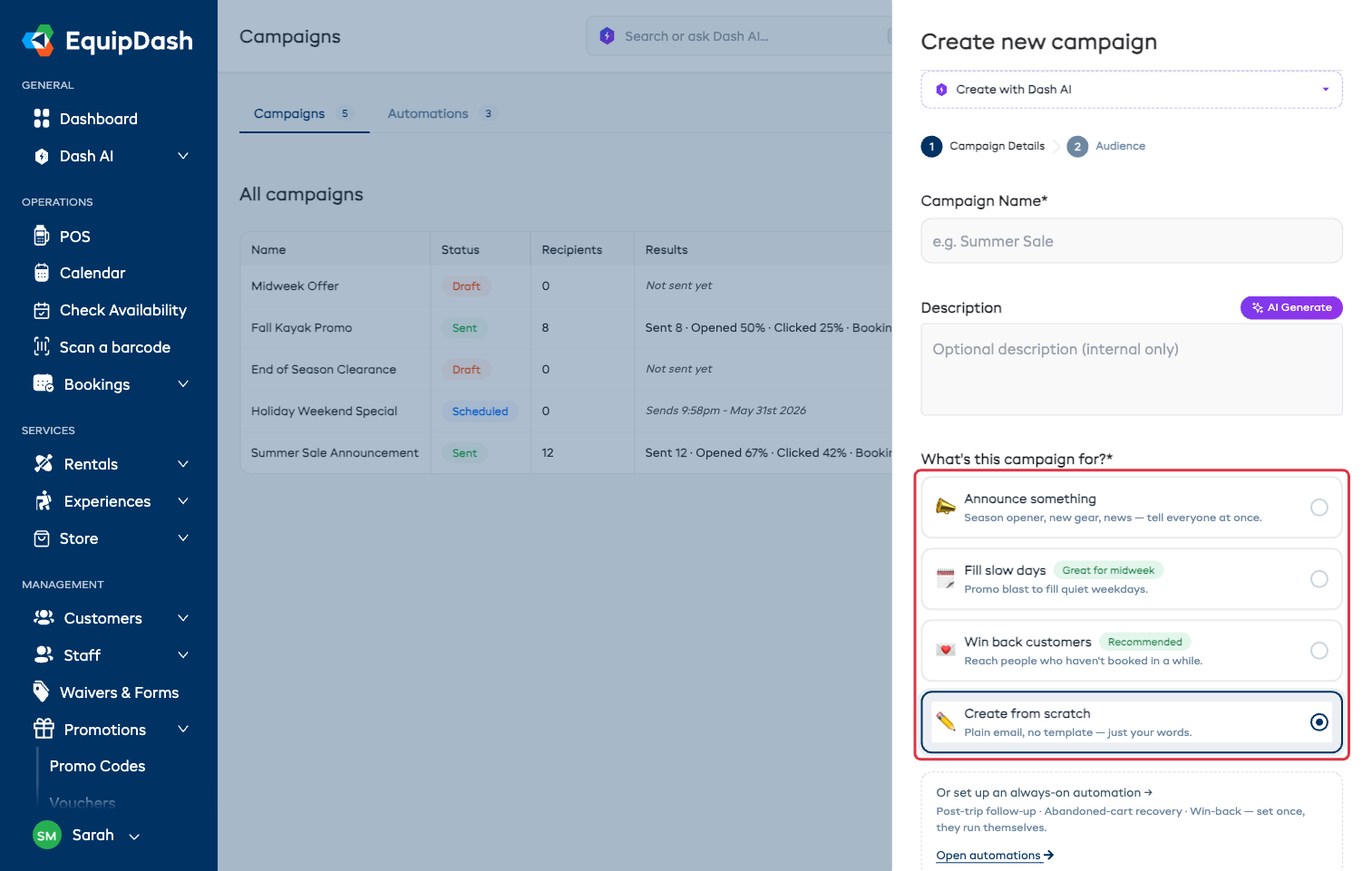
The Create with Dash AI panel sits at the top of the same step. Describe what you want to say in a sentence or two and Dash drafts the name, subject, and message for you — you review and edit everything before it goes anywhere. See Create with Dash.
Want something that runs by itself instead of a one-off send? Click Open automations at the bottom of the step — see Automations.
Step 2: Who gets it?
Pick one audience. The customer counts on the cards update live, and the line underneath always tells you how many people will receive this campaign.
- All customers — everyone who has ever booked with you.
- Recent bookers — booked in the last 90 days.
- Customers from a season — everyone who booked during a season you pick.
- Locals — customers in your area.
- Selected customers — hand-pick them one by one.
- Custom filter — filter by what they booked, when, or where they live.
Click Create campaign when the count looks right. Full detail on each option is in Choosing Who Gets It.
Step 3: Write the message
You land on the campaign's page on the Message tab. What you see is the actual email — click anywhere on it to edit it.
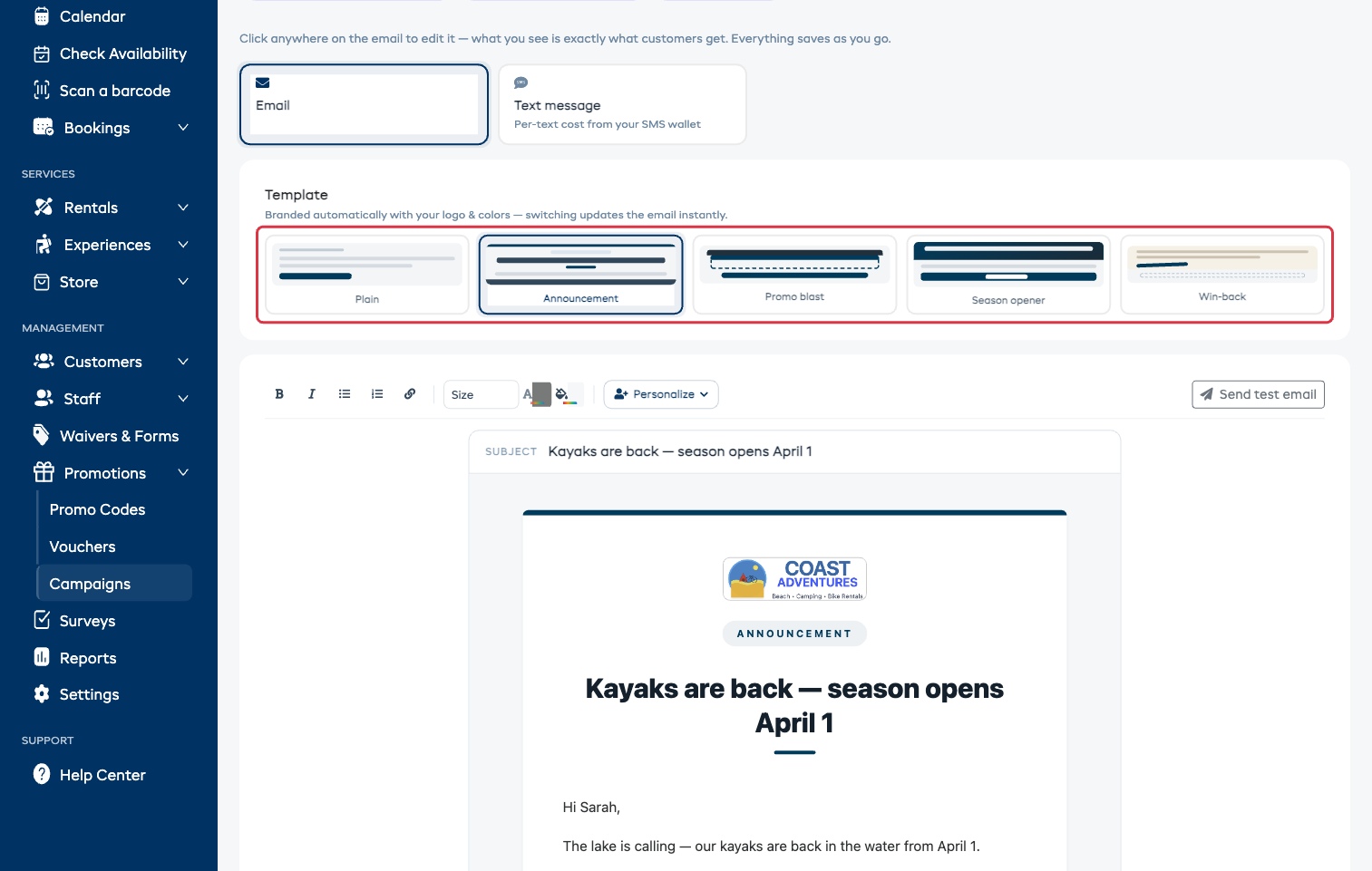
- Choose a design. Plain, Announcement, Promo blast, Season opener, or Win-back. Every design is branded with your logo and colors automatically, and switching updates the email instantly.
- Write the Subject. It sits at the top of the email, right where the customer will read it.
- Write the message. Click into any text on the email and type. The toolbar above gives you bold, italic, bulleted and numbered lists, links, text size, text color, and the email background color.
- Add anything else you need. Hover between two parts of the email and click the + to add a Heading, Text, Button, Image, Divider, Promo code, or Spacer. Designs that expect a button or a code show a dashed Add a button / Add a promo code slot — click it to fill it in.
- Attach a promo code (optional) under Promo code → Attach. Attaching one makes
{promo_code}and{promo_discount}work in your message. No codes yet? Create one first under Promotions → Promo Codes — see Creating a Promo Code.
Changes save by themselves — a small Saved note appears at the bottom of the screen.
Personalize with the customer's own details
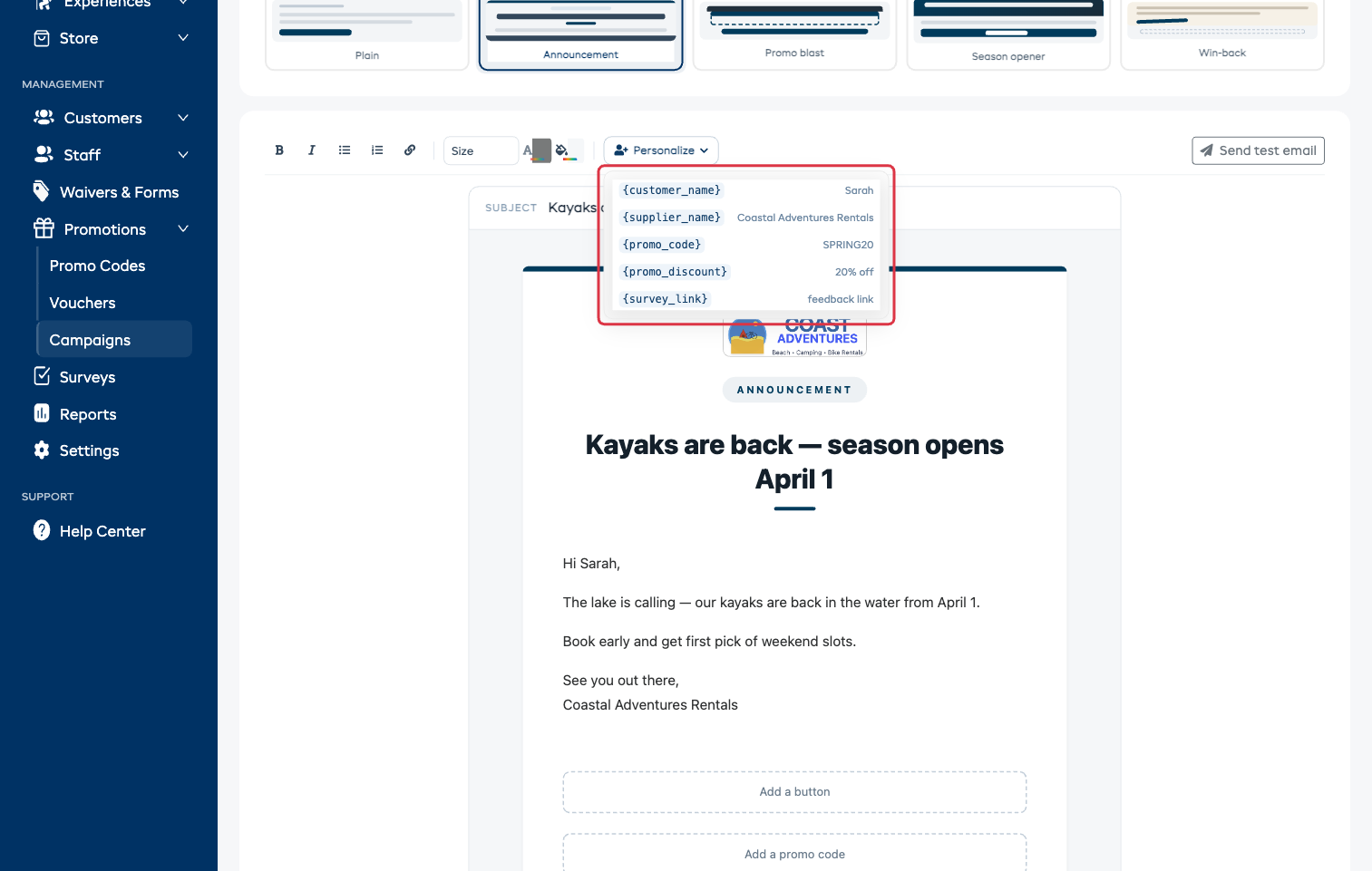
Click Personalize in the toolbar and pick a tag. Each one is swapped for the real thing when the email goes out.
| Tag | What the customer sees |
|---|---|
{customer_name} | The customer's name |
{supplier_name} | Your business name |
{promo_code} | The promo code you attached |
{promo_discount} | That code's discount, e.g. "20% off" |
{survey_link} | A link to the survey linked on the Details tab |
Click Send test email in the toolbar. The test goes to your own login email and looks exactly like the real thing, with every tag filled in. If you see a raw {tag} in the test, something needs fixing before you send.
Prefer to send this as a text message? Choose Text message at the top of the Message tab — see Text Message Campaigns.
Step 4: Send it or schedule it
The line under the email tells you how many customers will get it and whether anything is missing. When it says Ready to send, use the buttons at the top of the page.
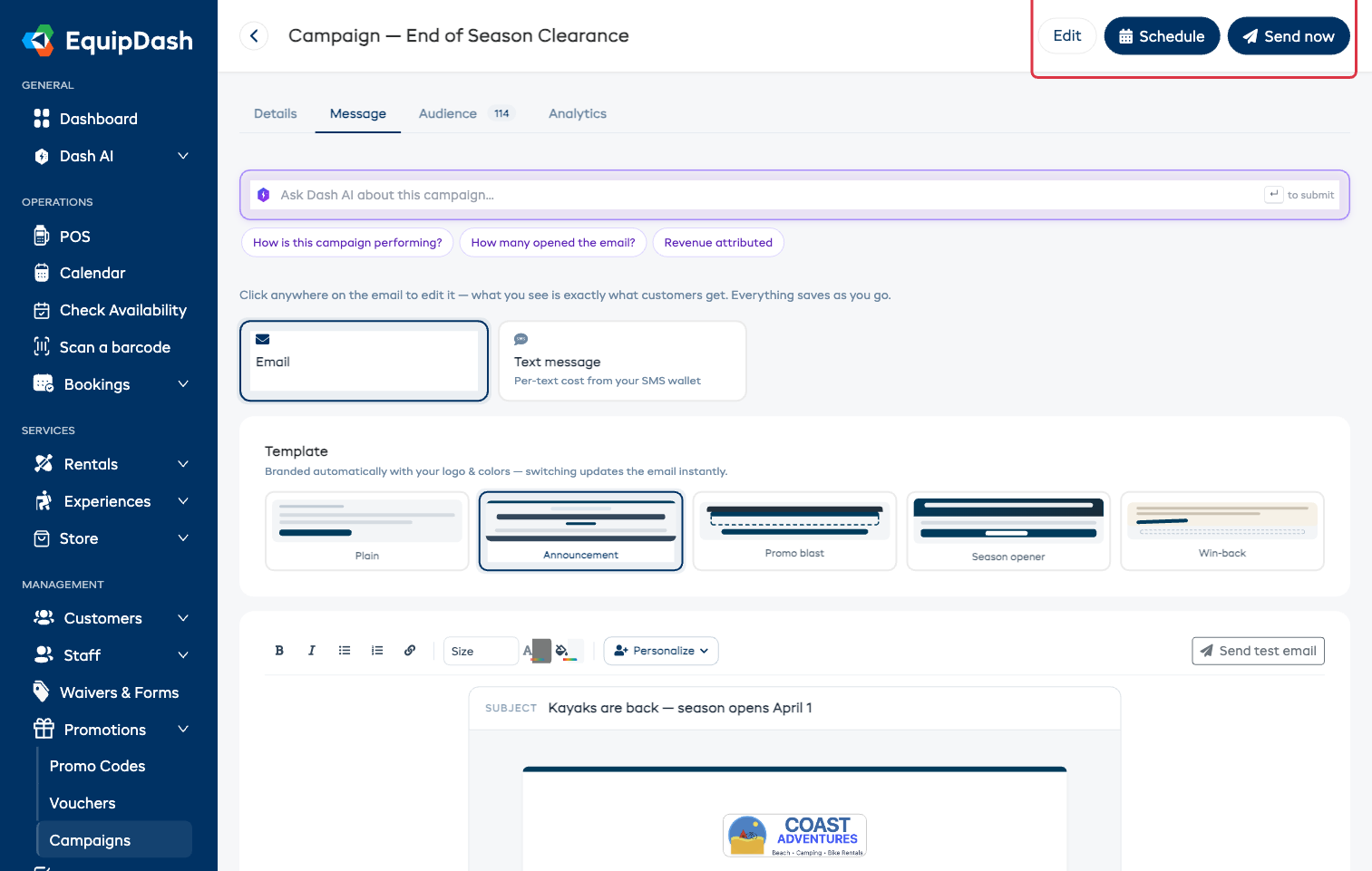
- Send now — asks you to confirm the number of customers, then goes out immediately.
- Schedule — pick a Date and Time in your own timezone. The campaign then shows a Scheduled banner; you can still Send now or Cancel Schedule from that banner.
If Send now and Schedule are greyed out, hover over them — the reason is right there (for example a missing subject).
The Rest of the Campaign Page
| Tab | What's on it |
|---|---|
| Details | Name, description, dates, and the linked survey. Click a value to edit it. |
| Message | The email (or text) itself, the design gallery, and the promo code. |
| Audience | Who's getting it — change it any time before you send. |
| Analytics | Opens, clicks, bookings, and revenue once it has sent. |
Use Edit at the top of the page to change the name, description, what the campaign is for, and whether it stays a draft or is scheduled.
Campaign Statuses
| Status | What it means |
|---|---|
| Draft | Still being worked on. Can be edited, duplicated, or deleted. |
| Scheduled | Will send by itself at the date and time you picked. |
| Sending | Going out right now. |
| Sent | Delivered. Results appear on the list and on the Analytics tab. |
Duplicating a Campaign
To send something similar to a campaign that worked:
- On the Campaigns list, click the copy icon on that campaign's row.
- A draft copy is created — with the same message, design, audience, and attached promo codes — and opens straight away.
- Change what you need and send.
Deleting a Campaign
You can only delete a campaign that hasn't gone out. On the Campaigns list, click the trash icon on a draft's row and confirm. Sent campaigns stay for their results; if you don't want a scheduled one to go out, cancel its schedule first, then delete the draft.