Creating Vouchers Growth+This feature requires the Growth+ plan or higher
Vouchers are a great way to offer gift cards, reward loyal customers, or compensate someone for a service issue. Each voucher has a monetary value that the recipient can apply to future bookings.
How Vouchers Work
- You create a voucher with a set value (e.g., $50).
- The voucher gets a unique code (auto-generated or custom).
- The recipient enters the code at checkout, and the voucher balance is deducted from the booking total.
- If the booking total is less than the voucher value, the remaining balance stays on the voucher for future use.
- You can track the balance and redemption history at any time.
Step-by-Step: Creating a Voucher
- In the left sidebar, click Promotions then Vouchers.
- Click + New voucher in the top-right corner.
- A slide-over panel opens with a 3-step form.
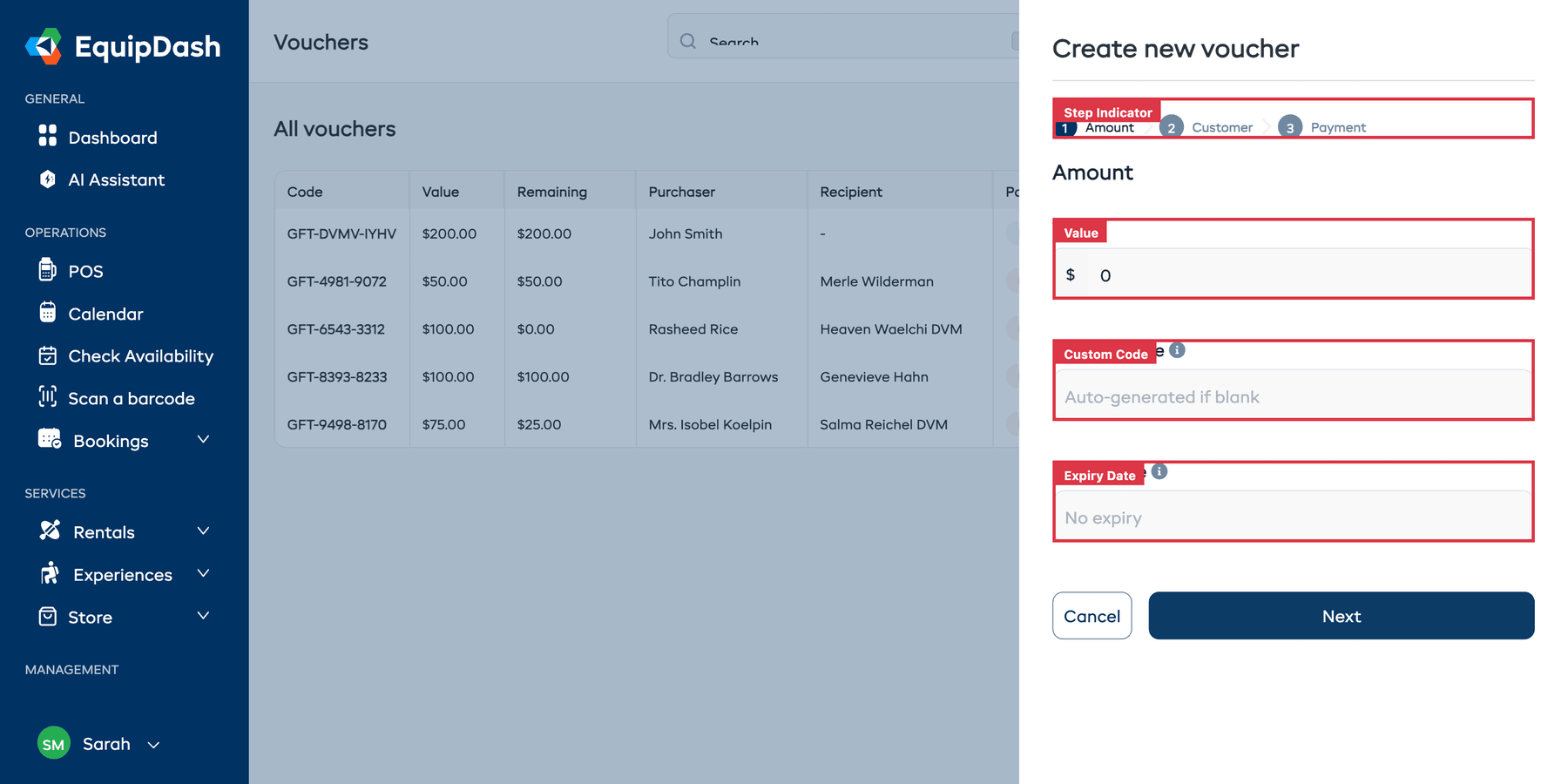
Step 1: Amount
Set the voucher's value and code:
| Field | Description |
|---|---|
| Value* | The monetary amount of the voucher (e.g., $50, $100). This is the total credit available to the recipient. |
| Custom Code | An optional custom code. If you leave this blank, a code is auto-generated (e.g., "GFT-XXXX-XXXX"). Enter your own if you want something memorable like "HAPPY-BDAY-SARAH". |
| Expiry Date | The date the voucher expires. After this date, the voucher can no longer be redeemed. Leave blank for no expiry. |
- Click Next to continue.
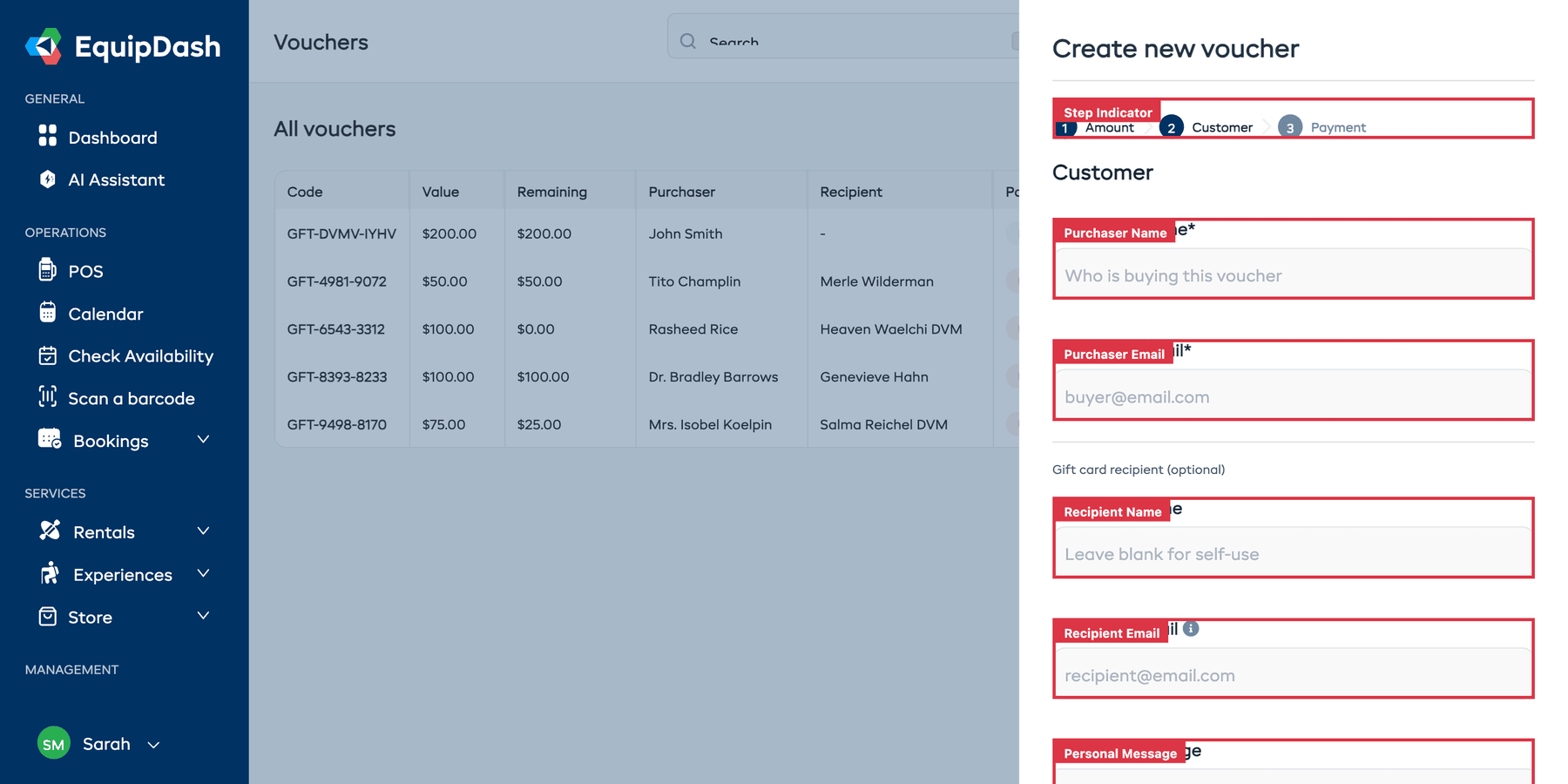
Step 2: Customer
Enter the purchaser and (optionally) the gift recipient:
| Field | Description |
|---|---|
| Purchaser Name* | The name of the person buying the voucher. Required. |
| Purchaser Email* | The email of the purchaser. Required. |
| Recipient Name | The name of the person the voucher is a gift for. Leave blank if the purchaser is buying it for themselves. |
| Recipient Email | The recipient's email address. If provided, the voucher details can be emailed to them. |
| Personal Message | An optional message to include with the gift card email (e.g., "Happy birthday! Enjoy a day on the water."). |
- Click Next to continue.
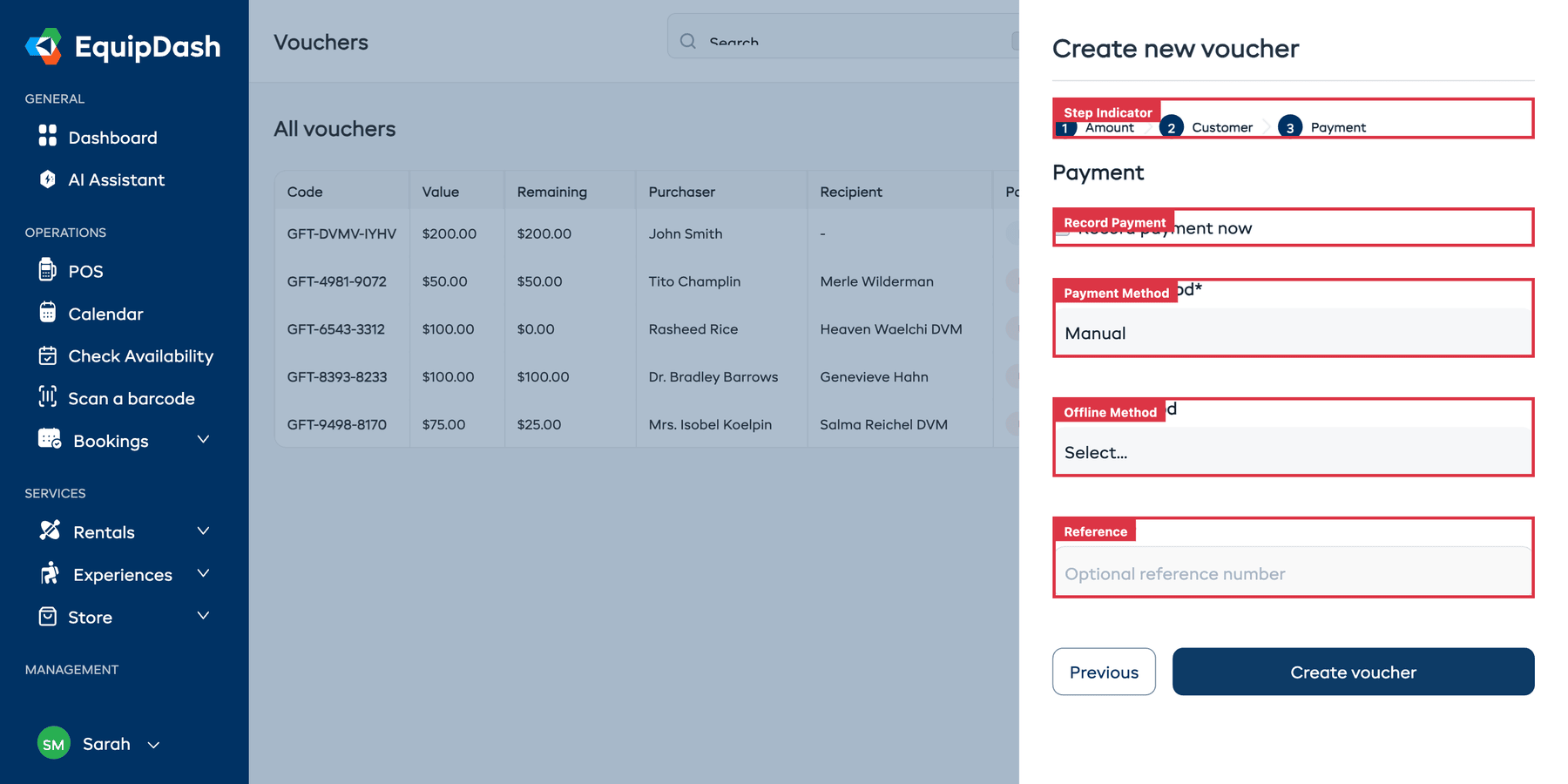
Step 3: Payment
Record whether the voucher has been paid for:
| Field | Description |
|---|---|
| Record payment now | Tick this checkbox if the customer has already paid for the voucher. |
| Payment Method* | Choose how the payment was made: Manual, Credit Card, or Other. Only shown when the checkbox is ticked. |
| Offline Method | If you selected Manual, choose the specific method: Cash, Bank Transfer, or Other. |
| Reference | An optional payment reference (e.g., receipt number, transaction ID). |
- Tick Record payment now if the customer has paid, then fill in the payment details.
- Click Create voucher to finish.
Tips
- Use custom codes for special gifts. A code like "HAPPY-BDAY-SARAH" is a nice personal touch.
- Always set an expiry date. This keeps your outstanding voucher liability manageable and encourages recipients to book sooner.
- Record the purchaser details carefully. This makes it easy to look up who bought the voucher if questions arise later.
- Use the personal message for gifts. A thoughtful message makes the gift card experience more special for the recipient.