Campaign Results & Analytics Growth+This feature requires the Growth+ plan or higher
Every campaign shows you what it actually brought back — not just whether the emails went out, but who opened, who clicked, and how many bookings and how much money followed.
Results at a Glance
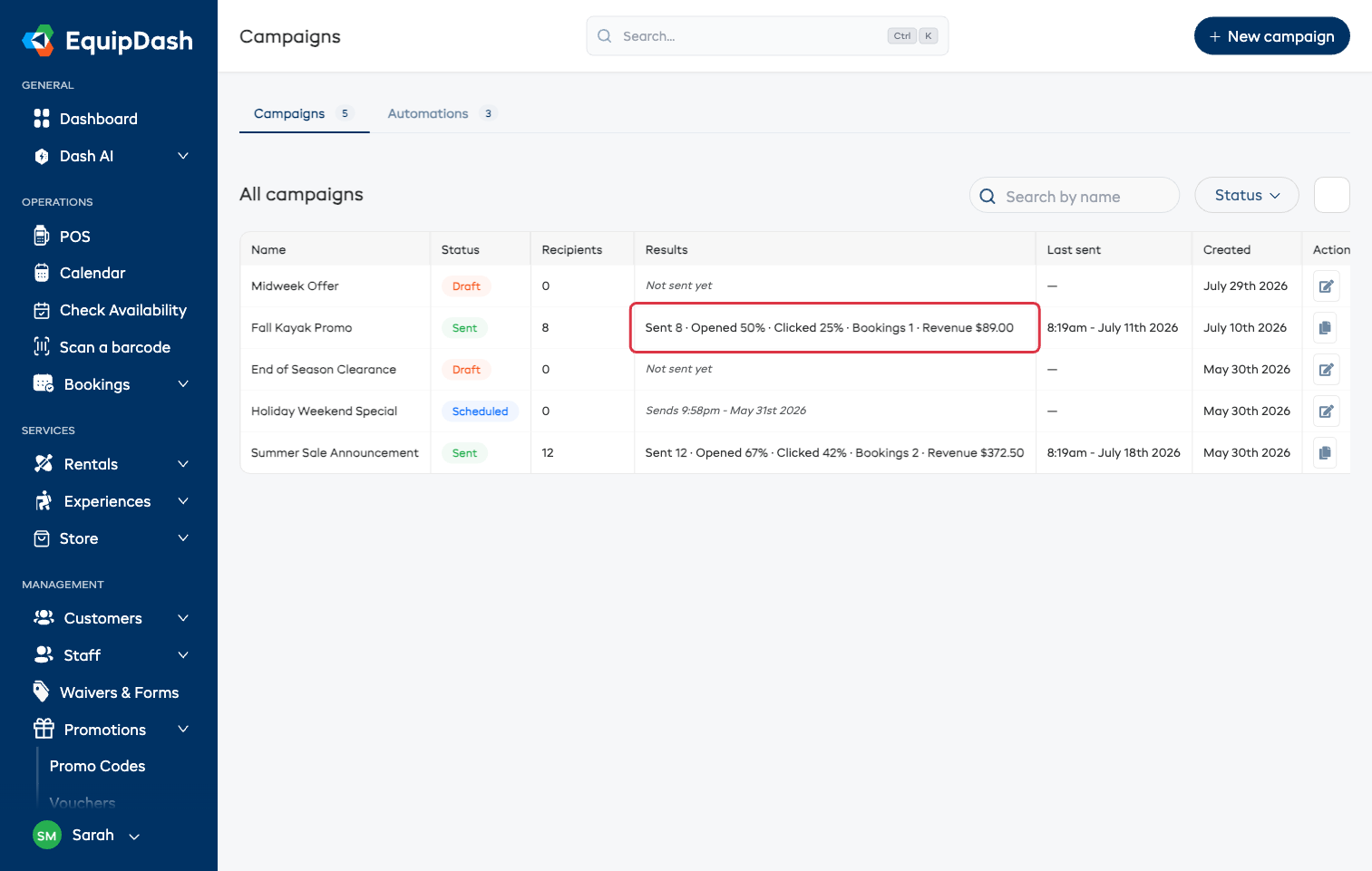
The Results column on the Campaigns list gives every campaign its headline numbers:
Sent 12 · Opened 67% · Clicked 42% · Bookings 2 · Revenue $372.50
- Scheduled campaigns show Sends and the date instead.
- Drafts show Not sent yet.
The Analytics Tab
Open a campaign and click Analytics for the full picture.
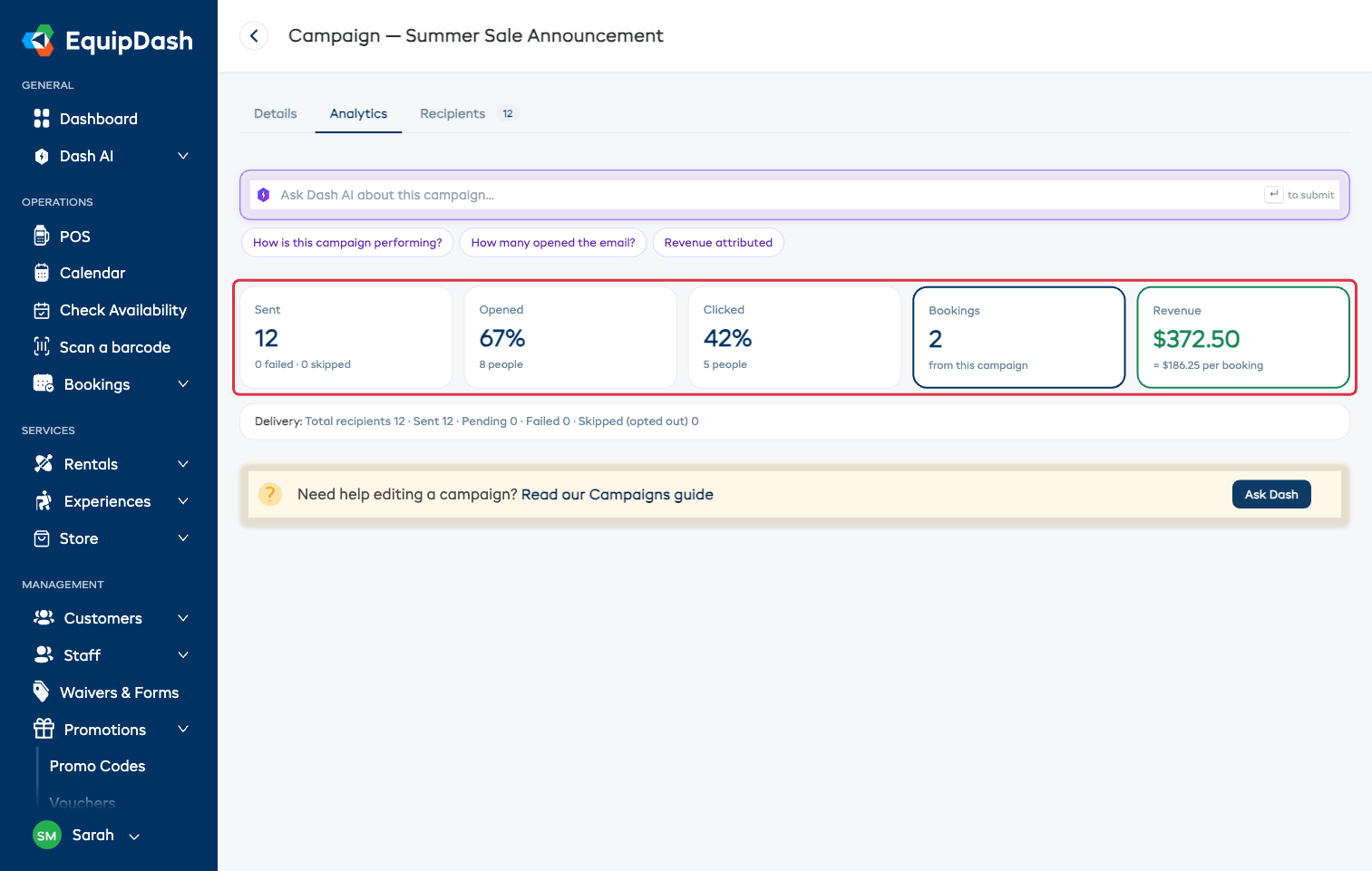
| Card | What it means |
|---|---|
| Sent | How many messages went out, with failed and skipped counts underneath |
| Opened | The percentage and number of people who opened it |
| Clicked | The percentage and number who clicked a link or button |
| Bookings | Bookings that came from this campaign |
| Revenue | What those bookings were worth, and the average per booking |
Underneath, the Delivery line breaks the send itself down: total recipients, sent, pending, failed, and skipped. It updates while a big campaign is still going out, so you can watch progress.
A dash (—) instead of a number means that figure was never tracked — campaigns sent before open and click tracking existed show a dash rather than a misleading 0%.
What Happened for Each Customer
The Recipients tab lists everyone the campaign went to and what they did.
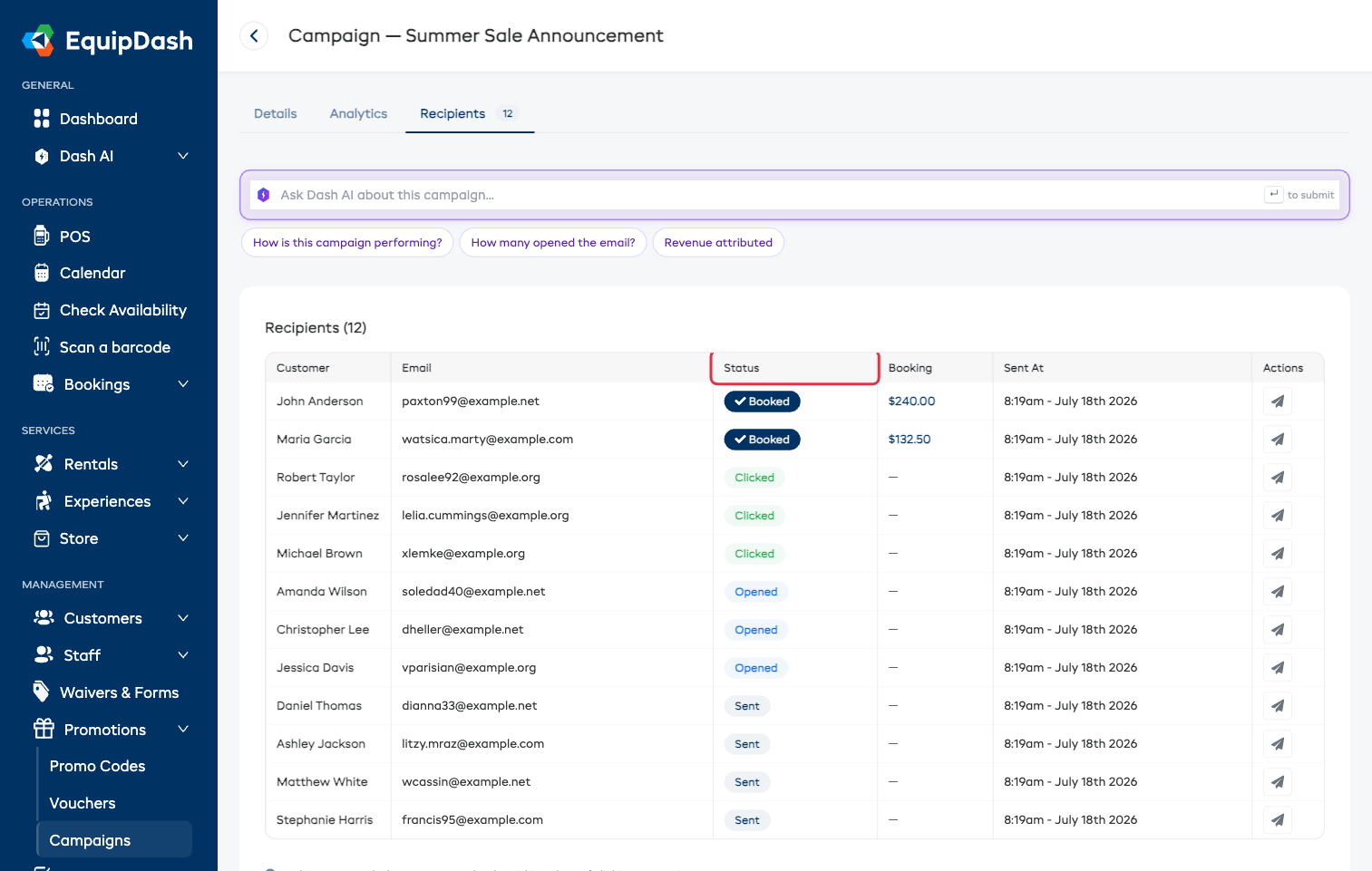
| Status | What it means |
|---|---|
| Booked | They booked — the best possible outcome. The Booking column shows what they spent. |
| Clicked | They clicked a link but haven't booked (yet) |
| Opened | They opened it |
| Sent | Delivered, nothing back yet |
| Failed | It couldn't be delivered, with the reason shown |
| Skipped (opted out) | They'd unsubscribed, so nothing was sent to them |
Use the paper-plane button on a row to resend to that one customer — useful after you've corrected a wrong email address on their record.
How Bookings Are Counted
A booking counts toward a campaign when the customer books within 7 days of opening or clicking it. Each booking is credited to at most one campaign — the most recent one they engaged with — so two campaigns never claim the same booking.
The same rule produces the bookings and revenue on automation cards. See Automations.
Tips
- Give it a few days. Opens and clicks land fast, but bookings trickle in across the 7-day window.
- Compare like with like. If one campaign out-books another sent to the same audience, borrow its subject line and offer next time — then duplicate it from the list.
- Chase repeated failures. The same customers failing every time usually means their email address is wrong; fix it on the customer record.
- Watch the skipped count. A growing number of opt-outs is a sign you're sending too often or to too broad an audience.