Creating a Promo Code Growth+This feature requires the Growth+ plan or higher
Promo codes let you offer discounts to your customers. You can create codes for a percentage off or a flat amount off — and control exactly how and when they can be used.
Step-by-Step: Creating a Promo Code
- In the left sidebar, click Promotions then Promo Codes.
- Click + New promo code in the top-right corner.
- A slide-over panel opens with a 3-step form.
Step 1: Details
Fill in the basic information:
| Field | Description |
|---|---|
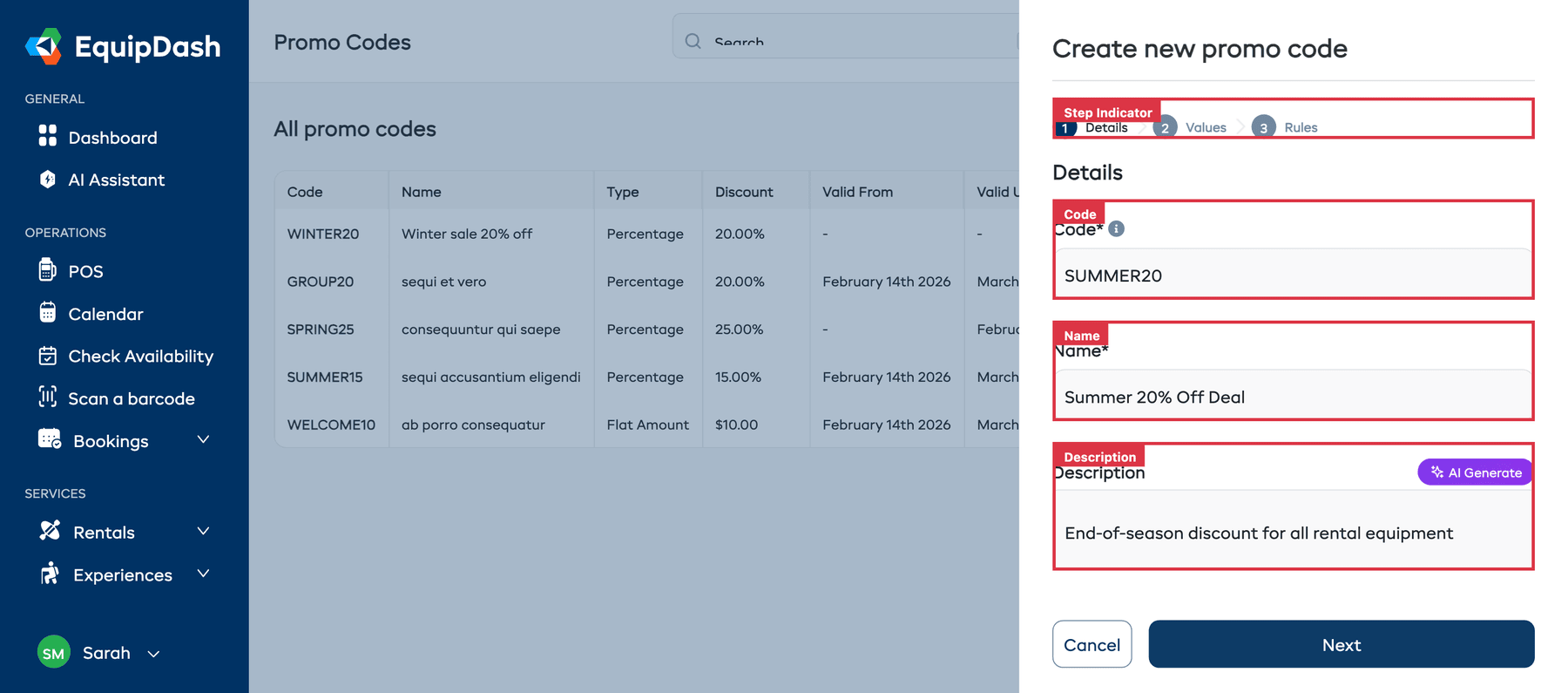
| Code* | The text customers type at checkout (e.g., "SUMMER20"). Letters, numbers, hyphens and underscores. Not case-sensitive — it's always saved in uppercase. |
| Name* | A name for this promo code to help you identify it (e.g., "Summer 20% off deal"). |
| Description | An optional internal note about the code. Click AI Generate to auto-generate a description. |
- Click Next to continue.
Step 2: Values
Choose how the discount is calculated:
| Field | Description |
|---|---|
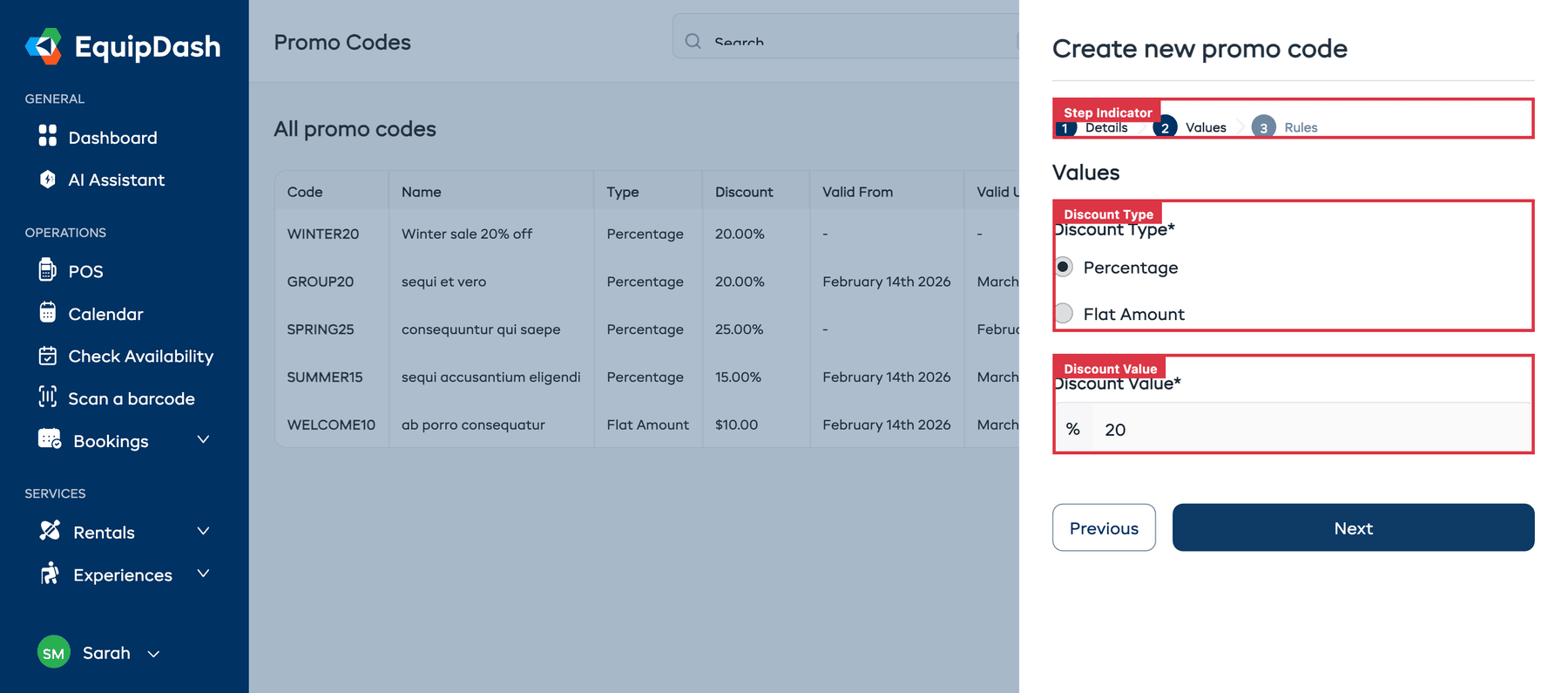
| Discount Type* | Percentage — a percentage off the booking total, or Flat Amount — a specific dollar amount off. |
| Discount Value* | The discount amount. For percentage, enter the number (e.g., 20 for 20%). For flat amount, enter the dollar value (e.g., 15 for $15). |
- Click Next to continue.
Step 3: Rules
Set the conditions for when and how the code can be used:
| Field | Description |
|---|---|
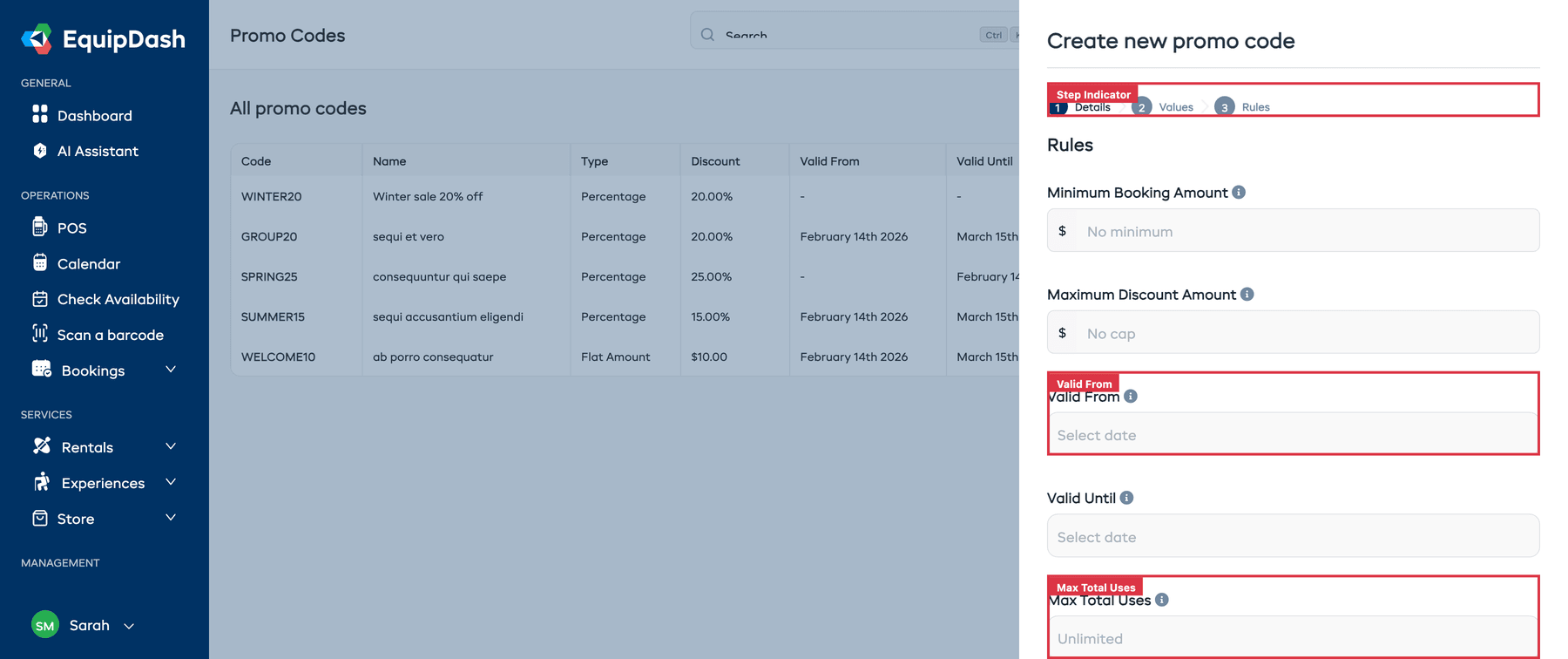
| Minimum Booking Amount | The booking total must meet this minimum before the code can be used. Leave blank for no minimum. |
| Maximum Discount Amount | Caps the discount at this amount. Useful for percentage discounts on large orders. Leave blank for no cap. |
| Valid From | The date the code becomes active. |
| Valid Until | The date the code expires. |
| Max Total Uses | The maximum number of times this code can be redeemed across all customers. Leave blank for unlimited. |
| Max Uses Per Customer | How many times a single customer can use this code. Leave blank for unlimited. |
| Applies to | Choose which types the code applies to: Products (rentals), Experiences, Store Products. Check one or more. Only options for enabled modules appear; if you only have one module enabled, that option is pre-selected. |
| Products Applied to | If Products is checked, choose: All Products, Individual Products (select specific ones), or Product Categories (subcategories included). |
- Click Create promo code to save.
Tips
- Keep codes short and memorable. "SUMMER20" is better than "SUMMERSEASON2026DISCOUNT20PCT".
- Use the description field. It helps you remember why a code was created — e.g., "Partner deal with Adventure Blog, runs June-August".
- Set an end date for seasonal promotions. This prevents codes from being used after the promotion period ends, even if you forget to deactivate them manually.
- Use per-customer limits for welcome offers. A limit of 1 per customer is standard for first-booking discounts.
- Use Maximum Discount Amount for percentage codes. A "50% off" code without a cap could result in very large discounts on expensive bookings.
Related Guides
- Importing Promo Codes — bring a whole list in at once
- Managing Promo Codes
- Promo Code Analytics
- Promotions Overview