Configuring Xero Growth+This feature requires the Growth+ plan or higher
After connecting Xero, configure your sync settings, account mapping, and tax mapping to ensure data flows correctly into your Xero organization.
Refreshing Xero Data
Before configuring account and tax mappings, fetch the latest data from Xero:
- Go to Settings > API & Integrations > Integrations.
- Click the Refresh Xero Data button.
This loads your Xero accounts, tax rates, and branding themes into EquipDash so you can select them in the dropdowns below.
Click Refresh Xero Data whenever you add new accounts or tax rates in Xero to make them available in EquipDash.
Sync Settings
Control which data types are automatically synced to Xero using the toggles:
| Toggle | What it does |
|---|---|
| Auto-sync enabled | Master switch -- turns all automatic syncing on or off. |
| Sync Invoices | Sync bookings as invoices in Xero. |
| Sync Payments | Sync payments as Xero payments against invoices. |
| Sync Contacts | Sync customers as Xero contacts. |
| Sync Credit Notes | Sync refunds as credit notes in Xero. |
| Sync Vouchers | Sync gift voucher sales as standalone invoices. |
Turn off individual toggles if you only want to sync certain types of data. For example, you might sync invoices and payments but manage contacts manually in Xero.
Invoice Settings
Configure how invoices appear in Xero:
- Invoice Prefix -- a prefix added to all Xero invoice numbers (default:
ED-). This makes it easy to identify EquipDash invoices in Xero. - Invoice Due Days -- how many days after the booking date the invoice is due (default:
0for due immediately). - Invoice Status -- whether invoices are created as Authorised (ready for payment) or Draft (requires manual approval in Xero).
- Branding Theme -- select a Xero branding theme to use for all EquipDash invoices. Leave blank to use Xero's default theme.
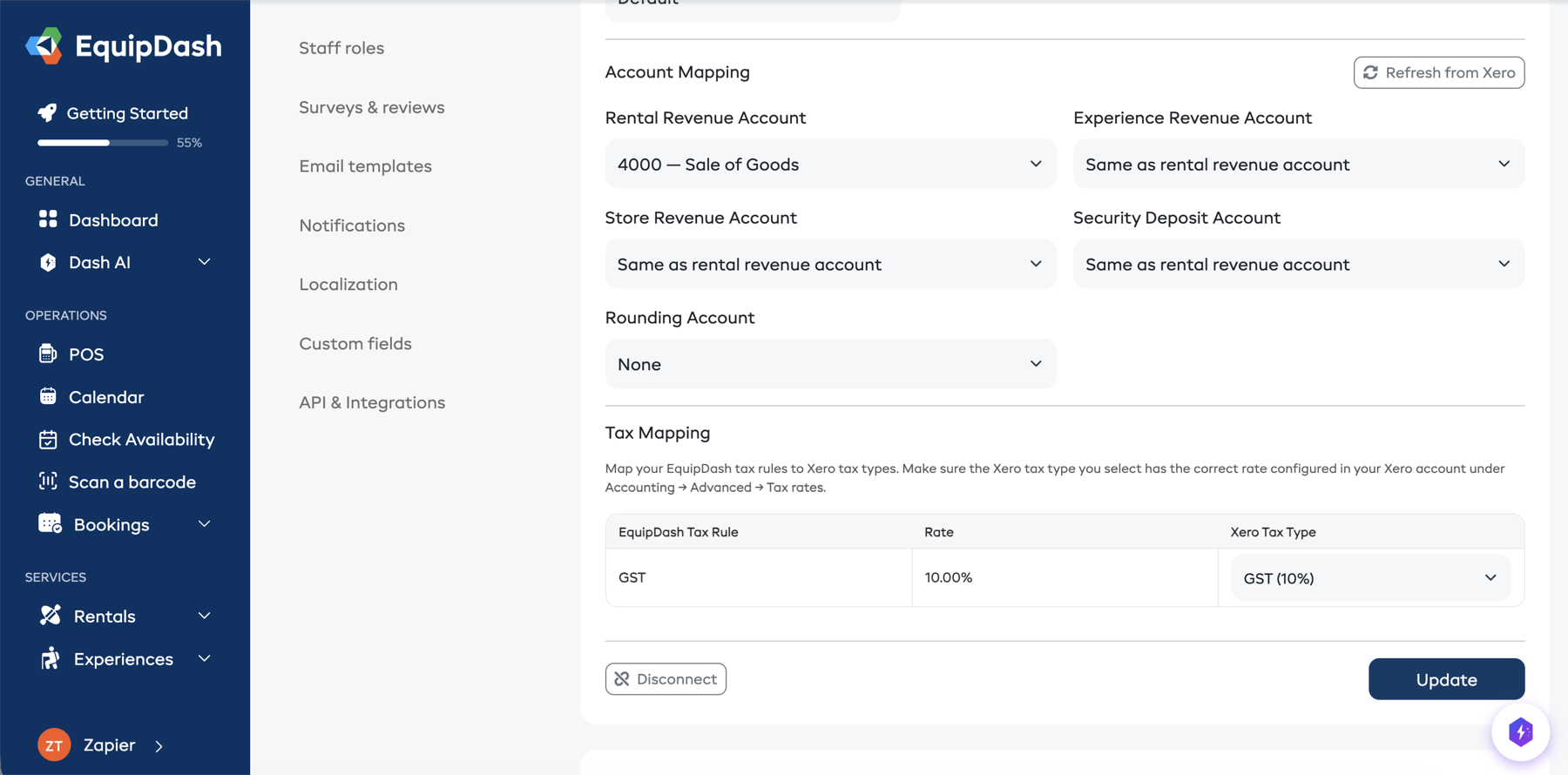
Account Mapping
Map different types of EquipDash revenue to the correct Xero accounts. This ensures income is categorised correctly in your Chart of Accounts.
For how card payments, fees and payouts land in these accounts, see Card Fees and Payouts.
| Setting | Description |
|---|---|
| Rental Revenue Account | The Xero account for rental product income (e.g., "Sales" or "Rental Revenue"). |
| Experience Revenue Account | The Xero account for experience booking income. Falls back to the rental revenue account if not set. |
| Store Revenue Account | The Xero account for store product sales. Falls back to the rental revenue account if not set. |
| Deposit Account | The Xero account for security deposits (e.g., a liability account). Falls back to the revenue account if not set. |
| Deposit Payments To | Your bank account. Stripe payouts and non-card payments land here. |
| Stripe Account | Where card payments land before each payout moves them to your bank. EquipDash creates one called Stripe unless you pick another. |
| Card and EquipDash Fees | The expense account for Stripe's fees and EquipDash fees. EquipDash picks one unless you choose. |
| Rounding Account | The Xero account for rounding adjustments. |
If all your revenue goes to the same account, you only need to set the Rental Revenue Account -- the others will fall back to it automatically.
Each dropdown only lists the accounts Xero accepts for that job. Revenue dropdowns show income accounts, and Deposit Payments To shows bank accounts, so your bank account appears there rather than in the revenue list.
Tax Mapping
Map your EquipDash tax rules to the corresponding Xero tax types so invoices have the correct tax treatment.
For each tax rule you have configured in EquipDash (e.g., "GST 10%"), select the matching Xero tax type from the dropdown. The dropdown shows the tax name and effective rate for each Xero tax type to help you choose the right one.
For example:
- EquipDash "GST (10%)" → Xero "GST on Income (10%)"
- EquipDash "No Tax" → Xero "BAS Excluded (0%)"
If you do not map a tax rule, EquipDash will try to automatically match based on the tax rate percentage.
Tax rates are configured in Xero, not in EquipDash. If the rate you need is not in the dropdown, add it in your Xero organization first, then click Refresh Xero Data.
Inclusive vs Exclusive Tax
EquipDash correctly handles both tax types:
- Included in price (inclusive) -- the tax is extracted from the total. For example, a $110 item with 10% inclusive tax has $10 tax and a $100 base price. Xero invoices are created with
LineAmountTypes: Inclusive. - Not included in price (exclusive) -- the tax is added on top. For example, a $100 item with 10% exclusive tax totals $110. Xero invoices are created with
LineAmountTypes: Exclusive.
Saving Settings
After configuring your preferences:
- Click the Update button at the bottom of the settings section.
- You will see a confirmation message that settings have been saved.
Account mappings, tax mappings, and all other settings are saved together.
Manual Sync
If you connected Xero after already having bookings and customers, you can bulk-sync existing data:
- Sync All Customers -- sends all your EquipDash customers to Xero as contacts.
- Sync All Bookings -- sends all active bookings to Xero as invoices.
These buttons are useful for initial setup. After that, automatic sync handles everything.
Retry Failed Syncs
If a sync fails (e.g., due to a temporary network issue), it will appear in the sync logs with a Failed status.
- Scroll down to the Sync Logs section.
- Use the filter buttons to show only Failed entries.
- Click Retry Failed to re-attempt all failed syncs.
Sync Logs
The sync logs table shows every sync attempt, including:
- Entity -- what was synced (invoice, payment, contact, credit note).
- Action -- create, update, or delete.
- Status -- success, failed, or skipped.
- Xero ID -- the ID of the entity in Xero (for successful syncs).
- Error message -- details if the sync failed.
- Date -- when the sync was attempted.
Use the filter buttons to narrow down logs by status.
How Specific Items Sync
Bookings → Invoices
Each booking becomes a Xero invoice with line items for:
- Rental products (with quantity, duration, and unit price)
- Experiences (with participant count and rate)
- Store products
- Bundle items
- Custom charges
- Security deposits (only when captured or charged)
The invoice uses the prefix you configured (e.g., ED-15 for booking #15).
Payments → Payments
When a payment is recorded in EquipDash, it is synced as a Xero payment applied to the corresponding invoice. Card payments through Stripe go into your Stripe Account at the full amount the customer paid, and the fees and payout follow. See Card Fees and Payouts.
Refunds → Credit Notes
Refunds are synced as Xero credit notes and automatically allocated against the original booking's invoice.
Customer Updates → Contact Updates
When a customer's details are updated in EquipDash (name, email, phone, address), the corresponding Xero contact is also updated.
Cancellations → Voided Invoices
When a booking is cancelled, the corresponding Xero invoice is voided.
Troubleshooting
| Issue | Solution |
|---|---|
| Invoices show 0% tax | Check your tax mapping -- make sure each EquipDash tax rule is mapped to the correct Xero tax type with the right rate. |
| Invoices not appearing in Xero | Check the sync logs for errors. Ensure Sync Invoices is turned on. |
| Wrong amounts on invoices | Verify your account mapping. If amounts still look wrong, check the sync logs for the specific booking. |
| Tax mapping dropdown is empty | Click Refresh Xero Data to load tax rates from Xero. |
| "Rate limit exceeded" errors | Xero limits API requests. EquipDash handles this automatically with retries, but very large bulk syncs may take time. |
| Customer changes not syncing | Ensure Sync Contacts is turned on. Check the sync logs for contact update entries. |