Tax Rates
If your business is required to collect tax, you can set up one or more tax rates in EquipDash. Your business-wide tax rates are used when EquipDash calculates booking totals.
Creating a Tax Rate
- Click Settings in the sidebar.
- Select Taxes from the settings menu.
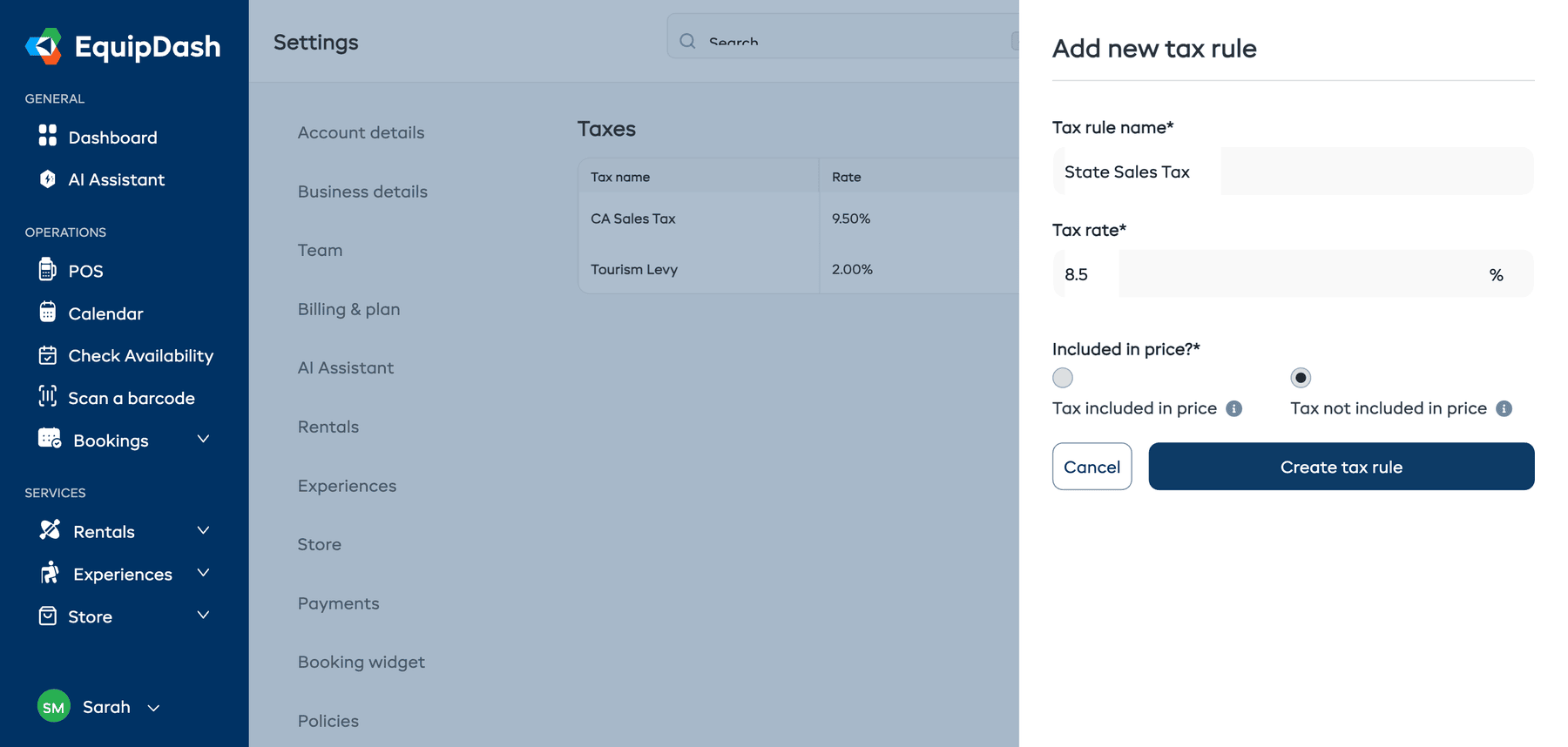
- Click Add new tax. A panel slides in from the right.
- Fill in the following:
- Tax rule name -- a label for this tax rate (e.g., "GST", "VAT", "State Sales Tax").
- Tax rate (%) -- the tax percentage (e.g., 10 for 10%).
- Included in price? -- select Tax included in price if your listed prices already include tax, or Tax not included in price if tax should be added on top of the listed price.
- Click Create tax rule. The panel closes and your new rate appears in the Tax rates list.
Managing Tax Rates
Your existing tax rates are listed under Tax rates on the Taxes settings page. The table shows Tax name, Rate, Included in price?, and Actions columns. From here you can:
- Edit a tax rate by clicking the pencil icon. The Edit tax rule panel opens; change its name, percentage, or inclusive/exclusive setting and click Save.
- Delete a tax rate by clicking the trash icon. You will be asked to confirm first.
Deleting a tax rate removes it from your business settings. Saving or deleting a rule does not itself rewrite the tax already recorded on a booking.
How Rates Apply
The rates on Settings > Taxes apply when EquipDash calculates your booking totals. There is no separate tax-rate selector on each product or experience.
To waive tax on an eligible booking, use the Tax exempt option described below.
Tax-Inclusive vs. Tax-Exclusive
| Mode | How it works | Example (10% tax on a $100 item) |
|---|---|---|
| Tax Inclusive | The price you set already includes tax | Customer pays $100 (includes $9.09 tax) |
| Tax Exclusive | Tax is added on top of the listed price | Customer pays $110 ($100 + $10 tax) |
Choose whichever mode matches your local regulations and how you prefer to display prices.
Tax-Exempt Bookings
Some customers -- such as registered charities, schools, or government bodies -- don't pay tax. EquipDash lets your staff mark an individual booking as tax exempt at the till, so that one booking is charged with no tax while everyone else is taxed as normal.
Step 1 -- Turn the option on
This is off by default. To switch it on:
- Click Settings in the sidebar.
- Select Taxes from the settings menu.
- Open the Tax exempt bookings section and switch on Allow tax exempt bookings. Your change saves automatically -- you'll see a "Saved" confirmation in the corner.
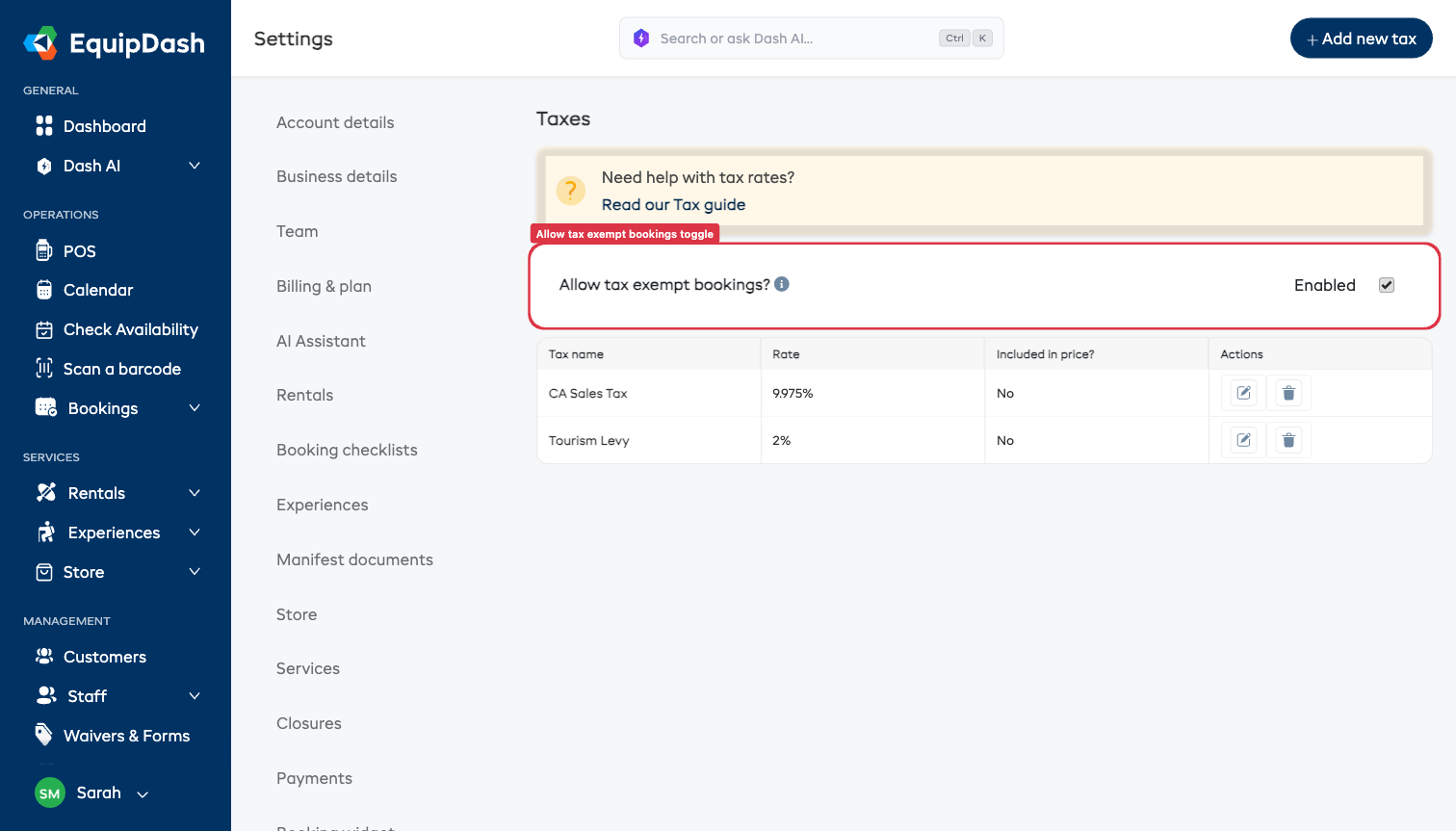
Once it's on, a Tax exempt option appears in the booking cart when you create a booking in the POS. Leave it off and the option stays hidden.
Step 2 -- Mark a booking tax exempt
- Start a new booking in the POS and add your items.
- In the cart, under Adjustments, switch on Tax exempt.
- The tax line disappears and the Total drops to the pre-tax amount.
- (Optional) Type the reason in the Reason box -- for example the organization's name or exemption certificate number. This is saved on the booking for your records.
You can also turn it on (or off) when editing an existing booking.
Where it shows afterward
On the booking's detail page, the payment breakdown shows Tax exempt in place of the tax lines, along with the reason you entered -- so anyone looking at the booking can see why no tax was charged.
Tax exempt applies to the whole booking. If you only need it occasionally, leave the setting on -- staff simply ignore the toggle for regular bookings, and switch it on for the tax-exempt ones.
Things to Keep in Mind
- You can have multiple business-wide tax rates. Each rule is used in the booking tax calculation.
- Saving a tax rate does not itself update existing bookings. The current rules are used when booking charges are recalculated.
- Tax breakdowns appear on booking confirmation emails, payment receipts, and revenue reports.
- Consult your accountant or tax advisor to determine the correct rates and settings for your region.