Staff Locations Growth+This feature requires the Growth+ plan or higher
If your business operates from more than one location, you can assign staff members to specific sites. This helps you keep track of who works where and ensures schedules are location-aware.
Staff locations are used for scheduling. To limit which locations a person can book, view, and work with after signing in, set Location access under Settings > Team. See Inviting Team Members.
Why Assign Locations?
- Scheduling clarity — Filter the Schedule page by location to see only the staff available at that site.
- Profile visibility — A staff member's main location and any additional locations are shown on their detail page for quick reference.
- Multi-site operations — Keep rosters clean and organized when managing staff across more than one venue or store.
Assigning Locations When Adding a Staff Member
Locations are set during the staff creation flow in Step 2 – Employment Details.
- Go to Staff in the left sidebar.
- Click Add Staff.
- Complete Step 1 – Staff Details, then proceed to Step 2 – Employment Details.
- In the Main location field, select the staff member's primary site from the dropdown.
- In the Other locations field, select any additional sites this staff member can work at.
- Complete the remaining steps and click Save.
The Main location is the staff member's primary site. Add secondary locations in Other locations if the staff member floats between sites.
Changing a Staff Member's Location Assignment
You can update location assignments at any time through the Edit Staff flow.
- Go to Staff and click the staff member's name to open their detail page.
- Click Edit Staff at the top of the page.
- Navigate to Step 2 – Employment Details.
- Update the Main location or Other locations fields as needed.
- Click Save to apply the changes.
The updated locations will appear immediately on the staff member's detail page under the Employment Info card.
Viewing a Staff Member's Current Locations
Current location assignments are displayed read-only on the staff detail page.
- Go to Staff and click the staff member's name.
- On the Staff Details tab, find the Employment Info card.
- The Main location and any Other locations are listed there.
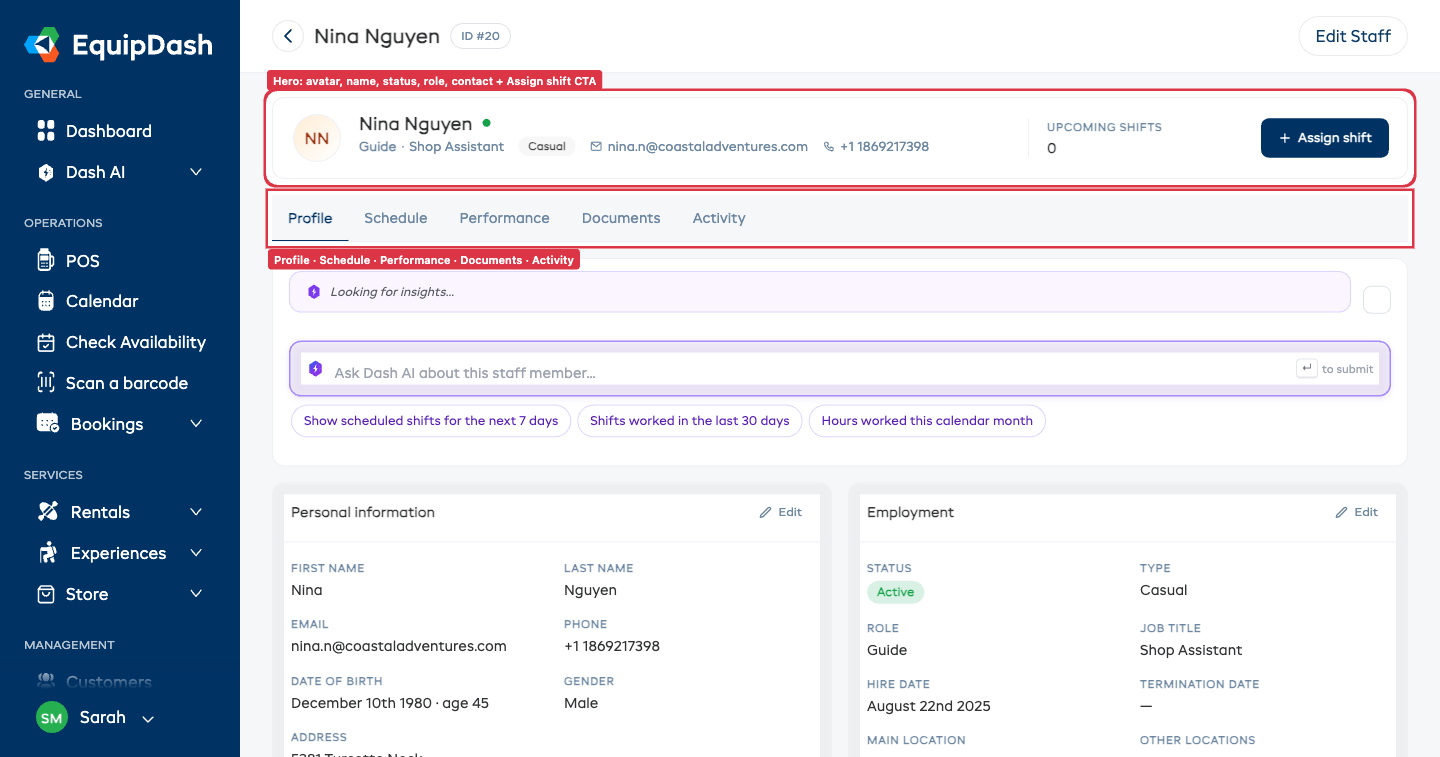
The locations shown in the Employment Info card are read-only. To change them, click Edit Staff to open the edit flow and go to Step 2 – Employment Details.
Multi-Location Staff
A staff member can be assigned to multiple locations simultaneously. This is useful for:
- Floating staff who split their time between two or more sites
- Managers or supervisors who oversee multiple locations
- Seasonal staff who rotate between venues depending on demand
Set all applicable locations in the Other locations field during the add or edit flow. There is no limit on how many locations a staff member can be assigned to.
Filtering by Location on the Schedule
The Schedule page includes a Select Location dropdown that lets you view the roster for a specific site.
- Go to Staff in the left sidebar.
- Click Schedule.
- Use the Select Location dropdown near the top of the page to filter to a single location.
- The schedule updates to show only staff assigned to that location.
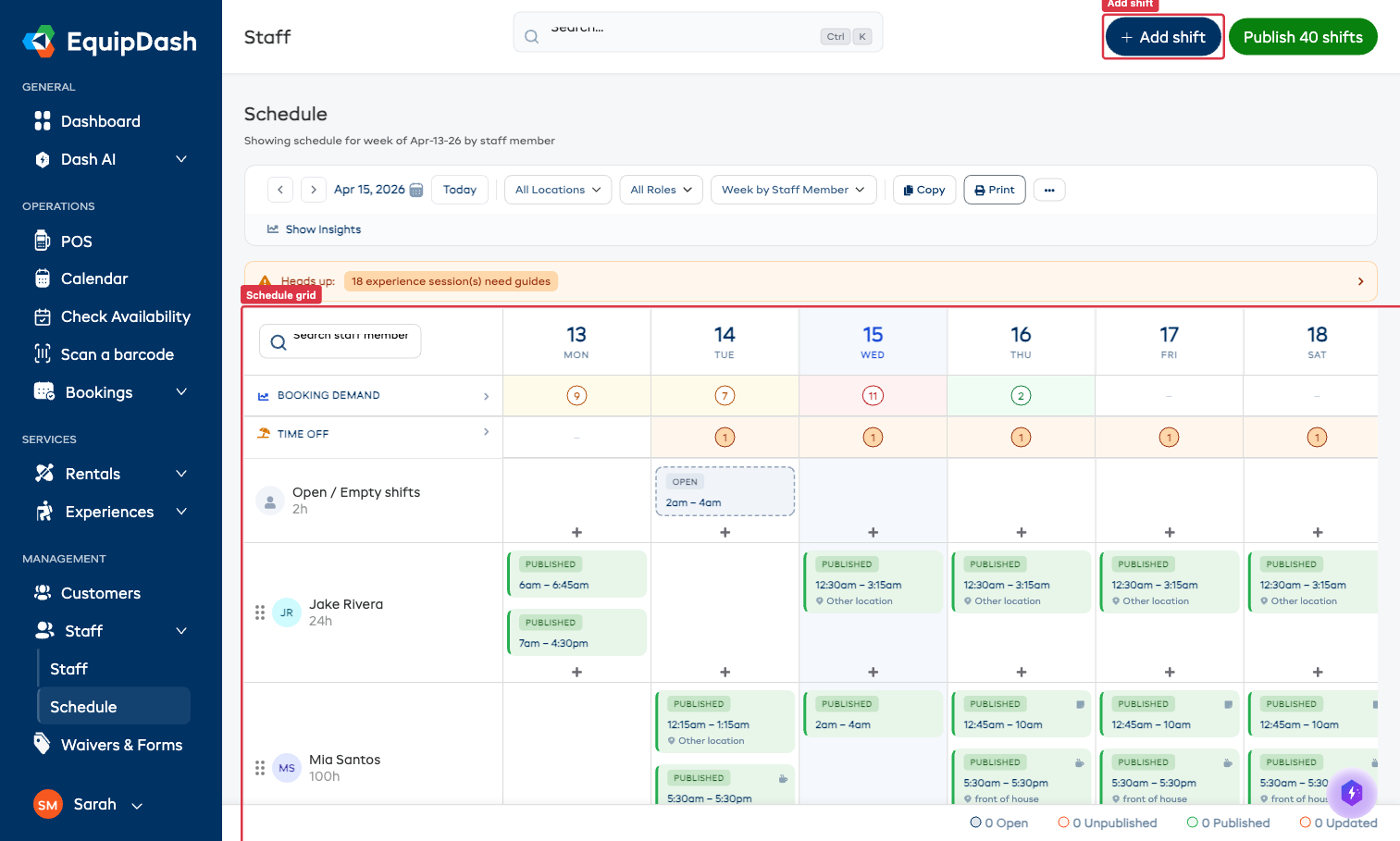
The main Staff table does not have a location filter. Location filtering is only available on the Schedule page.
When building a roster for a specific site, always use the Select Location dropdown first so you only see the staff relevant to that location.
Managing Your Business Locations
Business locations (names, addresses, and other details) are managed in Settings, not in the Staff section.
- Click Settings in the left sidebar.
- Go to Locations.
- Add, edit, or remove locations from here.
Any changes to your locations list are immediately available in the staff add and edit flows.
You must create a location in Settings > Locations before it can be assigned to a staff member.
Tips
- Assign locations early. Setting locations when you add a staff member saves you from having to update profiles later.
- Set a Main location accurately. The main location is the staff member's primary site — keeping it correct ensures schedules stay organized.
- Use the location filter on the Schedule page. This is the correct place to filter staff by location; the main staff table does not have this filter.
- Keep locations up to date. If a staff member transfers to a different site, update their profile straight away so schedules remain accurate.