Staff Documents Growth+This feature requires the Growth+ plan or higher
The documents feature lets you store important files against each staff member's profile. Use it to keep track of certifications, licenses, first-aid qualifications, and any other paperwork your business requires.
The Documents tab is for uploading the file (a scan or photo of the certificate). To record a certification as structured data — with a type, expiry date, and automatic expiry tracking — use the Certifications card on the Profile tab instead. See Certifications & Languages. The two work well together: record the certification, then attach its scan here.
Why Use Staff Documents?
- Stay organized — All of a staff member's important files are in one place, attached to their profile.
- Track expiry dates — Set expiry dates on certifications so you know when renewals are due.
- Stay compliant — Make sure every guide, instructor, or operator has the right qualifications on file before they are scheduled.
Where to Find Documents
Documents now live on their own Documents tab on the staff detail page.
- Go to Staff in the left sidebar.
- Click on the staff member's name to open their detail page.
- Click the Documents tab in the tab strip below the hero. You'll see the list of files, a search box, and an + Upload button on the right.
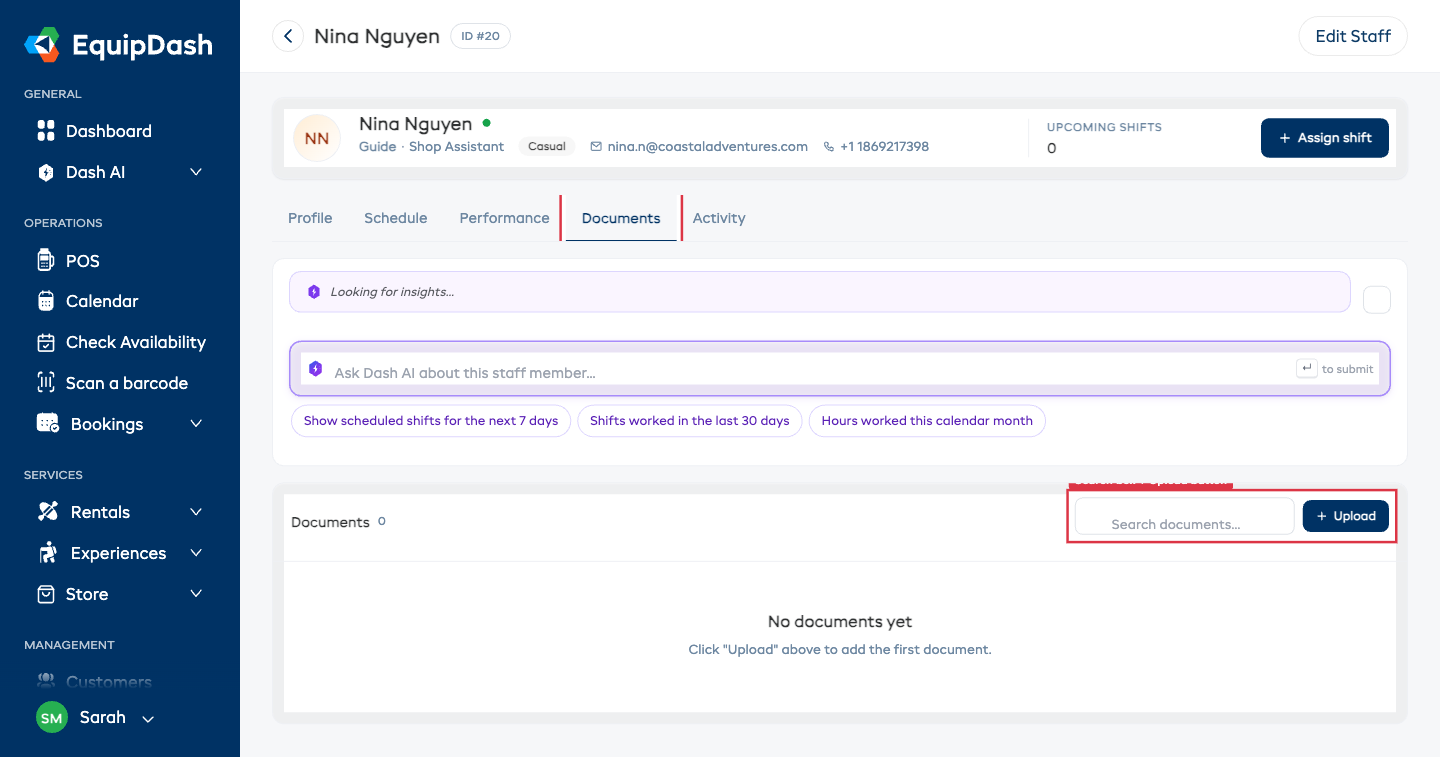
The Documents tab badge shows the number of files on the staff member's profile, so you can see at a glance whether anything is on file before clicking in.
Uploading a Document
- Open the staff member's detail page and click the Documents tab.
- Click the + Upload button on the top right of the documents card.
- Fill in the document details (name, type, expiry date if applicable).
- Click Choose File (or drag and drop) to select the file from your device.
- Click Save to attach the document to the staff member's profile.
The new document appears immediately in the list on the Documents tab.
Searching documents
The search box above the list filters by document name as you type — useful once a staff member has several certifications and you want to find the one due for renewal.
Give each document a clear, descriptive name — for example, "First Aid Level 2 – expires Jan 2027" is far more useful than a generic filename like "scan001.pdf".
Supported File Types
| Type | Extensions |
|---|---|
.pdf | |
| Images | .jpg, .jpeg, .png |
| Word documents | .docx, .doc |
Tips
- Name documents clearly. Include the document type and expiry year in the name so you can identify it at a glance.
- Set expiry dates where relevant. This makes it easy to track which certifications need renewing before they lapse.
- Check documents before scheduling. Review a staff member's documents before assigning them to roles that require specific qualifications.
- Upload early. Add certifications and licenses as soon as you onboard a new staff member so nothing is missed.