Setting Availability Growth+This feature requires the Growth+ plan or higher
Staff availability tells EquipDash when each team member is available to work. Setting this up correctly ensures your schedules are accurate and that staff are only assigned to shifts and experiences during the hours they are actually available.
You can set hours yourself, as below, or send staff a link so they set their own. See Let Staff Set Their Own Availability.
Why Availability Matters
- Scheduling accuracy — Staff only appear as available during their defined working hours when you build schedules.
- Experience assignments - In the guide picker, anyone outside their hours is listed after the others and marked Outside their hours. You can still pick them.
- Conflict prevention — Accurate availability helps you avoid double-bookings and understaffing.
The Schedule Tab
To manage a staff member's working hours and time off, open their detail page and click the Schedule tab.
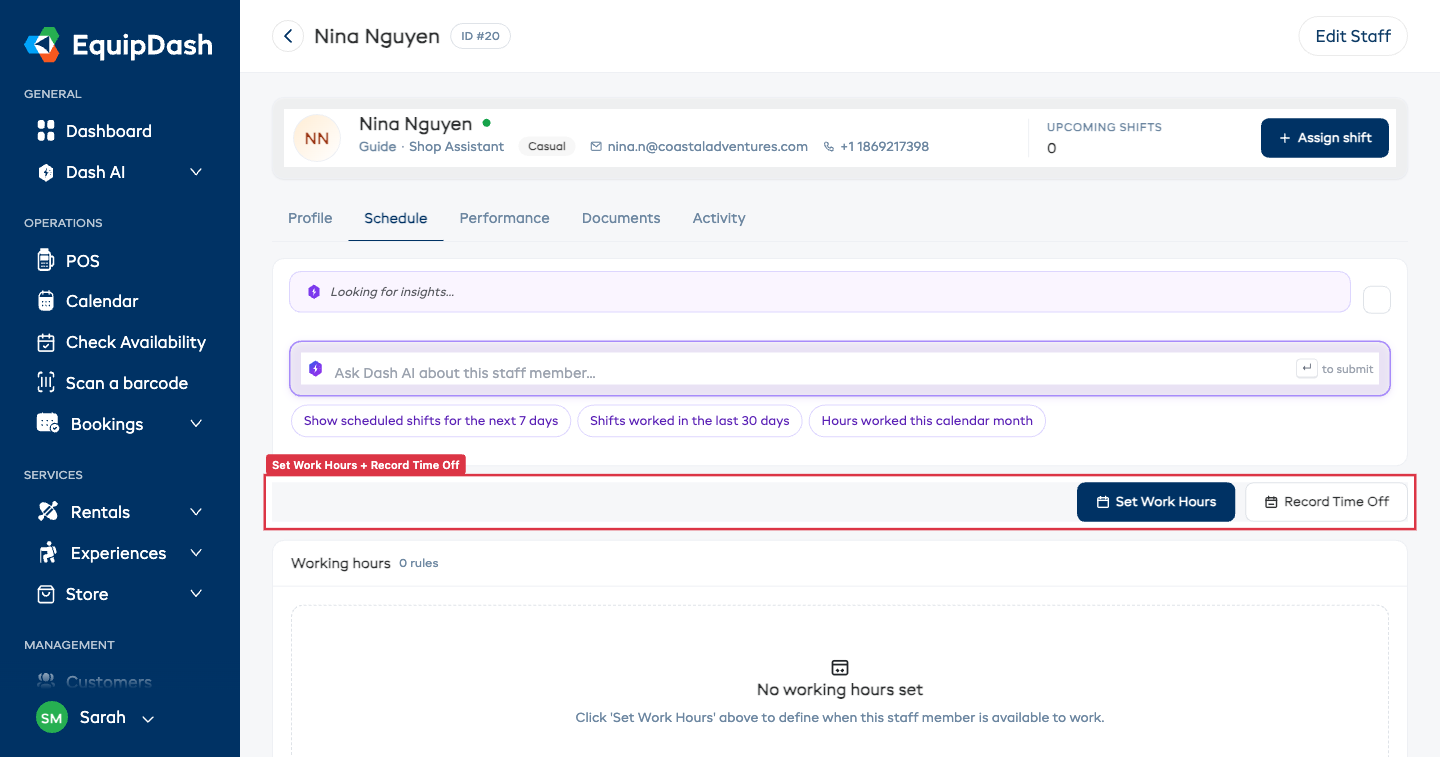
The Schedule tab is split into three cards:
- Working hours — A list of all saved work-hour rules for this staff member, with their date range, active/inactive state, and Edit/Delete buttons on each rule.
- Time off calendar — A month view showing recorded time off as color-coded dots: navy for Vacation, red for Sick Leave, orange for Personal, grey for Other. Use the chevrons in the card header to flip between months. Click any day with a dot to edit that entry.
- Time off entries — A table listing every recorded absence with type, dates, time range, reason and Edit/Delete actions.
Two action buttons sit at the top of the tab:
- Set Work Hours — Add or update working-hour rules (primary navy button).
- Record Time Off — Log vacation, sick leave, or other absences (white outline button).
Setting Work Hours
Work hours define the days and times a staff member is available to work over a given date range.
- Click Staff in the left sidebar and open the staff member's profile.
- Go to the Schedule tab.
- Click Set Work Hours.
- The Set Work Hours panel opens.
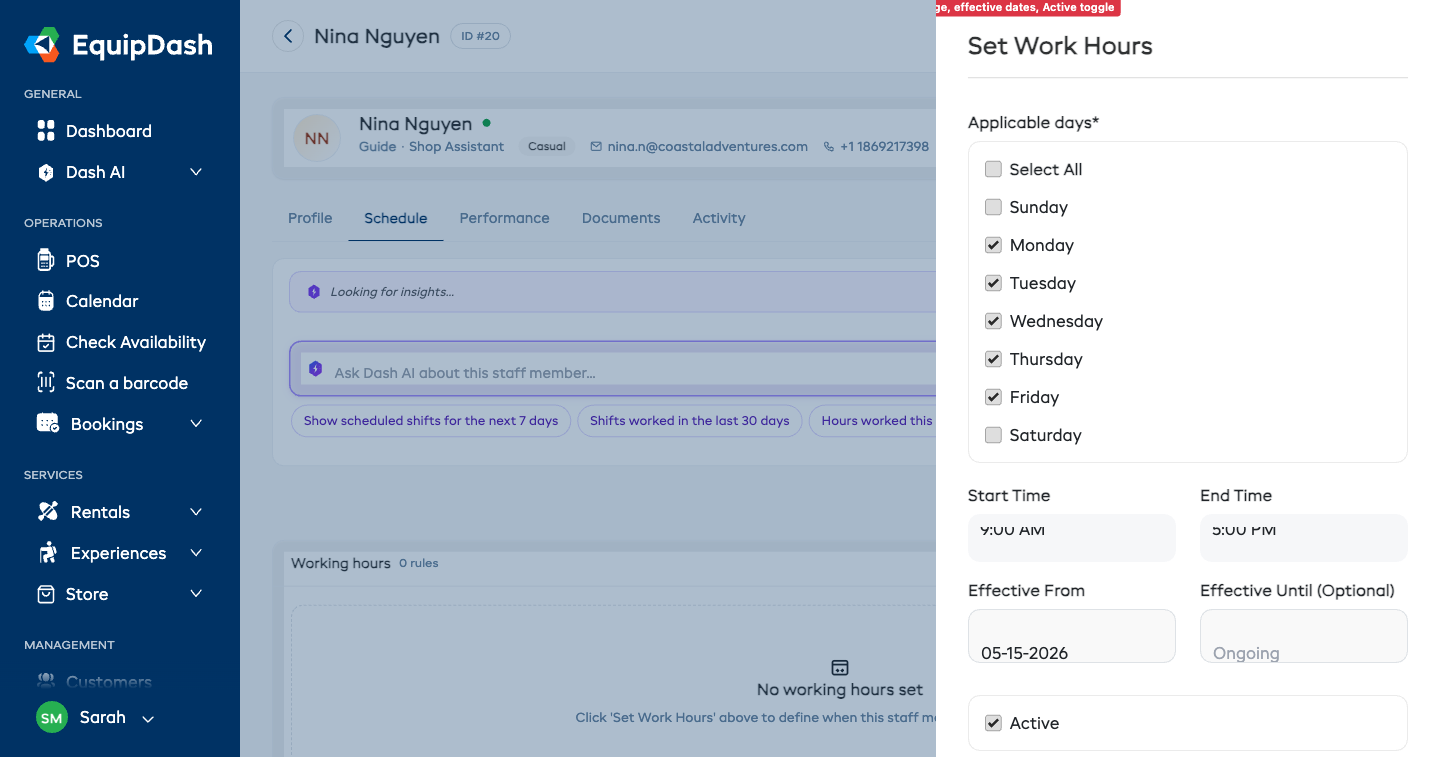
- Under Applicable Days, check each day of the week this rule applies to (e.g. Mon, Tue, Wed).
- Enter a Start Time and End Time. These times apply to all checked days.
- Set an Effective From date — the date this schedule rule begins.
- Optionally set an Effective Until date. Leave blank if the schedule has no planned end date.
- Use the Active toggle to enable or disable the rule without deleting it.
- Click Save.
The new rule appears in the Working hours card on the Schedule tab.
Tips
- Different hours for different days — To set different hours for different days (for example, shorter hours on weekends), create separate work hour rules. Set one rule for weekdays and a second rule for weekend days, each with its own checked days, start time, and end time.
- Seasonal schedules — Use the Effective From and Effective Until dates to manage seasonal changes. Create one rule for summer hours and another for winter hours with non-overlapping date ranges.
- Pausing a rule — Disabling the Active toggle lets you suspend a rule temporarily without deleting it.
- Set availability before scheduling — Building a schedule is much faster when everyone's hours are already in place.