Staff Roles & Access Growth+This feature requires the Growth+ plan or higher
EquipDash uses two separate types of roles. Understanding the difference helps you set up your team correctly.
| Staff Roles | Team Roles | |
|---|---|---|
| Purpose | Job titles for scheduling and filtering | Controls what a person can see and do in EquipDash |
| Examples | Guide, Instructor, Mechanic, Front Desk | Admin, Manager, Staff, Custom |
| Where to manage | Settings → Staff Roles | Settings → Team → Roles |
| Assigned to | Staff profiles (in the Add/Edit Staff form) | Team members (users who log in to EquipDash) |
| Affects permissions? | No | Yes |
Staff Roles
Staff Roles are job title labels you create for your business. They help you organize your team and filter the schedule — for example, showing only shifts assigned to "Guides" or "Instructors."
Staff Roles do not grant permissions by themselves. A staff member with the role "Guide" can have Admin access, Staff access, or any other level of access — the two are independent. You can, however, give a Staff Role an optional default access level that pre-fills the access when you invite someone with that role, so you set it once instead of per person (see Setting a Default Access Level below).
Managing Staff Roles
- Go to Settings in the left sidebar.
- Click Staff Roles.
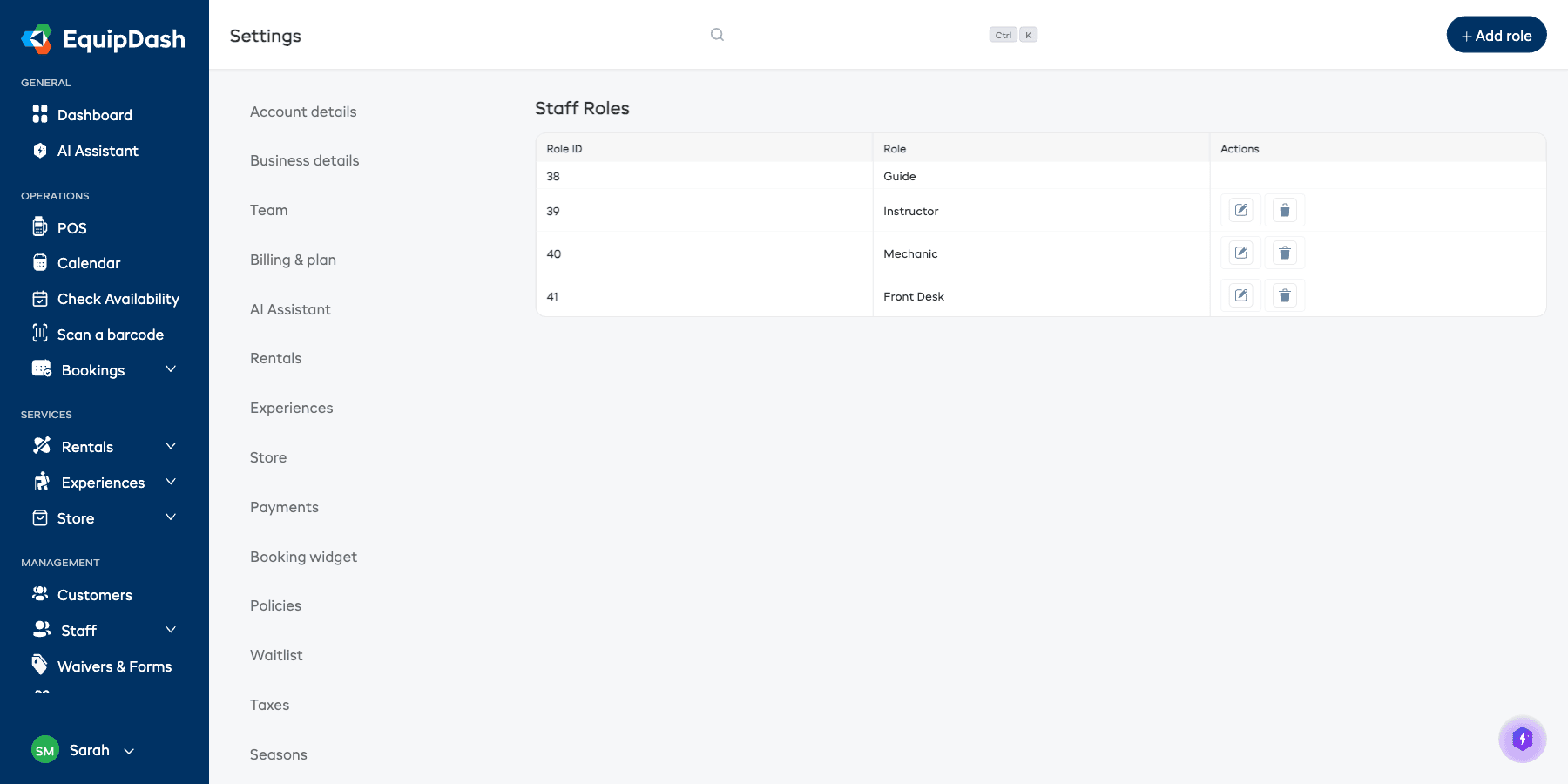
- You will see a table of all the roles you have created, with columns for Role ID, Role name, and Actions.
Adding a Staff Role
- Click + Add role in the top-right corner.
- Enter the role name (for example, "Guide", "Instructor", "Mechanic", or "Front Desk").
- Click Save.
Editing or Deleting a Staff Role
- Click the Edit button (pencil icon) on the role's row to rename it or set its default access.
- Click the Delete button (trash icon) to remove it.
Setting a Default Access Level (optional)
When you add or edit a Staff Role, you can set a Default access when invited level. This is the EquipDash access an invited staff member gets by default when they have this job role — so you configure it once instead of choosing it for every person.
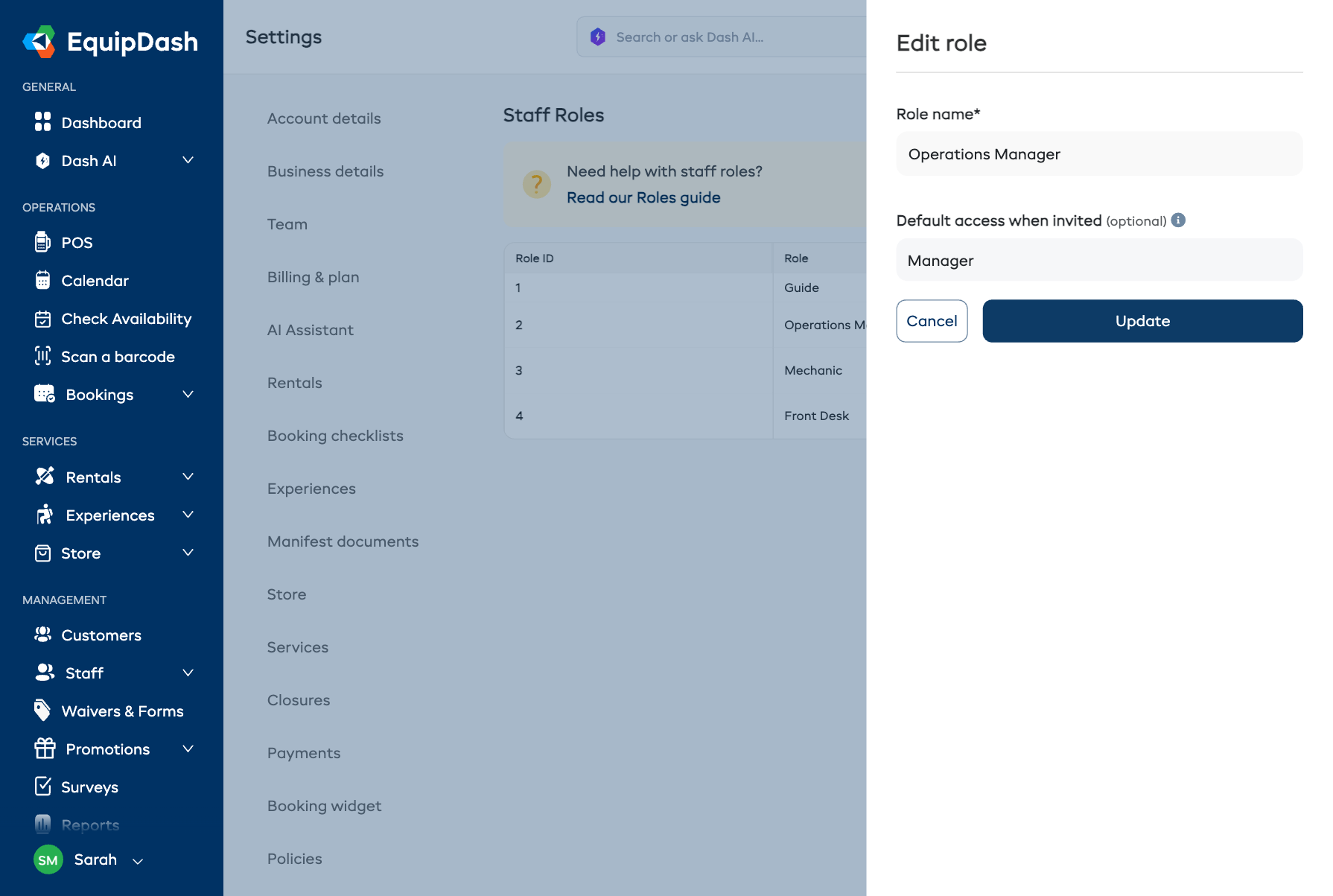
- In the Add role or Edit role panel, open the Default access when invited dropdown.
- Choose Admin, Manager, Staff, or a Custom role. If you choose Custom, pick one of your saved custom roles.
- Leave it as No default set to fall back to basic Staff access.
- Click Save (or Update).
Now, whenever you invite a staff member with this job role, the EquipDash user permissions dropdown is pre-filled with this level. You can still change it for any individual person.
For example, set Driver → Manager or Operations Manager → Manager so every person you invite with that job role starts with the right access automatically.
Assigning a Staff Role
When you add or edit a staff member, the Job role field on Step 2 — Employment Details lets you select one of your Staff Roles. This sets the staff member's job title (Guide, Instructor, etc.) for scheduling and filtering — separate from their system access.
See Adding Staff Members for the full walkthrough.
Use Staff Roles to match how your business operates. For example, a ski shop might create roles like "Ski Tech", "Boot Fitter", and "Rental Desk". A tour company might use "Guide", "Driver", and "Coordinator".
Team Roles (System Access)
Team Roles control what a person can see and do in EquipDash. Every team member who logs in is assigned exactly one role, and that role determines their permissions across the platform.
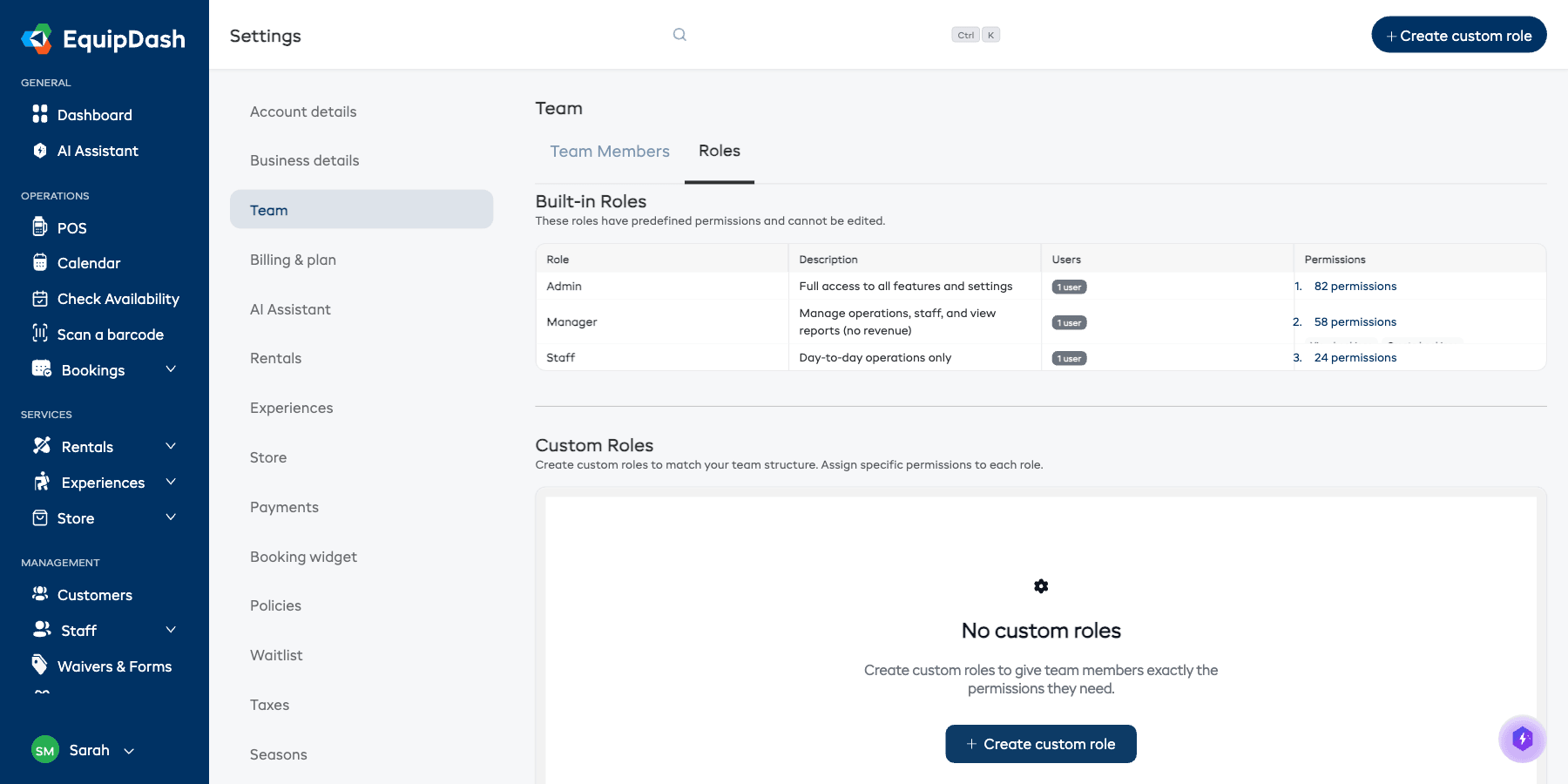
Team Roles are managed at Settings → Team → Roles.
Built-in Roles
EquipDash comes with three built-in roles. These have predefined permissions and cannot be edited or deleted.
| Role | Description | Best For |
|---|---|---|
| Admin | Full access to all features and settings — including billing, revenue reports, and team management | Business owners and senior managers who need unrestricted access |
| Manager | Manage operations, staff, and view reports (no revenue data or billing access) | Shift leads, location managers, and senior staff who run day-to-day operations |
| Staff | Day-to-day operations only — create and view bookings, check the calendar, manage customers | Frontline employees, guides, and rental desk workers |
You can click the permissions count next to any built-in role to expand and see exactly which permissions it includes.
Custom Roles
If the built-in roles do not fit your needs, you can create custom roles with exactly the permissions you want.
Creating a Custom Role
- Go to Settings → Team and click the Roles tab.
- Click + Create custom role in the top-right corner.
- Enter a name for the role (for example, "Supervisor", "Warehouse", "Front Desk Lead").
- Toggle on the specific permissions you want this role to have.
- Click Save.
Editing or Deleting a Custom Role
- Click the Edit button next to a custom role to change its name or permissions.
- Click the Delete button to remove it. You cannot delete a custom role that is currently assigned to team members — reassign those members first.
Permission Categories
Permissions are grouped into categories. Here is an overview of what each category controls:
| Category | What It Controls |
|---|---|
| Bookings | Viewing, creating, editing, cancelling, and deleting bookings; processing payments and refunds; fulfilling orders |
| Products | Managing rental products, inventory, the workshop (including checklists and staff assignment), and checklist templates |
| Bundles | Viewing and managing product bundles |
| Experiences | Creating and managing experiences and their availability |
| Customers | Viewing, creating, editing, and exporting customer records |
| Staff | Viewing staff profiles, managing team members, and working with schedules |
| Waivers & Forms | Viewing and managing waivers and custom forms |
| Surveys | Viewing surveys, managing them, and accessing analytics |
| Promotions | Viewing and managing promo codes, vouchers, and campaigns |
| Reports | Accessing overview, revenue, rental, experience, customer, and inventory reports; exporting data |
| Calendar | Viewing the calendar |
| Settings | Viewing and changing business settings, managing the team, billing, locations, and pricing |
| Dashboard | Viewing the dashboard and revenue metrics |
| Categories & Tags | Managing product and experience categories and tags |
| Support | Accessing the support panel |
| Activity Log | Viewing the activity log |
Assigning a Team Role
Team roles are assigned when you invite someone to your EquipDash account:
- Go to Settings → Team and click the Team Members tab.
- Click + Add team member in the top-right corner.
- Enter the person's email address.
- Select a role — Admin, Manager, Staff, or Custom.
- If you choose Custom, select a pre-defined custom role or toggle individual permissions.
- Leave Location access set to All locations, or choose Selected locations and select one or more locations.
- Click Invite.
See Limiting Access by Location for what changes when a team member is limited to selected locations.
To change an existing team member's role, click the Edit button (pencil icon) on their row in the team members table.
You can also set a person's access at the moment you invite them from the Staff form. When you turn on Invite staff member to EquipDash? in Step 3, an EquipDash user permissions dropdown appears, pre-filled from the default access on their job role. See Adding Staff Members.
How the Two Roles Work Together
A person in your business can have both a Staff Role and a Team Role:
- Their Staff Role (e.g., "Guide") describes their job function and is used for scheduling and filtering.
- Their Team Role (e.g., "Manager") controls what they can access and do inside EquipDash.
For example, you might have a senior guide who also manages the schedule. They would have:
- Staff Role: Guide (so they appear in the schedule under the "Guide" filter)
- Team Role: Manager (so they can create and edit schedules for other staff)
To save time, you can link the two: set a Default access when invited on a Staff Role (e.g. "Guide → Staff", "Operations Manager → Manager") and every person you invite with that job role starts with the right access automatically — still overridable per person.
Important Rules
- At least one Admin is always required. The system will not let you remove or change the role of the last remaining Admin.
- You cannot change your own team role. This prevents accidental self-lockout. Another Admin must change your role for you.
- Permission changes are real-time. When you update a team role, the affected person sees the change immediately — no logout required.
- Custom roles are specific to your business. They are not shared across different EquipDash accounts.