Inviting Team Members
EquipDash is built for teams. You can invite your staff to join your account so they can create bookings, manage inventory, check in customers, and more -- all with the appropriate level of access.
Sending an Invitation
- Click Settings in the sidebar.
- Select Team from the settings menu.
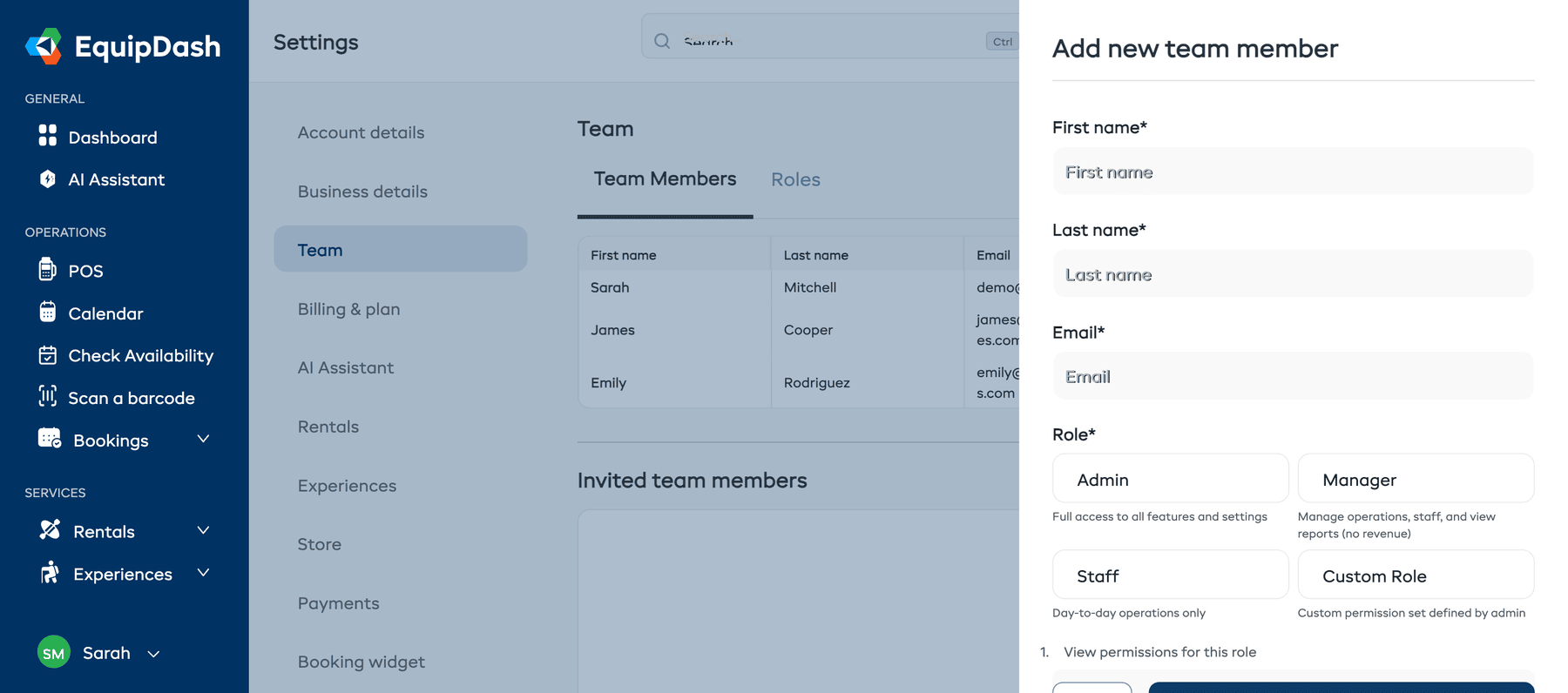
- Click + Add team member.
- Fill in the following:
- First name -- the team member's given name.
- Last name -- the team member's surname.
- Email -- the email address where the invitation will be sent.
- Role -- choose from Admin, Manager, Staff, or Custom Role. See Roles Explained for details on each role.
- Location access -- leave All locations selected, or choose Selected locations to limit the person to one or more locations.
- Click Invite.
The team member will receive an email with a link to accept the invitation and set up their account. If they already have an EquipDash account, they will be added to your business automatically.
Limiting Access by Location
Every new team member starts with All locations, so there is nothing extra to set for people who work across your business.
To limit a person to specific locations:
- Open Settings > Team.
- Add a team member, or click Edit beside an existing team member.
- Under Location access, choose Selected locations.
- Select one or more locations.
- Click Invite or Update.
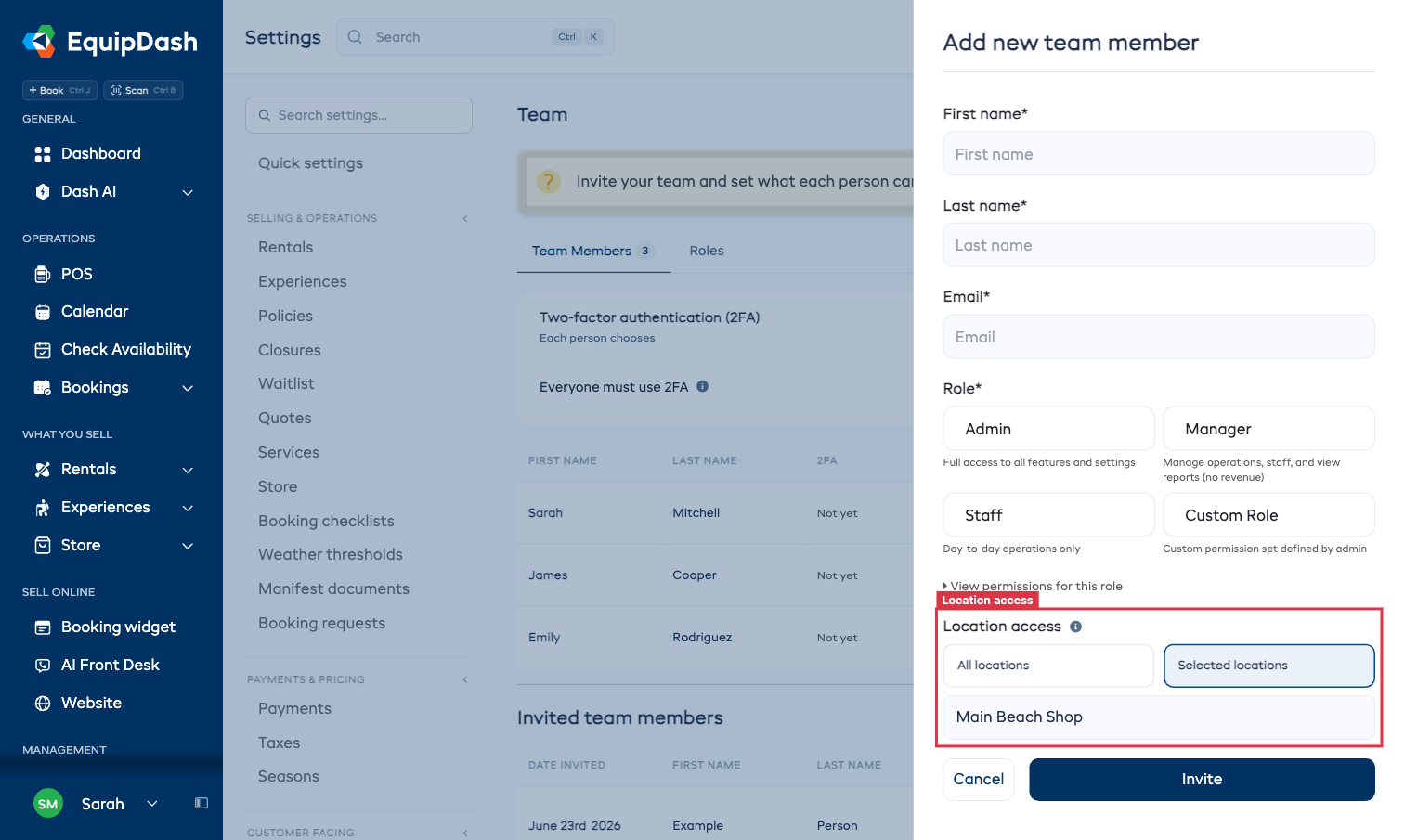
With Selected locations, the person can only book, view, and work with those locations in the POS, bookings, calendars, customers, inventory, reports, mobile app, and Dash. Records that are not assigned to a location remain available.
Admins always have access to all locations.
This setting controls what a person can access after signing in to EquipDash. A staff profile's Main location and Other locations are separate settings used for scheduling. See Staff Locations.
Managing Pending Invitations
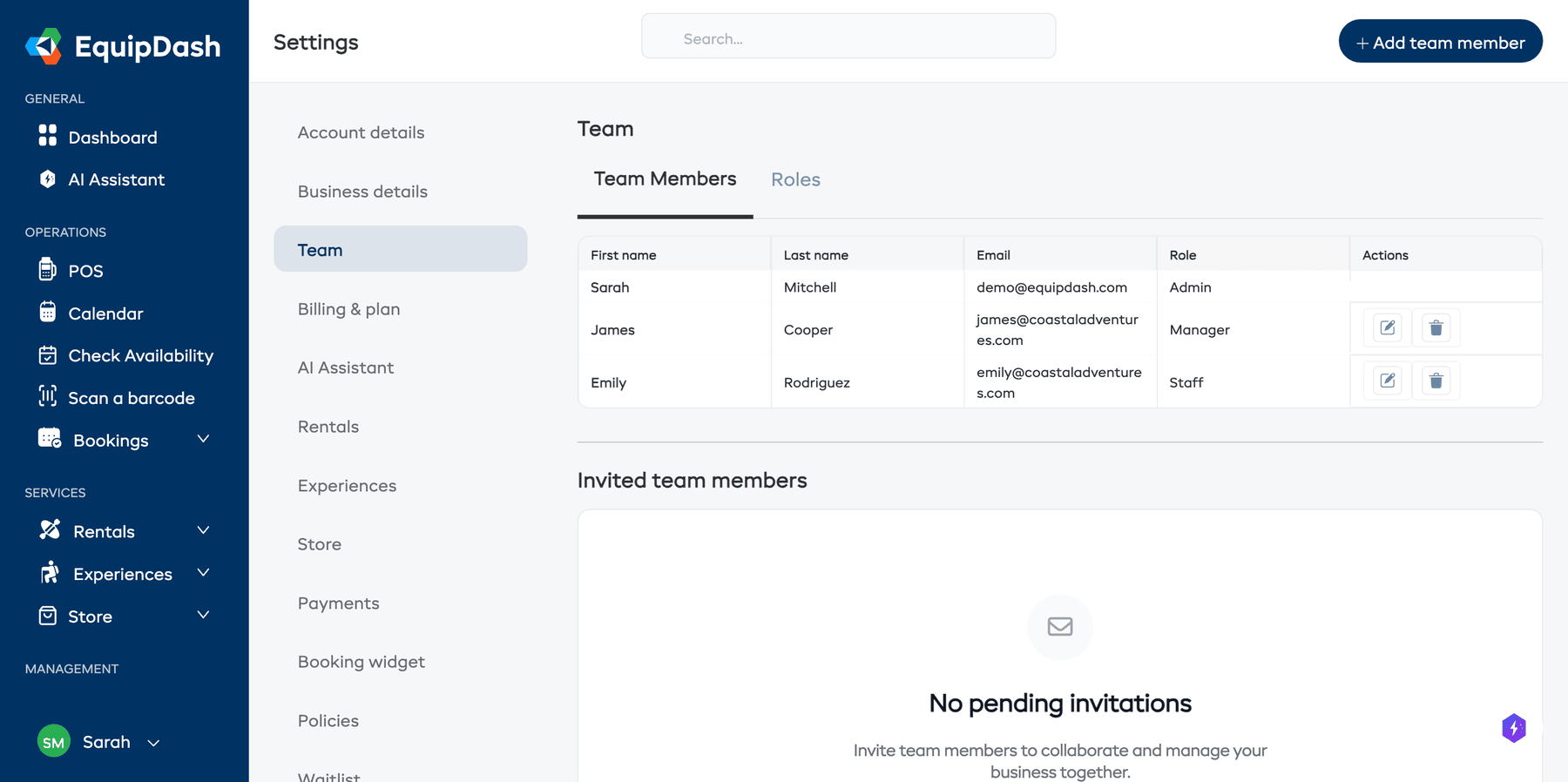
Pending invitations appear in a separate section below your active team members list.
For each pending invite, you can:
- Resend -- click Resend to send the invitation email again (useful if the original was missed or went to spam).
- Cancel -- click Cancel Invite to revoke the invitation before it is accepted.
Editing a Team Member
After a team member has accepted their invitation:
- Find them in the Team Members list.
- Click the Edit button next to their name.
- Change their Role, Location access, or Permissions if they use a Custom role.
- Click Update.
You cannot change your own role. This prevents accidentally locking yourself out of admin access.
Removing a Team Member
- Find the team member in the Team Members list.
- Click the Delete button next to their name.
- Confirm the removal when prompted.
The team member will immediately lose access to your EquipDash account. Their personal EquipDash account is not deleted -- they simply lose access to your business.
There must always be at least one Admin on the account. You cannot remove the last Admin.