Marketing Attribution (Google Ads, Meta & UTM)
EquipDash can tell you which bookings came from your paid advertising — so you can see whether your Google Ads or Meta (Facebook & Instagram) spend is actually producing bookings, and how much revenue it brings in.
When someone clicks an ad and lands on a page that has your booking widget embedded, EquipDash automatically captures the ad's tracking details (the click ID and any UTM tags) and stores them silently against the booking. Your customer never sees a tracking field, and there is nothing for them to fill in.
How it works
- A customer clicks your ad and arrives on your website. Google adds a
gclid(Google click ID) to the page address; Meta adds anfbclid(Facebook click ID). Your UTM tags ride along too. - They book through the EquipDash widget embedded on that page.
- EquipDash saves the click ID and UTM tags onto the booking — hidden from the customer.
- You view the attribution on the booking, or export it for Google Ads to measure your return on ad spend.
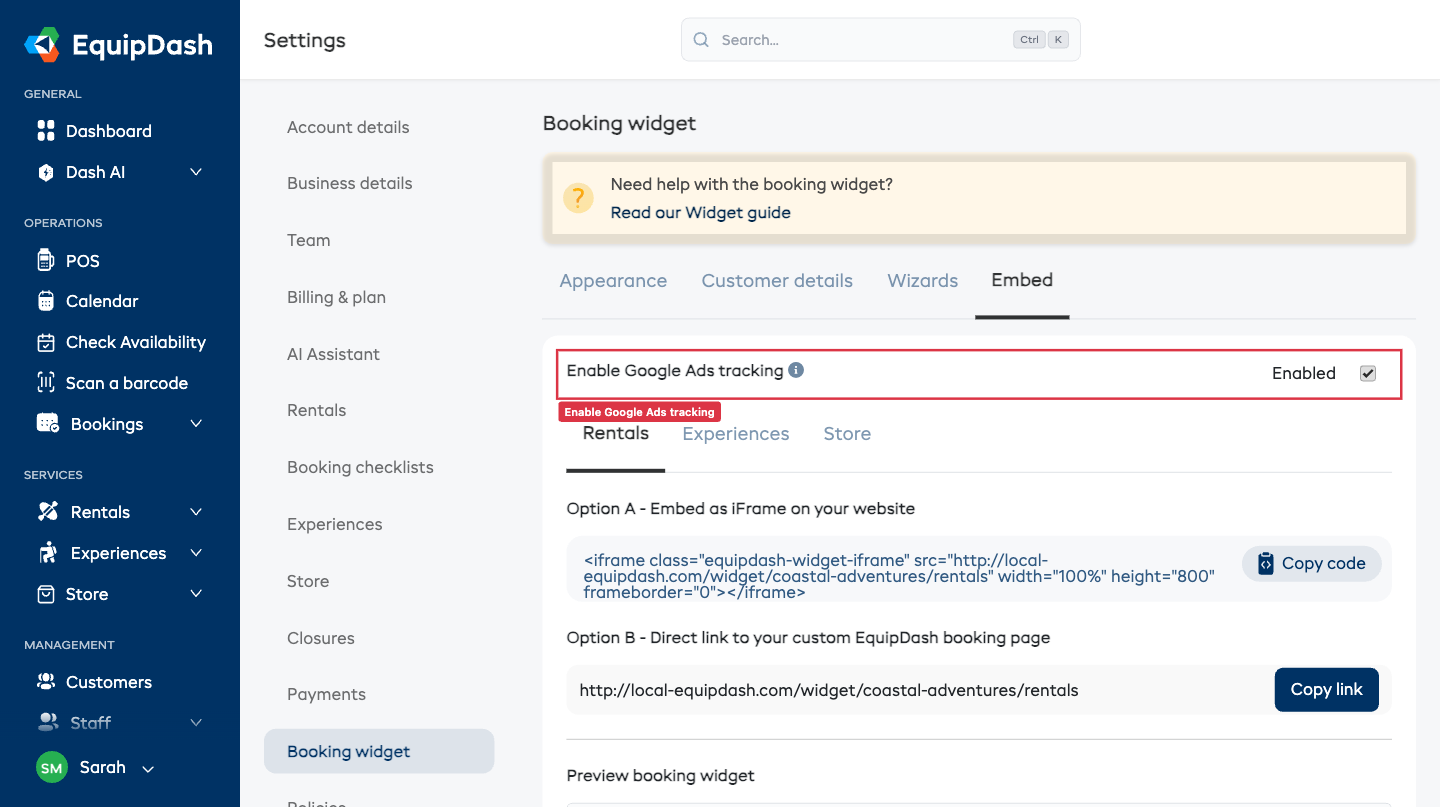
In Settings → Booking Widget → Embed, the Enable Google Ads tracking toggle controls this (on by default). It captures Meta (fbclid) clicks the same way — the one toggle covers all your ad tracking. The same toggle also governs the per-product and per-experience embed codes (under each item's Embed tab).
It works across every embed type:
- iFrame embed — captures the click ID (
gclid/fbclid) andutm_*from your page automatically. - Floating "Book Now" button — same, captured when the widget opens.
- Direct link — if you use the link as your ad's final URL, the click ID lands straight on the booking page and is captured with no extra setup.
Turn the toggle off and the embed codes drop the tracking.
What gets captured
- Google click IDs —
gclid, plusgbraidandwbraid(Google's newer click IDs for some devices) - Meta (Facebook) click ID —
fbclid, set when a customer clicks a Facebook or Instagram ad - UTM tags —
utm_source,utm_medium,utm_campaign,utm_term,utm_content - Landing page — the page on your website where the booking journey started
The fbclid only appears on the page address if you're running Meta ads with the Meta Pixel installed on your website. EquipDash captures whatever the ad click leaves on the page — it doesn't generate the click ID itself.
Viewing attribution on a booking
- Open any booking from Bookings.
- Scroll to the Marketing attribution card near the bottom. It's collapsed by default — click the header to expand it.
- You'll see the source, medium, campaign, the Google click ID, the Facebook click ID and the landing page (or "None" if the booking has no tracking).
To correct or add values, expand the card and click Add / Edit, update the fields, then click Save attribution. Leave a field blank to clear it.
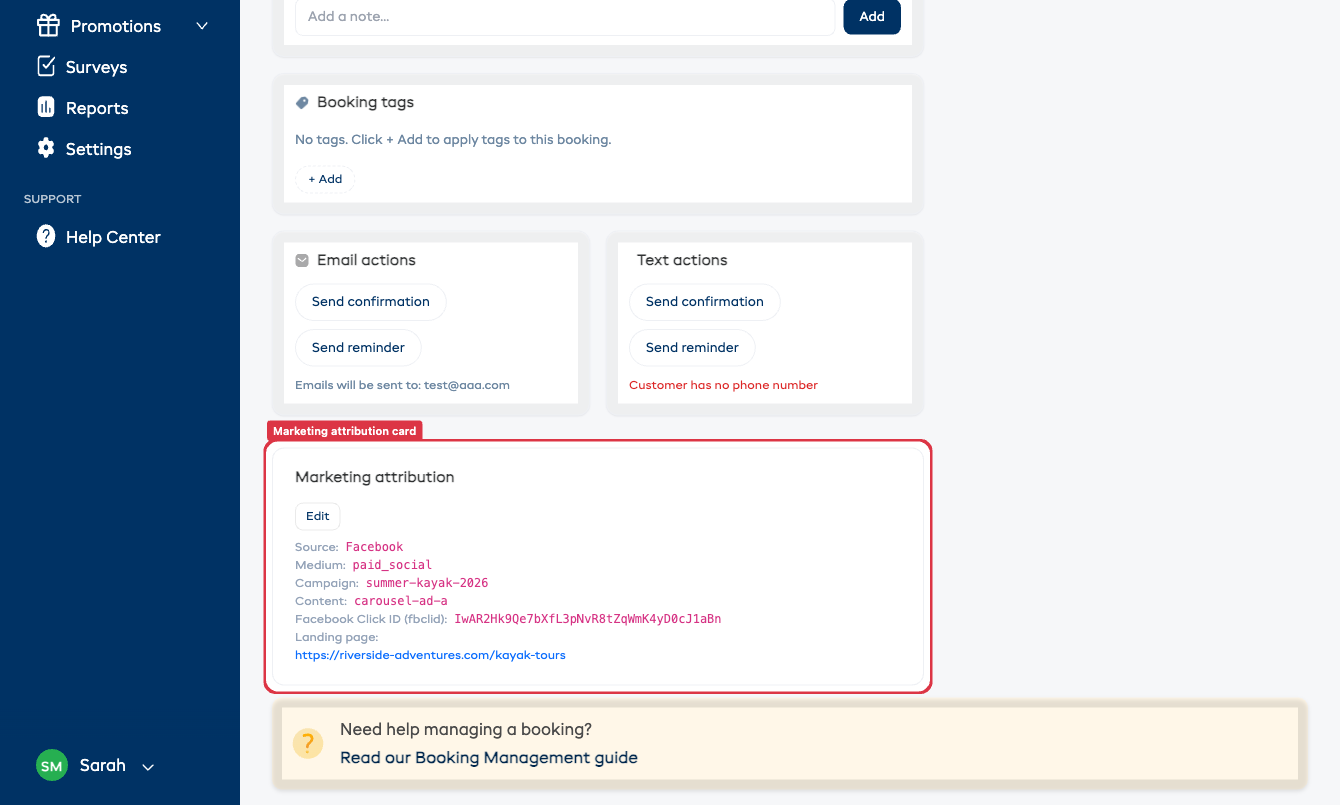
The Marketing attribution card and the Marketing report are only visible to team members with the View revenue data permission.
The Marketing report
- Click Reports in the left sidebar.
- Open the Marketing tab.
- Choose a time period (Today, Last 7 days, Last 30 days).
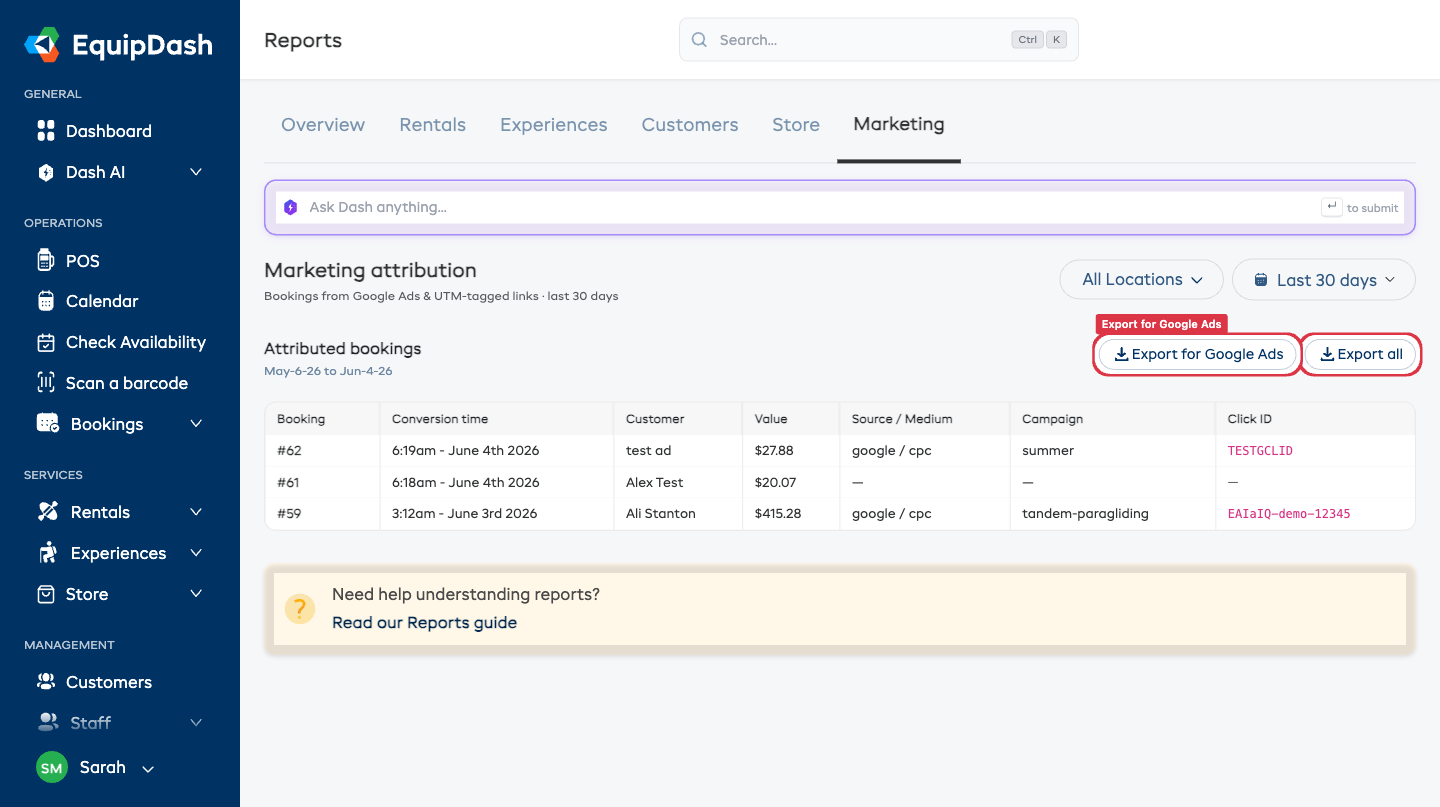
You'll see every booking that arrived with Google Ads, Meta or UTM tracking, including the conversion time, value, source, campaign and click ID.
Exporting for Google Ads
Google Ads can import your bookings as "offline conversions" so it knows which clicks led to real revenue.
- In the Marketing tab, click Export for Google Ads.
- A CSV downloads in Google's offline-conversion format: Google Click ID, Conversion Name, Conversion Time, Conversion Value, Conversion Currency.
- In Google Ads, go to Tools → Conversions → Import and upload the file.
The export uses the conversion name EquipDash Booking. Create a matching conversion action with that name in your Google Ads account so the upload lines up.
The Export for Google Ads file only includes bookings with a Google click ID. To get your Meta bookings, use Export all instead — it downloads every attributed booking (including Meta fbclid conversions and UTM-only conversions from other ad platforms), with all tracking fields.
Fire a Google Ads conversion automatically
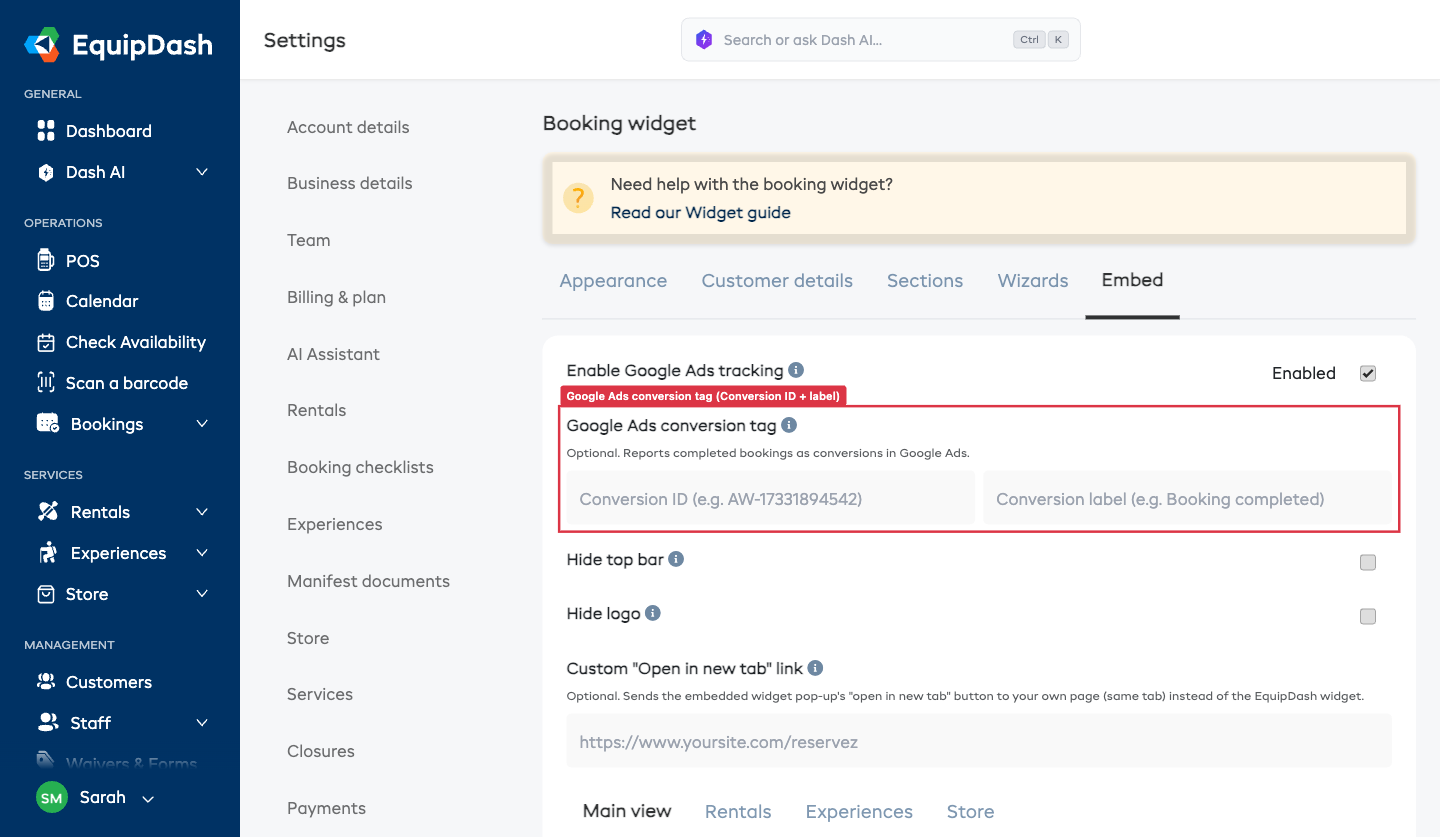
The export above reports conversions to Google Ads after the fact — you download a CSV and upload it. If you'd rather have Google Ads count a conversion the moment a booking is confirmed, add your Google Ads conversion tag. EquipDash then fires it on the booking confirmation page with the real booking value and currency.
- In Google Ads, create a Website conversion action and copy its Conversion ID (looks like
AW-17331894542) and Conversion label. - In EquipDash, go to Settings → Booking Widget → Embed.
- Paste them into the Google Ads conversion tag — the Conversion ID and Conversion label fields.
- Click out of the fields — they save automatically. Leave them blank for no tag.
From then on, every completed booking through the widget fires that conversion with its value and currency, so Google Ads can optimise toward real revenue in near real time.
- Conversion tag (here) — real-time, fires automatically on the confirmation page. Best for day-to-day bid optimisation.
- Export for Google Ads (above) — offline CSV upload. Catches bookings the browser tag can't (e.g. taken via the API) and is handy for reconciling.
They don't conflict, and many shops run both. If you do, point them at the same Google Ads conversion action (or two clearly separate ones) so a single booking isn't counted twice.
Tips
- Attribution is captured once per booking journey (first touch). If a customer reloads the page mid-booking, the original click details are kept.
- Bookings taken in person (POS) won't have ad attribution — there's no ad click involved.
- Want attribution for bookings you create through the API? See the Create Booking API documentation.