Exporting Report Data
EquipDash lets you export data from your reports so you can use it in spreadsheets, share it with your accountant, or do your own custom analysis.
Who Can Export
You need the Reports Export permission to use the export feature. By default, this is available to Admin users. If you do not see export buttons, ask your Admin to enable the permission under Settings > Team & Permissions.
How Exporting Works
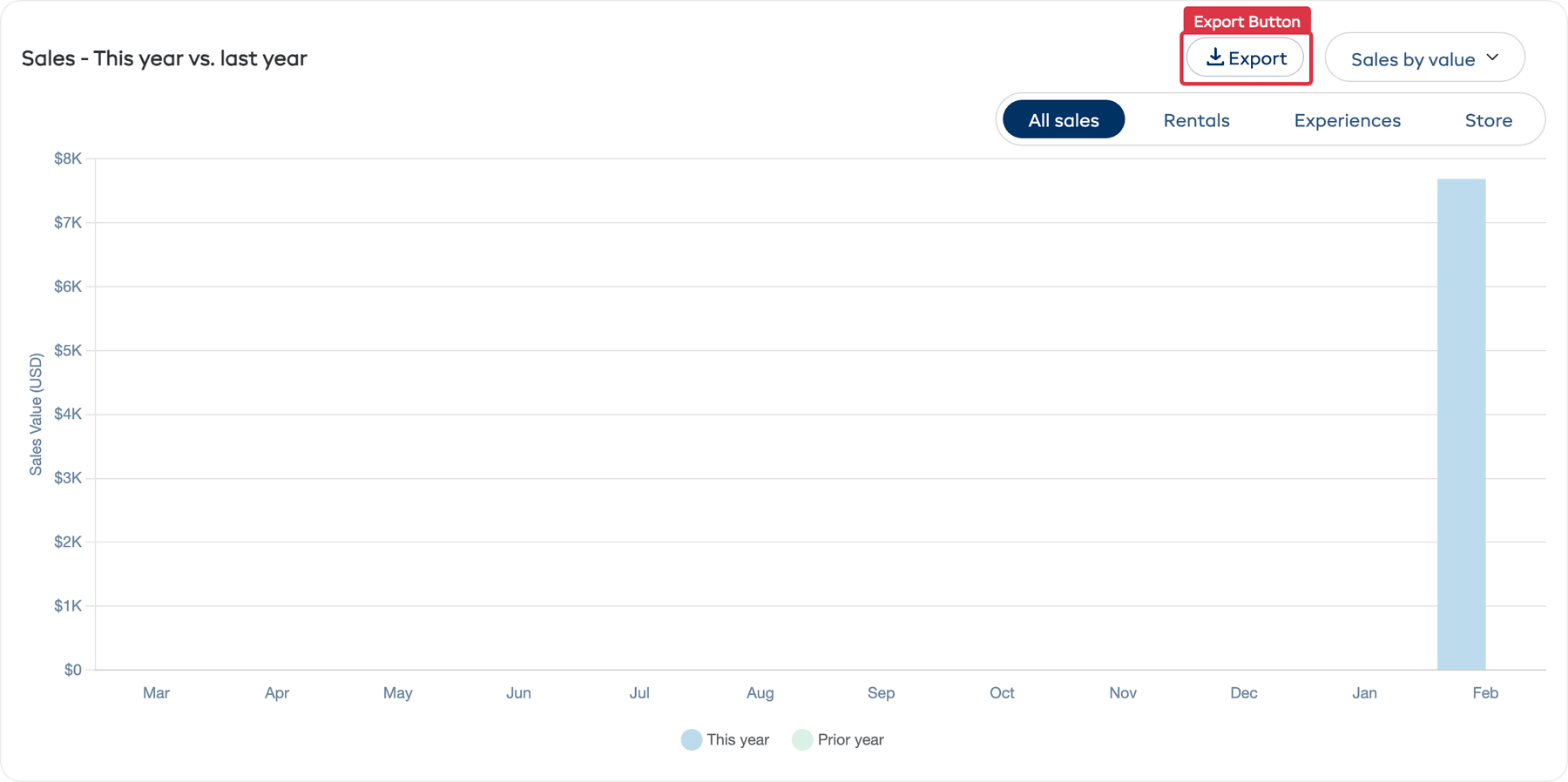
Unlike some tools that have a single export button for the entire page, EquipDash provides Export buttons on each individual chart and table. This means you can export exactly the data you need without downloading everything at once.
Exporting a Chart or Table
- Navigate to the Reports page by clicking Reports in the left sidebar.
- Switch to the report tab that contains the data you want (e.g. Rentals, Customers, Store).
- Set the time period using the dropdown in the top-right corner to narrow down the date range.
- Find the chart or table you want to export.
- Click the Export button next to the chart or table title.
- The CSV file will download to your computer.
Export Format
| Format | Best For |
|---|---|
| CSV | Opening in Excel, Google Sheets, or importing into accounting and analytics tools. CSV files work with virtually every spreadsheet application. |
What Gets Exported
Each export downloads the data for that specific chart or table, filtered by the selected time period. For tables (like Product Performance or Top 10 Customers), the export includes all rows — not just the ones visible on the current page.
Charts and tables with export buttons:
Overview tab:
- Sales - This year vs. last year
- Booking channel
- Customers & participants booked
- Bookings by payment method
- Bookings by season
- Top 5 rentals
- Top 5 experiences
- Top 10 customers (by sales)
Rentals tab:
- Bookings by day of week
- Bookings by time of day
- Top 5 categories
- Top 5 rentals
- Product Performance table
Experiences tab:
- Bookings by day of week
- Avg. participants per booking over time
- Top 5 categories
- Top 5 experiences
Customers tab:
- Customers over time
- New vs returning customers
- Customers by city
- Top 10 customers (by sales)
Store tab:
- Sales by day
- Top store products
More tab:
- Tax -- one Download CSV button for the whole report
- Return on investment -- one Download CSV button for the whole table, products and individual items
Tips for Working with Exported Data
- Open CSV files in Google Sheets or Excel for sorting, filtering, and creating custom charts.
- Use pivot tables to group and summarise the data in ways specific to your business needs.
- Share with your accountant — Export revenue data at the end of each month to make bookkeeping easier.
- Keep a monthly archive — Download exports at the end of each month for your records.
Exporting from Other Areas
Report exports are separate from data exports in other areas of EquipDash. You can also export data from:
- Customers — Export your full customer list. See Exporting Customers.
- Waivers & Forms — Export form response data. See Viewing Responses.