Creating a Survey Growth+This feature requires the Growth+ plan or higher
Creating a survey takes two steps: a short Create new survey panel that covers the decisions worth making up front, then the drag-and-drop builder where you add the questions.
Step 1 — Create New Survey
- Click Surveys in the left sidebar.
- Click + New survey in the top-right corner.
- A side panel opens titled Create new survey.
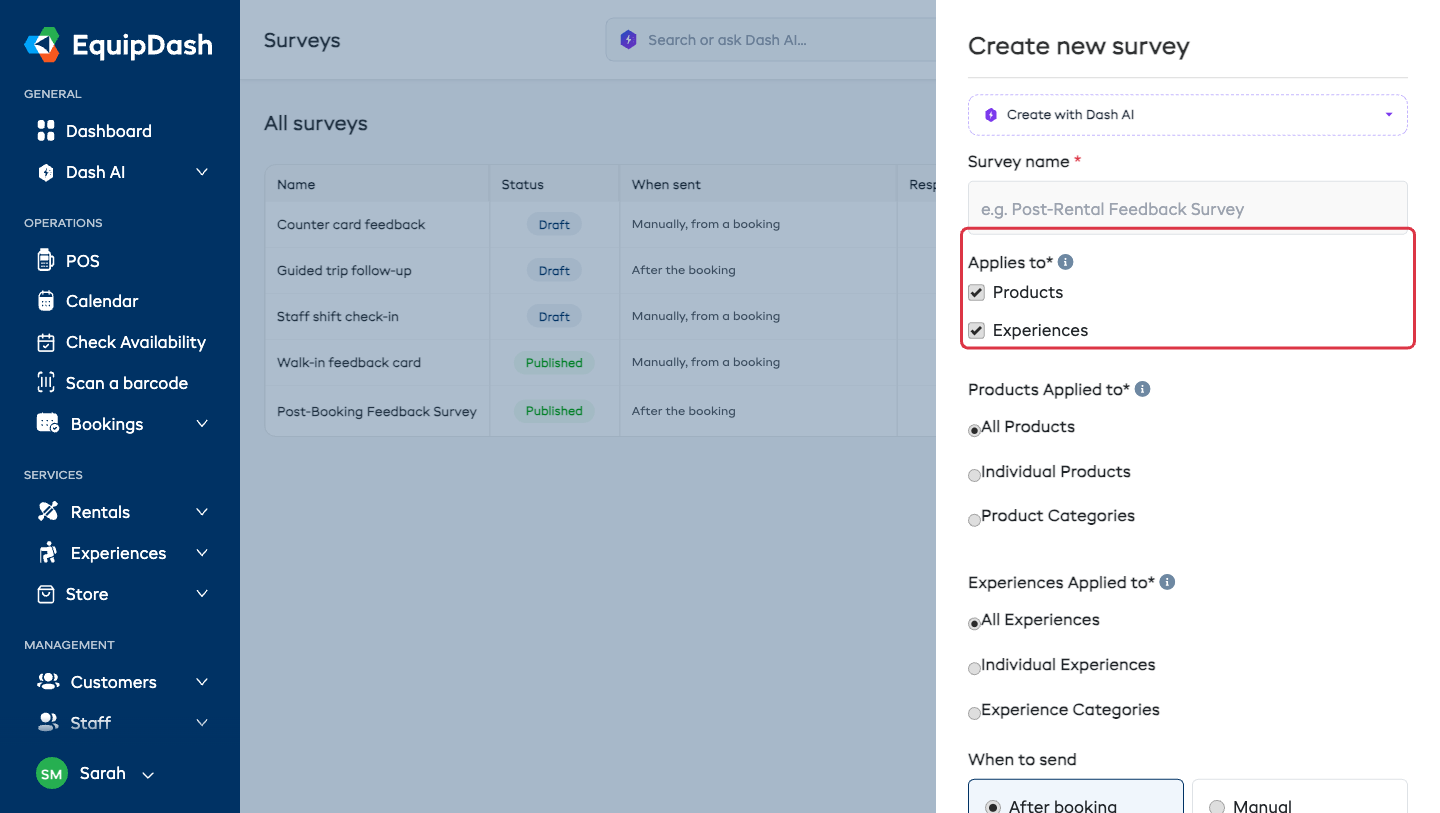
Survey name
Enter a Survey name — this is for you, not your customers (for example "Post-booking feedback"). It appears in your surveys list and in the survey builder.
Create with Dash AI at the top of the panel lets you describe the survey in plain words ("a short feedback survey for our kayak tours") and fills the fields in for you to review. See Create with Dash.
Applies to
This is the same chooser as the waiver create panel, so it works exactly the way you already know:
- Tick Products and/or Experiences — whichever this survey should cover. Only the modules you have turned on appear, and they're both pre-selected for you.
- For each one, pick how narrow it should be:
- All Products / All Experiences — the default, and the right answer for most shops.
- Individual Products / Individual Experiences — pick specific items from the dropdown.
- Product Categories / Experience Categories — pick whole categories.
A survey only sends for bookings that contain something it applies to. Leave it on All and it covers every booking.
When to send
Two side-by-side option cards:
| Card | What happens |
|---|---|
| After booking (recommended) | The survey goes out automatically once a booking wraps up — whether that's a rental coming back or an experience finishing. One setting covers both. |
| Manual | Nothing sends automatically. You send it yourself from a booking, or share its link or QR code. |
Send the email
Shown only when you chose After booking. Enter an amount and pick a unit — minutes, hours, or days — and the survey goes out that long after the booking. It defaults to 2 hours.
The ⓘ next to the label holds the limits: 0 sends it right away — up to 59 minutes, 24 hours, or 7 days.
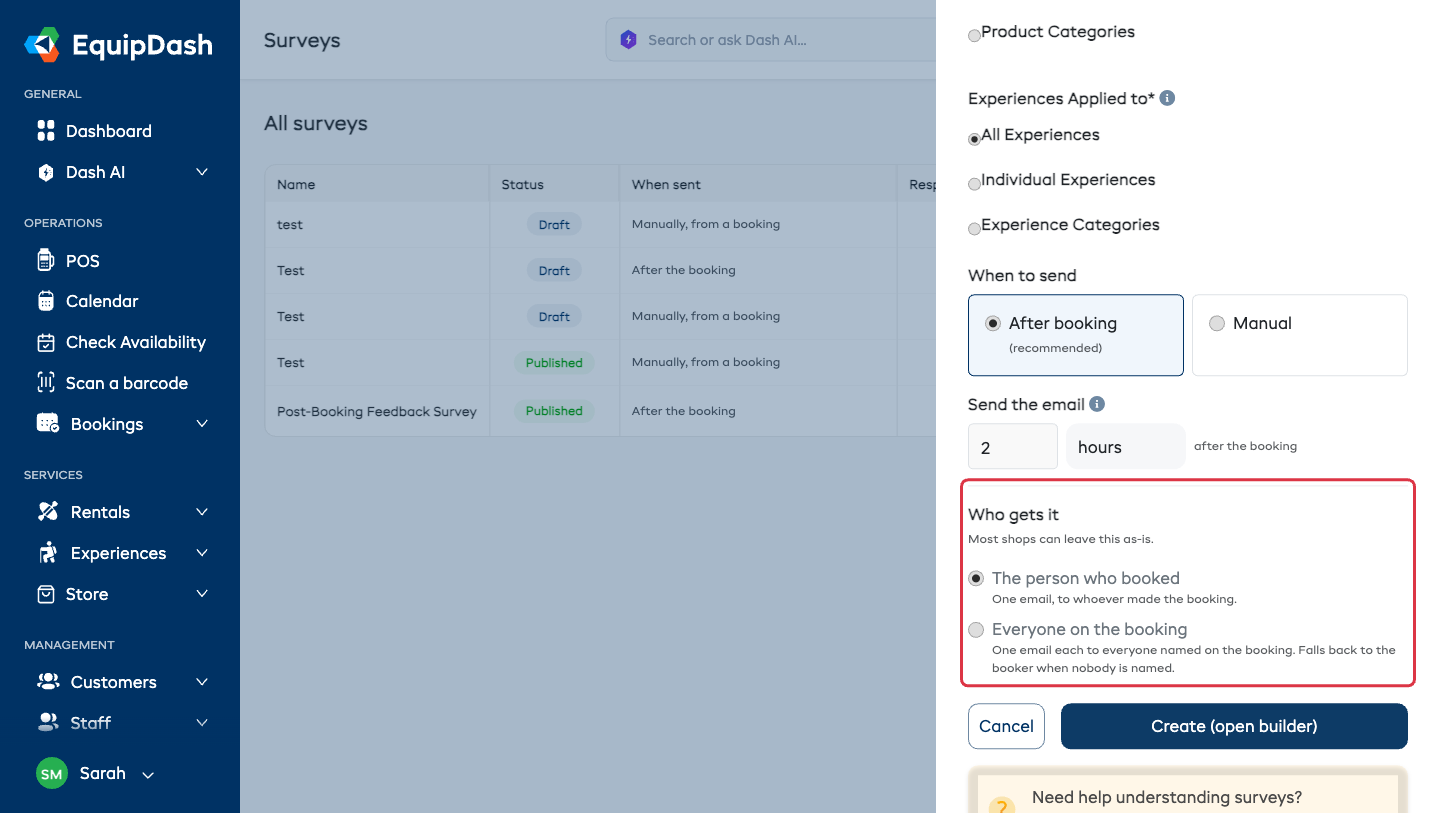
Who gets it
Tucked behind the Who gets it link, because most shops never need to change it:
| Choice | Who receives the survey |
|---|---|
| The person who booked (default) | One email, to whoever made the booking. |
| Everyone on the booking | One email each to everyone named on the booking. Falls back to the booker when nobody is named. |
Pick Everyone on the booking when one booking covers a group — a class, a corporate day, a club outing — and you want to hear from all of them rather than the one person who organized it. You can change it later from the Delivery card. See Who gets it.
Click Create (open builder) and you land in the survey builder with the survey created as a draft.
Step 2 — Build the Questions
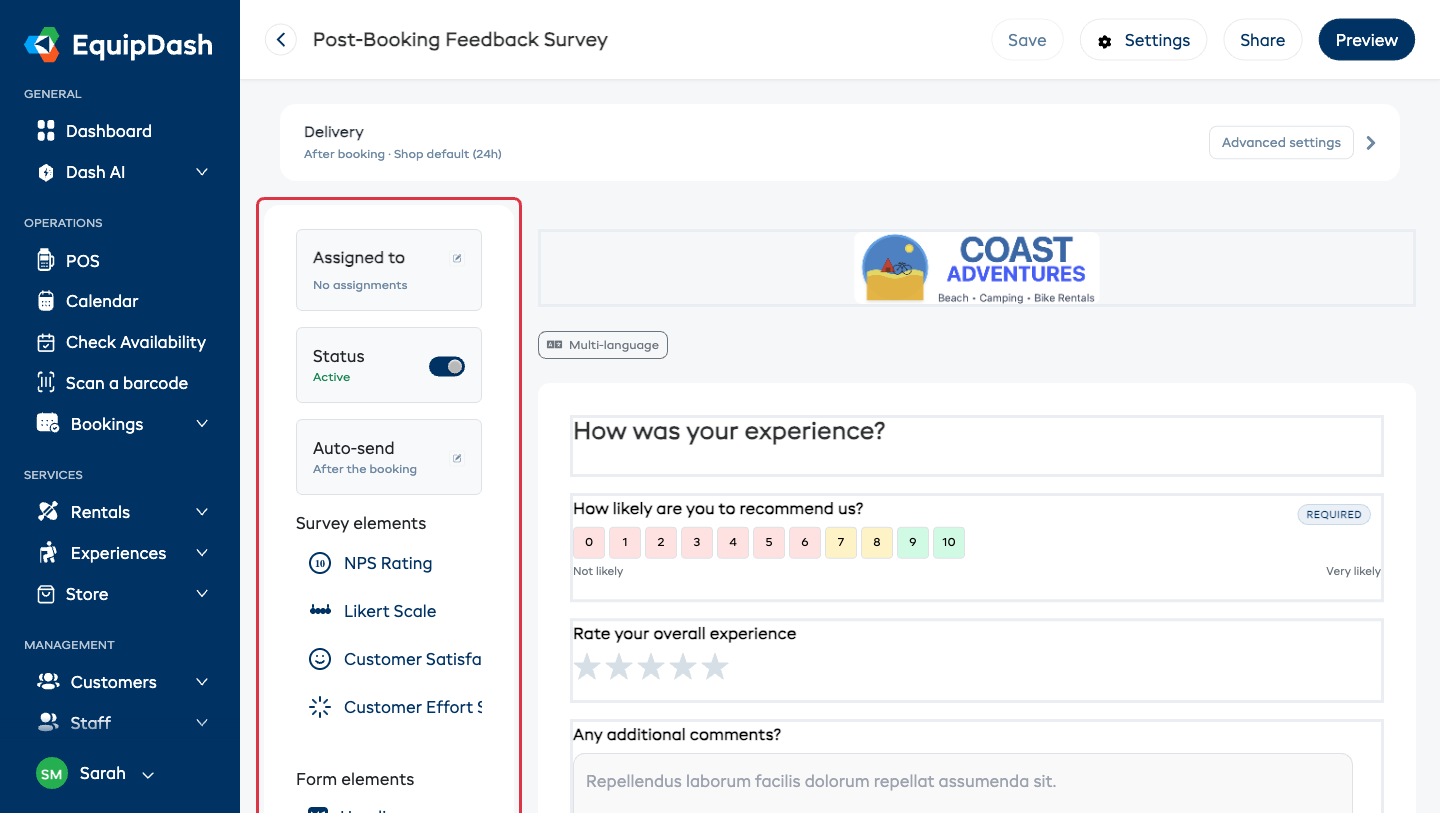
The builder has four areas:
- Top toolbar — the survey name with a back arrow on the left; on the right the save indicator (Save / Saving… / Saved), Settings, Share, and Preview.
- Delivery card — the collapsed summary of when this survey sends. See The Delivery Card.
- Left panel — three small cards (Assigned to, Status, Auto-send) above the element palette, split into Survey elements and Form elements.
- Center canvas — your survey as the customer will see it: your logo at the top (if you add one), the questions in order, and the page label at the bottom.
Everything in the builder saves as you work — the toolbar shows Saving… then Saved. There is no Save button to hunt for.
Adding, reordering and deleting questions
- Find the element you want in the left panel under Survey elements or Form elements.
- Drag it onto the canvas and drop it where you want it.
- Click the element to select it, then edit its label, description, or options in the Edit Field panel and click Update.
- Drag any element on the canvas to move it. Delete removes it and the rest reorder automatically.
Every element type is described in Survey Question Types.
Multiple pages
For a longer survey, click Add New Page at the bottom of the canvas and drag elements onto the new page. Customers get a Next button to move between pages. Deleting a page deletes the elements on it.
Your logo
Click the logo area at the top of the canvas and upload an image. To remove it, click the logo and then the delete icon.
More than one language
The Multi-language switch above the canvas turns on translated versions of your questions for every customer language you offer. Customers see the survey in their own language automatically.
Assigning to Products or Experiences Later
The Assigned to card in the left panel always shows what this survey covers ("No assignments" means every booking).
- Click the pencil on the Assigned to card.
- The Edit related products/experiences panel opens — the same Applies to chooser as the create panel.
- Click Update.
The Delivery Card
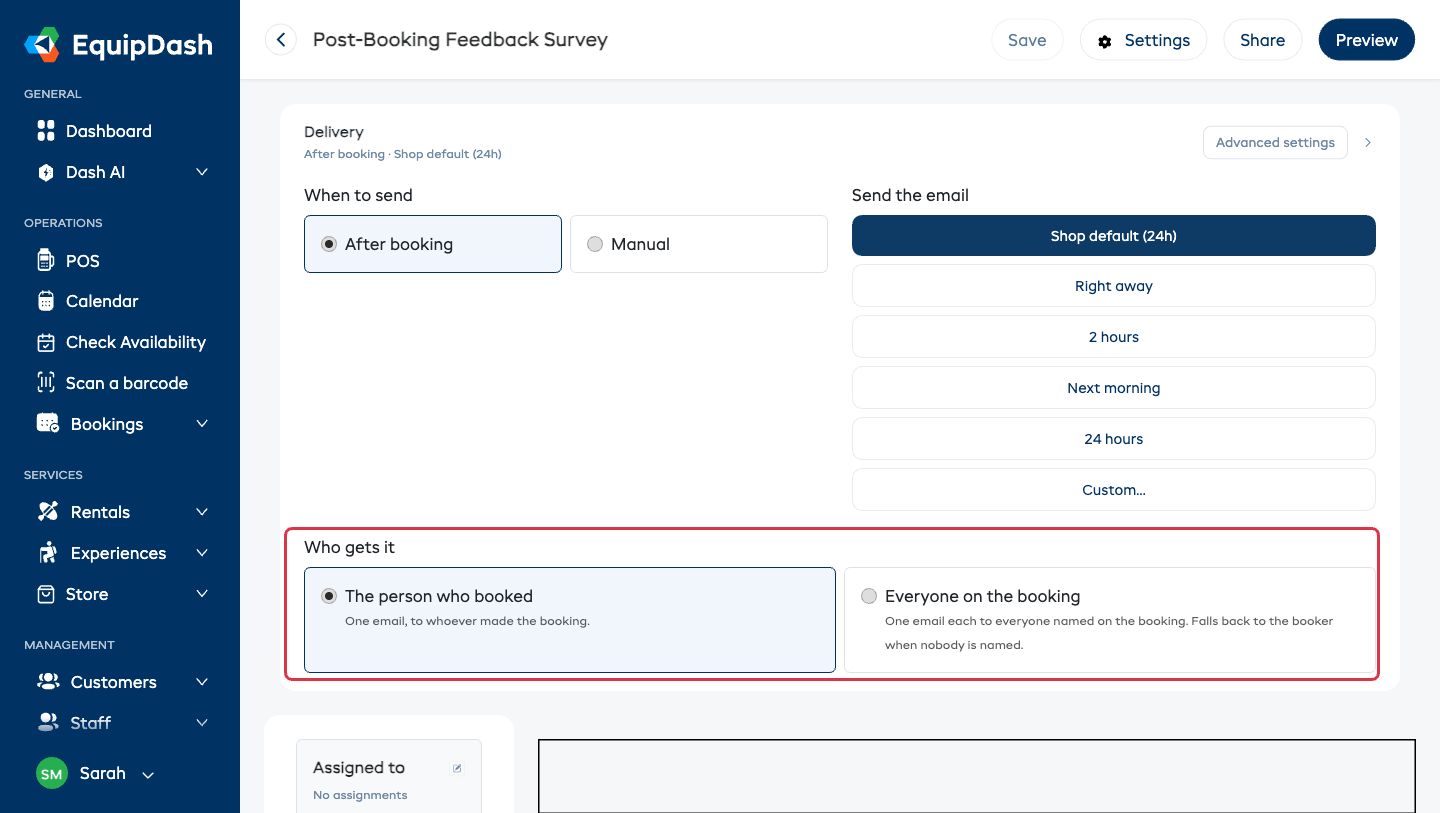
Delivery sits at the top of the builder and is collapsed by default. Its header carries a one-line summary of exactly when this survey goes out, so you can confirm it at a glance without opening anything:
- After booking · 2 hours
- After booking · Shop default (24h)
- After booking · Next morning
- After booking · Custom (30min)
- After booking · 2 hours · Everyone — when it goes to everyone on the booking
- Manual · …
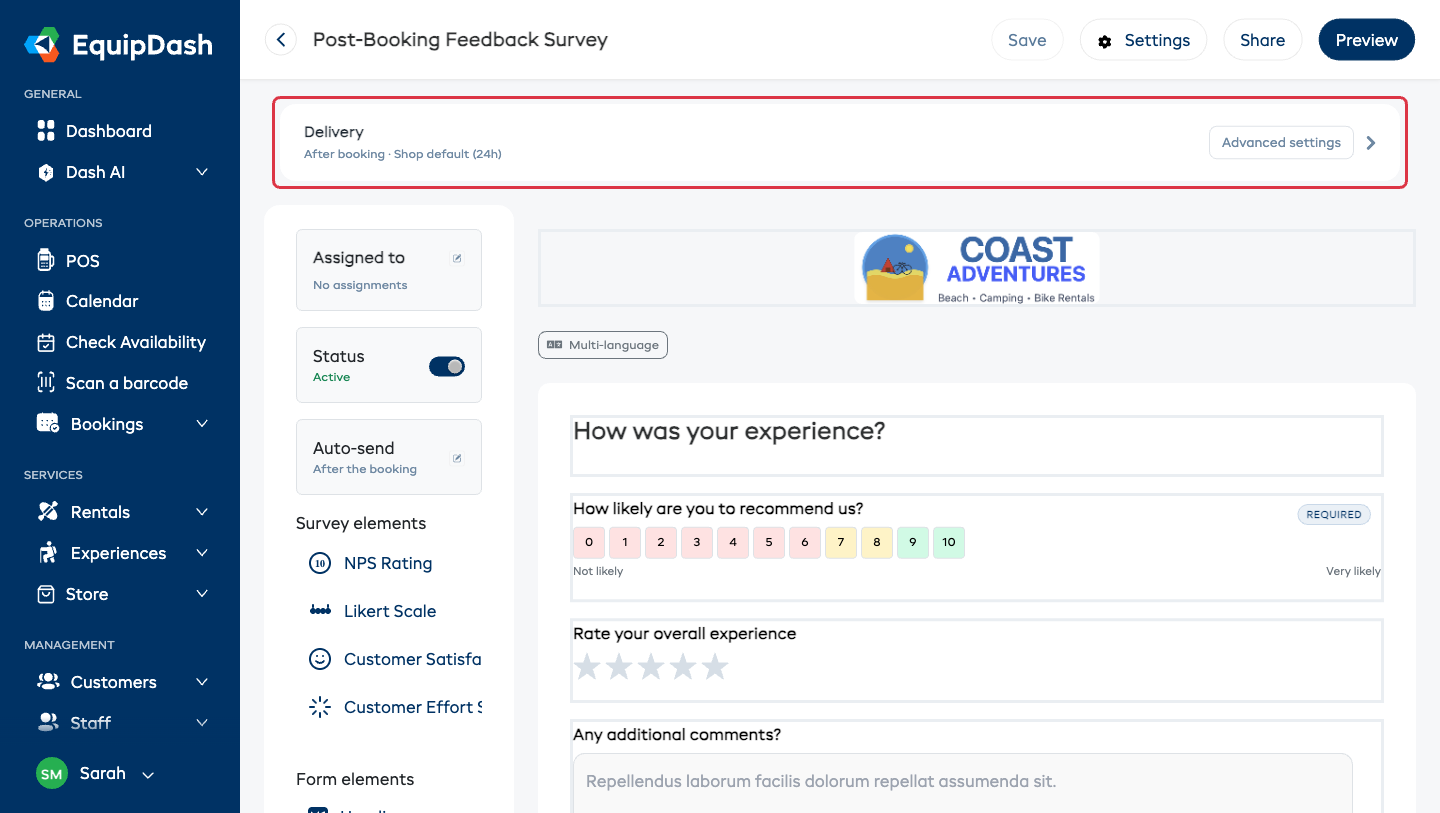
Click the header to expand it. Inside there are only three controls — the ones you actually change:
When to send — the same two cards as the create panel: After booking or Manual.
Send the email — a set of buttons:
| Button | When the survey goes out |
|---|---|
| Shop default (Xh) | Follows Default send delay in Settings → Surveys & reviews, so this survey stays in step with the rest. |
| Right away | As soon as the booking wraps up. |
| 2 hours | Two hours after — long enough to get home, fresh enough to remember. |
| Next morning | 9 AM the next day, your local time. Good for bookings that finish late. |
| 24 hours | A full day later. |
| Custom… | Reveals the same amount + unit controls as the create panel (minutes / hours / days). |
Who gets it — The person who booked (the default) or Everyone on the booking. See Who gets it.
Your choice applies the moment you click it — the button highlights immediately and the change saves itself.
Surveys created before this was simplified may use an older trigger (for example, "after a rental is returned"). Those keep working exactly as before and show as Custom (legacy) on the Delivery card, with a Switch to recommended button that moves them to After booking.
Advanced Settings
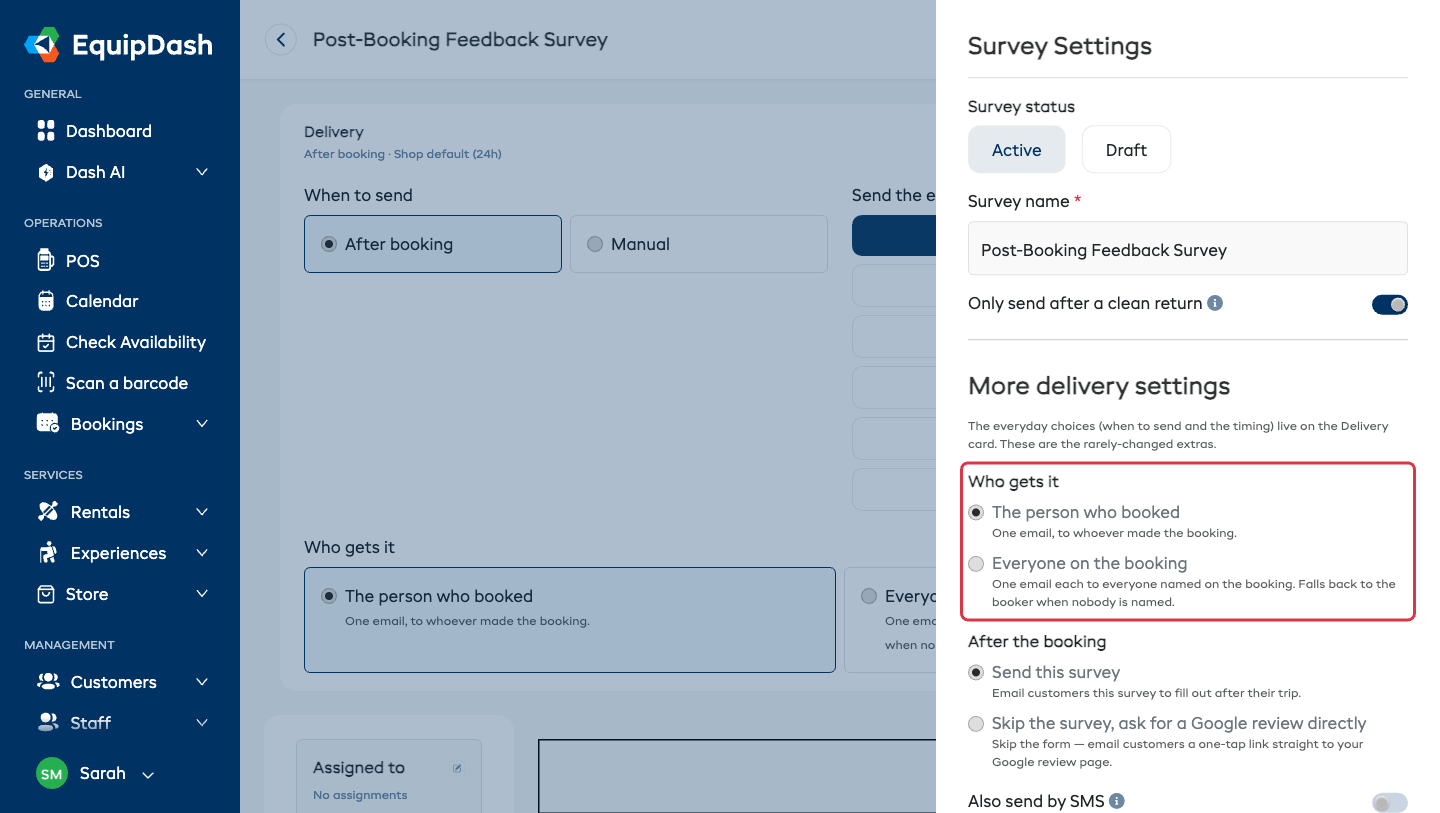
Everything that isn't an everyday choice lives behind Advanced settings on the Delivery card (or Settings in the top toolbar). It opens the Survey Settings panel. Most shops never need to open it.
| Setting | What it does |
|---|---|
| Survey status | Active or Draft. Same switch as the Status card in the left panel. |
| Survey name | Rename the survey. |
| Who gets it | The person who booked or Everyone on the booking. The same setting as the Delivery card — it's here too so you can set it without leaving the panel. See Who gets it. |
| Only send after a clean return | Skips the survey if the rental came back damaged — exactly when you least want to ask for feedback. |
| After the booking | Send this survey (the normal choice) or Skip the survey, ask for a Google review directly — the email takes customers straight to your Google review page with no form to fill in. |
| Also send by SMS | Sends the survey link by text as well as email. Uses SMS credits — see Getting Started with SMS. |
| Email me when a customer is unhappy | Shop default, On, or Off. Sends you an email the moment a low score lands. |
| One reminder, 7 days later | On by default. Only goes to customers who haven't responded, and never more than once. |
| Thank-you reward | Use shop default, Use a specific reward discount (pick a different code for this survey), or No reward for this survey. See Survey Rewards. |
| Your review pages | The review links this survey's thank-you page shows. Each platform displays the value from your company settings; flip Override to give this one survey a different link. Manage in Settings → takes you to the shop-wide list. |
Click Save Settings when you're done.
Previewing Your Survey
- Click Preview in the top toolbar.
- A preview opens showing exactly what customers will see.
- Close it when you're done.
Publishing Your Survey
- In the left panel, find the Status card.
- Toggle it to Active.
The survey now shows as Published in your surveys list, and — if it's set to After booking — starts going out after the next qualifying booking. You can also switch between Active and Draft at the top of the Survey Settings panel.
Sharing Your Survey
Click Share in the top toolbar to open the Share Survey modal — a link, a website embed, a QR code, and a printable counter card. It's covered in full under Sending Surveys.