Sending Surveys Growth+This feature requires the Growth+ plan or higher
There are three ways a survey reaches a customer: automatically after their booking, manually from the booking page, or by a link, embed or QR code you share yourself.
Automatic Sending
Two choices, and one of them is right for almost everyone
| Choice | What happens | Best for |
|---|---|---|
| After booking (recommended) | The survey goes out automatically once a booking wraps up — the gear comes back, the experience finishes, or the booking is marked completed. EquipDash works out which applies. | Almost everyone. One setting covers rentals and experiences alike. |
| Manual | Nothing sends automatically. You send it yourself, or share its link. | Ad-hoc requests, counter cards, one-off feedback pushes. |
Surveys created before this was simplified may still use an older, type-specific trigger (for example, "after a rental is returned"). Those keep working exactly as before and show as Custom (legacy) on the Delivery card, with a Switch to recommended button.
Setting it up
- Open the survey and click the Delivery card to expand it.
- Under When to send, choose After booking.
- Under Send the email, pick the timing: Shop default (Xh), Right away, 2 hours, Next morning, 24 hours, or Custom… for a specific number of minutes, hours, or days.
- That's it — the change saves as soon as you click.
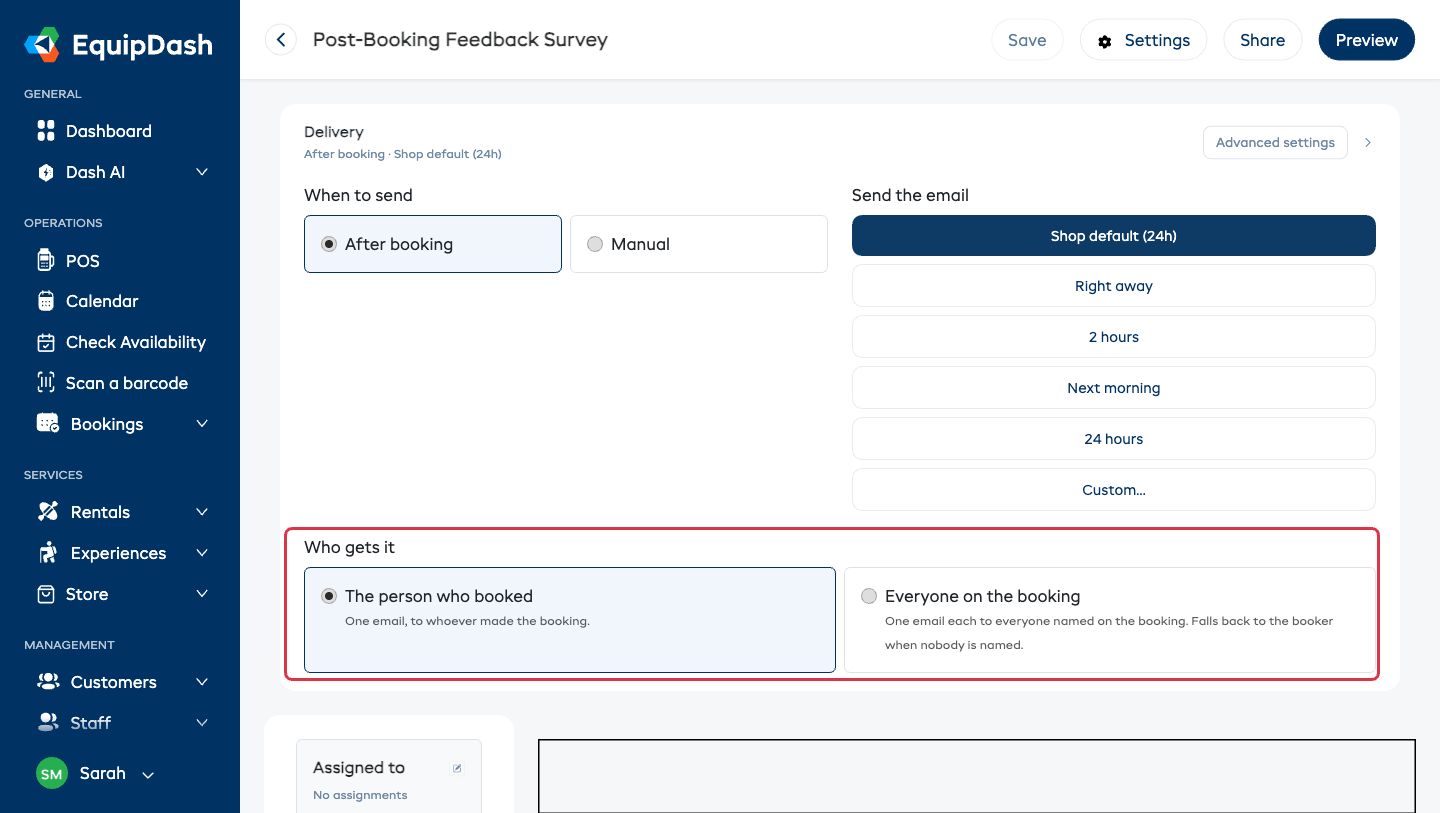
Leave a survey on Shop default and its timing comes from Settings → Surveys & reviews → Default send delay (hours), so every survey stays in step. Give it its own timing only when this one survey genuinely needs different treatment.
The survey must be Published (Status → Active in the builder) before anything sends.
Who gets it
By default a survey goes to one person: whoever made the booking. That's right for most bookings, where the person who booked is the person who came.
It's the wrong answer when one booking covers a group — a school class, a corporate day out, a stag party, a club outing. There, the booker is an organizer who may not have set foot on the trip, and you're hearing from one voice instead of twenty.
| Choice | Who receives the survey |
|---|---|
| The person who booked (default) | One email, to whoever made the booking. |
| Everyone on the booking | One email each to everyone named on the booking. |
To change it: open the survey, expand the Delivery card, and pick under Who gets it. It's also on the Create new survey panel (under Who gets it) and in Advanced settings, so you can set it whenever suits.
When the card is set to Everyone on the booking, the collapsed Delivery summary says so — for example After booking · 2 hours · Everyone.
A few things worth knowing:
- Nobody gets two copies. If the same email address appears more than once — a parent listed against two children, or an organizer who is also on the trip — they receive one survey, not several.
- If nobody is named on the booking, it falls back to the person who booked, so the survey always reaches someone.
- Anyone without an email address is skipped, the same as anywhere else in EquipDash. Add their email to their customer record and they'll be included next time.
- Your response rate gets more honest. A 20-person booking now counts as 20 sends rather than one, so the percentage reflects how many people actually answered. Expect the number to move when you first switch a survey over — the old figure was flattering.
"Everyone on the booking" only reaches people who are actually named on the booking. If you take group bookings without recording who's coming, add participants to the booking first — that same list is what feeds your manifest.
Why 2 hours?
A short delay gives customers time to get home and reflect while the day is still fresh. Sending the instant they hand back the gear feels pushy; waiting days means the details have faded. Next morning works better for bookings that finish late in the evening.
What the customer receives
When the survey includes a 0–10 rating question, the email shows the scale in the message itself. The customer taps a number, the survey opens with that score already selected, and one more tap submits it. Less friction means more responses — and more people reaching the thank-you page where your review links are.
If they haven't responded after 7 days they get exactly one reminder — never a sequence. Turn it off per survey with One reminder, 7 days later under Advanced settings.
Who gets skipped automatically
EquipDash re-checks every booking at the moment of sending, not just when the survey was queued, so late changes are respected:
- Canceled bookings and archived bookings — nothing is sent, even if the email was already queued.
- No-shows — a booking still sitting as confirmed after its end date is treated as a no-show and skipped.
- Guests who booked through an OTA (GetYourGuide, Viator, Manawa) — skipped. Those guests belong to the OTA's own review system.
- Each booking is only asked once per survey, even if it both completes and has a return.
- Archived surveys never send, ever.
- Per booking — use Don't send surveys for this booking on the booking page for the customer you'd rather not ask. See Survey Actions on a Booking.
There's also Only send after a clean return under Advanced settings: when it's on, the survey is held back if the gear came back damaged — exactly the moment you least want to push for feedback.
If the survey is assigned to specific items
A survey only sends for bookings that contain something it applies to:
- A survey applied to two specific products goes out only after bookings that include one of them.
- A survey left on All Products / All Experiences goes out after every qualifying booking.
Check or change this from the Assigned to card in the builder — see Creating a Survey.
Sending by text as well
- Open the survey and click Advanced settings on the Delivery card.
- Turn on Also send by SMS.
The customer gets the survey link in their messages app as well as their inbox. Each send uses one SMS credit per recipient — see SMS Wallet & Credits.
SMS needs the SMS add-on active on your account. Go to Settings → SMS to enable it. See Getting Started with SMS.
Asking for a Google review instead of a survey
If a survey's only job is Google reviews, set After the booking to Skip the survey, ask for a Google review directly under Advanced settings. The after-booking email then takes customers straight to your Google review page — no form to fill in. It's sent to everyone, not just happy customers, which is what keeps it compliant. See Getting More Reviews — the Right Way.
Manual Sending
Send from a booking
The quickest way to survey one specific customer:
- Open the booking's detail page.
- Click Actions ▾ → Send survey.
- Pick the survey — the list shows only published surveys that apply to this booking, and any already sent for it show Already sent instead of a send button.
- The email goes out immediately.
See Survey Actions on a Booking.
Sharing via link, website embed, or QR code
- Open the survey and click Share in the top toolbar (it's also on the survey's analytics page).
- The Share Survey modal opens.
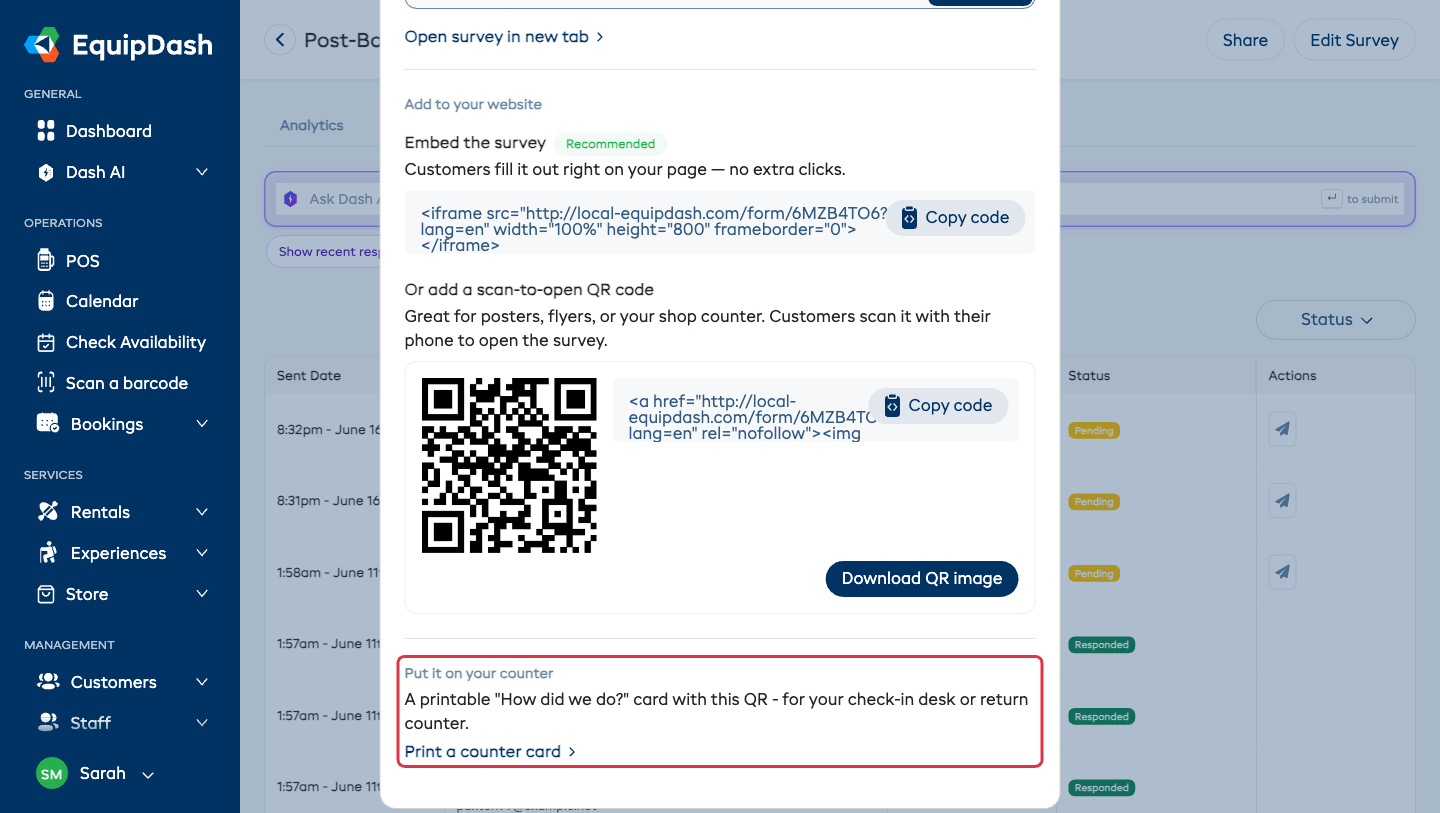
It gives you:
- Language tabs — if your survey is offered in more than one language, a tab appears for each (English (default), French, and so on). Everything below the tabs — link, embed, QR — switches with it, so each version opens the survey straight in that language. With one language, no tabs appear.
- Share with link — the survey URL and a Copy link button, plus Open survey in new tab to try it yourself.
- Add to your website, with two options:
- Embed the survey (Recommended) — a snippet that puts the live survey on your own page, so customers answer without leaving your site.
- Or add a scan-to-open QR code — the QR image, a snippet to display it on your website, and Download QR image to save it for print.
- Put it on your counter — Print a counter card opens a printable "How did we do?" card with this survey's QR code, sized for half an A4 page. Fold or cut it and stand it on your check-in desk or return counter.
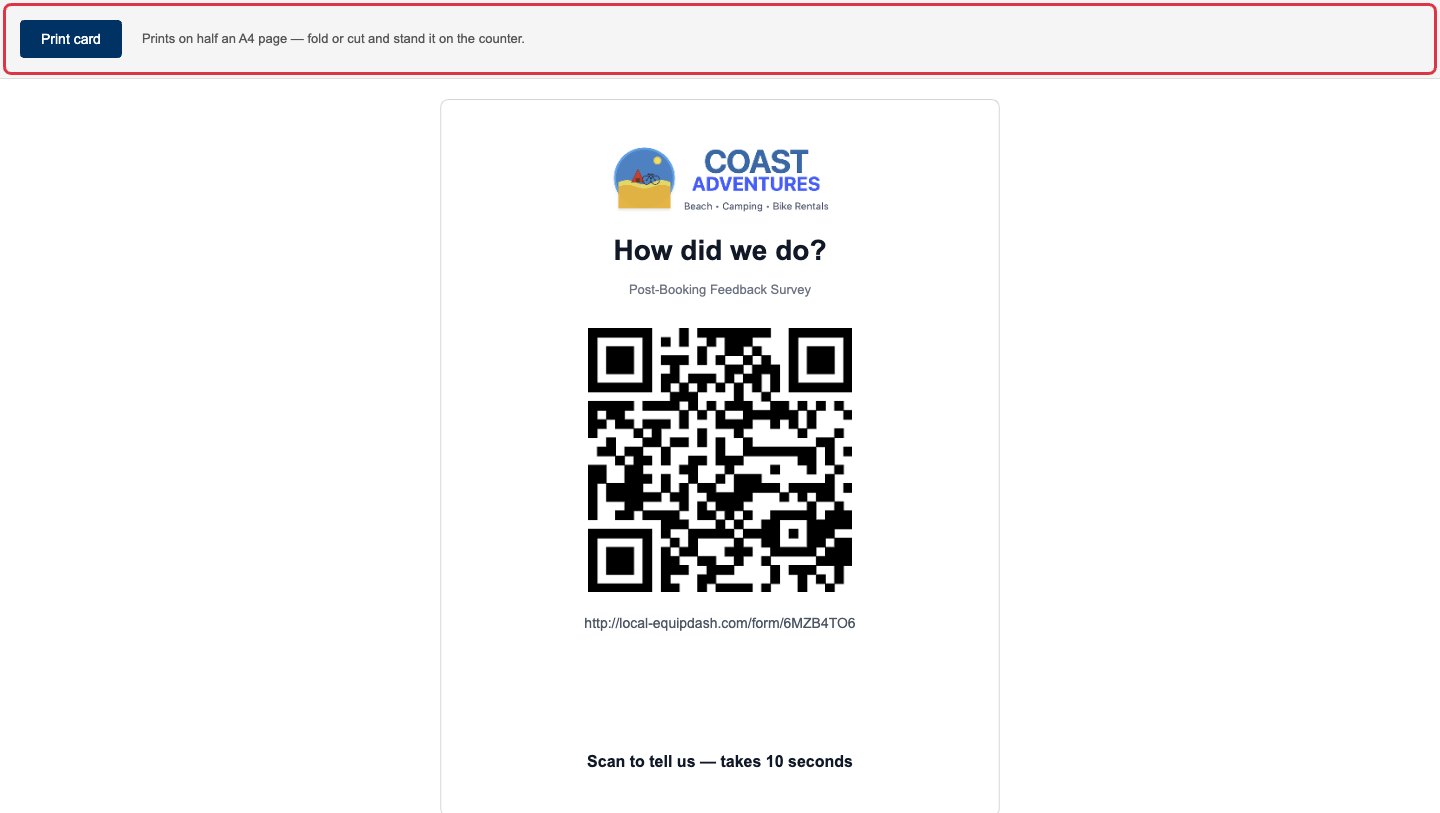
The QR snippet contains the image directly, so it displays reliably on any website — including Squarespace — with no extra setup.
Tracking What Was Sent
The Sent tab on a survey shows every send.
- Click Surveys in the left sidebar.
- Click the survey name, or the View analytics (chart) icon on its row.
- Select the Sent tab.
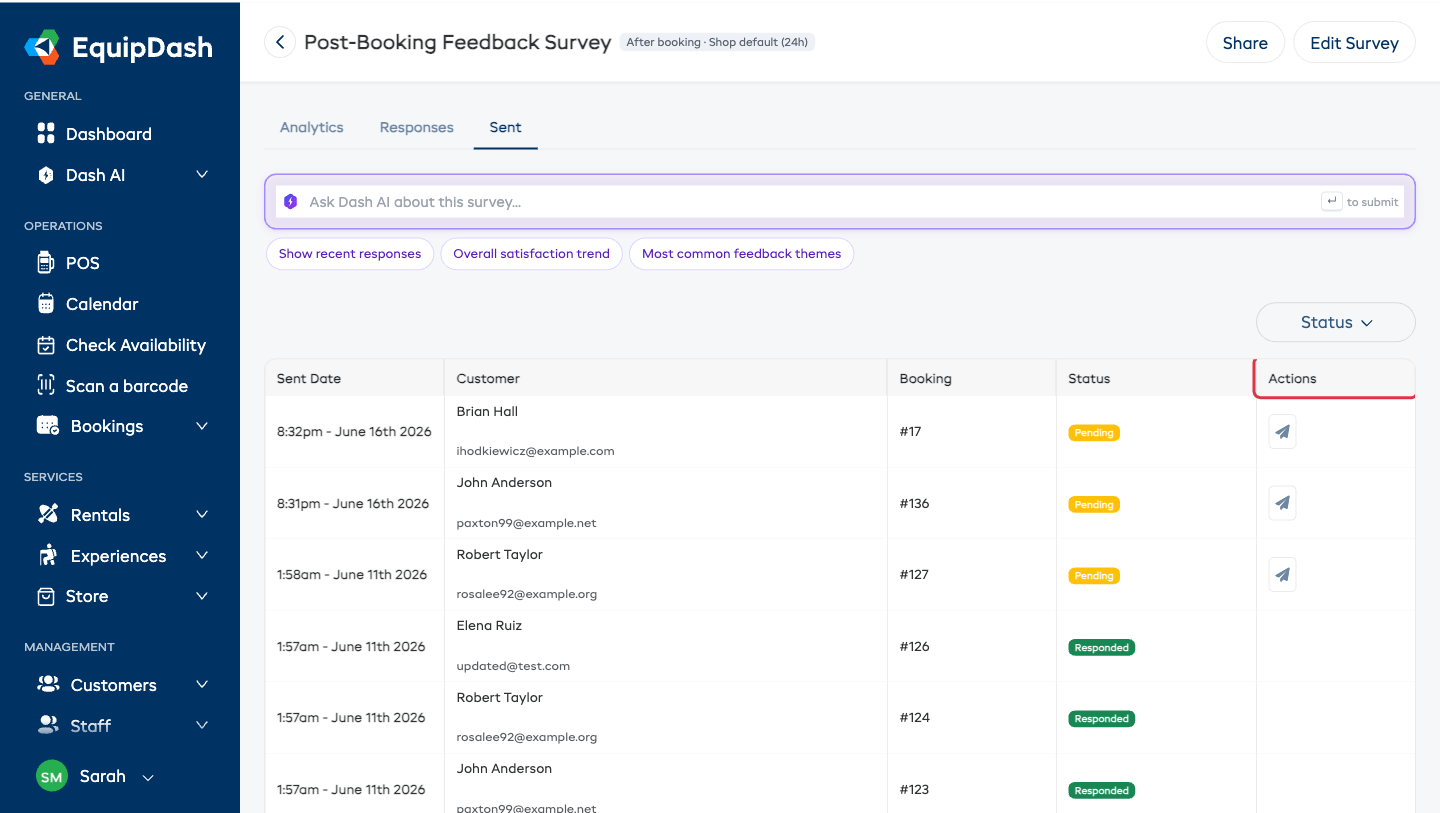
| Column | What it shows |
|---|---|
| Sent Date | When it went out (Pending if it hasn't yet) |
| Customer | Name and email address, linked to their customer record |
| Booking | The linked booking number |
| Status | Responded, Pending, Failed, or Bounced |
| Actions | Resend (paper plane) — see below |
Use the Status filter above the table to narrow the list.
Resending
Find the row and click the resend icon in Actions. Rows that already came back as Responded don't offer it — there's nothing to chase.
For a survey set to Skip the survey, ask for a Google review directly, the Actions column shows an Opened marker instead, so you can see who actually clicked the review link.
Tips for Better Response Rates
- Keep surveys short — 3–5 questions is the sweet spot.
- Send while it's fresh — 2 hours after is the default for a reason.
- Keep the reminder on — one 7-day nudge lifts responses noticeably, with no effort from you.
- Print the counter card — it catches customers in the moment they're happiest.
- Reply to unhappy customers fast — the ones whose problem you fix often become your most loyal. See Following Up on Responses.