Rewarding Survey Completions Growth+This feature requires the Growth+ plan or higher
You can thank every customer who completes a survey with a discount code — and at the same time, every customer sees your Google and TripAdvisor review links on the thank-you page. It's the simplest way to turn a finished booking into a repeat booking and a fresh review.
Set it up once. From then on, anyone who finishes gets their own code, shown on the thank-you screen and emailed to them.
The reward is for completing the survey — never for leaving a positive review. Offering a discount in exchange for a good review breaks Google's, TripAdvisor's and the FTC's rules and can get your listing removed. EquipDash keeps you on the right side of that automatically: everyone who completes the survey gets the code, and everyone — whatever score they left — sees your review links. The two are never tied together. See Getting More Google & TripAdvisor Reviews — the Right Way.
How It Works
- You pick one of your existing promo codes to act as the reward (for example your "10% off" code).
- A customer finishes the survey.
- EquipDash creates a unique, single-use code just for them — copying the discount, minimum spend and item rules of the code you chose — and shows it on the thank-you screen and in an email.
- The thank-you screen also shows your review links to every customer. Unhappy customers additionally see a "we'll make it right" message — and you get an instant alert so you can reach out first.
Because every customer gets their own one-time code, you never have to worry about one code being shared around the internet. Each customer has one active code at a time — filling in the survey again before using it keeps the same code rather than collecting a stack.
The code goes to the customer who completed the survey. When a survey is sent automatically after a booking, we already know who that is. If you share a survey by link or QR code, make sure the survey includes an Email element — that's how we know where to send the code. A fully anonymous survey can't be rewarded, because there's nobody to send it to.
Setting Up the Reward
The reward is set up in one place and applies to every survey.
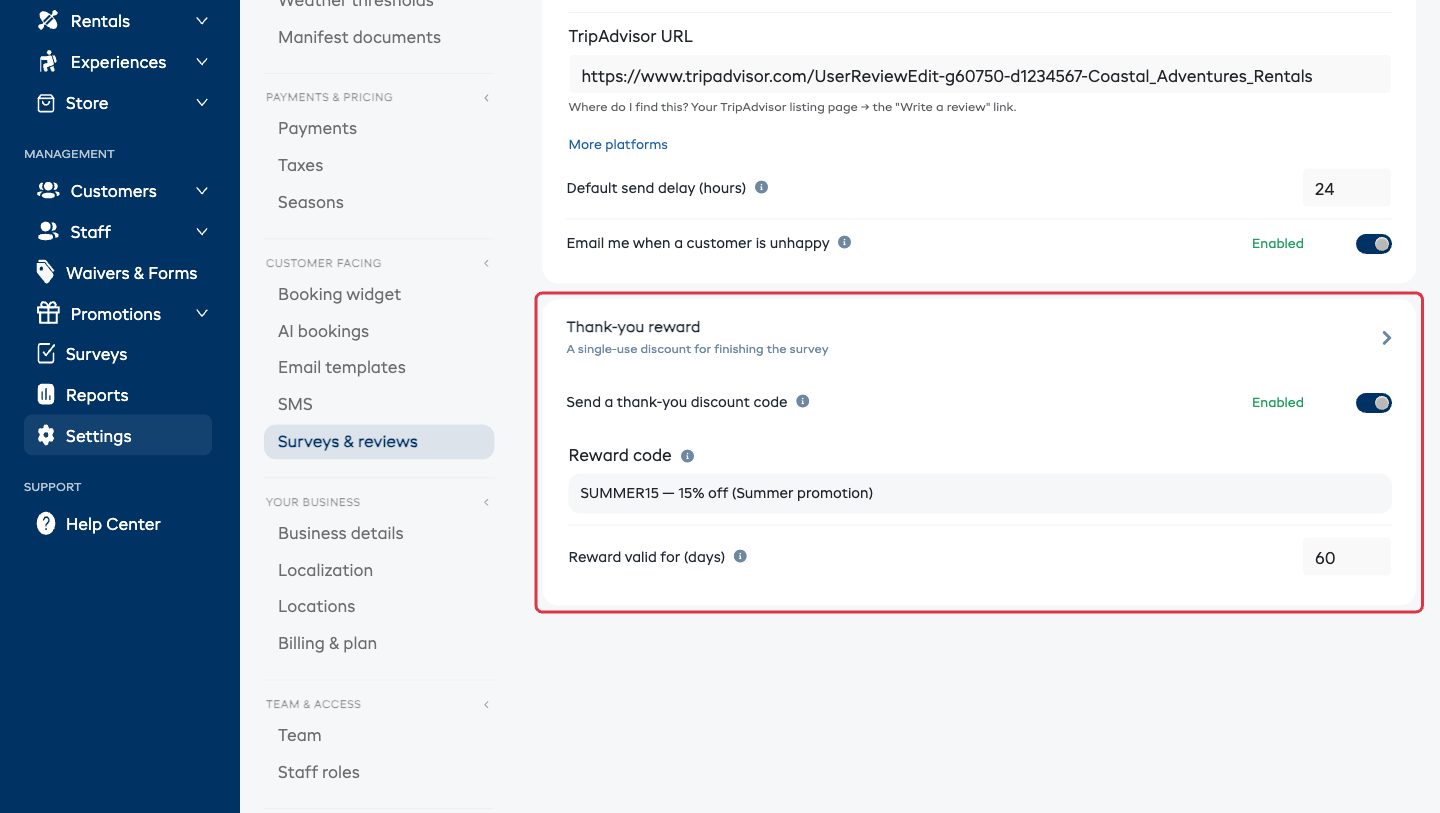
- Go to Settings → Surveys & reviews (under Connections & advanced).
- Open the Thank-you reward section.
- Turn on Send a thank-you discount code.
- Pick the code from the Reward code dropdown. This is one of your existing promo codes — it sets the discount, any minimum spend, and which products or experiences it works on.
- Set Reward valid for (days) — how long each issued code stays usable. The default is 60.
Changes save automatically — you'll see a confirmation in the corner each time. There is no Save button.
Create one first under Promotions → Promo codes — for example "10% off your next booking" — then come back and pick it here. See Creating a Promo Code.
While you're on this page
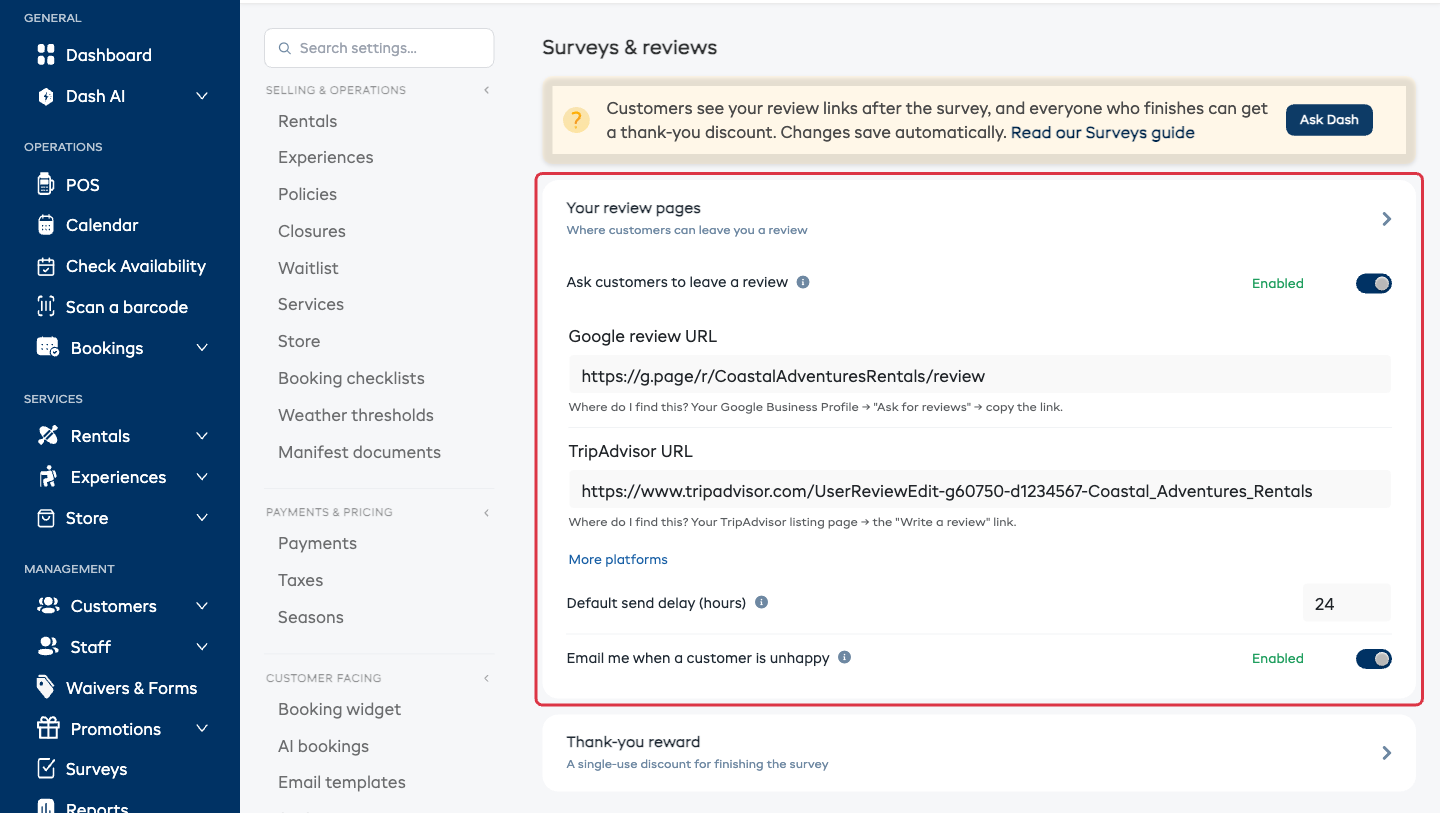
The section above it, Your review pages, is where you set the links customers see when they finish. Turn on Ask customers to leave a review, then paste your Google review URL and TripAdvisor URL — each has a "where do I find this?" hint underneath. Facebook, Yelp, Instagram and a custom platform live behind More platforms. If a pasted link doesn't look like it belongs to that platform, you'll see a gentle warning so you can double-check it.
If the reward code stops working
If you later deactivate or delete the promo code you chose, EquipDash stops issuing rewards and shows a warning in this section telling you to pick an active code. No broken codes ever go out.
Using a Different Reward for One Survey
By default every survey uses the reward from Settings. To change it for one survey:
- Open the survey in the builder.
- Click Advanced settings on the Delivery card.
- Find Thank-you reward and choose:
- Use shop default — the code set in Settings (the normal choice).
- Use a specific reward discount — pick a different code for this survey only.
- No reward for this survey — don't give a code at all.
- Click Save Settings.
What the Customer Sees
When a customer finishes the survey, the thank-you screen shows:
- Their discount code, what it's worth, and when it expires.
- A Book now button to use it straight away.
- Your review links — shown to every customer, whatever score they gave. Unhappy customers also see a "we'll make it right" message inviting them to hear from you directly.
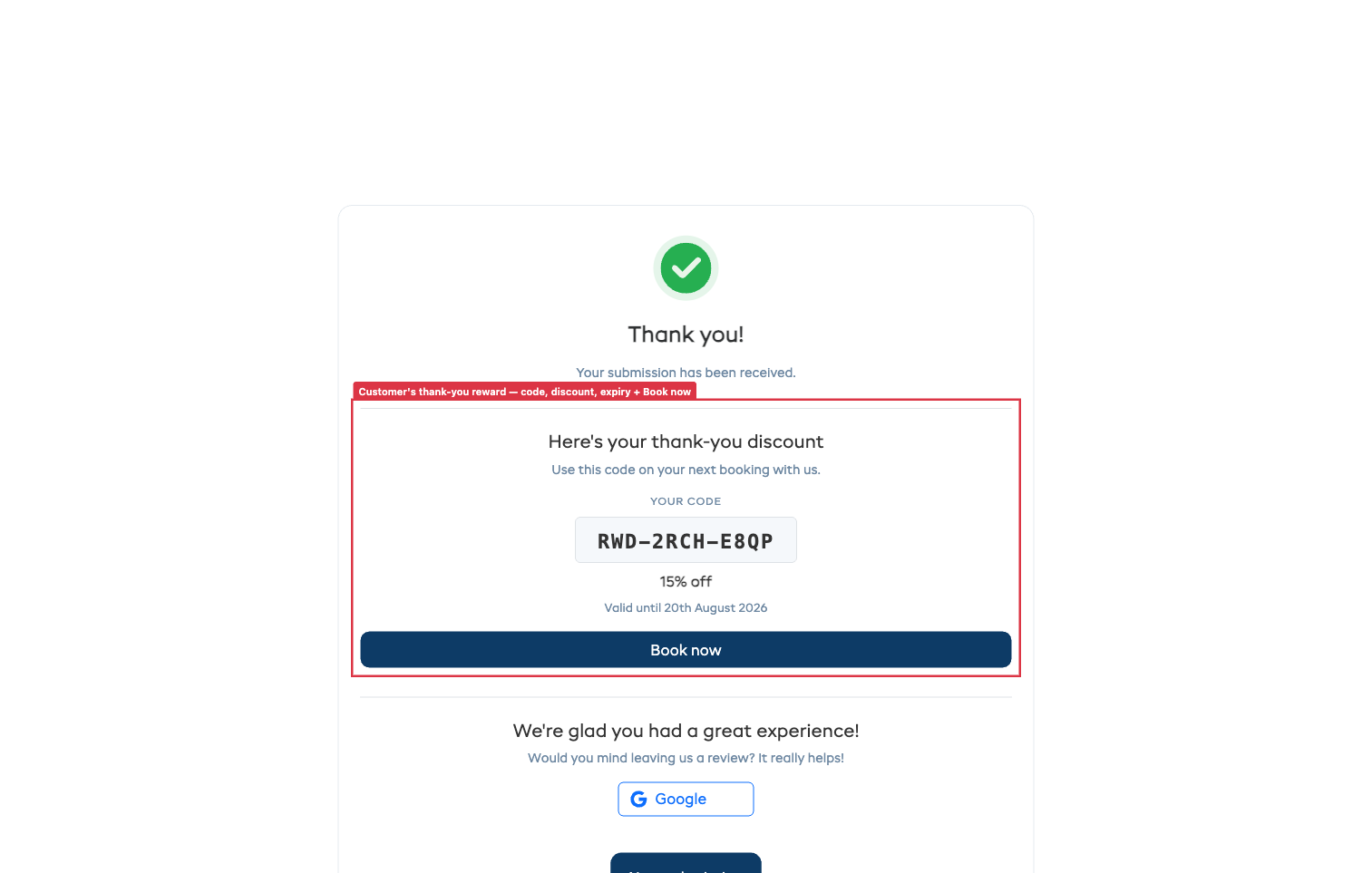
The same code is emailed to them, so they still have it after closing the page.
Inviting Past Customers
The automatic reward only covers people who take a survey after you turn it on. To reach customers who finished bookings before that — or to run a one-off feedback push — link a survey into an email campaign.
- Go to Promotions → Campaigns and open or create a campaign.
- Choose your survey from the Linked survey dropdown and save.
- In the email body, type {survey_link} wherever you want the survey button or link to appear.
- Send the campaign as usual.
Recipients click through to the survey, and completing it issues a reward code exactly as a normal booking would. See Creating a Campaign.
A Note on Languages
If you offer your booking widget in more than one language, the whole reward experience follows the customer's language — the survey, the thank-you screen, the reward code and the reward email all appear in their language automatically. Nothing extra to set up.
Where the Issued Codes Live
Every code EquipDash issues is a real, single-use promo code, but they're kept out of your main Promotions list so it doesn't fill up with hundreds of auto-generated codes. You manage your normal codes as usual; the reward codes work quietly in the background and can only be used once each.