Connect Google Drive Growth+This feature requires the Growth+ plan or higher
Connecting takes one short flow: sign in, then pick your folder.
Connect and choose your folder
- Go to Settings → Integrations.
- Find the Google Drive card and click Connect Google Drive.
- Sign in with your Google account and approve access.
- EquipDash then asks you to pick a folder — choose the folder in your Drive where signed records should be saved. (If you skip this, EquipDash creates a folder called EquipDash Signed Records for you.)
- That's it. The card now shows Connected and the folder you chose.
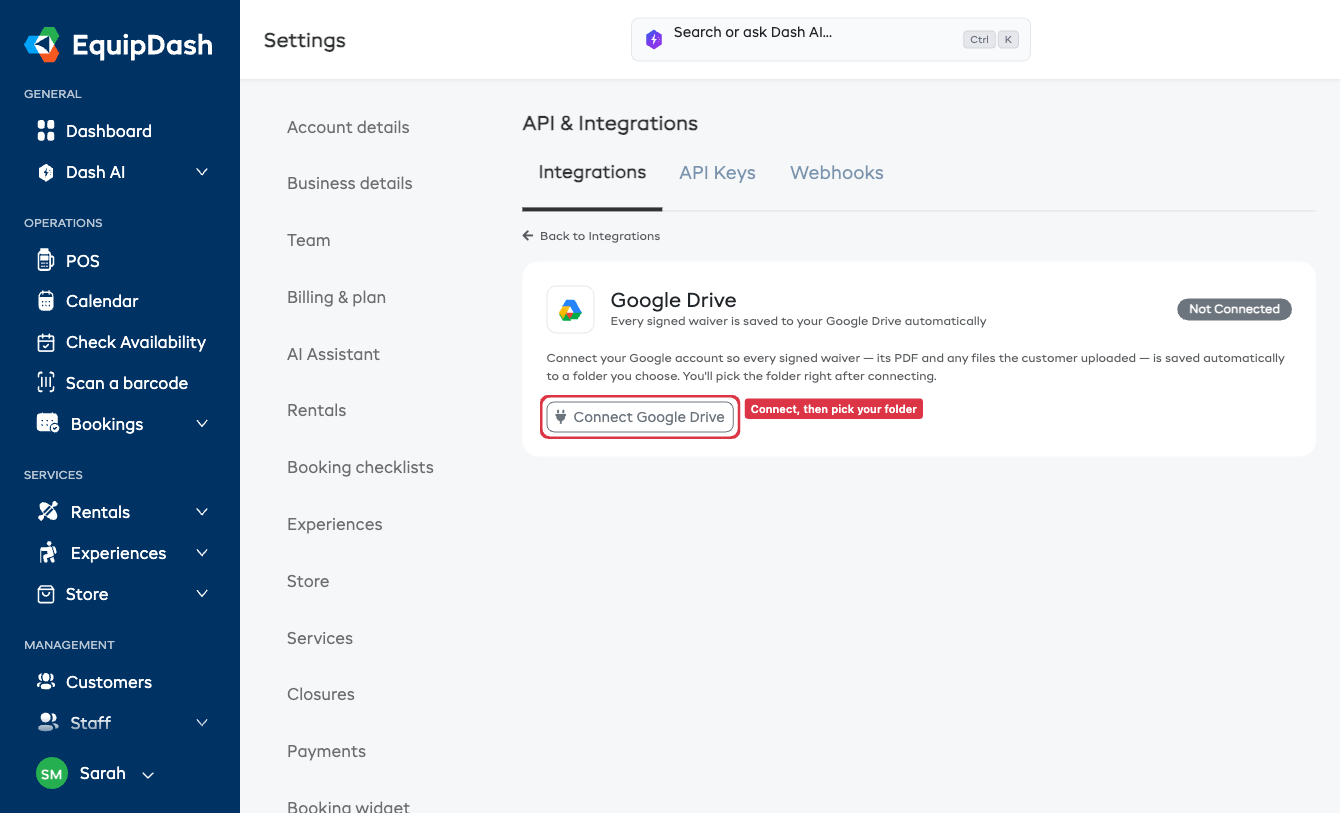
From now on, every signed waiver is saved to that folder automatically.
Change the folder later
On the connected card, click Change folder to pick a different folder at any time. New waivers go to the new folder from then on.
The folder chooser is Google's own window, so you need to be signed into Google in this browser with the same account you connected. If you click Change folder and the window doesn't open (or looks blank), sign into that Google account first, then click Change folder again.
Keep your records organized
Under your folder there's an Organize files into folders choice, so a busy season doesn't leave hundreds of files loose in one place. Pick whichever way suits how you look things up:
- A folder per reservation (recommended) — each booking gets its own folder, e.g. Booking #123 — Jane Doe. Best for finding everything tied to one booking in one place.
- A folder per customer — all of one customer's signed records grouped under their name. Handy for repeat customers.
- A folder per month — records grouped by month, e.g. 2026-06 June.
- All in one folder — everything saved straight into your main folder (the original behavior).
It saves the moment you choose it — there's no separate Save button — and the little preview line shows you exactly what the folders will look like. Forms that aren't tied to a booking go into an Other forms folder so nothing gets lost.
Changing this affects new signings. Records already saved stay exactly where they are.
See what's been saved
The connected card shows a Recently saved to Drive list — the latest customers whose records were filed, and when. You can also click the folder link to open it straight in Google Drive.
Counter-signing keeps Drive up to date
If one of your documents needs a staff counter-signature, counter-sign it as usual on the customer's response. The saved copy in Drive updates automatically to show the staff signature — you don't need to do anything in Drive.
Disconnect
Click Disconnect on the card to stop saving to Drive. Records already saved stay in your Drive; new waivers simply won't be added until you reconnect.
Who can set this up
Only administrators (and managers with integration access) can connect, disconnect, or change the folder. Regular staff don't see these controls.
Troubleshooting
- "Reconnect" message — Google occasionally needs you to sign in again. Click Connect Google Drive to restore it; saving resumes automatically.
- "The last waiver couldn't be saved to Drive" — if the card shows this yellow warning, EquipDash keeps retrying on its own. If it doesn't clear within a few minutes, click Disconnect and then Connect Google Drive again.
- Nothing appears in the folder — make sure the connection shows Connected and a folder is chosen, and that the form is a waiver (surveys aren't saved here). New records appear within a minute of signing.
- The folder chooser won't open — see the tip under Change the folder later above: you need to be signed into Google in this browser with the account you connected.
Related
- Google Drive Archiving overview — what gets saved and how.