Google Drive Archiving Growth+This feature requires the Growth+ plan or higher
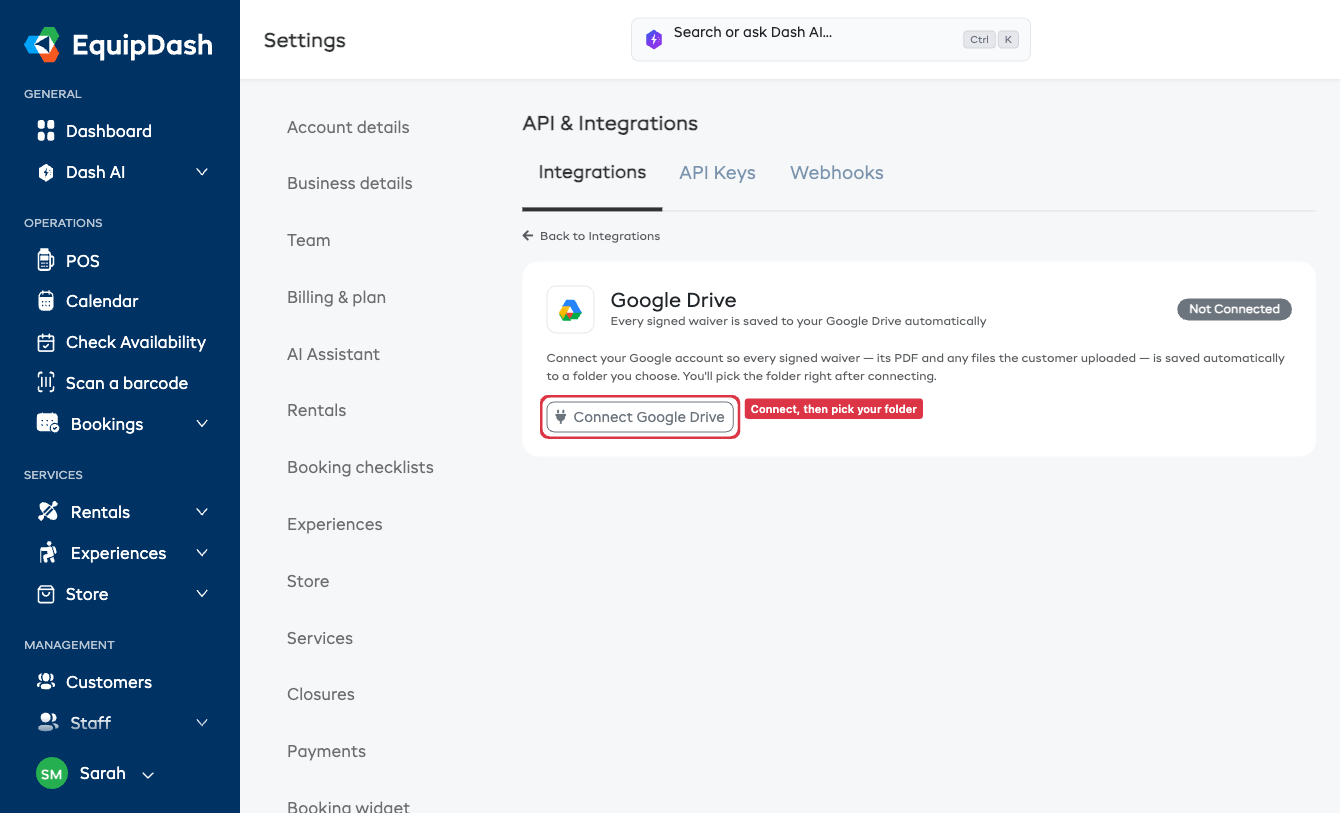
Connect Google Drive and every signed waiver is filed away in your Google Drive automatically — no exporting, no saving by hand.
- Every signing is saved — the moment a customer signs, a PDF of their signed waiver lands in your Drive.
- Including their uploads — any files the customer attached (a driver's license photo, a boating or dive certification) are saved alongside the PDF.
- In a folder you choose — you pick exactly where signed records go, in your own Drive.
It's a tidy, automatic backup of your signed records, sitting right in the Google Drive you already use.
What gets saved
For each signed waiver or form:
- The signed PDF. If a signing produces more than one document (say a rental contract and a separate acknowledgement of risk), each PDF is saved.
- The customer's uploaded files. Licenses, certifications, anything they attached.
Files are clearly named with the customer and date, so they're easy to find later. Survey responses aren't saved here — only signed records.
Sorted into folders automatically
So a busy season doesn't pile everything into one place, you can choose how records are organized inside your folder — a folder per reservation (e.g. Booking #123 — Jane Doe), per customer, per month, or all in one folder. You set this once on the Google Drive card and EquipDash files every new signing for you. See Connect Google Drive → Keep your records organized.
Always the final version
If a record changes after the customer signs, the copy in Drive keeps up:
- Staff counter-signature — when a staff member counter-signs a document, the saved PDF updates to show their signature.
- Edits — if you edit a response later, the saved copy is refreshed.
You never end up with duplicates — the same file is updated in place.
What you need
- A plan that includes Google Drive Archiving (Growth and above).
- A Google account you can sign in to.
- A folder in your Google Drive (or let EquipDash create one for you).
Next steps
- Connect Google Drive — step-by-step setup and choosing your folder.