Calendar Sync Growth+This feature requires the Growth+ plan or higher
Calendar Sync keeps EquipDash and your personal calendar in step, both ways:
- Your bookings show up in your calendar — every confirmed booking appears automatically in Google Calendar, Apple Calendar, Outlook, or any calendar app.
- Time you block off blocks EquipDash — a day off, a public holiday, or an appointment on your calendar stops EquipDash from taking bookings for that time, across your booking widget, POS, and API.
No double entry. Block a day once, in the calendar you already use, and EquipDash respects it everywhere.
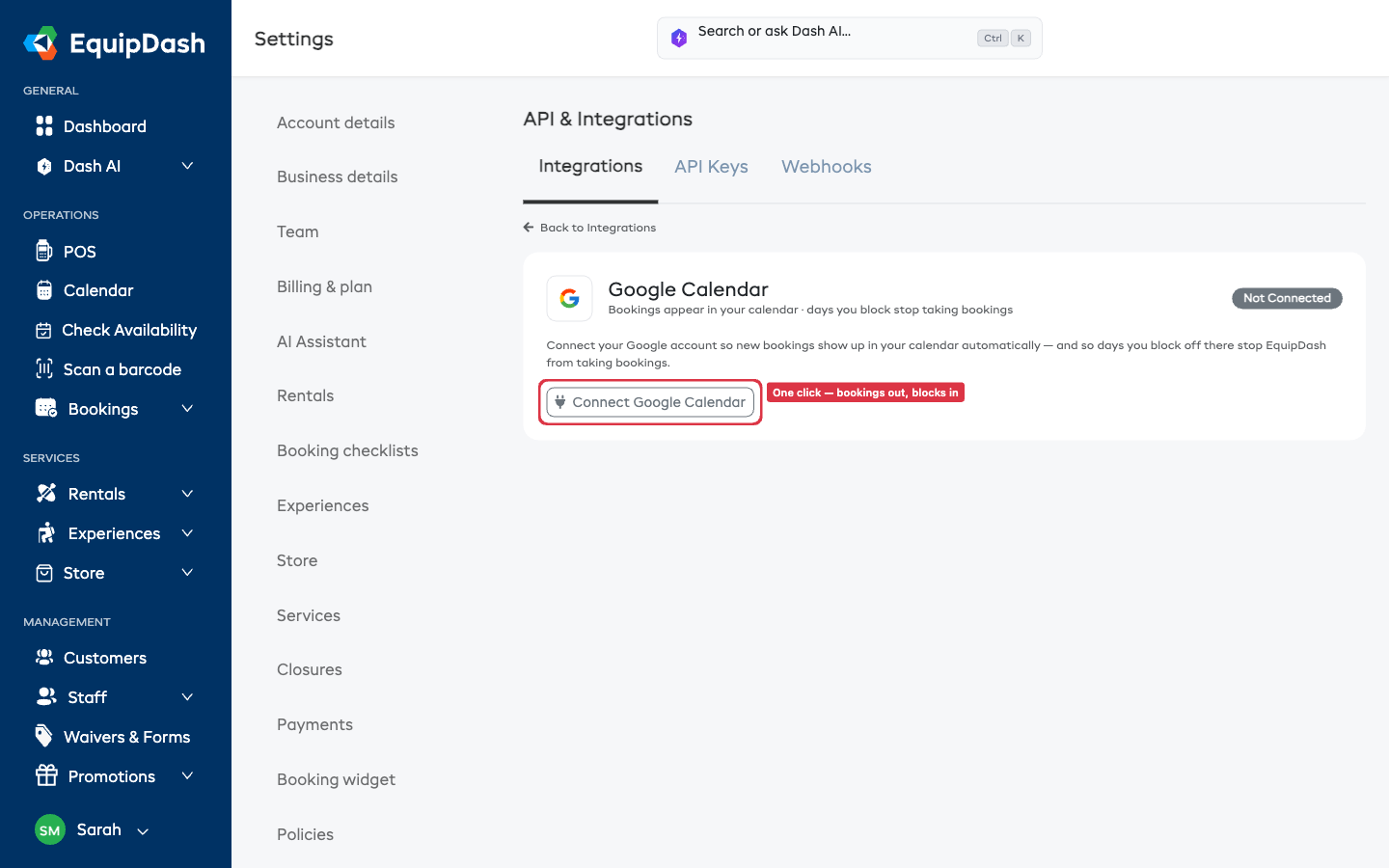
The Two Ways to Connect
You can use either or both — pick what suits the calendar you already use.
| Google Calendar | iCal link | |
|---|---|---|
| Works with | Google Calendar | Apple Calendar, Outlook, Airbnb, Booking.com, anything with an iCal link |
| Updates | Live, within seconds | Every few hours (set by the calendar app) |
| Setup | One click — connect your Google account | Copy/paste a link |
| Both directions? | Yes | Yes |
Most owners connect Google Calendar for the instant, hands-off experience. If you use Apple Calendar or Outlook, use the iCal options instead — they need no sign-in.
What Shows Up in Your Calendar
When the bookings-out direction is on, EquipDash creates one calendar event per confirmed booking. Out of the box each event shows:
- Title: what they booked and the customer's name — e.g. Sunset Kayak Tour — Jane Doe.
- Time: the booking's start and end, in your time zone.
- Details: status and a link back to the booking in EquipDash.
With Google Calendar, these land in a dedicated "EquipDash Bookings" calendar so they never clutter your personal events — you can show or hide them with one tick. Cancelled bookings are removed automatically.
Choose How Your Entries Look
Want the customer's phone in the title, or the pickup spot and headcount in the details? You can write your own layout — no add-ons, no Make/Zapier.
On the Settings → Calendar Sync page, find What your calendar entries show. There's an Entry title line and an Entry description box, with a live Preview of how a real booking will read.
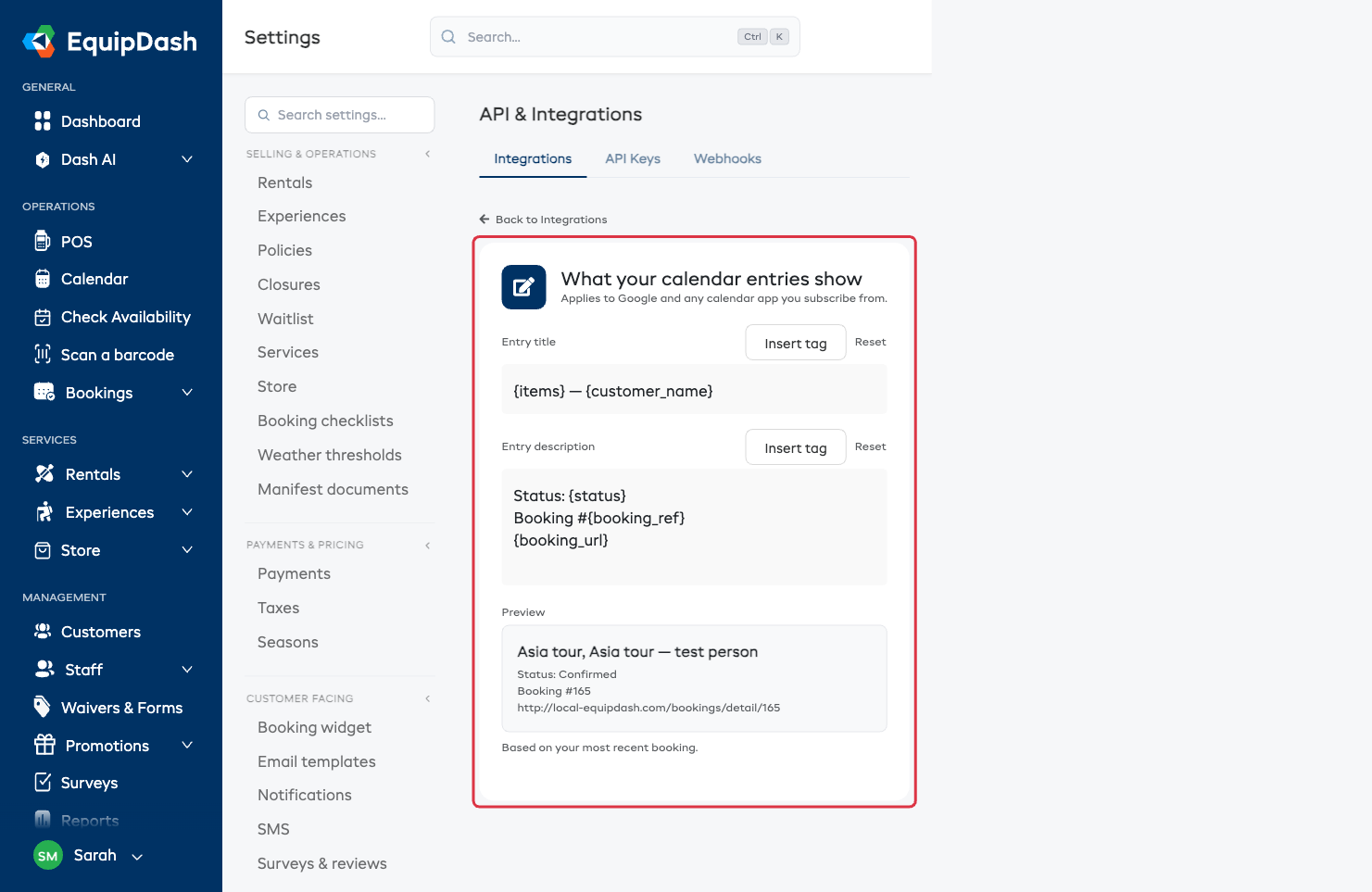
To build your own format:
- Click in the Entry title or Entry description box where you want to add something.
- Hit Insert tag and pick the detail you want — it drops in for you.
- Type any words around the tags (e.g.
Pickup:,Call:). The Preview updates as you go. - Click away — it saves on its own. A little Saved tick confirms it.
Tags you can drop in include the customer's name, first name, phone, and email; what they booked (lists everything when there's more than one item); number of people; start and end time, start date, and date range; pickup and return location; booking status, booking number, and total price; your internal notes; a link to the booking; and your business name and phone.
A few things worth knowing:
- Empty tags just disappear. Put Pickup location on a booking with no pickup spot and that line is simply left out — nothing looks broken.
- It works everywhere. Your format applies to Google and to any calendar you subscribe to with the iCal link (Apple Calendar, Outlook) — even if you never connect Google.
- Want the standard layout back? Click Reset next to either box.
- Nothing changes unless you change it. Leave the boxes as they are and your entries look exactly as they always have.
Heads-up on internal notes: the subscribe link can be shared, so anyone you give it to can read whatever you put in the entry — including the internal notes tag if you add it. Keep that link private.
How Blocking Works
When the blocks-in direction is on, anything on your chosen calendar becomes a closure in EquipDash for that time. Closures stop new bookings on every channel — your widget, POS, and API — but never cancel bookings you already have.
- An all-day event blocks the whole day.
- A timed event blocks just that time window.
- Remove the event from your calendar and the closure disappears on the next sync.
Closures created this way are kept separate from the ones you make by hand in Settings → Closures — syncing never touches your manual closures.
What You Need
- A plan that includes Calendar Sync (Growth and above).
- For Google: a Google account you can sign in to.
- For iCal: the calendar link from whatever app you want to subscribe to or block from.
Next Steps
- Connect Calendar Sync — step-by-step setup for Google and iCal.