Managing Experiences
Once you have created your experiences, you can manage them from the Experiences page and the individual experience detail page. This guide covers viewing your experience list, editing details, changing status, and deleting experiences.
The Experiences Table
Navigate to Experiences > Experiences in the sidebar to see all your experiences in a searchable, sortable table.
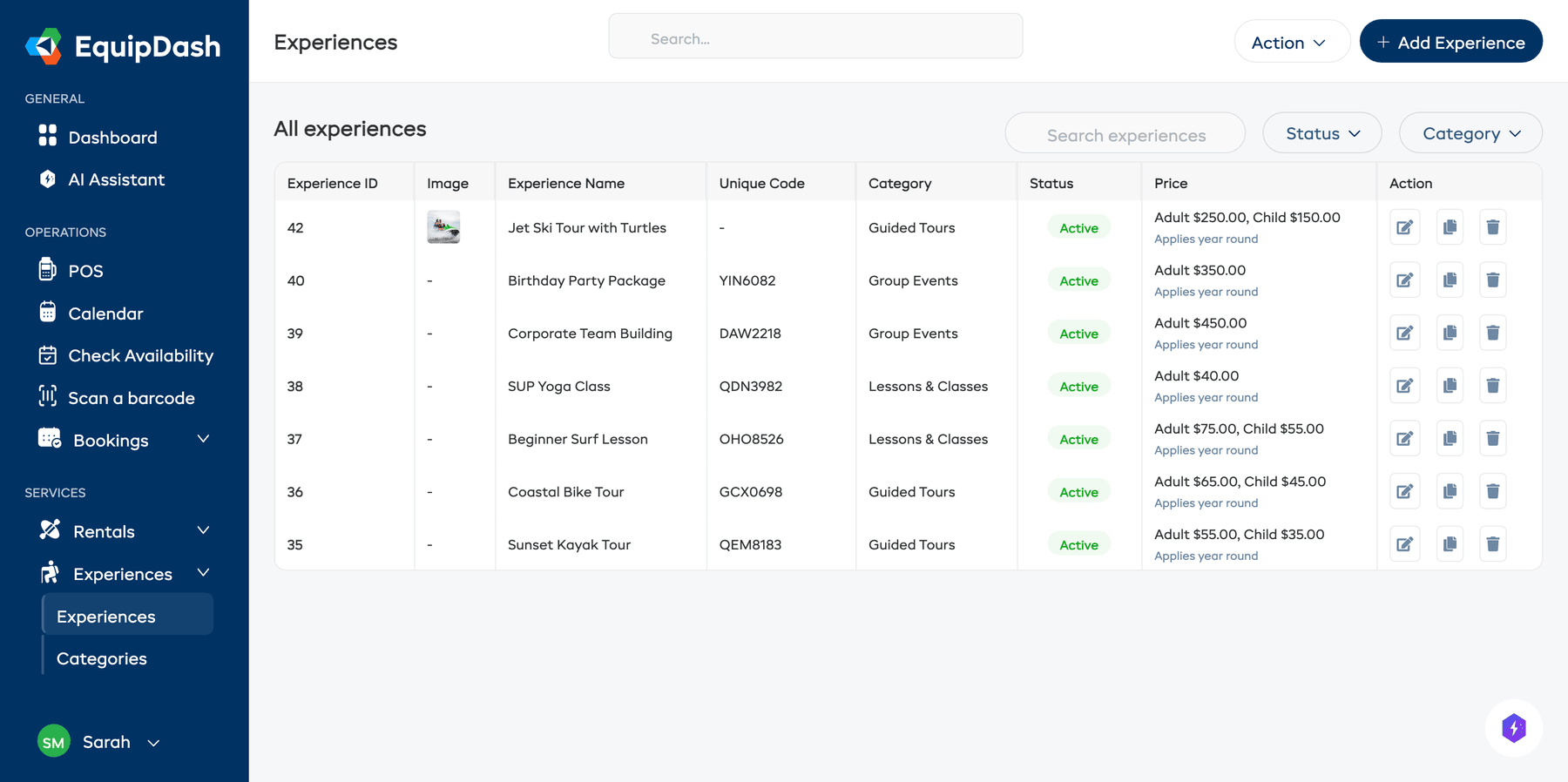
From the table you can:
- Search for experiences by name using the search bar.
- Sort by clicking column headers.
- Filter by category using the category dropdown.
- Filter by status using the Status dropdown.
- Export the full experience list as a CSV file by clicking the Action dropdown and selecting Export.
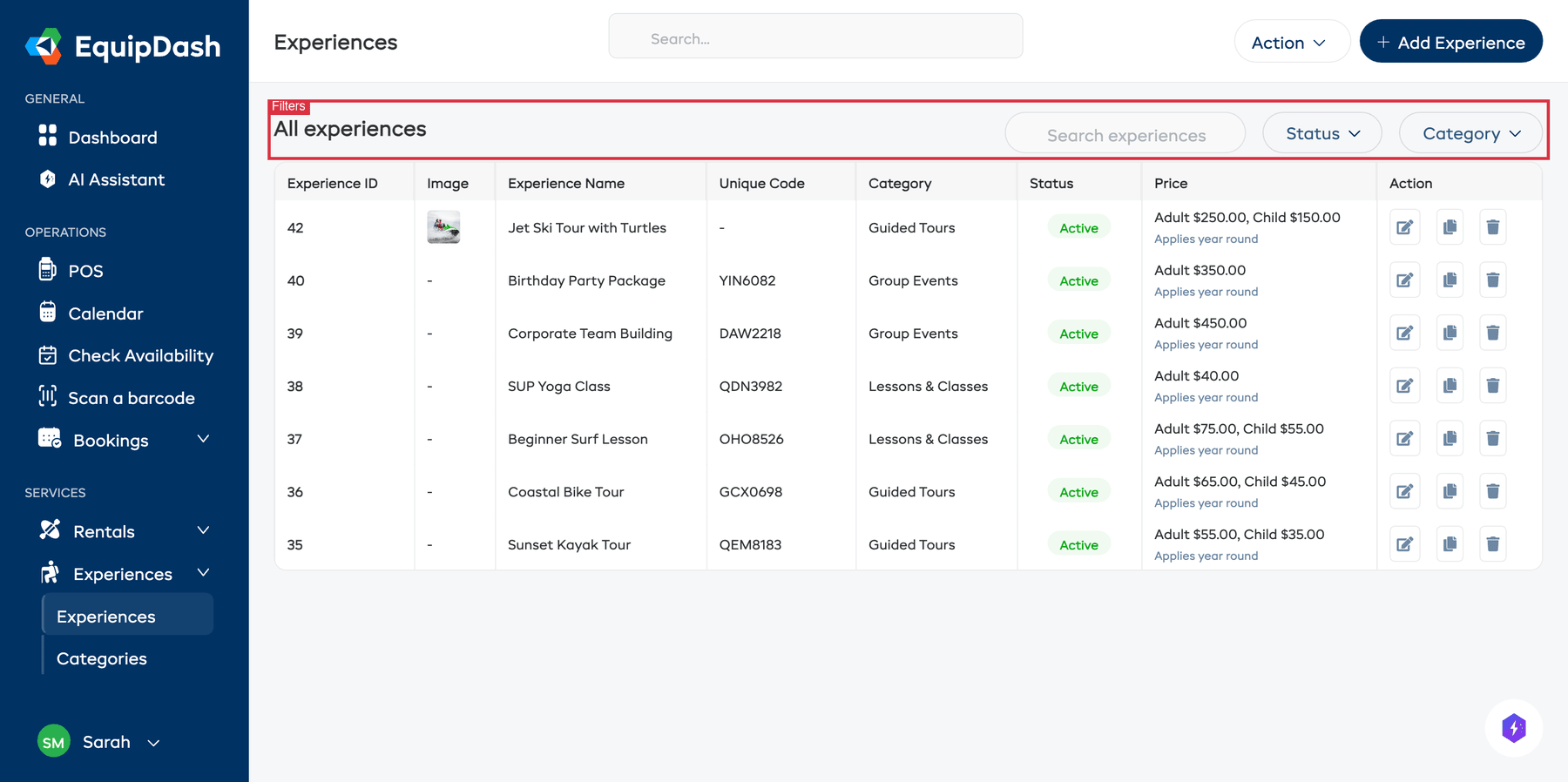
Click the gear icon near the top of the table to customize your columns. Tick a column under Available columns to show it, untick one under Active columns to hide it, and drag columns into the order you prefer. Your layout is saved and shared with your whole team.
Viewing an Experience
Click on any experience in the table to open its detail page. The page is built around a hero strip at the top — image, status, "From" price, upcoming-sessions count, and a + Book now button — followed by a tab strip:
- Experience Details — Overview with the experience image, brief and full descriptions, pricing structure, duration, location, and custom field values. Most fields are inline-editable — click a value to edit it in place, no wizard needed.
- Pricing — A side-by-side editor: pick Year Round or Seasonal and By Participant or By Group on the left, then enter prices for the rate categories that matter. The right card shows a live customer-facing preview as you type.
- Availability — All scheduled sessions grouped by date with calendar-tile date stickers, capacity bars, status pills, guide chips, and pagination. See Setting Up Availability.
- Bookings — Bookings linked to this experience, with filters scoped to experience-relevant statuses (Confirmed, Pending payment, No show, Cancelled, Completed).
- Calendar — A calendar view showing this experience's sessions.
- Embed — Get a direct link or embed code to feature this experience on your website.
If you sell on GetYourGuide or Viator, the details tab also has a Sold on card that shows whether the experience is selling there and what is stopping it. See Sell on GetYourGuide and Sell on Viator.
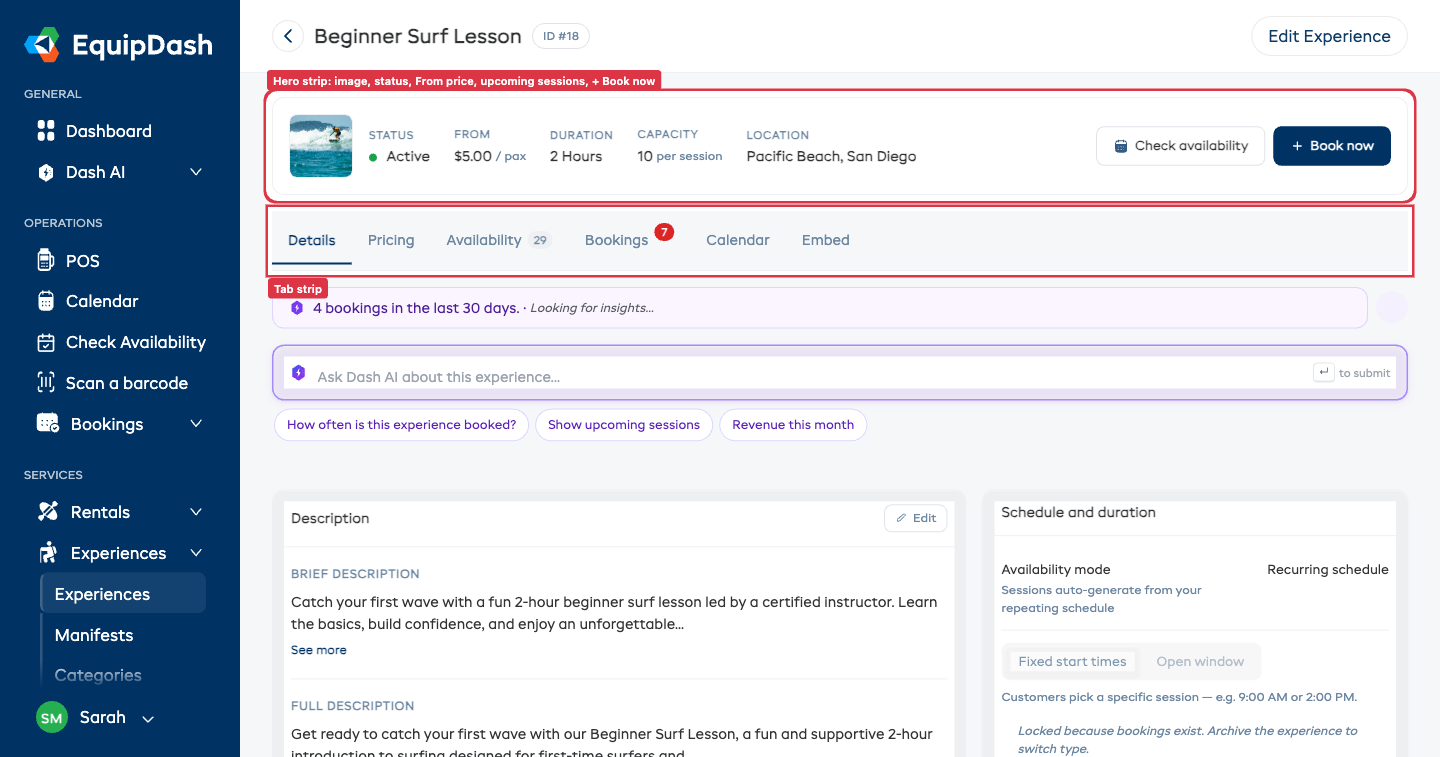
Quick Book from the hero strip
The + Book now button in the hero strip opens a Quick Book modal scoped to this experience — pick a date, a session, a customer, the number of participants of each rate type, and confirm in seconds. The full per-participant first-name/last-name and required custom fields can be captured inline. See Quick Book for the full walk-through.
Editing an Experience
There are two ways to edit an experience:
Inline on the Detail Page (recommended for one-off tweaks)
Most fields update in place — no wizard required:
- Open the experience detail page by clicking the experience name in the Experiences table.
- Click any value to edit it inline:
- Click the Brief description or Full description to open the rich-text editor under the same heading. Click Save when you're done.
- Click the duration, location, minimum booking notice, or any custom field value to edit and save. For location you can either type a free-text meeting point or switch to Pick a saved venue to link the experience to one of your saved locations (see Creating an Experience).
- Click the photo area to upload a new image or remove the current one. With more than one photo, drag a photo to a new spot to change the order customers see in the widget — the order saves automatically. Hover a photo and click Adjust to crop, zoom, or rotate it — it works exactly like the product photo editor (see Adjusting a Photo), and Reset to original always brings back your untouched upload.
- Click the Pricing tab to open the side-by-side pricing editor — pick the structure on the left, set prices, and click Save Pricing. The preview on the right updates live.
- Each save shows a small green confirmation pill — no full-page reload.
To change it on the booking page your customers see, click Visual editor at the top of the page. See Visual Editor.
From the Slide-Out Wizard (for everything in one place)
Click the Edit Experience button at the top-right of the detail page (or the Edit icon in the Experiences table) to open the full wizard with all existing details pre-filled. Useful when you want to change several things at once or walk through every field.
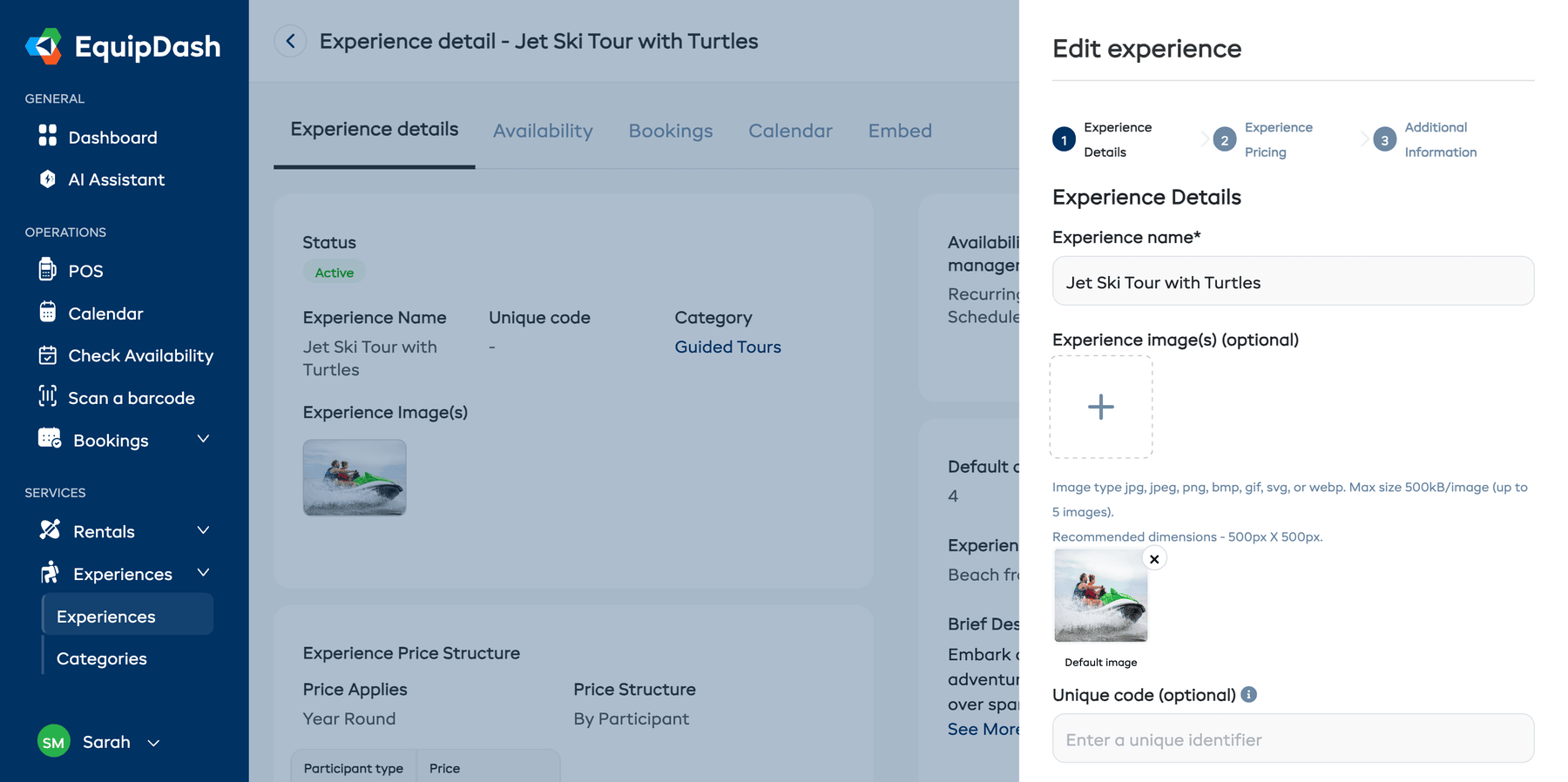
What You Can Edit
You can change any of the following at any time:
- Name, unique code, and category
- Images (add, remove, or change the default)
- Pricing structure and prices
- Brief description and full description
- Duration and location
- Minimum booking notice
- Deposit to book
- Participants required setting
- Whether sessions are Private or shared, and Seats per session or the group limits
- Custom field values
Deposit to book
By default an experience takes the deposit set in Settings > Payments. To take a different one for this experience:
- On the experience page, find Deposit to book in the settings column (in the visual editor: All settings > Deposit to book) and click + Customize.
- Pick Percent or Fixed amount and type the amount.
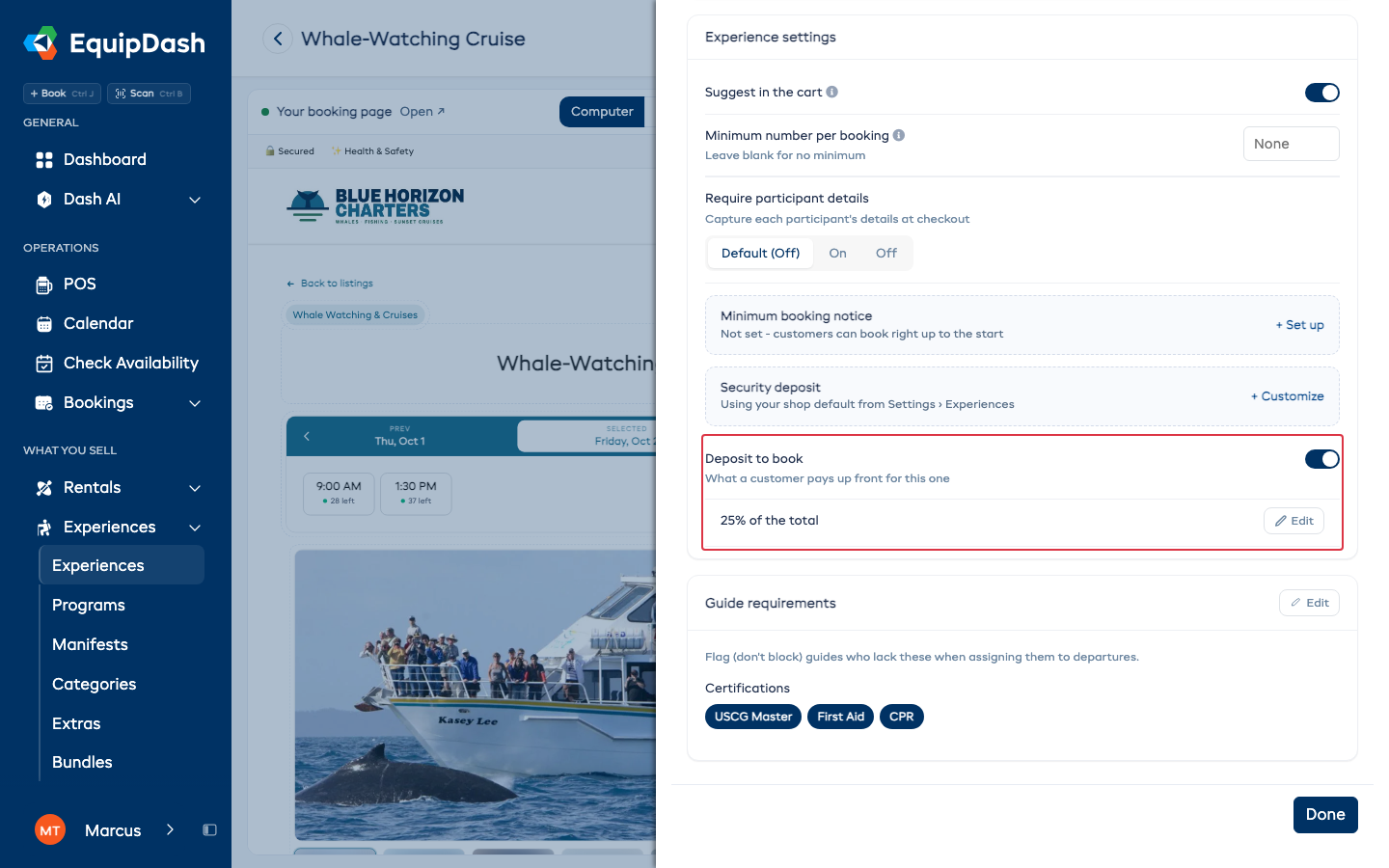
Until you type an amount, your shop's deposit still applies. Switch it off to go back to the shop deposit.
Changing Seats per Session
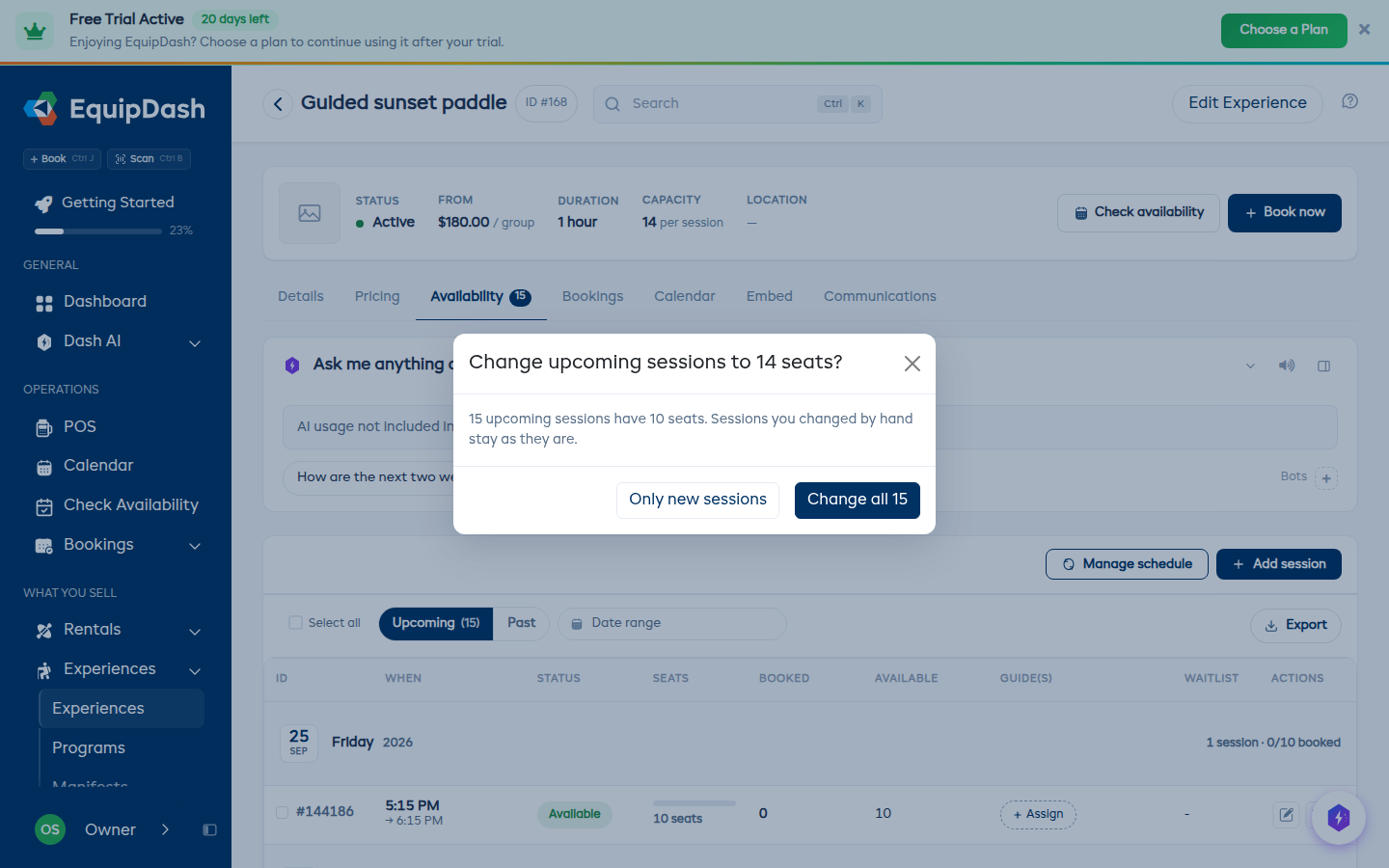
When you change Seats per session and click Update, EquipDash asks whether the sessions already on your calendar should change too:
- Change all - every upcoming session that still has the old number of seats moves to the new number. It runs in the background and finishes within a minute or so.
- Only new sessions - sessions already on the calendar keep their seats; only sessions added from now on use the new number.
Sessions you changed by hand, and past sessions, are never touched. A session that already has more people booked than the new number keeps its old seats.
Changing the pricing structure (e.g. from per-participant to per-group) will reset your existing prices. Make sure to re-enter your pricing after switching. The Pricing tab includes a confirmation step before any prices are wiped.
Changing Experience Status
Experiences can be in one of two statuses:
- Active — The experience is live and available for booking through the widget and POS.
- Draft — The experience is hidden from customers. It will not appear in the booking widget.
To change the status:
- Open the experience detail page.
- Click the Edit Experience button in the top-right corner.
- In the wizard, you can change the status of the experience.
- Click Save to apply the change.
Alternatively, you can save an experience as a draft when first creating it by clicking Save Draft instead of Add Experience.
Embedding an Experience
You can share or embed an individual experience straight from the Embed tab on its detail page — the same options as the central embedding screen, pre-set to this experience.
- Open the experience detail page by clicking the experience name in the table.
- Click the Embed tab.
- Pick how you want it on your site:
- Experience widget — a compact calendar and time picker for this one experience, embedded inline on its page.
- Full detail page — the whole experience page embedded inside your own site (header and cart hidden).
- Floating "Book now" button — a floating button on any page that opens this experience in a pop-up.
- Click Copy code (or copy the Direct link) and paste it on your site. The Live preview underneath shows exactly how it will look.
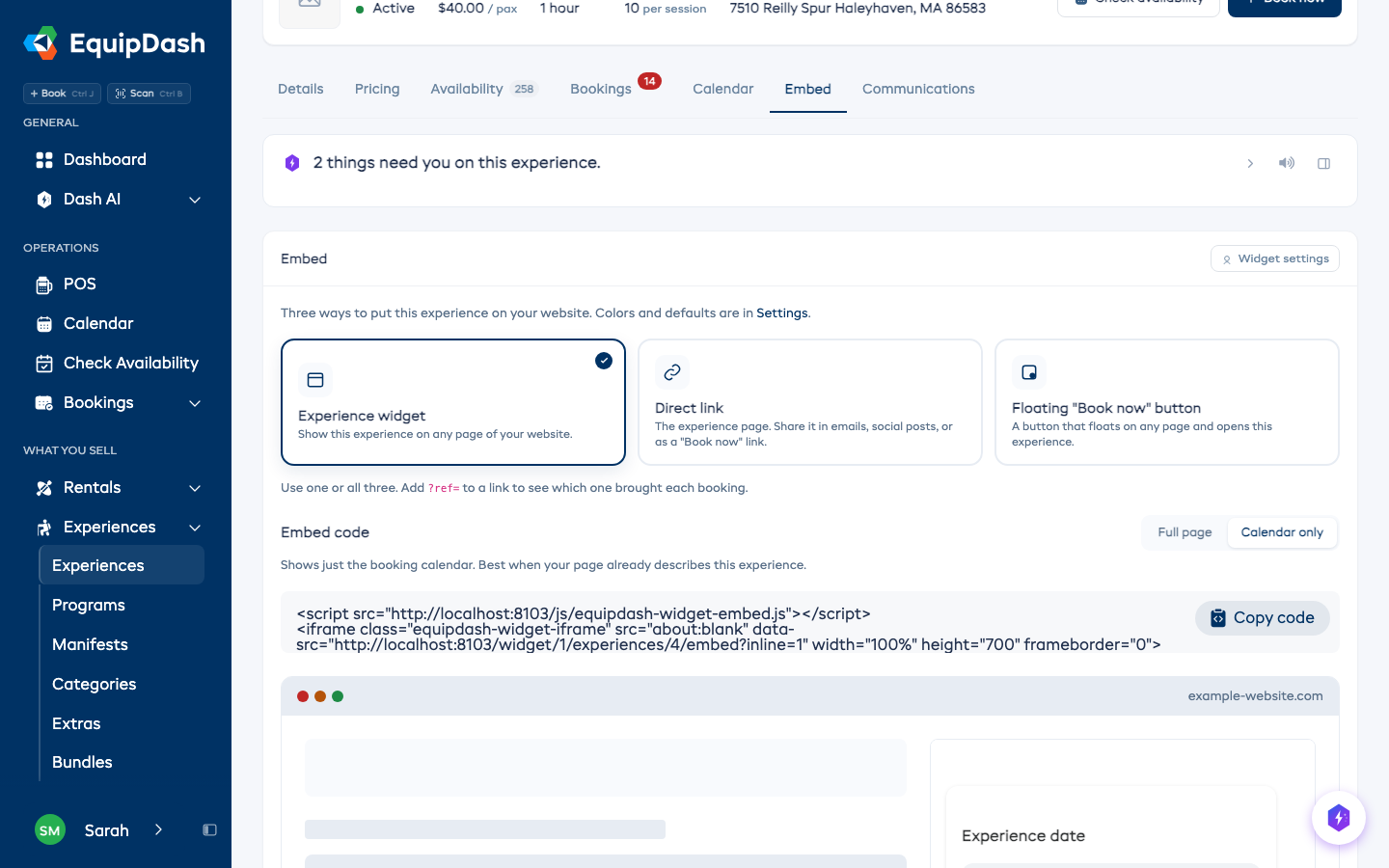
See Embedding on Your Website for all the embed types and how to paste the code into WordPress, Squarespace, or Wix.
Changing Several Experiences at Once
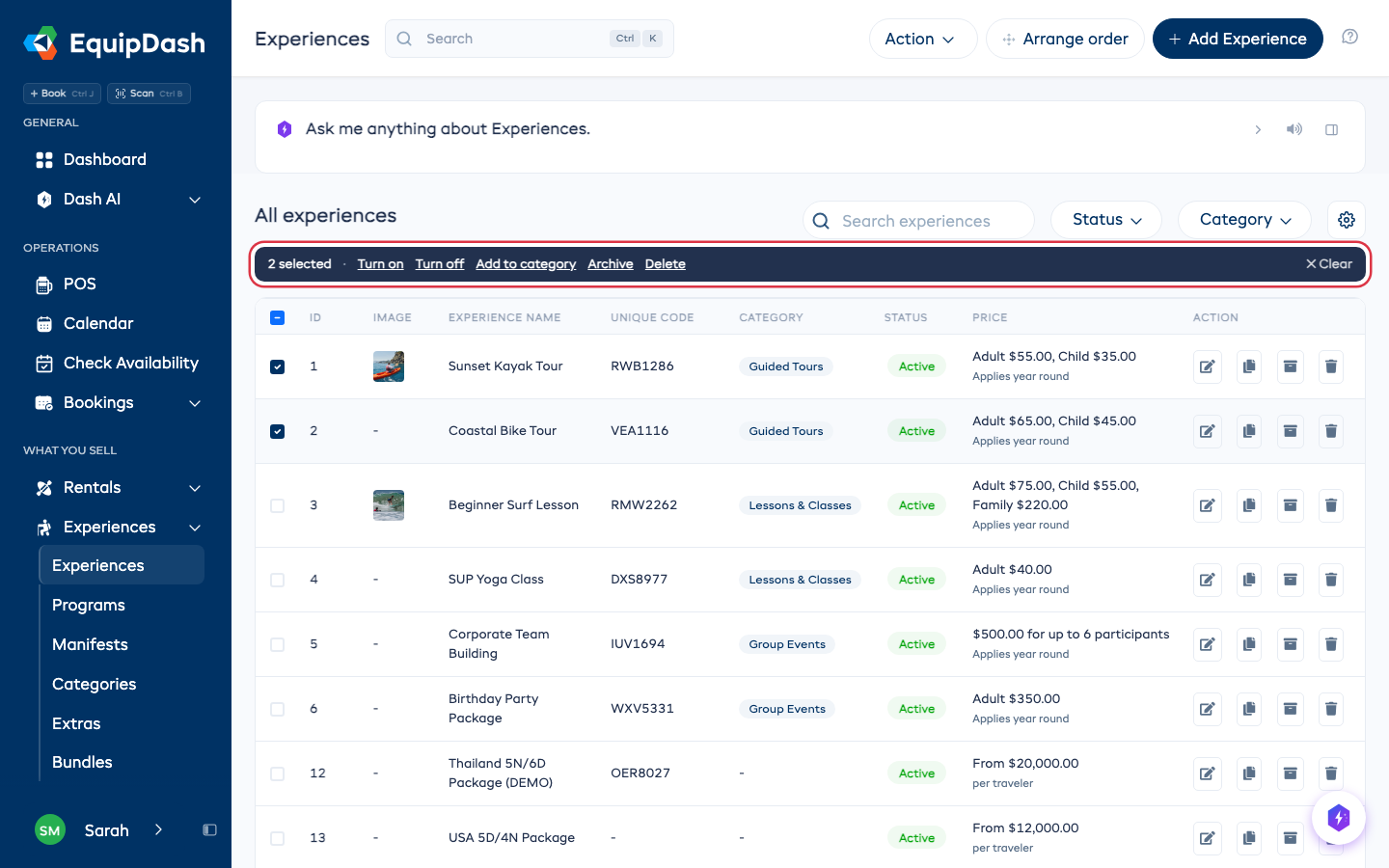
Tick the box at the start of each row, or the box in the header to tick the whole page. A dark bar appears above the table with what you can do to them together:
- Turn on or Turn off - make them bookable, or hide them from customers. Drafts are skipped: finish a draft on its own page first.
- Add to category - pick a category to add them to. Each experience keeps the categories it already has.
- Archive - take them off your booking site and POS. To bring them back, set Status to Archived, tick them, and click Restore.
- Delete - experiences with bookings are kept, and the confirm tells you how many before anything is deleted.
To reach more than one page, tick the header box, then click Select all in the bar. It picks every experience your search and filters match.
Deleting an Experience
Deleting an experience is permanent and cannot be undone. Any future availability sessions for this experience will also be removed. Existing bookings will not be deleted, but they will no longer be linked to the experience.
- Open the experience detail page.
- Click the Delete button.
- Confirm the deletion in the modal that appears.
If you are not sure you want to delete an experience, consider setting it to Draft status instead. This hides it from customers while keeping all its data intact.