Experience Manifests & Check-In
Manifests give you a complete overview of your experience sessions for any day, showing who's booked, who's checked in, and the status of each participant. You can also scan tickets to check in guests quickly.
Accessing Manifests
Navigate to Experiences > Manifests in the sidebar. You can also access a session's manifest from:
- Experience Calendar - click "View manifest" on any session
- Booking Detail - click the start time link in the items table
Manifests Overview Page
The manifests page shows all experience sessions for a selected date.
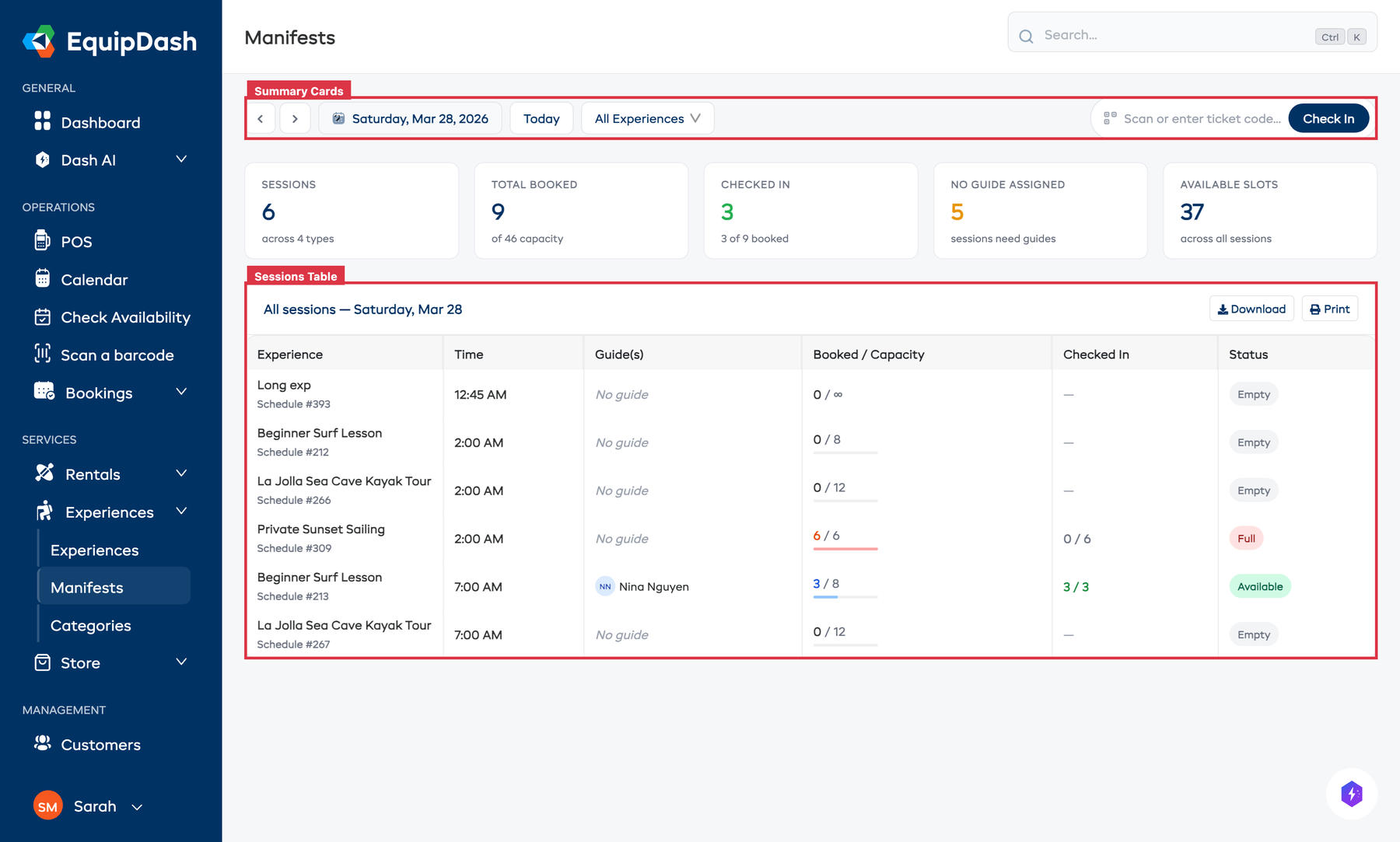
Toolbar
- Date navigation - use the arrow buttons or date picker to change the date
- Today button - jump back to today's sessions
- Experience filter - filter sessions by a specific experience (with search)
- Scan ticket - click to open the ticket scanner modal
Summary Cards
Five cards at the top show key stats for the selected date:
| Card | Description |
|---|---|
| Sessions | Total experience sessions scheduled |
| Total Booked | Number of participants booked across all sessions |
| Checked In | How many participants have been checked in |
| No Guide Assigned | Sessions that still need a guide (only activities that take guides are counted) |
| Available Slots | Remaining capacity across all sessions |
Sessions Table
Each session row shows:
- Experience name
- Time the session starts
- Guide(s) assigned (or "No guide" if none)
- Booked / Capacity with a visual progress bar
- Checked In count
- Status: Finished, Running now, Available, Sold out, or Empty for an upcoming session with no bookings.
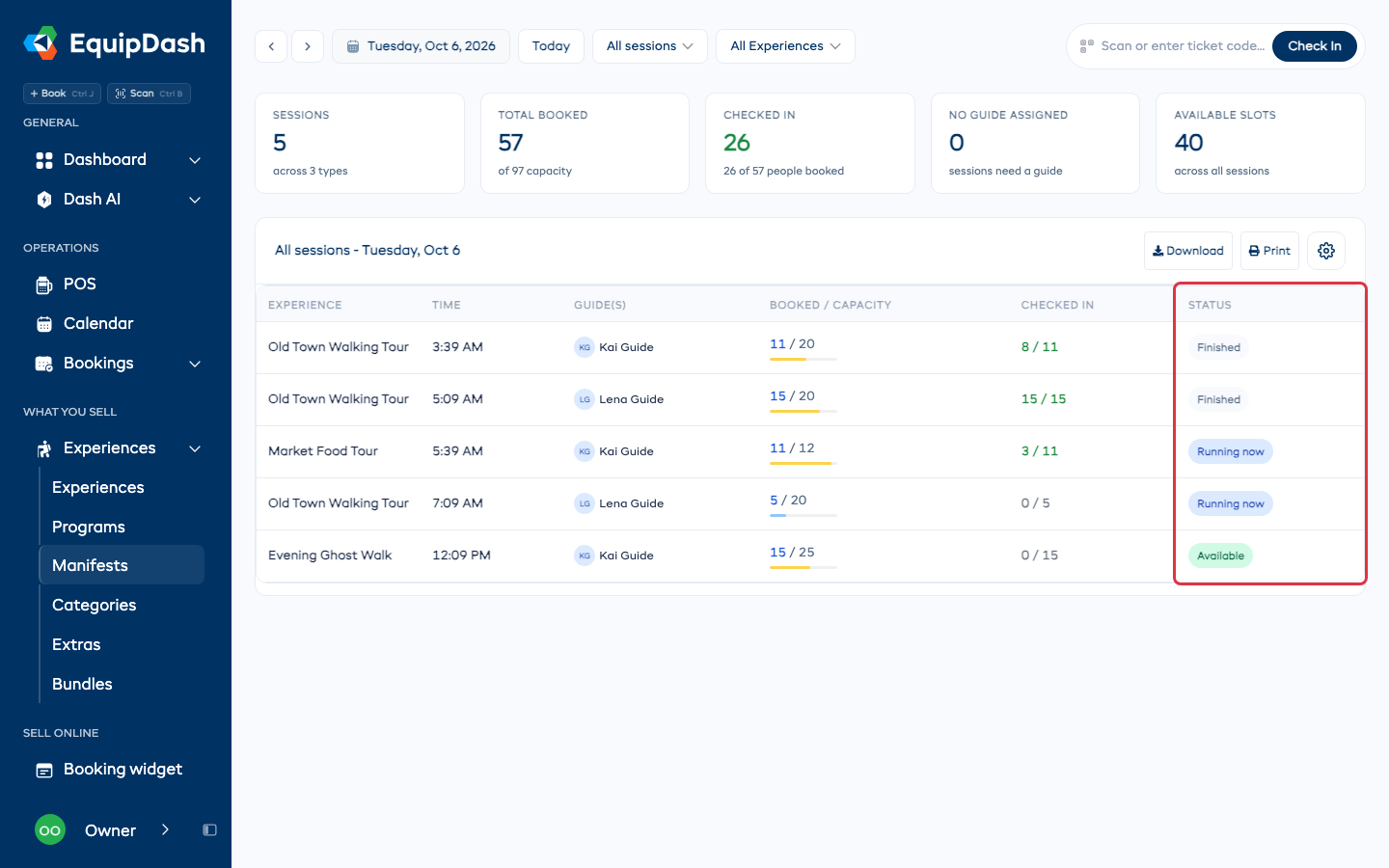
Click any row to open the full manifest for that session.
Click the gear icon next to the Print button to customize your columns. Tick a column under Available columns to show it, untick one under Active columns to hide it, and drag columns into the order you prefer. Your layout is saved and shared with your whole team.
Session Manifest (Detail Page)
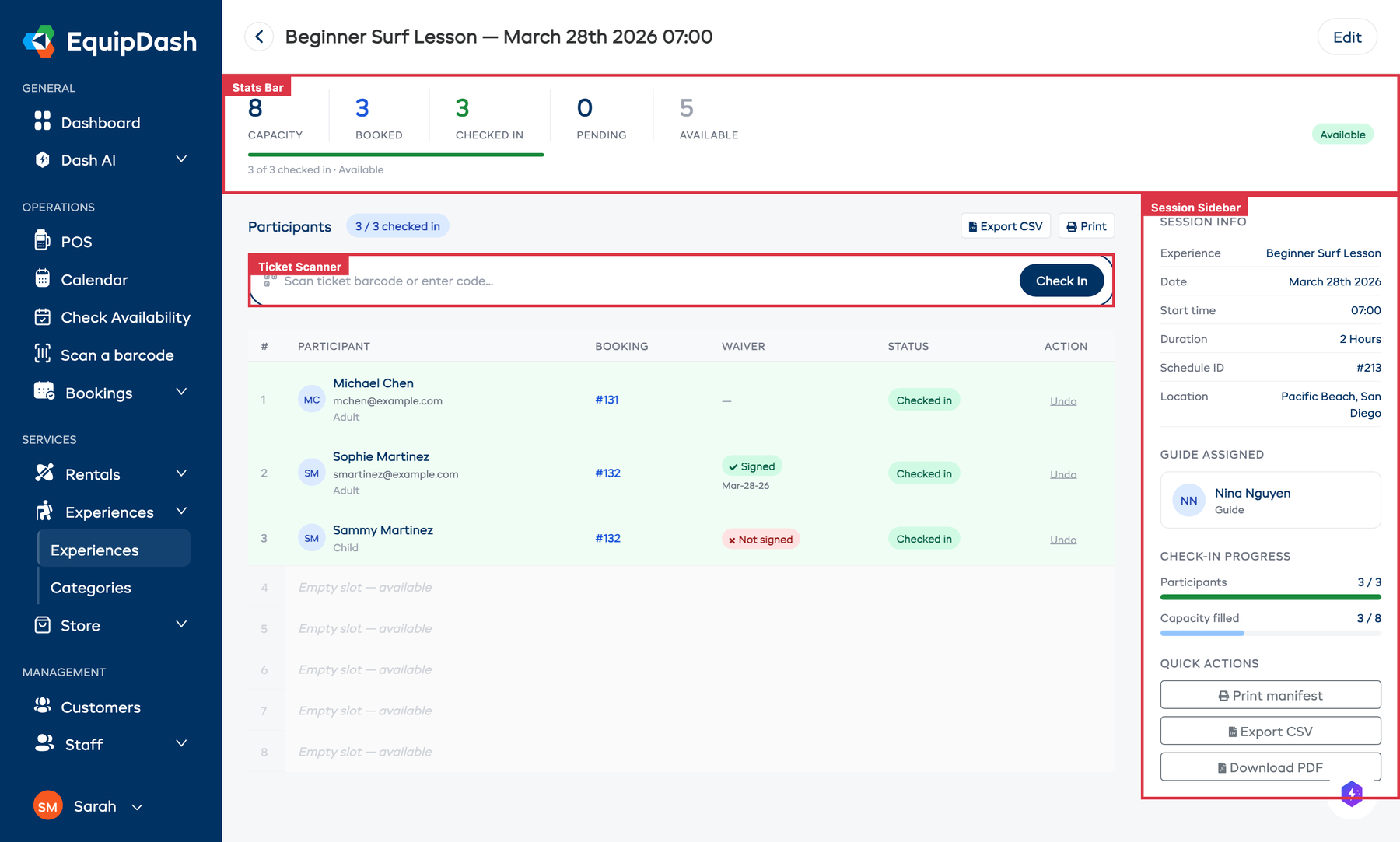
Click into a session to see the full manifest with participant details.
Stats Bar
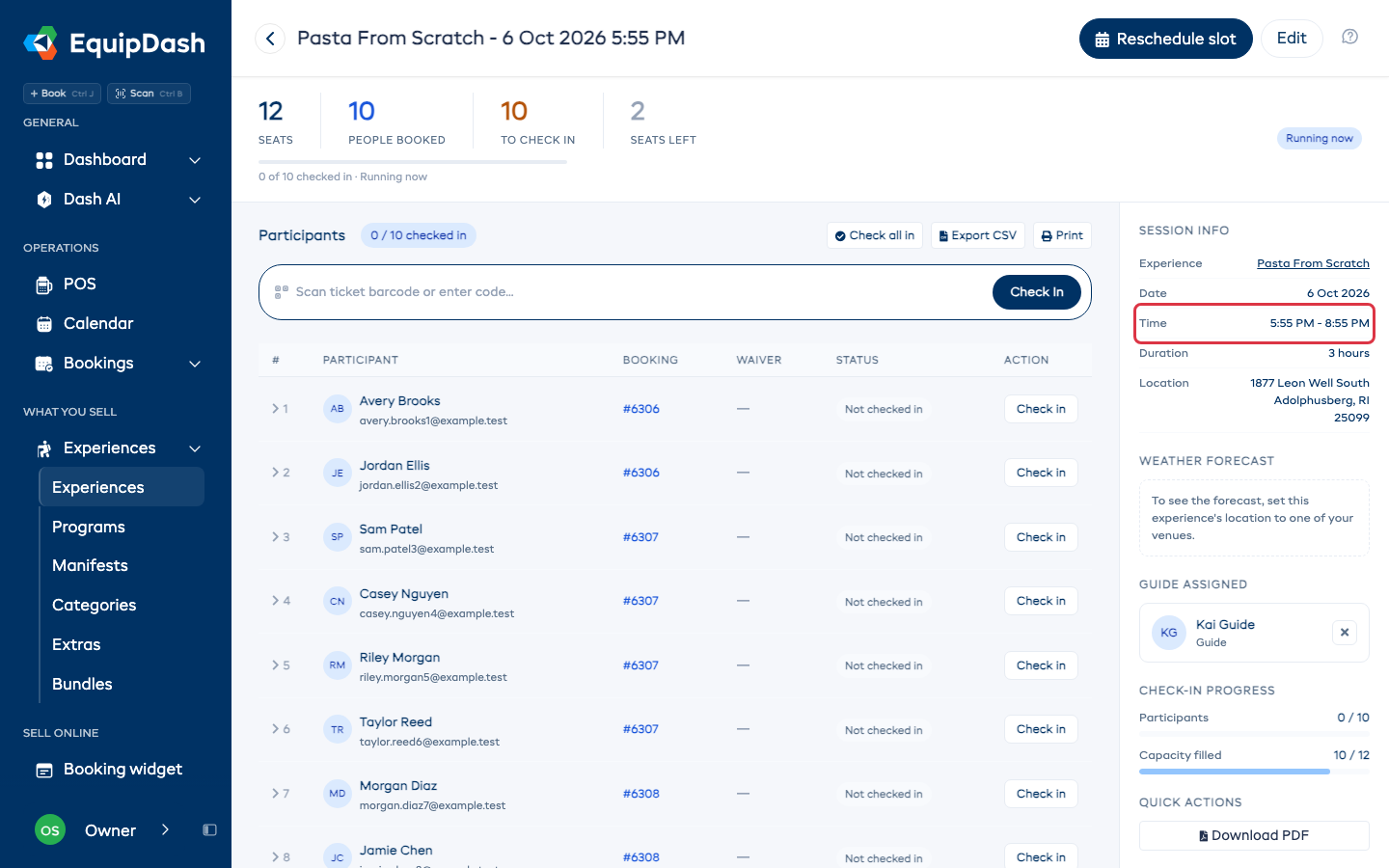
Shows at-a-glance numbers: Capacity, Booked, Checked In, Pending, and Available, with a progress bar.
Participant Table
Each participant row shows:
| Column | Description |
|---|---|
| Participant | Name, email, and rate category (Adult, Child, etc.) |
| Booking | Link to the booking (click to view full booking details) |
| Waiver | Signed, Opened, not signed, or Not signed, with a chase button beside anyone who still owes a signature. Someone with more than one outstanding form shows how far along they are, e.g. 1 of 2, and one press chases everything they owe (Following One Person's Consent) |
| Comments | Per-participant comments collected at checkout (Participant Comments) |
| Custom fields | Values for any participant-scoped custom fields (Custom Fields on Widget) |
| Sizes and questions | One column for each size and question the experience asks each person. A blank answer reads Not given (Ask Each Person Their Size) |
| Status | Checked in or Not checked in |
| Action | Check in button, or "Undo" link if already checked in |
All times on the manifest show the timezone label (e.g. 09:00 PDT) using your configured timezone display style.
Empty slots are shown at the bottom to visualise remaining capacity.
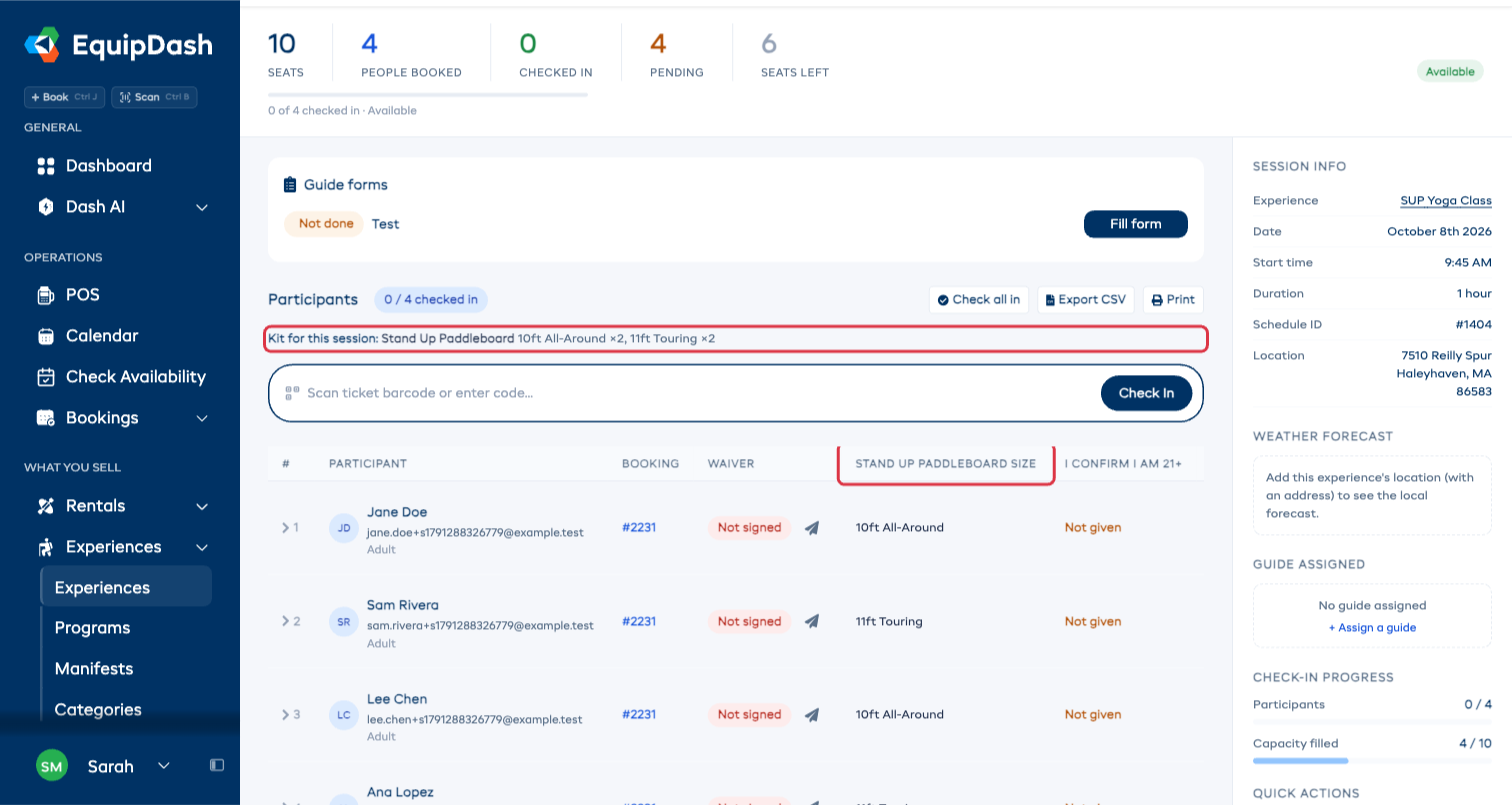
Kit for this session
When the experience asks each person their size, a Kit for this session line above the list counts what to hand out, for example Helmet M ×2, L ×1, 1 to ask. To ask is how many people haven't given a size yet, and a size in brackets such as (L: 1 short) means more people need it than you own. See Ask Each Person Their Size.
Session Info Sidebar
The right sidebar shows:
- Session Info - experience name, date, the session's own start and end time and its length, and location
- Weather forecast - the forecast for the session's date and time, shown when the experience's location is set (see Weather forecast below)
- Guide Assigned - shows the assigned guide, or click "+ Assign a guide" to open the edit modal. To take a guide off, click the × beside their name and confirm with Remove; they come off this session only.
- Check-in Progress - visual bars for participant check-in and capacity filled
- Quick Actions - Print manifest, Export CSV, Download PDF
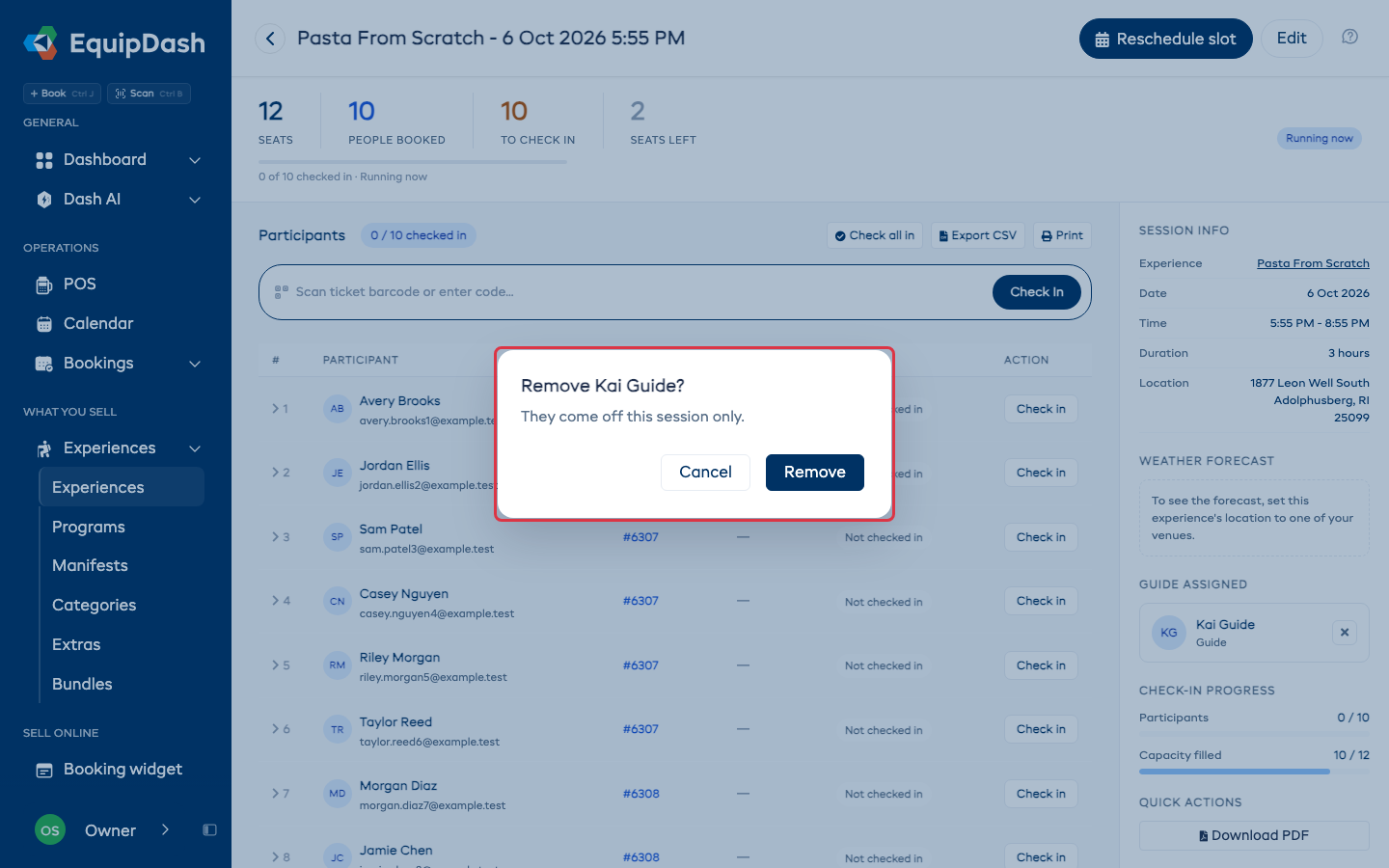
Saving the edit window to pick a guide keeps the session's own times; it never resets the end to the experience's usual length.
Weather forecast
When an experience has a location set (with map coordinates), the sidebar shows a Weather forecast for that session - temperature, wind, visibility and rain, plus wave height for waterside venues. It's the forecast for the session's own date and time, so it's most useful in the days leading up to a departure.
- The forecast appears for upcoming sessions within about 7 days. Past sessions don't show one, and sessions further out show "the forecast appears within about 7 days."
- If the panel says "add this experience's location" or "we're still pinpointing this venue," the experience either has no location set or the location doesn't have map coordinates yet. Add or fix it under Settings > Locations - see Map coordinates & the weather forecast.
- It's a forecast, labelled "confirm on the day" - your guide should still check conditions at the dock.
The same forecast can be printed on your manifest (Manifest Documents) and auto-filled into guide forms - a guide form field can pull the departure's temperature, wind or conditions automatically. For automatically flagging or closing sessions when conditions turn dangerous, see Weather Thresholds.
Checking In Participants
There are three ways to check in participants:
1. Scan a Ticket
Click the "Scan ticket barcode or enter code..." bar to open the scanner modal.
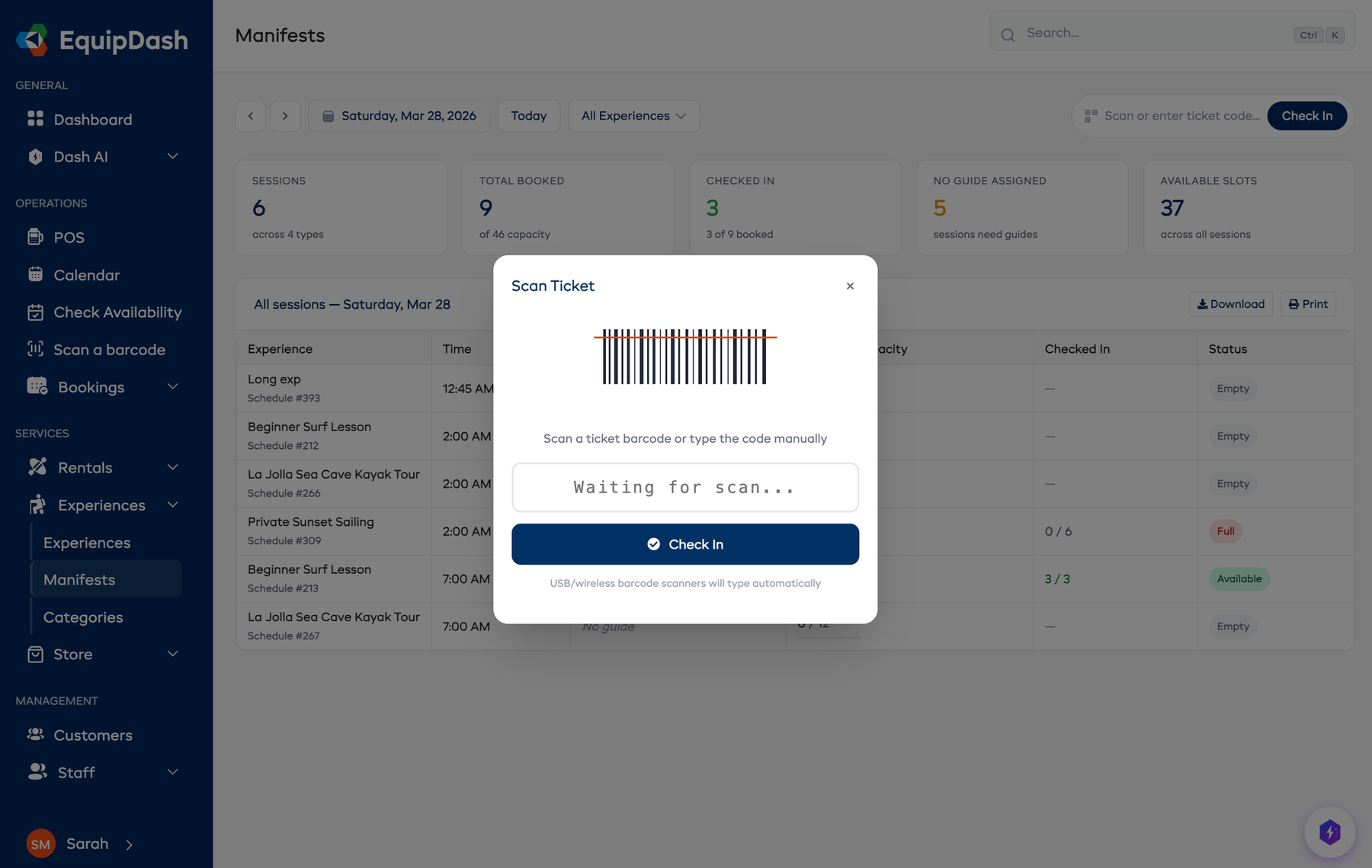
You can:
- Scan a QR code using a USB or Bluetooth barcode scanner - it types the code automatically
- Type the code manually (e.g.,
EQTK-A3F8X9B2) and press Enter or click Check In
After a successful scan, you'll hear an audio confirmation tone and the participant is marked as checked in.
2. Manual Check-In
Click the Check in button next to any participant in the table.
3. Check All In
Click Check all in to mark all participants as checked in at once.
Bookings from a saved group with names missing
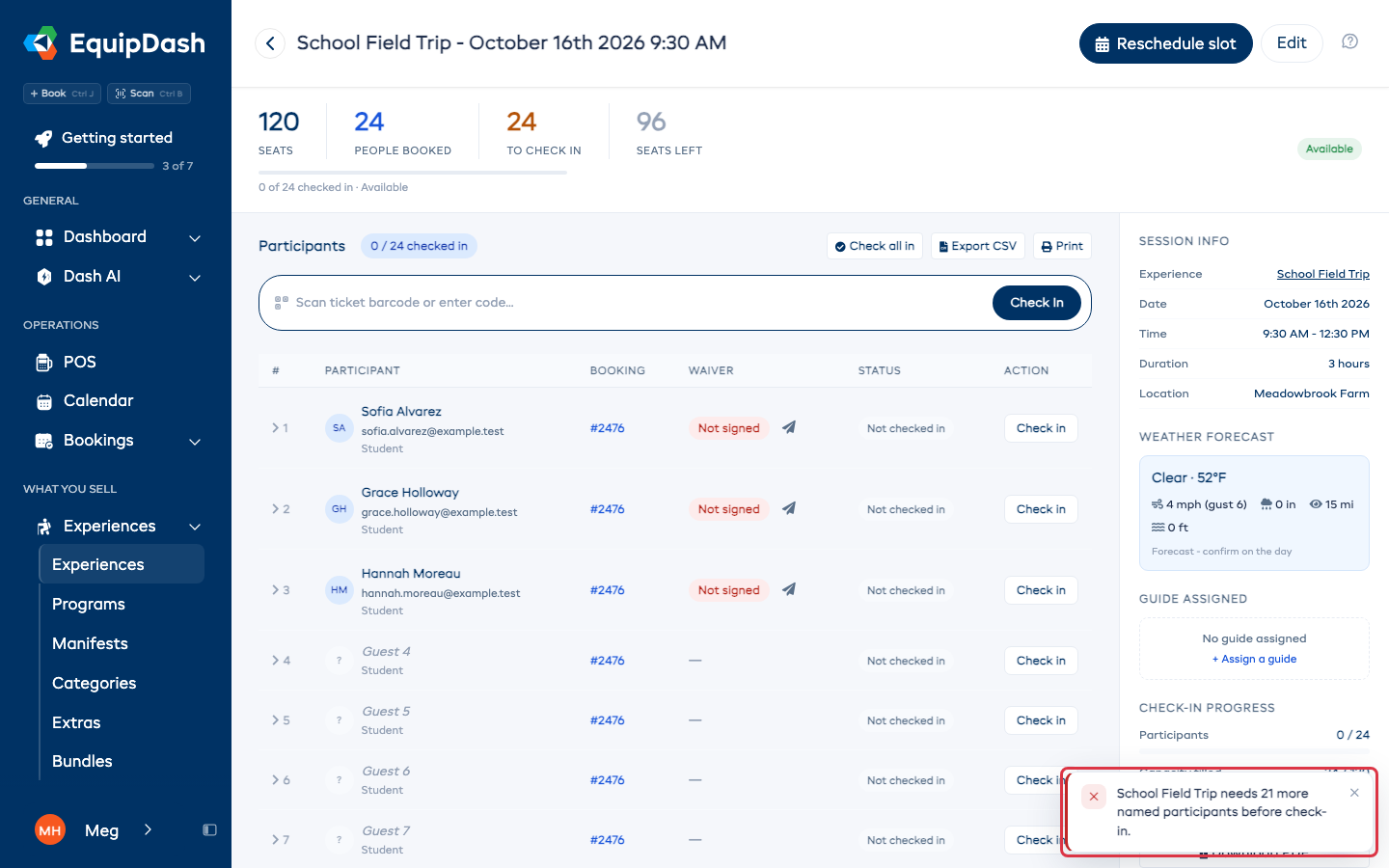
A booking made from a saved group can be saved before everyone is named. When the experience asks for each person's details, check-in is refused until every place has a first and last name, with a message like "Sunrise Session needs 2 more named participants before check-in." Open the booking, add the missing names, then check in again.
Who Is Back
Once a session has started, each person who checked in reads Still out with a Back button. Click Back as they return; the row then shows the time, for example Back 2:14 PM, with Undo. Undo works until the session is finished by Complete or at its end time; after that, everyone on it stays back. A Still out count sits with the others at the top of the page, and the Manifests list shows it beside each running session.
Scanning a checked-in ticket a second time asks Mark back? instead of saying it is already used.
When the last person is marked back and everyone booked on the session has checked in, the session is finished on its own. If someone booked never arrived, the session stays open: press Complete when you are done. A session that ends with people still out reads Not back in red, here, on Today, on your Dash card and in the mobile app.
Back is counted day by day: on a booking that runs on several days, coming back on day 1 says nothing about day 2.
Completing a Session
When the session is over, click Complete session. Everyone who checked in is completed in one go, whether you ticked them one at a time or with Check all in, and each of them gets your usual after-the-day message (a survey or review request, if you have one set up). People who never checked in are left as they are.
Completing means everyone is back. Anyone still out is recorded as back at that moment, marked by Complete. If you have already marked some people back, EquipDash asks once before it does this.
How a session finishes
By default a session stays open until everyone is marked back or someone presses Complete. If your sessions simply end at their end time (a class, a room, a tour), go to Settings > Experiences, open Advanced, and set How a session finishes to Automatically at the end time. Sessions then finish a few minutes after they end, anyone not marked back is recorded as back at end time, and nothing reads Not back.
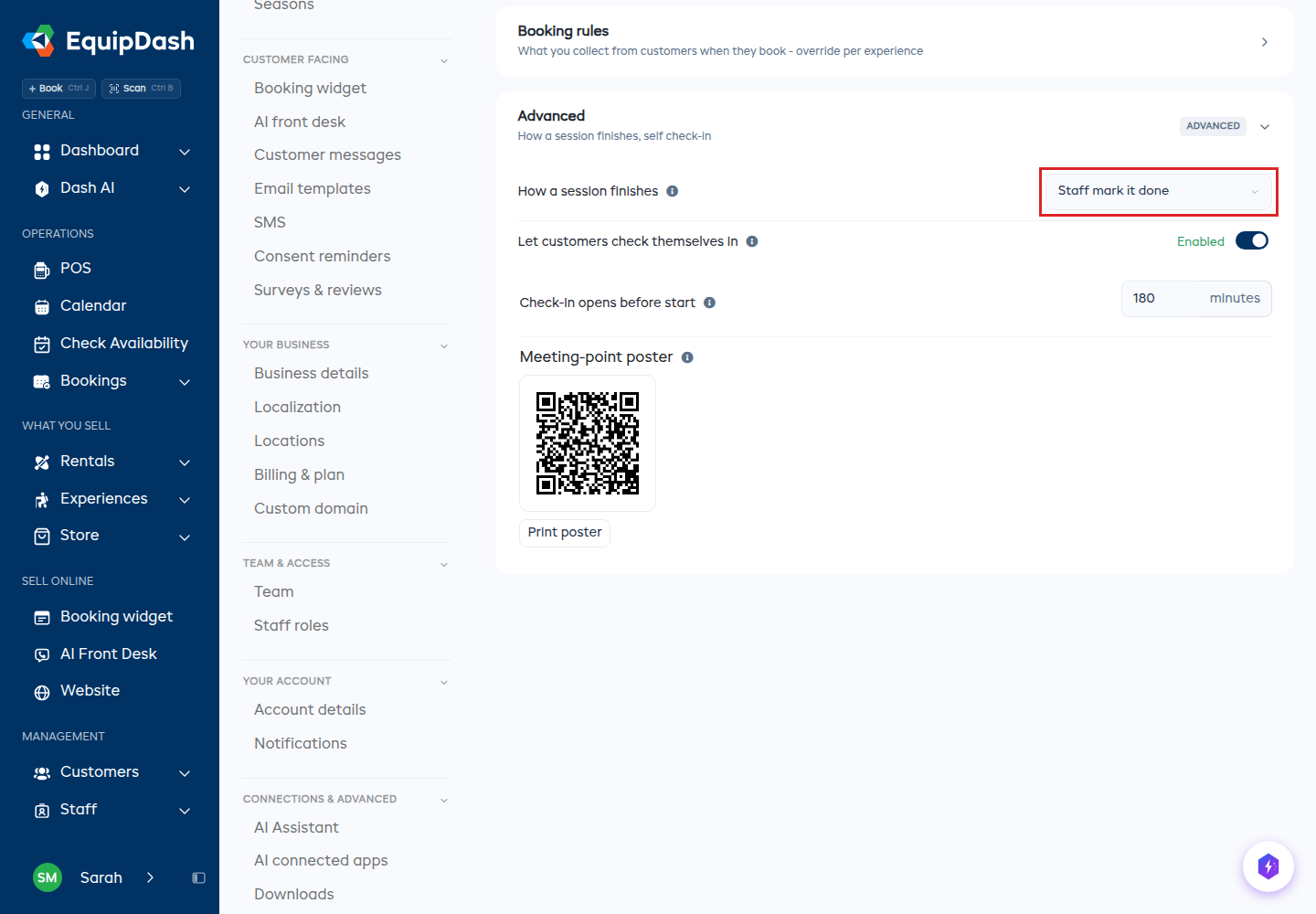
On this page, Complete session appears once the session has started and at least one person is checked in.
A booking that runs on several days is completed for this day only; its other days stay open until they run.
Complete session is also on the session's card on Today and on the session's manifest in the mobile app, where it also says why when a session has not started.
In the mobile app
Crew who check people in on Today can open the day's sessions and check people in on the mobile app too, even if they can't see the experiences themselves.
Experience Tickets
Tickets are automatically generated when an experience booking is created:
- One ticket per participant with a unique QR code
- Tickets are included in the booking confirmation email with the QR code
- Customers can also download a PDF ticket from the ticket status page
Ticket Format
Each ticket code follows the format EQTK-XXXXXXXX (e.g., EQTK-A3F8X9B2). The QR code encodes a URL that can be scanned by any QR reader.
Downloading Tickets
From the Booking Detail page, click Action > Download Tickets to download a PDF with all tickets for the booking. Each ticket is on a separate page with the experience name, date, time, guest name, rate category, and QR code.
Exporting & Printing
Export CSV
Click Export CSV to download a spreadsheet with all participant data including name, email, phone, rate category, booking reference, waiver status, and check-in status.
Download PDF
Click Download PDF to save a formatted PDF manifest.
Print
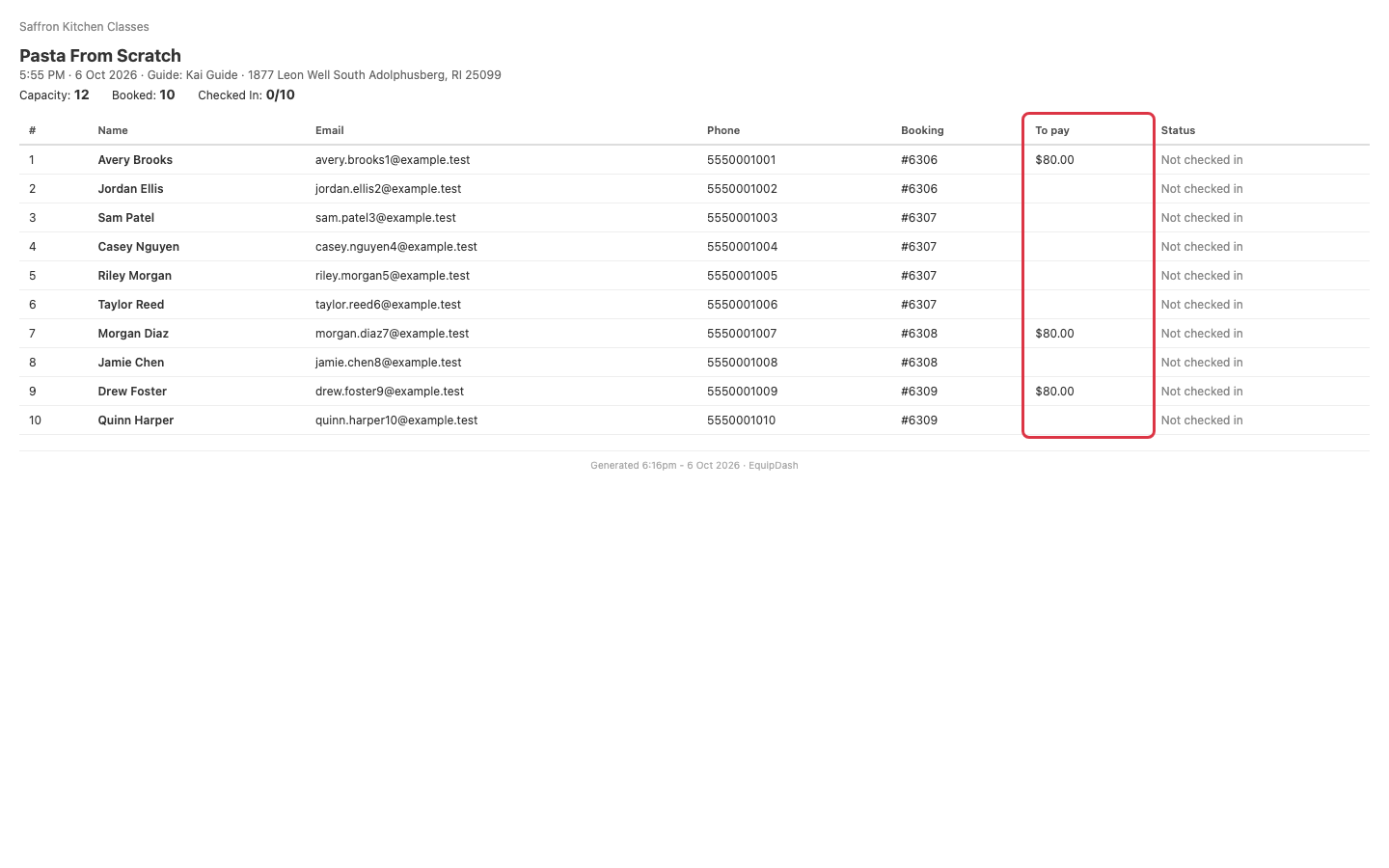
Click Print to open a clean, print-ready view of the manifest in a new tab, ready to print with Ctrl+P / Cmd+P.
- A To pay column shows what each booking still owes, when anyone on the session owes money.
- An Emergency contact column appears when anyone has given one.
- A seat with no name yet reads Guest 2, Guest 3 and so on, as on the session page.
- Columns that are empty for everyone are left off.
- Each size and question the experience asks gets its own column, with Not given for a blank answer. Download PDF also includes the Kit for this session summary. Export CSV includes the size and question answers in columns.
URL Parameters
The manifests page supports URL parameters for direct linking:
?date=03-28-2026- open manifests for a specific date?experience=5- filter to a specific experience
Example: /experiences/manifests?date=03-28-2026&experience=5