Setting Up Availability
Availability defines when your experience can be booked. Each available time slot is called a session — it has a date, a start time, and a capacity (the maximum number of participants). Customers can only book sessions that you have made available.
Two Approaches to Availability
EquipDash offers two ways to manage when your experience runs:
Manual
You add individual sessions one at a time. This gives you full control over every session — perfect for experiences that run on irregular schedules or special one-off events.
See One-Time Sessions for details.
Recurring
You define a pattern — the days of the week, the time slots, and a date range — and EquipDash generates the sessions automatically. This is ideal for experiences that run on a regular, repeating schedule.
See Recurring Schedules for details.
Choosing Your Approach
You select the availability management method when creating an experience in Step 3 of the wizard, under the availability management question. You can choose:
- Manually create dates/times — Best for irregular schedules, special events, or when you want to add sessions only as needed.
- Recurring schedule based on days/dates/times — Best for experiences that run on the same days and times every week or within defined seasons.
You can change this setting later by editing the experience. Switching from Manual to Recurring (or vice versa) will not delete any sessions you have already created.
The Availability Table
Regardless of which approach you use, all sessions appear in the Availability tab on the experience detail page.
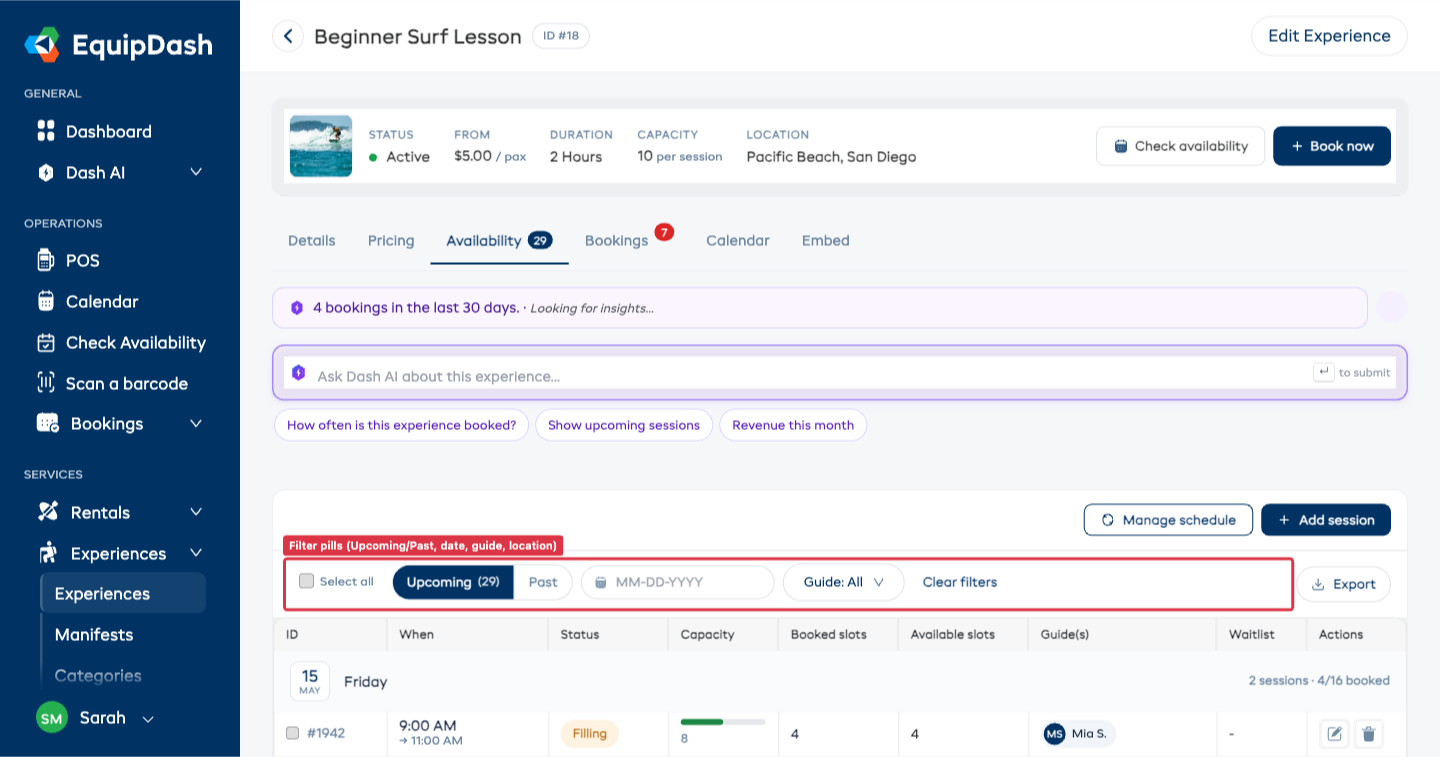
Each row shows:
- ID — The session identifier (e.g.
#1942). - When — The start and end time for the session, sitting under a date-band header that groups every session on the same day.
- Status — A pill: green Available, amber Filling, red Sold out, grey Past.
- Capacity — A bar showing booked / total. Hover for the exact numbers.
- Booked / Available slots — Numeric columns alongside the bar.
- Guide(s) — Circular guide-initial chips, or a + Assign call-to-action when no guide is assigned yet.
- Waitlist — A purple count pill when a customer has joined the waitlist for that session (Pro plan only).
- Actions — Edit, duplicate, and delete icons on each row.
Filter Toolbar
A single-row toolbar above the table lets you slice the schedule fast — every change re-runs the query in place, no full reload:
- Upcoming / Past pills — segmented toggle, defaults to Upcoming. Past sessions sort newest-first; Upcoming sort soonest-first.
- Date pill — opens a date picker. Empty by default; pick a date to jump straight to it.
- Guide pill — drop down and pick a guide to show only sessions they're assigned to.
- Location pill — drop down and pick a pickup location to scope the table.
- Clear filters — resets every pill in one click.
- Sort — click any column header to override the default ordering.
Editing a Session
- Click the Edit (pencil) icon on the session row.
- The Edit availability sidebar slides in from the right with the current date, start time, capacity, and guides pre-filled.
- Update what you need and click Save.
You cannot reduce a session's capacity below the number of slots already booked. If 5 customers have booked a session and you try to set capacity to 3, the change is blocked and a warning explains how many bookings are on that session. Cancel the relevant bookings first to free up the slots, then reduce the capacity.
Bulk Actions
Tick the checkbox on any session row (or the header checkbox to select the whole visible page) and an Action ▾ dropdown appears at the top-right of the availability tab. It offers four bulk operations:
| Action | What it does |
|---|---|
| Edit capacity | Sets a new capacity (or unlimited) on every selected session. Sessions whose existing bookings exceed the new capacity are listed and skipped — every other selected session updates normally. |
| Change time | Sets a new start time on every selected session, preserving each session's date. End time is derived from the experience's duration (same as adding a new session). |
| Assign guides | Adds (or replaces) one or more guides across every selected session — see below. |
| Delete | Permanently removes the selected sessions. Sessions with bookings on them are skipped automatically and called out in the result. |
A success / warning toast summarises how many rows updated, how many skipped, and why.
Bulk Editing Capacity
- Use the filter pills to narrow the table.
- Tick the checkboxes on each session you want to update — or use the header checkbox to select every session on the page.
- Click Action ▾ in the top-right and choose Edit capacity.
- Enter the new capacity (or tick No limit (unlimited capacity)) and click Update capacity.
Bulk Changing the Time of Day
Use this when you need to shift several sessions to a different start time without touching the date — for example, your morning surf lessons are moving from 9:00 AM to 8:30 AM for a month.
- Tick the rows you want to shift.
- Click Action ▾ and choose Change time.
- Pick the new Start time and click Update time. End time recalculates from the experience's duration so each row's window stays consistent.
Bulk Assigning Guides
- Use the filter pills to narrow the table.
- Tick the checkboxes on each session you want to update — or use the header checkbox to select every session on the page.
- Click Action ▾ in the top-right and choose Assign guides.
- Pick one or more guides from the picker.
- By default, the selected guides are added on top of any existing assignments — duplicates are skipped automatically. Tick Replace existing guides on selected schedules if you'd rather wipe the current assignments and start fresh on each selected session.
- Click Assign guides.
After the run, EquipDash reports how many assignments were created across how many sessions, plus any per-session conflicts (a guide on approved time-off, already guiding another experience at that exact time, etc.) so you know exactly which ones need a follow-up.
Assigning Guides with the Auto-Suggest Picker
When you assign guides to a session — either creating a new session or editing an existing one — EquipDash uses a smart picker that already knows who's available, who's only partially available, and who's blocked. No more cross-checking shift rosters and time-off calendars manually.
- Open the session for editing (or click Add Availability to create a new one).
- Scroll to Guide(s) (optional) and click the search field to open the picker.
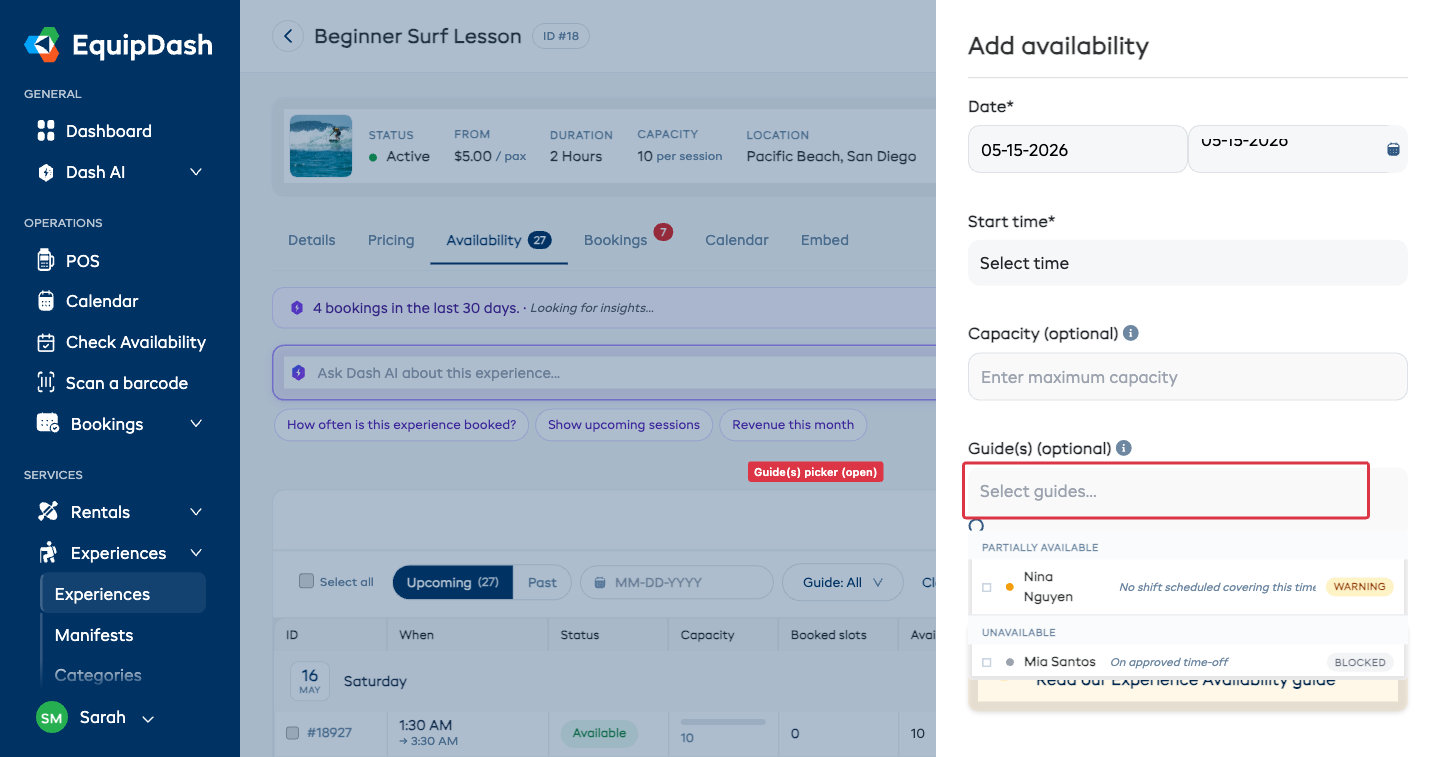
Three Groups of Guides
Guides are sorted into three groups so the most-assignable people show first:
| Group | Indicator | When |
|---|---|---|
| Available | Green dot · "Free" badge | Has a shift covering this time, no conflicts, not on time-off |
| Partially available | Amber dot · "Warning" badge | Soft warning — e.g., no shift covering the exact session time |
| Unavailable | Grey dot · "Blocked" badge | Hard block — on time-off, or already guiding another experience at this time |
Tick the guide(s) you want to assign and click Save. Hard-blocked guides cannot be assigned — the picker prevents the selection at submit time.
Each guide outside the Available group shows a one-line reason next to the name — common ones include No shift scheduled covering this time, On approved time-off, and Already assigned: [other experience].
For the full breakdown of how the picker decides each group, see Booking-Linked Scheduling.
Shift Coverage Prompt
After you assign a guide to a session, EquipDash checks whether the guide has a staff shift that covers the session time. If they don't, a Create shift? prompt appears so you can fix the coverage immediately rather than discovering the gap later.
![Create-shift prompt modal — title 'Create a shift for [Guide]?', body explaining no shift covers this session, plus Skip and Create shift buttons](/help/assets/images/experience-shift-coverage-prompt-8b7fba69b6baeabc3d9fa7fd923ad3fa.png)
Choose Create shift to auto-create a staff shift exactly covering the experience time, or Skip to continue without one. If multiple guides need coverage, prompts appear one at a time.
This means the staff schedule and the experience schedule never drift apart — every assigned guide ends up with a corresponding shift on the staff roster.
Deleting Sessions
Single session: Click the Delete icon on the session row and confirm.
Bulk delete: Select multiple sessions using the checkboxes, click Action ▾ in the top-right, choose Delete, and confirm.
Deleting a session that has existing bookings is blocked — the system skips those rows automatically and tells you which sessions need their bookings cancelled or moved first. To get rid of a session that has bookings on it, cancel or move them first, then re-run the delete.
Default Capacity
When you create an experience, you can set a Default Capacity. This is the number of participant spots automatically assigned to new sessions. You can override the capacity on individual sessions after they are created.
If you do not set a default capacity, sessions will have unlimited capacity (no participant limit).
Next Steps
Depending on which approach you chose:
- Manual — Learn how to add one-time sessions.
- Recurring — Learn how to set up a recurring schedule.
- Both — Learn how to assign guides to your sessions.