Organizing Store Categories
Store categories help you group your products into logical sections, making it easier for customers to browse your catalog. Categories appear as filters on the store widget and in the dashboard product listings.
Creating a Category
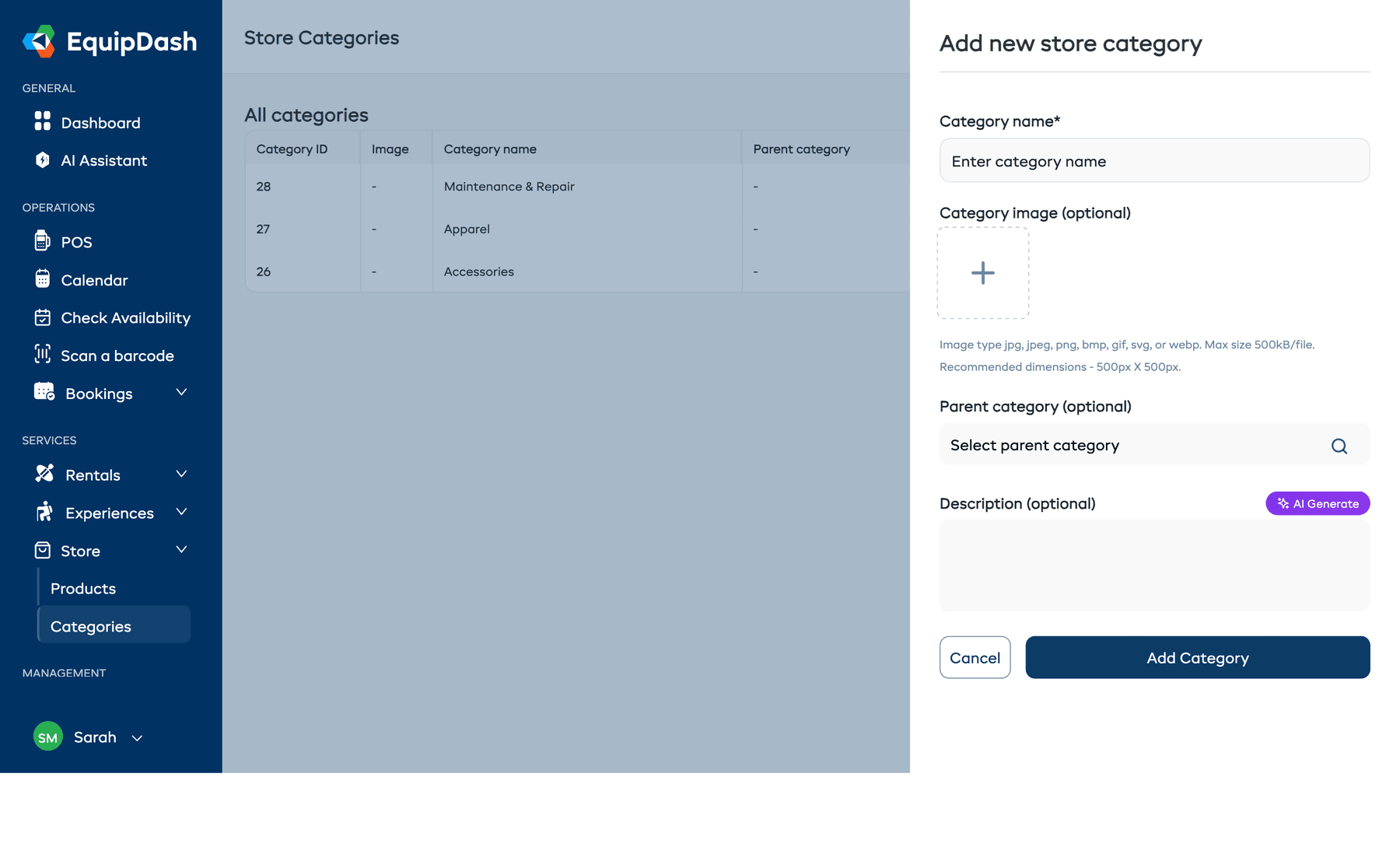
- Go to Store > Categories in the left sidebar.
- Click Add Category.
- Enter a Category name for the category (e.g., "Accessories"). This field is required.
- Optionally upload a Category image -- this image is displayed on category cards in the store widget, helping customers visually identify product groups.
- Optionally select a Parent category to make this a sub-category.
- Optionally enter a Description to provide more context. You can click AI Generate to automatically create one.
- Click Add Category.
Use One Category Across Store, Rentals, and Experiences
If you sell across more than one booking type — say a store and rentals, or a store and experiences — you often want the same category in each. A "Water Sports" group that covers your store accessories, your kayak rentals, and your guided paddle tours should be one category, not three separate ones you keep in sync by hand.
When you add or edit a category, look for the Also use this category for row near the bottom of the panel. It shows a checkbox for each other booking type you have turned on:
- On a store category, you'll see checkboxes for Rentals and Experiences (whichever you have enabled).
- Tick a box and the same category is created in that booking type and linked to this one.
Change it once, it updates everywhere
Linked categories share their name, image, and description. Rename "Water Sports" to "On the Water" on the store side and the rentals and experiences versions rename themselves automatically. Swap the image once and every linked copy updates. You manage the category in one place, and it stays consistent across your whole widget.
Each booking type keeps its own list of items, though — a linked "Water Sports" category holds your accessories under Store, your kayak rentals under Rentals, and your paddle tours under Experiences. The shared bit is the label (name, image, description), not the contents.
Already have a matching category? It links instead of duplicating
If a category with the same name already exists in the other booking type and isn't linked yet, ticking the box links to that existing category rather than creating a duplicate.
Unticking the link later
If you edit a linked category and untick one of the boxes, the link is removed. What happens to the other category depends on whether anything still uses it:
- Nothing else uses it (no products, experiences, or sub-categories) — the other category is deleted.
- Something still uses it — it's kept as a standalone category in that booking type, just no longer linked.
The save confirmation tells you which of these will happen before you commit.
Deleting a linked category only removes that category. The linked copies in the other booking types are left exactly as they were.
Category Hierarchy
Categories support a parent-child structure. For example:
Accessories
  +-- Wax & Tuning
  +-- Locks & Storage
  +-- Safety Gear
Apparel
  +-- T-Shirts
  +-- Jackets
Maintenance Kits
When customers browse the store widget, they can filter by top-level categories. If they select a category that has sub-categories, the sub-categories appear as additional filters.
Category Images
Each category can have an image that is displayed in the store widget's category navigation. This helps customers quickly identify and browse product groups visually.
To add or change a category image:
- Go to Store > Categories.
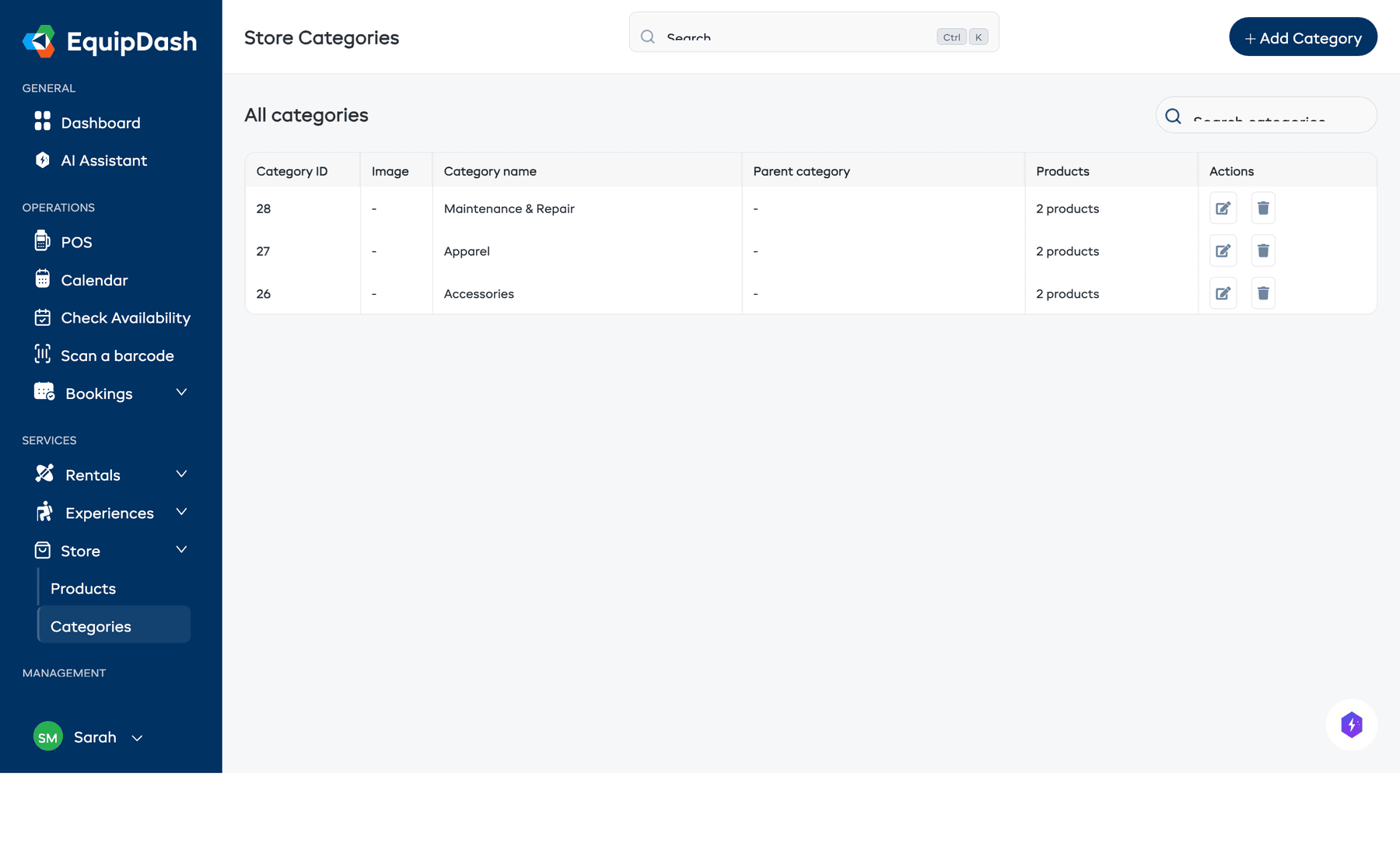
- Click the Edit icon (pencil icon) in the Actions column for the category.
- Upload or replace the Category image.
- Click Save.
Use consistent, clear images for your categories. Square images work best for the category cards displayed on the store widget.
Editing a Category
- Go to Store > Categories.
- Click the Edit icon (pencil icon) in the Actions column for the category you want to change.
- Update the name, description, image, or parent category.
- Click Save.
Deleting a Category
- Go to Store > Categories.
- Click the Delete icon (trash icon) in the Actions column for the category.
- Confirm the deletion.
To delete several at once, tick them and click Delete in the bar above the table. Sub-categories are deleted before their parent, so you can tick a parent together with its sub-categories.
A category that still has products in it, or a sub-category you are not deleting with it, is kept. Move its products to another category first. The confirm tells you how many will stay.
Assigning Products to Categories
Products are assigned to categories when you create or edit them:
- Go to Store > Products and open a product.
- In the Categories field, search for and select a category — it appears as a pill. Add as many as you need; click the × on a pill to remove it.
- Save the product.
A product can belong to several categories at once, and it appears under each of them — in the store's category filters and in your dashboard listings. There's no single "primary" category to set; just add every group the product belongs in.
Related Guides
- Creating Store Products -- Adding products to your store.
- Managing Store Products -- Editing and managing products.
- Store on the Booking Widget -- How categories appear on the customer-facing widget.