Product Variations
Variations let you offer different options for a single store product -- like sizes, colors, or styles -- without creating separate products for each one. Customers can choose their preferred option when purchasing.
When to Use Variations
Variations are useful when you have a product that comes in multiple versions:
- Sizes -- T-shirts in S, M, L, XL
- Colors -- Phone cases in Black, Blue, Red
- Styles -- Sunglasses in Classic, Sport, Oversized
Each variation shares the same product name, description, and images, but can have its own SKU and price.
How Variations Work
Variations are built in two layers:
- Variation Properties -- The categories of options (e.g., "Size", "Color"). Each property has a set of possible values (e.g., "Small", "Medium", "Large" for Size).
- Variations -- The individual purchasable options that combine property values (e.g., a variation with Size = "Large" and Color = "Blue"). Each variation can have its own SKU and price override.
You define properties first, then create variations that use those properties.
Enabling Variations on a Product
Variations are enabled during product creation or editing:
- Go to Store > Products and either click Add Product or open an existing product and click Edit Product.
- In step 3 (Additional Details), toggle Variations on.
- In the Property list that appears, enter property names (e.g., "Size", "Color"). Click + Add property to add more.
- Save the product.
After the product is created, go to the product's Variations tab to add property values and create variations.
The product creation wizard lets you name your properties, but the full setup -- adding property values and creating individual variations -- is done from the Variations tab on the product detail page.
Managing Variation Properties
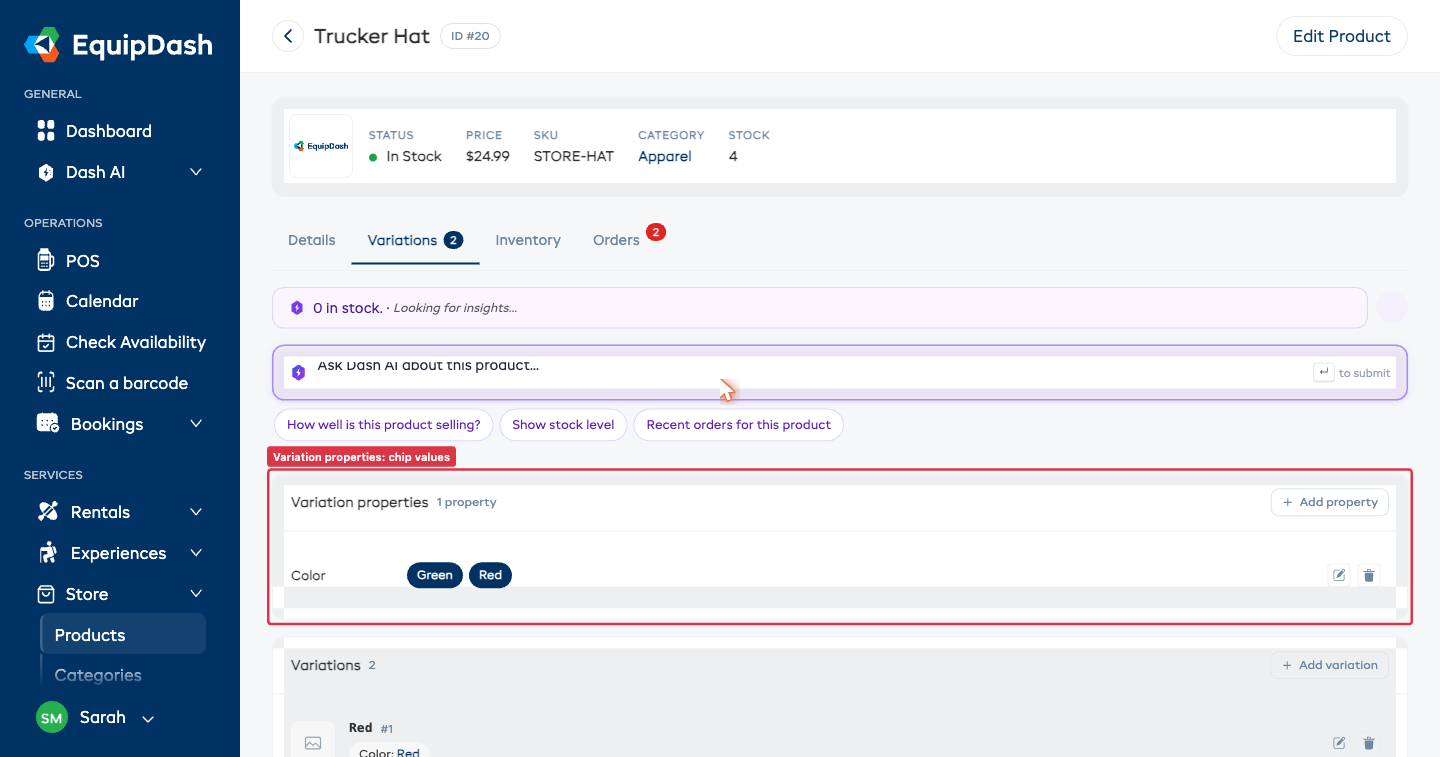
Open a product and click the Variations tab. The Variations tab is split into two cards:
- A Variation properties card at the top, with each property name and its values shown as chips. Use the + Add property button in the card header to add a new property.
- A Variations card below, listing every variation as a row with its property values, SKU, price override, and edit/delete actions. Use the + Add variation button to create a new one.
Adding a Property
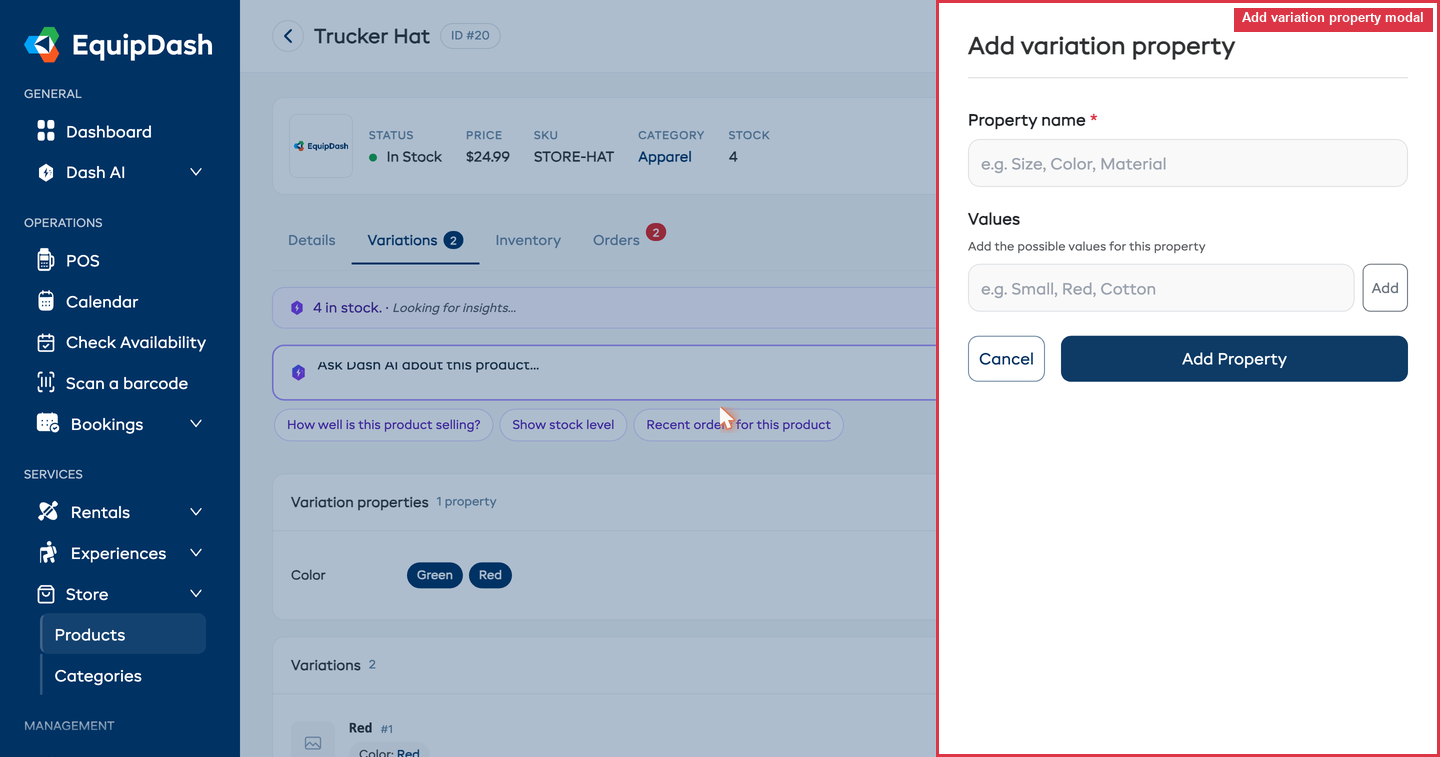
- Click Add Property in the top-right corner.
- Enter a Property name (e.g., "Size", "Color", "Material").
- Under Values, type a value (e.g., "Small") and click Add. Repeat for each value.
- Click Add Property to save.
Editing a Property
- Click the Edit icon (pencil icon) next to the property you want to change.
- Update the property name or add/remove values.
- Click Save Property.
Deleting a Property
- Click the Delete icon (trash icon) next to the property.
- Confirm the deletion.
Deleting a property removes it from all existing variations. This action cannot be undone.
Creating Variations
Once you have at least one property with values, you can create individual variations.
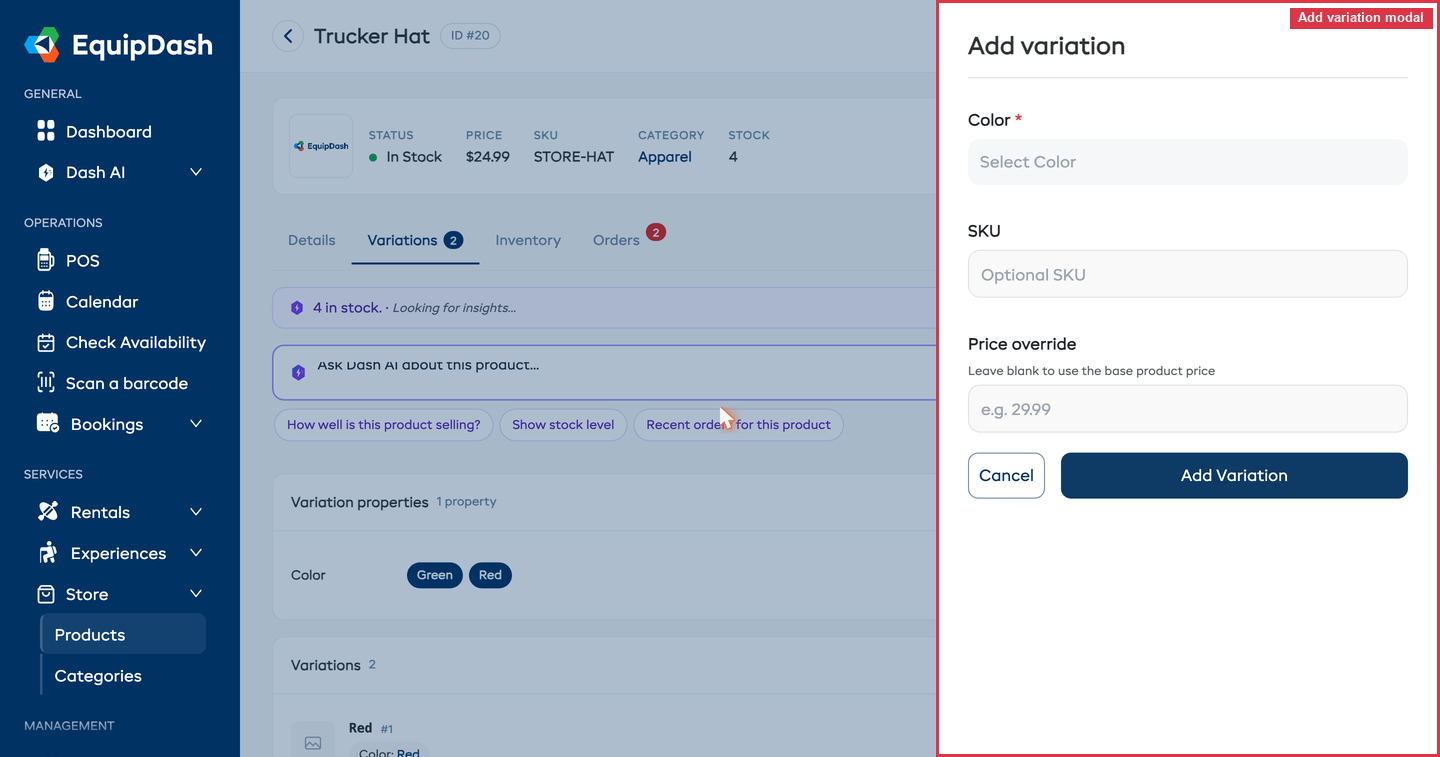
- Click Add Variation in the top-right corner.
- Select a value for each property from the dropdowns (e.g., Size = "Large", Color = "Blue").
- Optionally enter a SKU for this variation.
- Optionally enter a Price override -- a custom price for this variation. Leave blank to use the base product price.
- Click Add Variation to save.
The Variations table shows all created variations with columns for each property, SKU, price, and action buttons.
| Column | Description |
|---|---|
| Property columns | One column per property (e.g., Size, Color) showing the selected value |
| SKU | The variation-specific SKU, or "-" if not set |
| Price | The price override amount, or "Base price" if using the product's base price |
| Actions | Edit and delete buttons |
Setting Variation-Specific Pricing
If certain variations cost more than others (e.g., XL sizes have a surcharge):
- Click Add Variation or the Edit icon on an existing variation.
- Enter a Price override value (e.g., "32.99").
- Save.
Customers will see the variation-specific price when they select that option. If no price override is set, the base product price is displayed.
Editing a Variation
- Open the product and go to the Variations tab.
- Click the Edit icon (pencil icon) in the Actions column for the variation.
- Update the property selections, SKU, or price override.
- Click Save Variation.
Deleting a Variation
- Open the product and go to the Variations tab.
- Click the Delete icon (trash icon) in the Actions column.
- Confirm the deletion.
Removing a variation that has been included in past bookings will not affect those bookings -- historical records are preserved. However, the variation will no longer be available for new purchases.
How Variations Appear
On the Store Widget
When customers view a product with variations on the store widget, they see dropdowns to choose their preferred option. The price updates based on the selected variation.
In the POS
When adding a product with variations to a booking via the POS, staff can select the variation and set the quantity. See Adding Store Products to Bookings for details.
On the Product Detail Page
In the dashboard, the product detail page's Variations tab shows the property chip summary at the top and lists every variation as a row in the Variations card below, with its property values, SKU, price override, and edit/delete actions. The tab label also shows a count badge with the number of variations on the product.
Related Guides
- Creating Store Products -- Full product creation guide.
- Inventory Management -- Managing stock levels.
- Managing Store Products -- Editing and managing your product catalog.
- Adding Store Products to Bookings -- Selecting variations in the POS.
- Store on the Booking Widget -- How variations appear to customers.