Managing Store Products
Once you have created store products, you can edit their details, adjust inventory, change their status, or remove them from your catalog.
Viewing Your Products
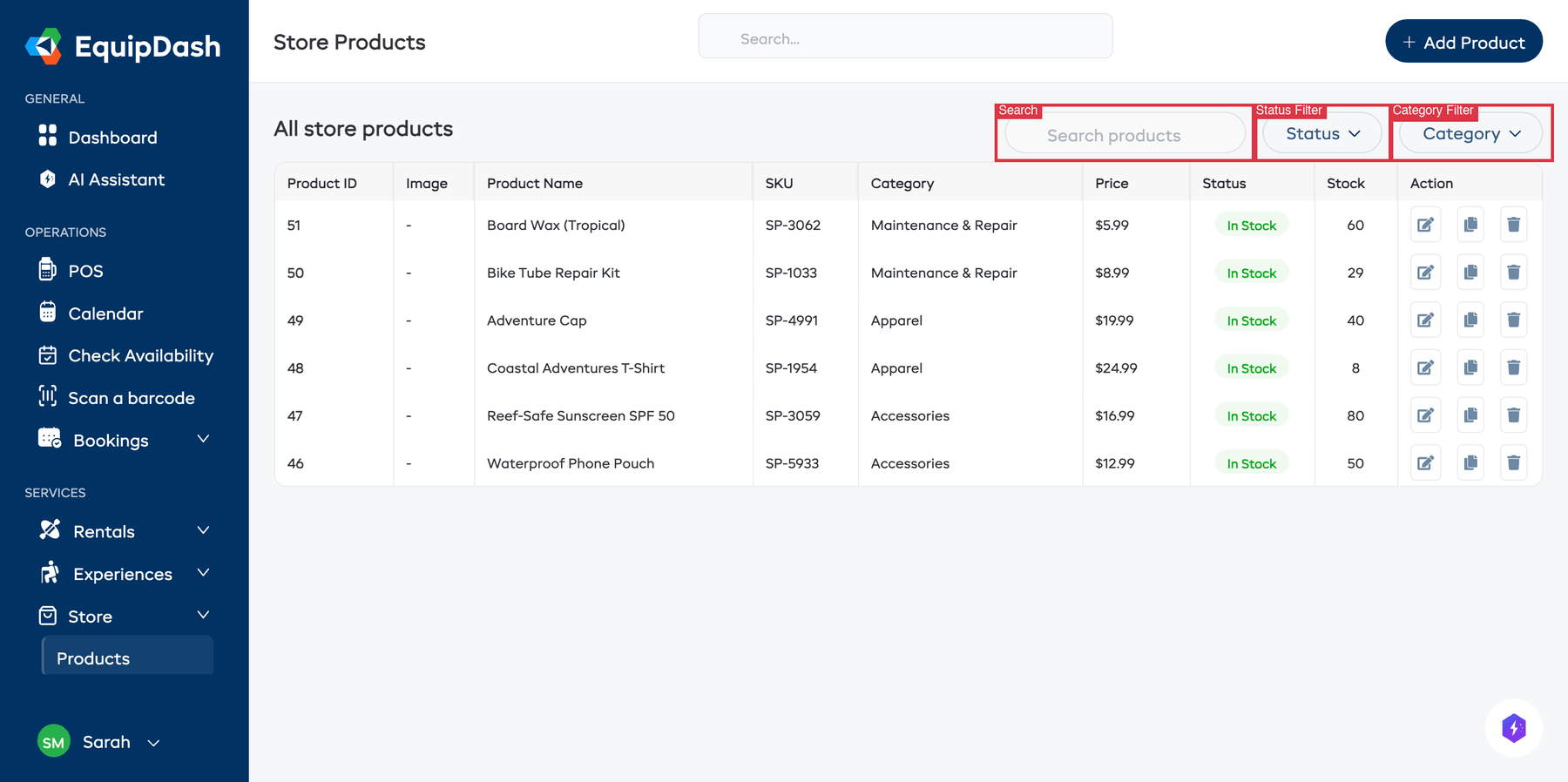
Go to Store > Products to see your product catalog. The table shows each product's ID, image, name, SKU, category, price, status, and stock quantity. Each row also has action icons for editing, duplicating, and deleting.
Searching and Filtering
- Use the Search products bar to find products by name or SKU.
- Use the Status dropdown to filter by product status (e.g., In Stock, Out of Stock, Archived).
- Use the Category dropdown to see products in a specific group.
Click the gear icon near the top of the table to customize your columns. Tick a column under Available columns to show it, untick one under Active columns to hide it, and drag columns into the order you prefer. Your layout is saved and shared with your whole team.
Viewing a Product
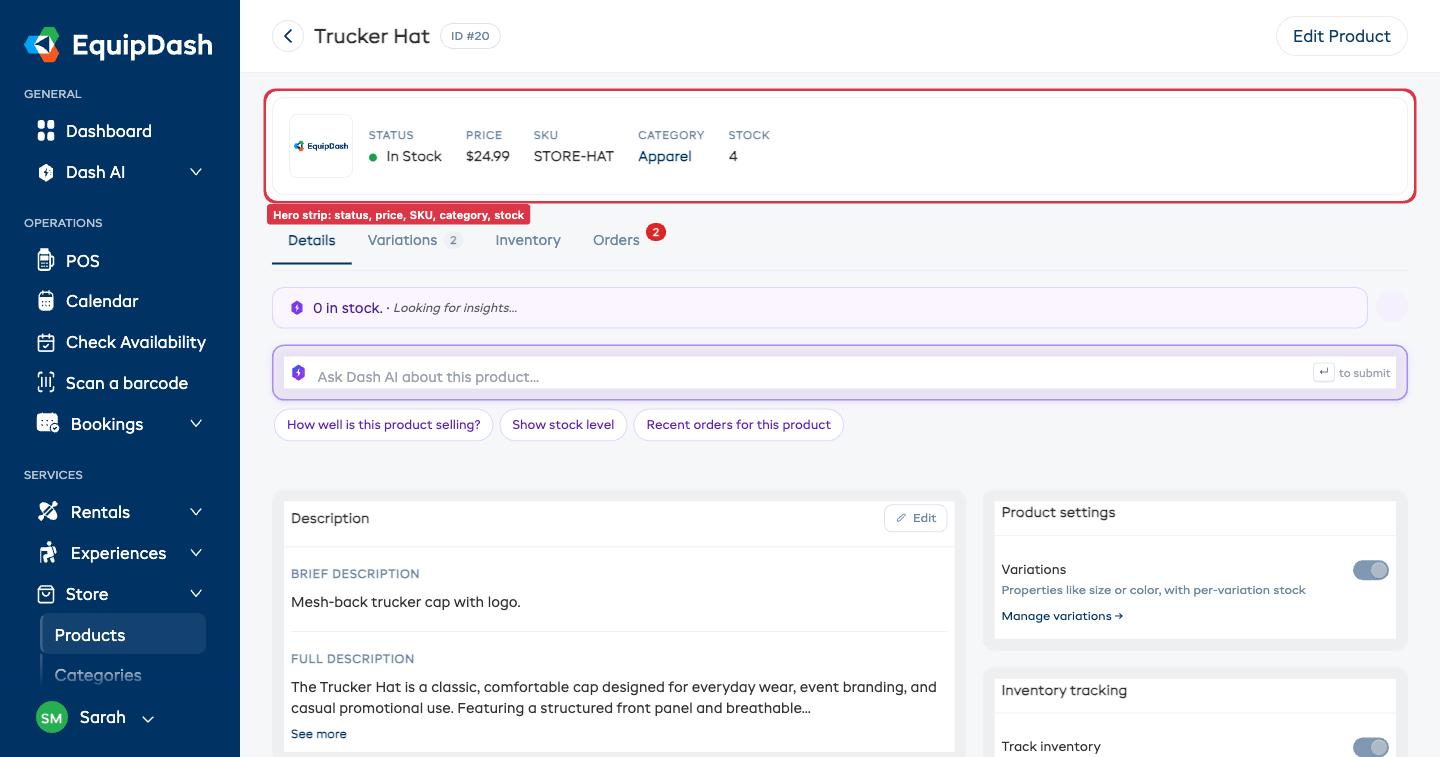
Click on a product row in the table to open its detail page. The detail page is built around a hero strip at the top — showing the product's status, price, SKU, category, and stock at a glance — and four tabs below it:
- Details -- Edit name, SKU, category, weight, dimensions, descriptions, photos, and barcodes inline. Each card has its own Edit button so you can change one section at a time without opening a modal.
- Variations -- Add and manage variation properties (e.g., Size, Color) and individual variations.
- Inventory -- See the merged Stock table broken down by variation and location, transfer stock between sites, and review the inventory log.
- Orders -- View bookings that include this product.
The Variations and Orders tabs show count badges next to their labels — Variations shows the number of variations on the product, and Orders shows a red alert count of bookings that need attention.
Editing a Product
You have two ways to make changes:
- Inline editing on the Details tab. Each card (Description, Pricing, Specifications, Photos, Product settings, Inventory tracking, Barcodes) has its own Edit button. Click it, change the values, and click Save to commit just that section. Validation runs against the same rules as the full edit form, so a Compare-at price below the Sell price (for example) will be rejected the same way. On the Photos card you can also drag a photo to a new spot to change the order customers see in the store — the order saves automatically — and hover a photo and click Adjust to crop, zoom, or rotate it. The editor works exactly like the rental product one (see Adjusting a Photo), and Reset to original always brings back your untouched upload.
- Full edit form. Click Edit Product in the top-right corner to open the original 3-step wizard (Product Details, Product Pricing, Additional Details). Use this when you need to change several fields at once or toggle major settings like variations or inventory tracking.
To change it on the booking page your customers see, click Visual editor at the top of the page. See Visual Editor.
Order limit and add-on only
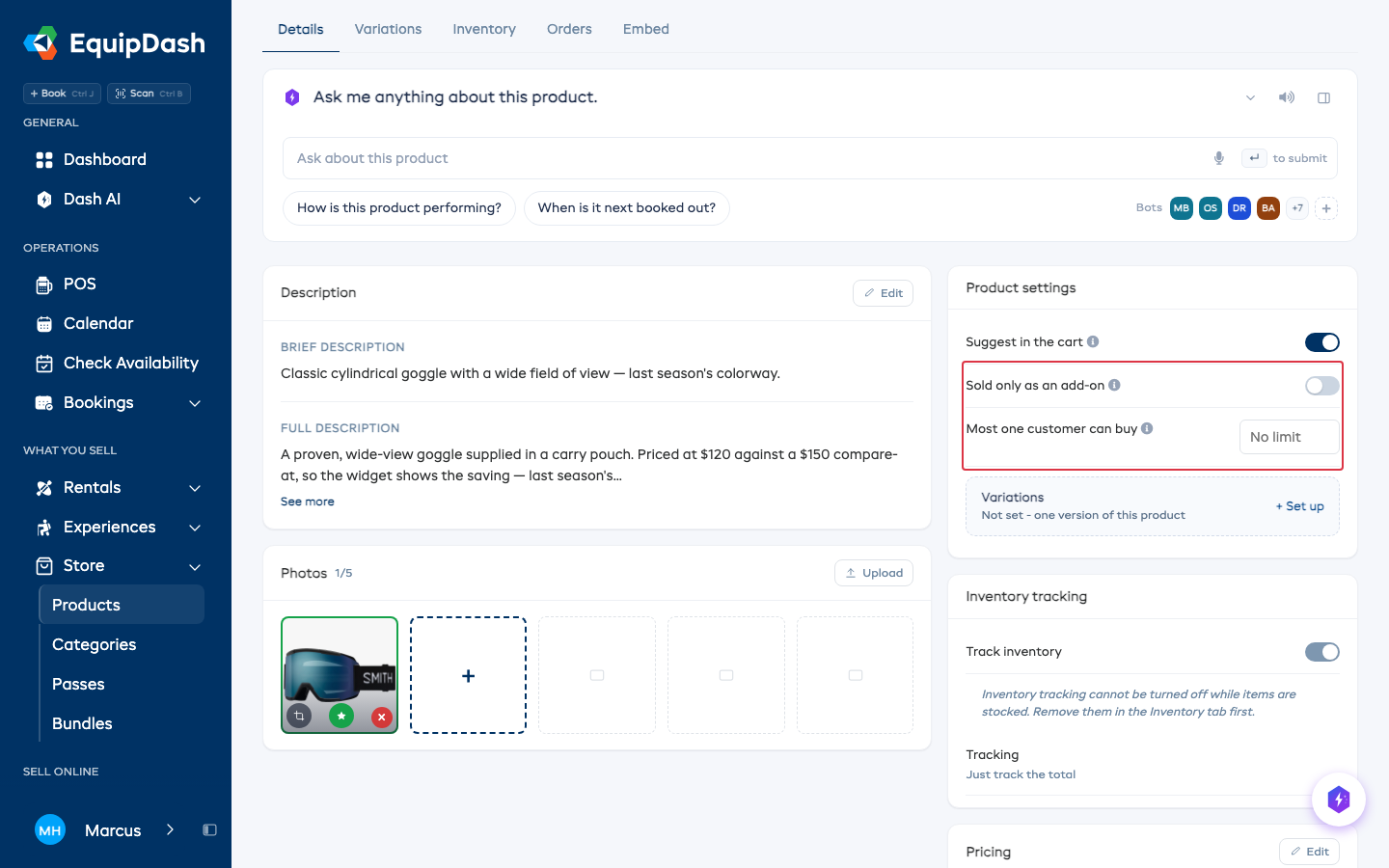
In the Product settings card on the Details tab:
- Most one customer can buy - the most of this product one booking can include. Leave it blank for no limit.
- Sold only as an add-on - the product is only offered beside a rental or experience, never on its own page.
Adjusting Inventory
To update stock quantities:
- Open the product detail page and click the Inventory tab.
- If the product is set to Just track the total (the default): each variation × location row has a small ± button at the right edge. Click it to open the Adjust inventory sidebar, which is pre-targeted at that exact variation and location. Enter the Quantity change (positive to add, negative to remove), a Reason, and click Save Adjustment.
- If it is set to Track each item: use the Inventory Items table further down the Inventory tab to add or remove individual items. See Inventory Management for details.
Inventory adjustments are logged so you can track changes over time. To move stock between two of your locations without changing the product total, use Transfer — see Inventory Management — Transferring stock.
Changing Product Status
Products have two statuses:
| Status | Description |
|---|---|
| Active | Visible to customers and available for purchase |
| Archived | Hidden from customers -- use this for discontinued products |
To change a product's status, edit the product and update the Status field.
Duplicating a Product
To create a copy of an existing product:
- Go to Store > Products.
- Find the product in the table and click the Duplicate icon (copy icon) in the Action column.
- A new product is created with the same details, allowing you to adjust as needed.
Duplicated products are created in Active status with a "(Copy)" suffix on the name so you can easily identify and adjust them.
Changing Several Products at Once
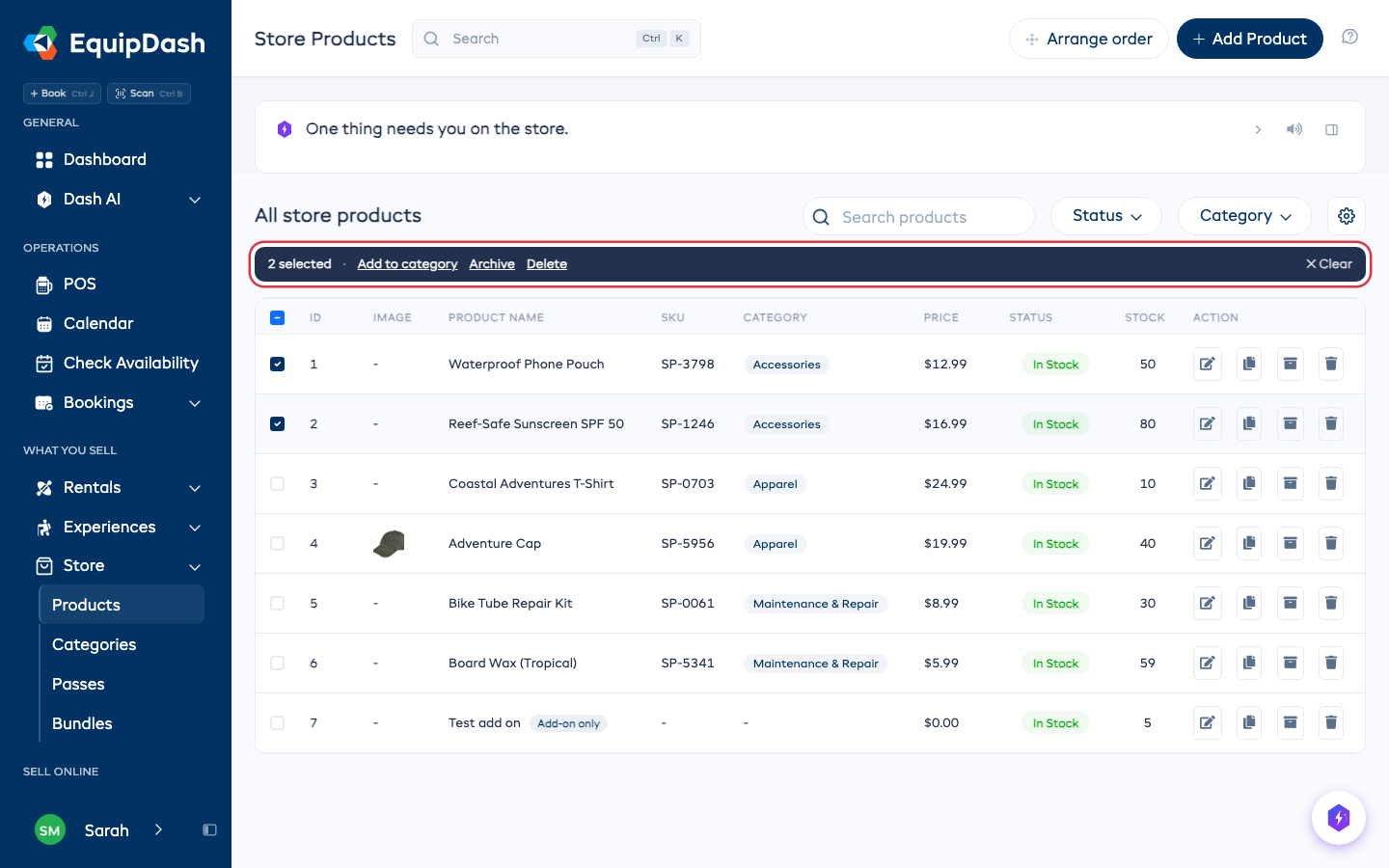
Tick the box at the start of each row, or the box in the header to tick the whole page. A dark bar appears above the table with what you can do to them together:
- Add to category - pick a category to add them to. Each product keeps the categories it already has.
- Archive - take them off your store and POS. To bring them back, set Status to Archived, tick them, and click Restore.
- Delete - products with bookings are kept, and the confirm tells you how many before anything is deleted.
To reach more than one page, tick the header box, then click Select all in the bar. It picks every product your search and filters match.
Deleting a Product
To permanently remove a product:
- Go to Store > Products.
- Find the product in the table and click the Delete icon (trash icon) in the Action column.
- Confirm the deletion in the confirmation dialog.
Deleting a product is permanent and cannot be undone. If a product has been included in bookings, it cannot be deleted -- archive it instead.
Related Guides
- Creating Store Products -- Adding new products.
- Product Variations -- Managing product options like sizes and colors.
- Inventory Management -- Tracking stock and adjustments, including item-level tracking.
- Store Categories -- Organizing products into categories.
- Adding Store Products to Bookings -- Using the POS to sell products.
- Store on the Booking Widget -- How products appear on the widget.