Getting Started with the AI Assistant ProThis feature requires the Pro plan
Open Ask Dash, send your first question, and find your conversations again.
Opening the AI Assistant
There are two ways to access the AI Assistant. Choose whichever suits the moment.
Full-Page View
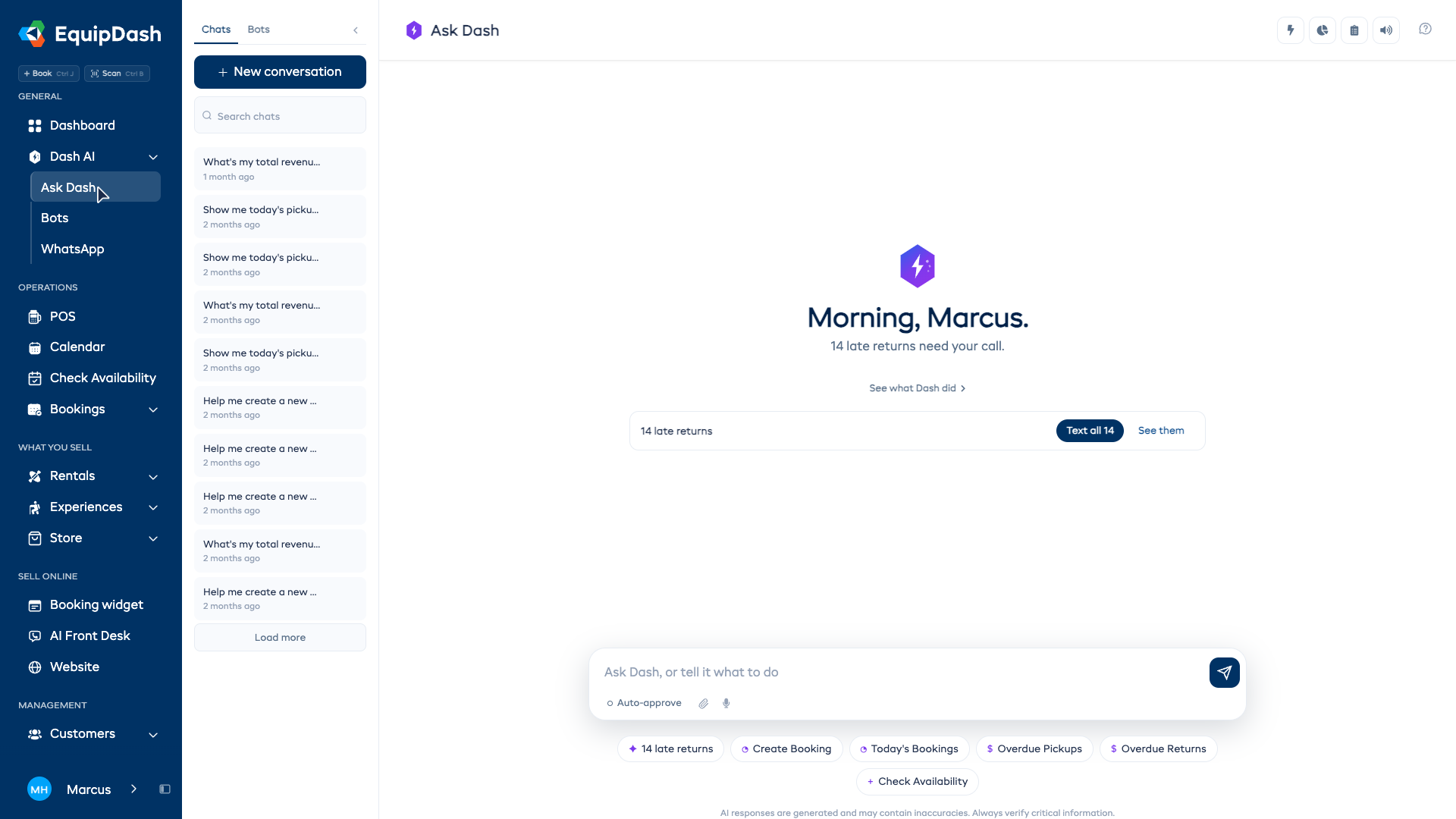
The full-page view gives you room to read answers, with your chats and bots in a rail on the left. Quick actions and Usage are in the header.
- Open Dash AI in the sidebar, then click Ask Dash.
- Ask Dash opens with your conversation and suggested starting questions. For a fresh chat, click New conversation.
Sidebar Panel
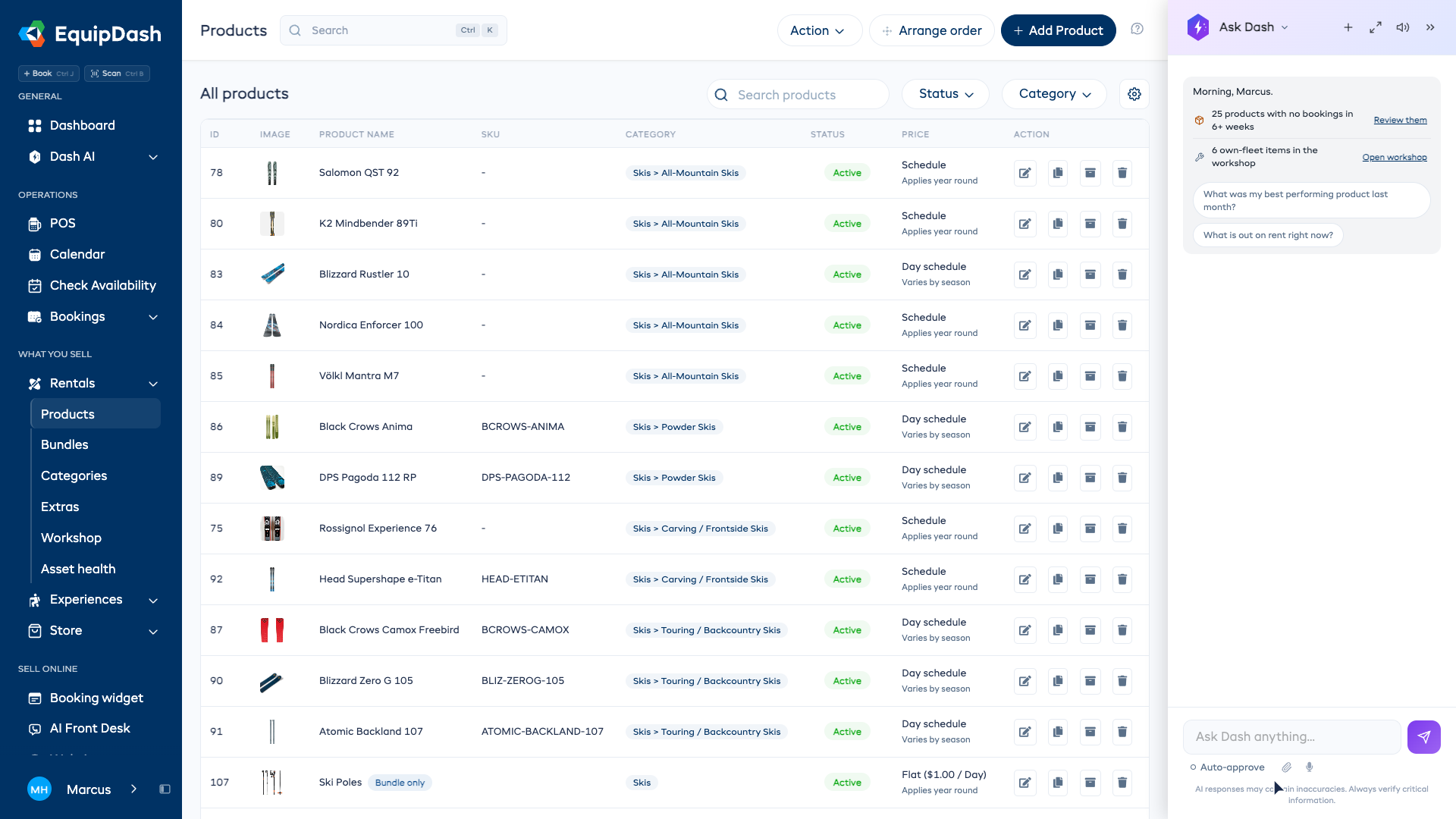
The sidebar panel lets you chat with the assistant without leaving the page you are on.
- Click the Dash floating button in the bottom-right corner of any page (it shows the Dash logo).
- A compact chat panel slides open on the right side of your screen.
Sending Your First Message
- Click into the message input box at the bottom of the assistant.
- Type your question or request in plain English. For example:
Show me today's bookings - Press Enter or click the Send button.
- The assistant will display a typing indicator while it looks up the information.
- After a moment, the response appears in the conversation thread.
Carrying On While Dash Works
You do not have to sit and wait. Dash keeps working on your answer even if you move to another page, close the panel, or reload — and nothing is lost.
- Move to another page. The Dash button in the bottom-right corner shows a spinning ring while your answer is still being written.
- When it is ready. A message pops up to tell you Dash has finished, and a small dot appears on the Dash button. Click the button to read the answer.
- Reload or open a second tab. Open Dash again and the same answer is there, still writing itself out if it has not finished.
Stopping an Answer
If you asked for something you no longer need, click the Stop button where the Send button normally sits. Dash stops there, and anything it had already done for you — a booking it created, an email it sent — stays done and is described in the reply.
Using Quick Actions
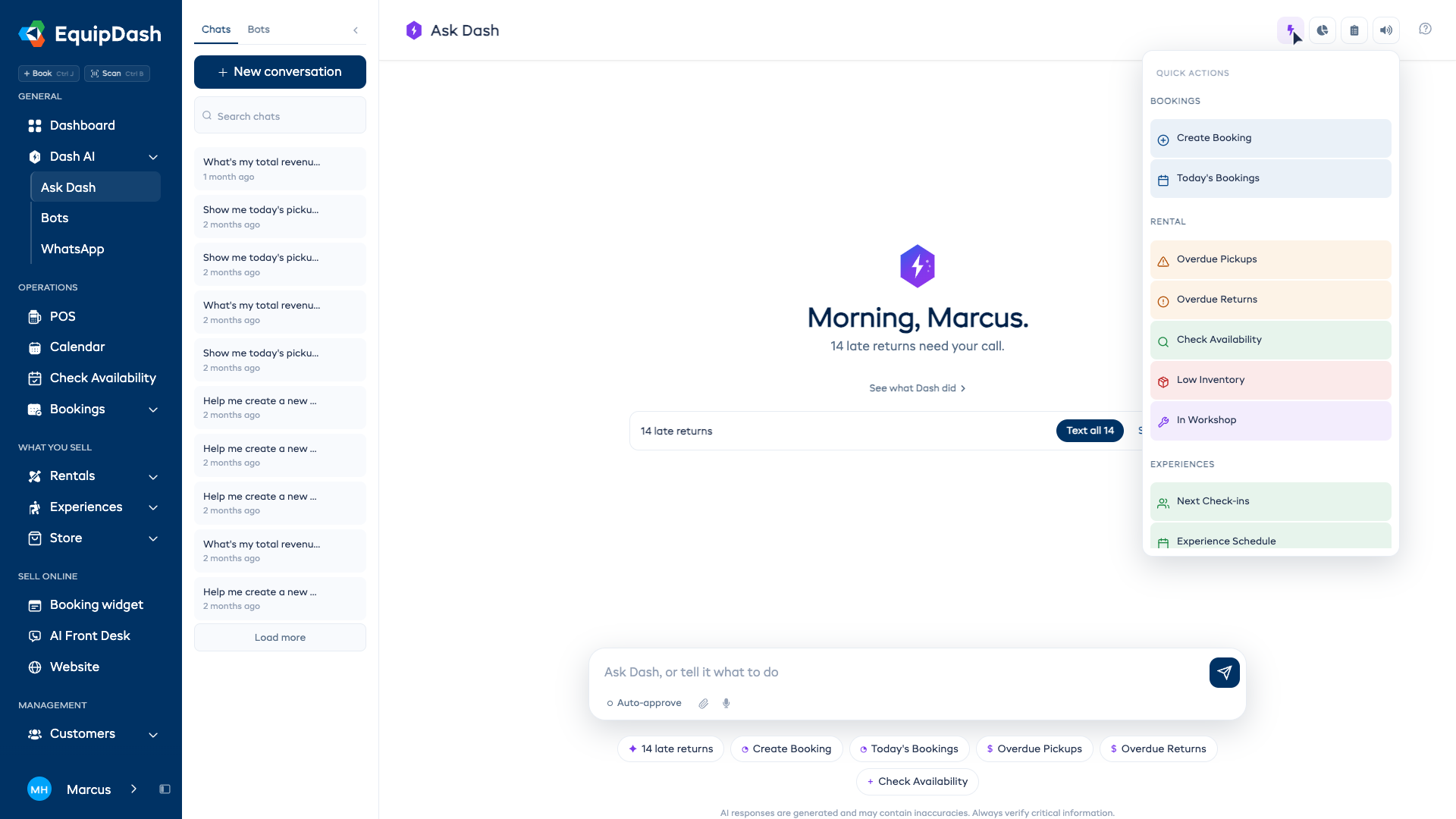
Quick actions send a common question or request for you. On Ask Dash, click the Quick actions lightning icon in the header to see the categories.
Full-Page Quick Actions
The Quick actions menu groups requests by category:
- Bookings — Create Booking, Today's Bookings
- Rental — Overdue Pickups, Overdue Returns, Check Availability, Low Inventory, In Workshop
- Experiences — Next Check-ins, Experience Schedule, Today's Experiences
- Customers — Create Customer, Check Waiver, This Week's Customers, Search Customer
- Staff — Today's Roster, Tomorrow's Roster
- Business Insights — Week Comparison, Peak Hours, Top Products, Top Experiences
- Click Quick actions in the header and browse the categories.
- Click any quick action card.
- The assistant immediately starts working on that request — no typing needed.
Sidebar Quick Actions
The docked panel opens with a brief about the page you are on. It may show items needing attention, a link to their details, or suggested questions for that page.
Read the brief before choosing an action. For another task, type your question in the message input or click Open Full Page in the panel header.
Following Up on a Response
After the assistant responds, you will often see suggested follow-up prompts below the response. These are context-aware suggestions based on what you just asked.
- Read the assistant's response.
- Look for the suggested follow-up buttons below the response.
- Click a suggestion to continue the conversation, or type your own follow-up question.
For example, after asking "Show me today's bookings," you might see suggestions like "Show overdue returns" or "What is today's revenue?"
Managing Conversations
Starting a New Conversation
- Click New conversation in the Chats rail. If the rail is hidden, open Chats and bots in the header first. On a phone, it opens as a drawer.
- The assistant clears the current chat and shows the welcome screen with quick actions.
Each new conversation starts fresh, so the assistant will not carry over context from a previous chat.
Switching Between Conversations
- In the full-page view, open Chats in the left rail.
- Click any previous conversation to reload it.
- The full message history for that conversation appears in the chat area.
Searching Conversations
- Use Search chats at the top of the Chats rail.
- Type a keyword to filter your past conversations.
- The list updates to show only conversations that match your search.
Renaming a Conversation
- Find the conversation in the Chats rail. Hover over its row on desktop to show its controls.
- Click the rename icon (pencil).
- Type a new name and press Enter to save.
Archiving a Conversation
- Find the conversation in the Chats rail. Hover over its row on desktop to show its controls.
- Click the Archive icon (trash) on a conversation you are not currently reading.
- The conversation is removed from the list but is not permanently deleted.
Regenerating a Response
If the assistant's response is not quite right, you can ask it to try again.
- Scroll to the bottom of the assistant's last response.
- Click the Regenerate button.
- The assistant re-processes your last message and provides a new response.