Use Your Own AI Account Growth+This feature requires the Growth+ plan or higher
Most businesses can skip this page. EquipDash credits work great out of the box, and you don't need an API key to use the AI Assistant. This guide is for owners who already pay for a separate AI subscription (ChatGPT, Claude, etc.) or who want to use models that aren't covered by plan credits.
This feature is completely optional. By default, the AI Assistant uses your EquipDash plan credits, and most businesses are happy with that.
But if you already pay for ChatGPT, Claude, Kimi, Grok, Gemini, or another AI service, you can connect that account to EquipDash. When you do, your AI provider bills you directly - and your EquipDash credits aren't used.
Why might I want to do this?
Consider connecting your own account if:
- ✅ You already pay for an AI subscription. If you've got a paid ChatGPT or Claude account sitting unused most days, putting it to work in EquipDash is a free win.
- ✅ You want more AI usage than your plan includes. EquipDash's plan credits are generous, but heavy AI users (running lots of bot automations, generating many product descriptions, etc.) may want their own larger allocation.
- ✅ You want to use Grok or Gemini. These providers aren't on EquipDash credits - the only way to use them is by connecting your own account.
When should I NOT bother?
- ❌ You're new to AI tools. Just use EquipDash credits - that's what they're there for.
- ❌ You don't have a paid AI subscription. Setting up a separate account just for this isn't worth it for most businesses.
- ❌ You only use the AI occasionally. Plan credits are more than enough.
What does "connecting your account" actually do?
When you haven't added any API keys (the default):
- Every AI call uses your EquipDash credits.
- No setup needed - the AI Assistant just works.
When you add an API key for a provider:
- Calls to that provider use your key. Your provider bills you, not EquipDash.
- Your EquipDash credits aren't touched for those calls.
- For providers where you haven't added a key, EquipDash credits are still used as normal.
So you can mix and match: maybe you connect your ChatGPT account but still use EquipDash credits for Claude. That works fine - they don't have to all be set together.
The eight models and where keys come from
EquipDash supports five providers and eight models in total. Some are available on EquipDash credits; others require your own key:
| Provider | Models | Available on EquipDash credits? | Where to get a key |
|---|---|---|---|
| ChatGPT | GPT-5.6 Luna, GPT-5.6 Terra | ✅ Yes | platform.openai.com/api-keys |
| Claude | Claude Sonnet 5 | ✅ Yes | console.anthropic.com/settings/keys |
| DeepSeek | DeepSeek V4.1 Flash | ✅ Yes | platform.deepseek.com |
| GLM | GLM 5.3 Flash | ✅ Yes | z.ai |
| Kimi | Kimi K2.6 | ✅ Yes | platform.moonshot.ai |
| Grok | Grok 4.3 | ❌ Bring your own key only | console.x.ai |
| Gemini | Gemini 3.1 Flash-Lite | ❌ Bring your own key only | aistudio.google.com/apikey |
Step 1: Get an API key
You'll need an "API key" from your AI provider. This is different from your normal login - it's a special password that lets EquipDash use your account.
Click the link for your provider above, sign in, and follow their instructions to create a new API key. Copy it somewhere safe - most providers only show it to you once.
A paid ChatGPT Plus or Claude Pro subscription is separate from API keys. You may need to top up API credits separately on the provider's developer portal - your monthly subscription doesn't always cover API usage.
Step 2: Add the key in EquipDash
- Go to Settings > AI Assistant.
- Click the Configuration tab.
- Scroll down to the Use Your Own AI Account card.
- Find the row for your provider (e.g., OpenAI (ChatGPT)).
- Paste your API key into the input field.
- Click Save Keys at the bottom.
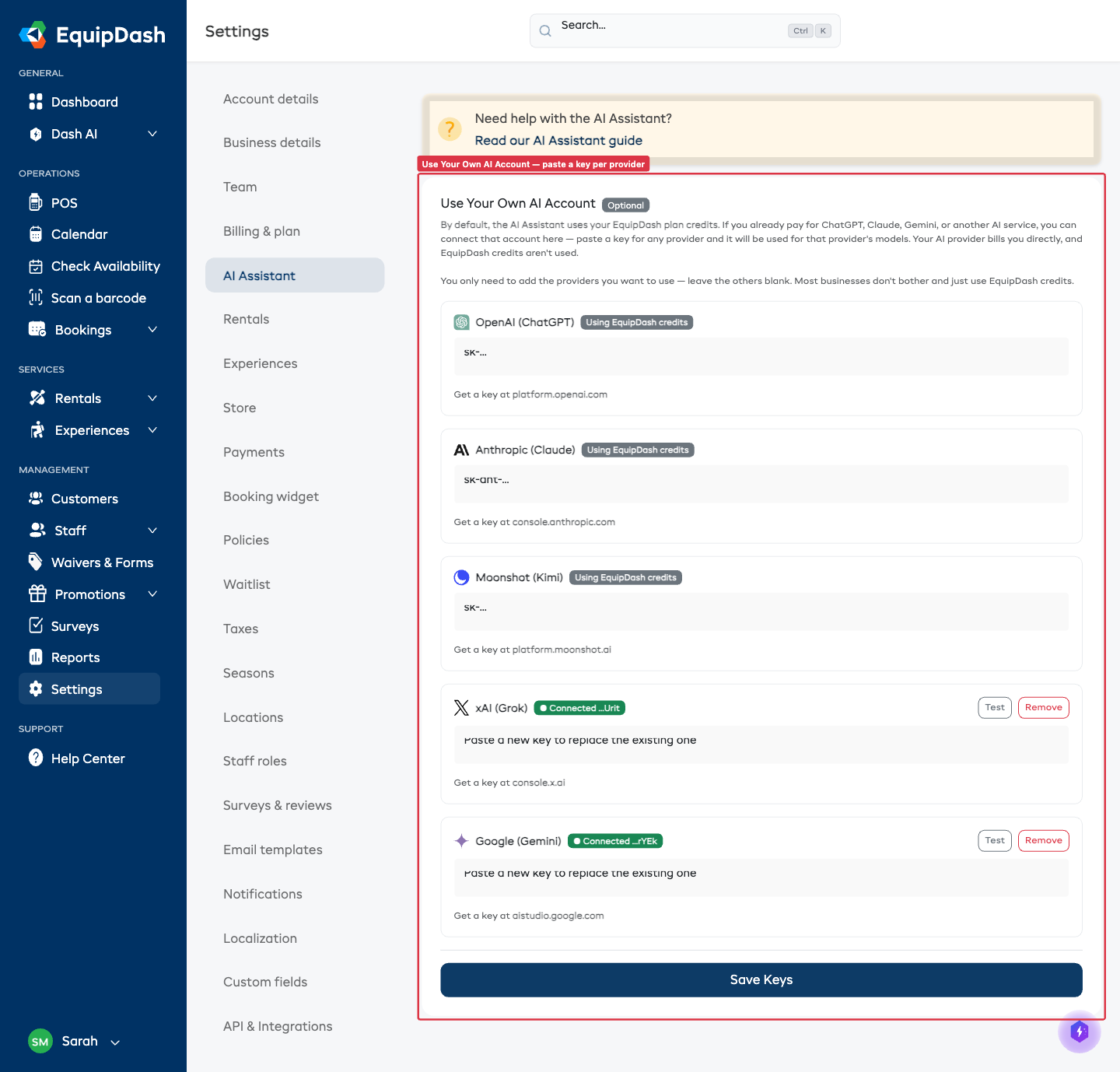
EquipDash will automatically test the key. You'll see a green ● Connected badge if it works, or a red ● Key rejected badge if something's wrong.
You can paste keys for as many providers as you want before clicking Save Keys - they'll all be tested together.
Step 3: That's it
Once connected, every AI feature in EquipDash will automatically use your account for that provider - chat, generated descriptions, smart suggestions, bots, all of it. You don't need to change anything else. Your EquipDash credit balance won't go down for those calls.
Picking which model to use
After connecting your key, head to the Configuration tab and choose your AI model. Connecting an xAI key, for example, makes Grok 4.3 appear in the picker.
See Choosing the Right AI Model for a guide on which model fits your needs.
Removing a key
If you change your mind:
- Find the provider row in Use Your Own AI Account.
- Click Remove.
The key is deleted immediately. Calls for that provider go back to using EquipDash credits.
If you were using a model that only worked through that key (e.g. Grok), EquipDash will switch you back to the default model so the assistant keeps working.
Common questions
What happens if my own AI account runs out of credits?
If your provider rejects a call because your account is out of money or has a billing issue, EquipDash will tell you exactly what's wrong:
"Your OpenAI account is out of credits or has a billing issue. Top up your OpenAI account, then try again. (You can switch to EquipDash credits in Settings → AI Assistant if you'd rather not use your own key.)"
You can either top up your provider account or remove the key to fall back to EquipDash credits.
Is my API key safe?
Yes. Keys are encrypted before being saved to our database, and we never log or share them. Only your business account can use them. We also store an audit log of every change so you can see when keys were added, tested, or removed.
What happens if my key stops working?
If your provider rejects a call (for example, the key was deleted, or you ran out of credit on their side), EquipDash automatically marks that key as invalid. You'll see a red badge in Settings, and AI calls for that provider go back to using EquipDash credits until you fix the key.
Will I run out of EquipDash credits?
If you've connected your own account for every model you use, no - your EquipDash credits won't be consumed by the AI Assistant. They'll still apply if you remove a key, or if you switch to a model without a connected key.
Can different team members have different keys?
Not yet. The keys you set apply to your whole business account. Every team member uses the same connected accounts.