AI Tips & Best Practices ProThis feature requires the Pro plan
The AI Assistant is designed to understand natural language, but a few simple habits can help you get better answers faster and make the most of your credits. Here are our top tips.
Be Specific
The more detail you include in your question, the better the response will be. Vague questions may need follow-ups, which use extra credits.
| Instead of... | Try... |
|---|---|
Show bookings | Show confirmed bookings for this week |
Check availability | Is the mountain bike available from March 15 to March 18? |
Revenue | Show me this week's revenue compared to last week |
Create a booking | Create a booking for 2 kayaks, March 20-22, for Sarah Johnson |
When you give the assistant all the information upfront, it can get you the answer in a single response instead of asking clarifying questions.
Use Natural Language
You do not need to use special commands or keywords. The assistant understands everyday language, so write the way you would speak to a colleague.
All of these work equally well:
- "What bookings do we have today?"
- "Show me today's bookings"
- "List all bookings for today"
- "Today's bookings please"
Include Dates and Names
When asking about specific time periods or people, include the details directly in your message.
- Dates: "Show bookings for March 15" or "Show revenue for last week" or "What is available next Saturday?"
- Customer names: "Look up bookings for John Smith" or "Has Sarah Johnson completed her waiver?"
- Product names: "Check availability for the e-bike" or "How much inventory do we have for surfboards?"
- Reference numbers: "Show booking EQD-2026-0123" or "What payments have been made on EQD-2026-0456?"
Use Follow-Up Suggestions
After each response, the assistant offers suggested follow-up prompts. These are tailored to the context of your current conversation and are a quick way to dig deeper without having to think about what to type next.
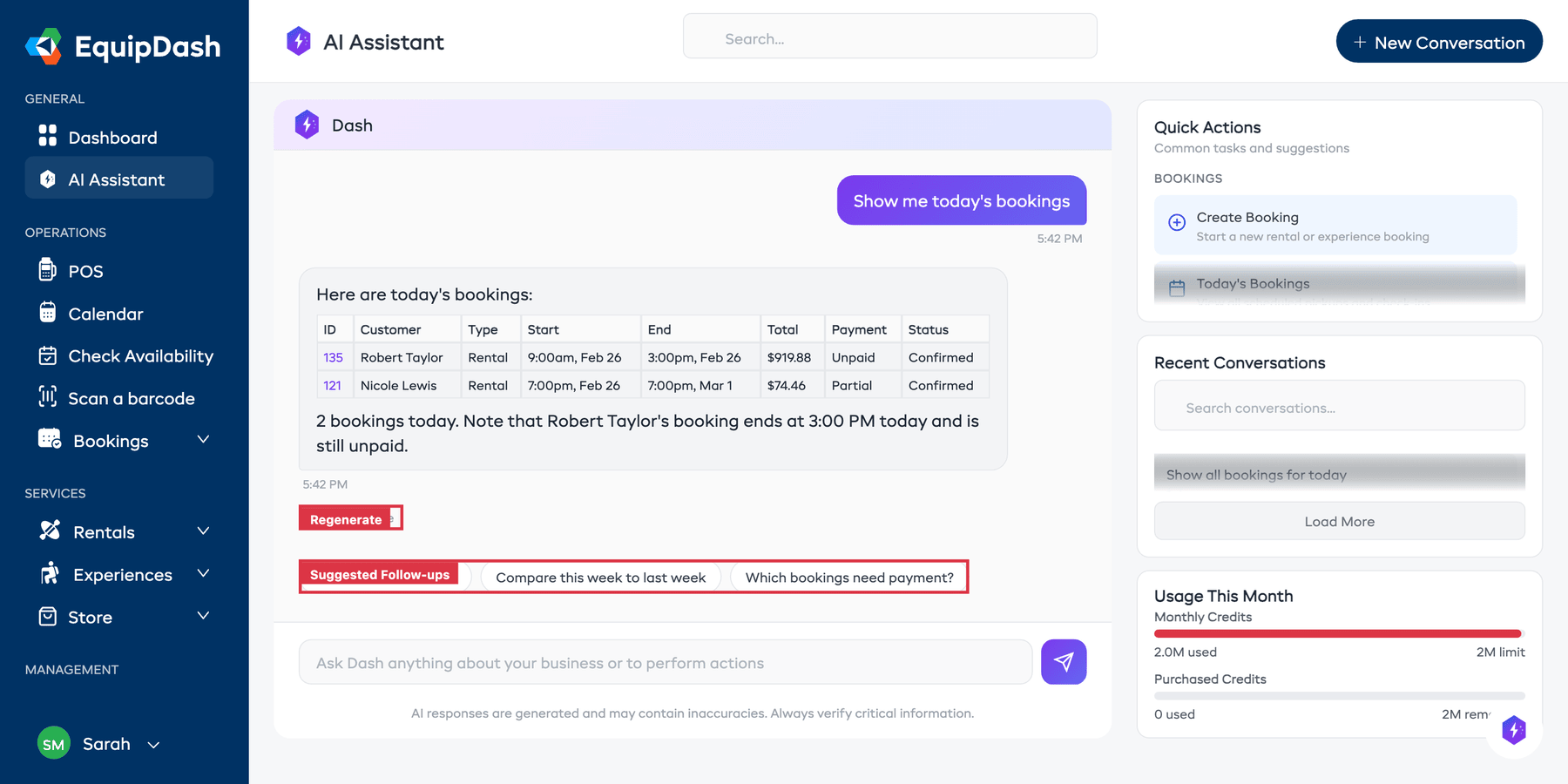
- Read the assistant's response.
- Check the suggested follow-ups below the response.
- Click one to continue the conversation instantly.
Start New Conversations for New Topics
Each conversation keeps its context in memory. If you switch from asking about bookings to asking about staff schedules, the earlier booking context might confuse things.
- Same topic? Keep the conversation going — follow-ups work well.
- New topic? Click New Conversation to start fresh.
This gives the assistant a clean slate and helps it focus on your new question.
Use Quick Actions for Common Tasks
Quick actions are pre-built prompts optimized to get you answers fast. They are a great starting point, especially when you are not sure how to phrase something.
On the full-page view, quick actions are organized into categories:
- Bookings — Today's bookings, create a booking
- Rental — Overdue pickups, overdue returns, low inventory, workshop items
- Experiences — Next check-ins, today's experiences, schedule
- Customers — Create a customer, check waivers, search
- Staff — Today's roster, tomorrow's roster
- Business Insights — Week comparison, peak hours, top products
On the sidebar panel (opened via the floating Dash button in the bottom-right corner), you get four compact quick action cards for the most common tasks: Late Rentals, Low Stock, Today's Bookings, and Revenue.
Regenerate if Needed
If a response is not quite what you expected, you can regenerate it rather than retyping your question.
- Scroll to the bottom of the assistant's last response.
- Click Regenerate.
- The assistant re-processes your last message and gives a fresh answer.
This is useful when the assistant misinterprets your question or when you want a differently formatted answer.
Manage Your Credits Wisely
Each message uses a small number of credits. Here are ways to make them go further:
- Ask complete questions — One detailed question is cheaper than three follow-ups.
- Use quick actions — They are designed to be efficient.
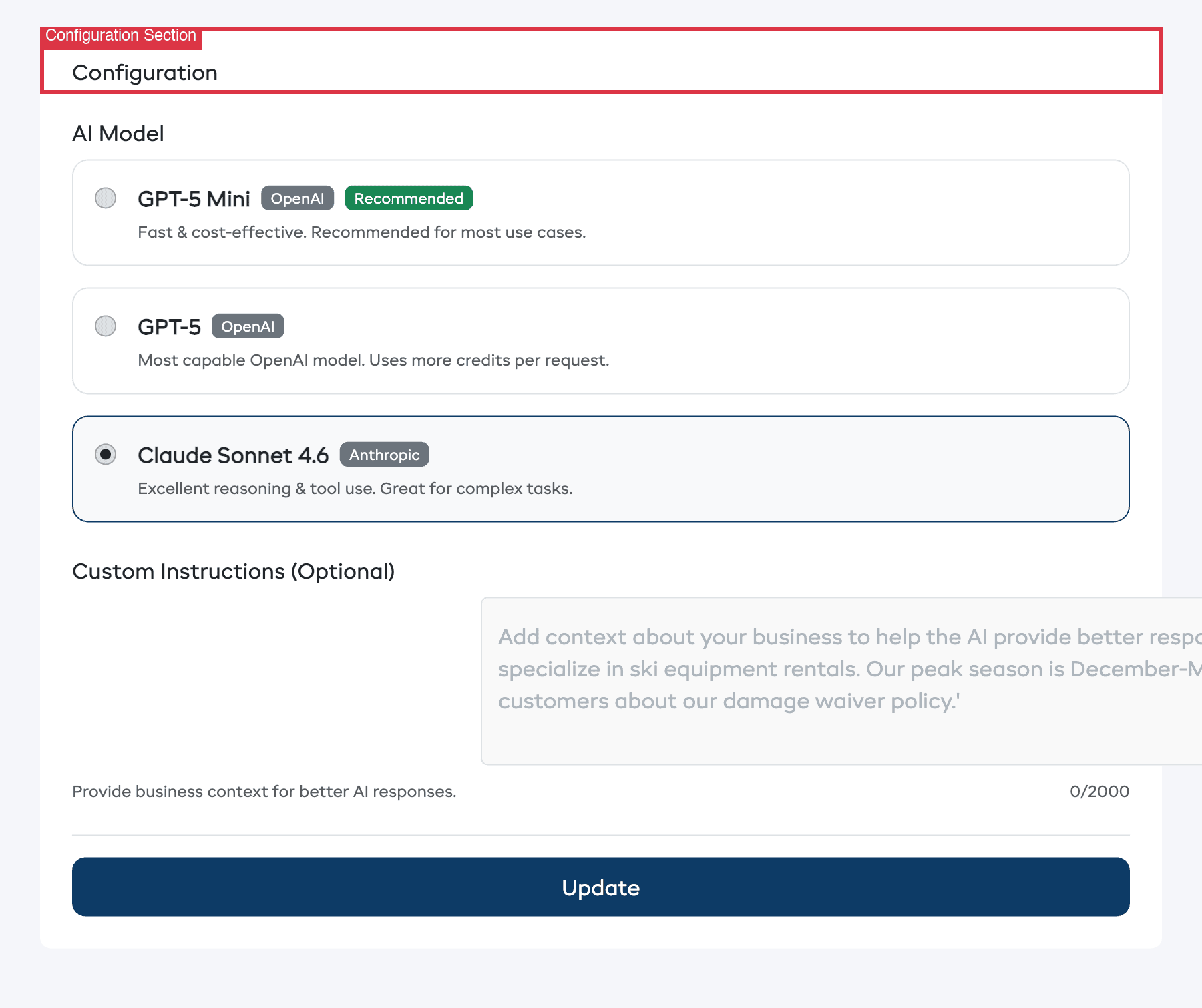
- Choose the right model - DeepSeek V4.1 Flash is the default and the fastest. GLM 5.3 Flash costs the least. Switch to GPT-5.6 Terra or Claude Sonnet 5 only when you need deeper analysis. See Choosing the Right AI Model for a side-by-side guide.
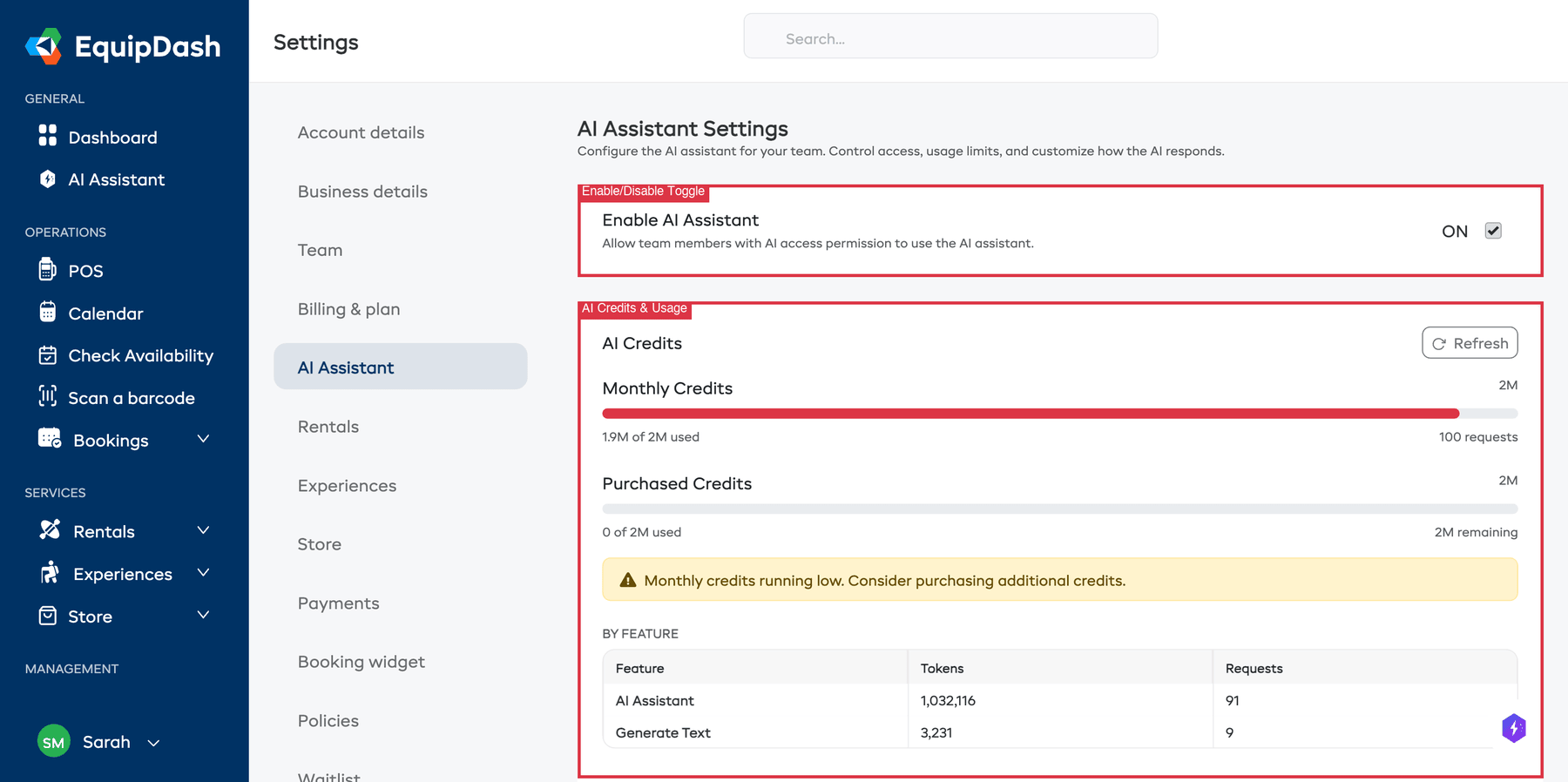
- Monitor your usage — Check the Usage This Month section in the right-hand panel, or visit Settings > AI Assistant for a detailed breakdown.
Learn more about the credit system
Understand Permissions
The AI Assistant respects your team's permission settings. It will only show data and perform actions that your account has access to. For example:
- If you do not have revenue reporting permission, the assistant will not show you revenue data.
- If you do not have booking creation permission, the assistant cannot create bookings for you.
- If you do not have customer editing permission, the assistant cannot update customer records.
This means each team member gets a personalized experience based on their role.
Admin Tips
If you are an admin managing the AI Assistant for your team:
- Enable or disable the assistant from Settings > AI Assistant using the toggle at the top.
- Choose the AI model - DeepSeek V4.1 Flash is the recommended default. Switch to GLM 5.3 Flash for the lowest credit usage, or to GPT-5.6 Terra for the most thorough analysis. There are eight models in total - see Choosing the Right AI Model.
- Add custom instructions — Use the Custom Instructions field in AI settings to give the assistant context about your business, like "We are a bike rental shop in Queenstown. Our busiest days are Saturday and Sunday."
- Monitor usage by team member — The Settings > AI Assistant page shows a per-user usage breakdown so you can see who is using the assistant and how much.
- Purchase credit packs proactively if your team is approaching the monthly limit.