Create with Dash AI ProThis feature requires the Pro plan
Create with Dash AI lives inside every Add sidebar in EquipDash. Instead of filling out a multi-step form from scratch, you describe what you want in a sentence and Dash pre-fills the form for you. You then review, tweak and click Create — Dash gives you a head start, you stay in control.
How It Works
- Open any Add modal — for example Add new product from Rentals → Products.
- At the top of the modal you'll see a small Create with Dash AI toggle. Click it to expand the panel.
- Type a short description of what you want.
- Click Create (or press ⌘ + Enter).
- Dash thinks for a few seconds and pre-fills the form fields below. Each AI-filled field shows a small purple AI badge.
- Review the details, change anything you want, then submit the form normally to create the item.
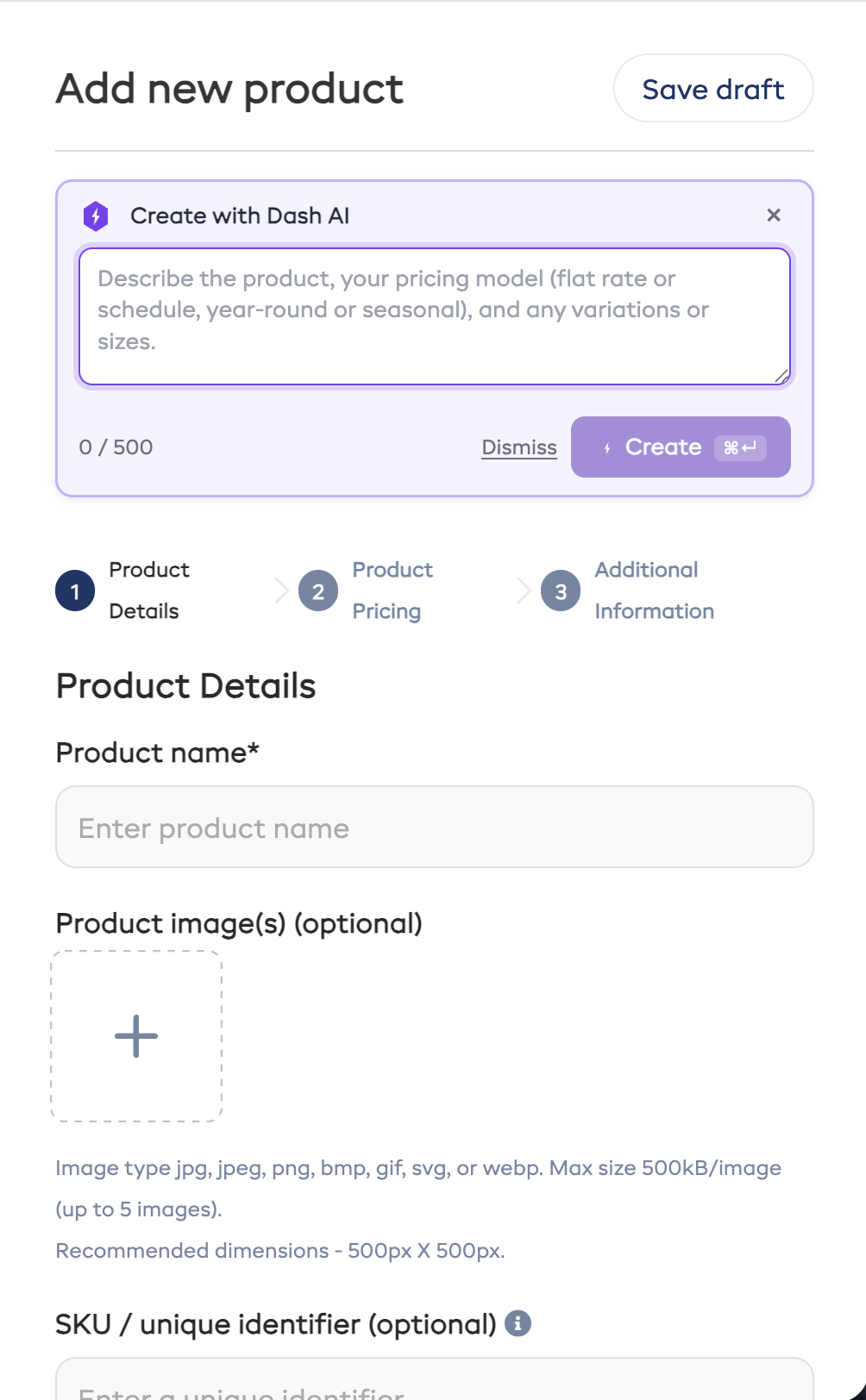
If you'd rather fill the form out manually, click Dismiss and the panel collapses out of the way.
Where Is It Available?
Create with Dash AI is wired into every Add modal across the platform:
| Module | What Dash pre-fills |
|---|---|
| Rentals → Products | Name, description, category, pricing model (flat or schedule), pricing, content blocks (What's Included, Highlights, etc.) |
| Rentals → Bundles | Name, description, pricing mode — and automatically adds matching products mentioned in your description |
| Experiences → Catalogue | Name, description, category, duration, capacity, rate categories with prices (e.g. Adult $99 / Child $49), content blocks (Itinerary, Check-in details, What to Bring, etc.) |
| Store → Products | Name, description, category, price, stock, content blocks |
| Promo Codes | Code, type, value, valid from / valid until dates, applies-to modules with scope defaults |
| Vouchers | Value, expiry, personal message, purchaser and recipient (parsed from "from X to Y") |
| Waivers & Forms | Name, applies-to scope, and the actual form-builder fields (intro text, name, signature, etc.) |
| Surveys | Name, send trigger, and the actual question fields in the builder |
| Promotions → Campaigns | Name, email subject, email body, audience filter (e.g. customers who booked in February), and optionally creates and links a promo code |
| Settings → Policies | Cancellation/reschedule policy — refund %, cut-off |
| Categories (Rental, Experience, Store) | Name |
What Makes a Good Description
Dash works best when you give it the same details you'd tell a teammate:
| Module | Example description |
|---|---|
| Product | "Trek Marlin 7 mountain bike, $45/day or $120/week" |
| Experience | "Sunset dolphin cruise, 1 hour, Adults $99, Child $49" |
| Bundle | "Family kayak day pack — 2 kayaks, 2 paddles, 4 life jackets, $89 flat" |
| Promo | "All rentals 20% off for the month of July" |
| Voucher | "$500 voucher from Ben Smith to Jon Jones, expires in 12 months" |
| Waiver | "Liability waiver for water sports — name, date of birth, emergency contact, signature" |
| Campaign | "Email every customer who booked in February to say thanks, book again and get 10% off — make a promo code for that and link it" |
Descriptions under 20 characters are rejected up-front so Dash never wastes credits on something it can't work with.
Reviewing What Dash Pre-Filled
Each field Dash filled in shows a small purple AI badge next to its label. As soon as you edit the field yourself, the badge disappears — that way you can see at a glance which values are still Dash's draft and which are your own.
Dash deliberately fills in only what your description supports. For everything else (photos, advanced pricing rules, scheduling, etc.) finish the form yourself before submitting.
Permissions and Credits
Dash respects everything you've already configured:
- Permissions — you can only build items you can already create manually. If you don't have permission, the panel shows an upgrade-required message and doesn't make any AI call.
- AI enabled — if AI is turned off in Settings → AI, Dash won't run.
- Credits — each build uses your AI credits (the same pool as Dash chat). If you're out of credits, Dash will ask you to top up before continuing.
You can review your credit balance from any AI page or via Settings → AI.
Categories Are Auto-Created
When you describe a product like "Trek Marlin 7 mountain bike" and you don't already have a "Mountain Bikes" category, Dash will:
- Look for an exact or close match in your existing categories (it tolerates small typos).
- If nothing matches, create a brand-new category with the suggested name.
- Attach your new item to that category.
You can rename or merge categories later from Rentals → Categories (or the equivalent for Experiences and Store).
Troubleshooting
"Dash couldn't build this." → Add more detail to your description (a name, a price, what it's for) and try again. The panel shows a reference like dash-XXXXXXXX you can quote if you need to send a diagnostic.
"You are out of AI credits." → Top up under Settings → AI or wait for your monthly allowance to refill.
"AI is not enabled for your account." → Ask an admin to enable AI under Settings → AI.
"You do not have permission to perform this action." → Your role doesn't allow you to create this entity manually — Dash respects the same restriction. Ask an admin to grant the relevant create/manage permission.
Related
- AI Assistant Overview
- Suggest Prices — let Dash research competitor pricing on Step 2 of any Add form
- AI Credits & Billing
- Tips & Best Practices