Setting Up Extras
Extras are add-ons customers can tack onto a booking. Every extra is one of three kinds:
- Just a charge — a fee or service with nothing physical behind it (insurance, a photo package, a cleaning fee).
- Rental item — kit they borrow and bring back (a helmet, a dry bag, a camera). It's backed by one of your rental products, so it uses that product's own pricing and stock.
- Store product — something they buy and keep (a spare battery, a water bottle). It's backed by one of your store products.
Set an extra up once, choose where it's offered, and it appears everywhere that item is booked — your booking widget, the POS, and bookings created by Dash AI or the API.
Creating an extra
-
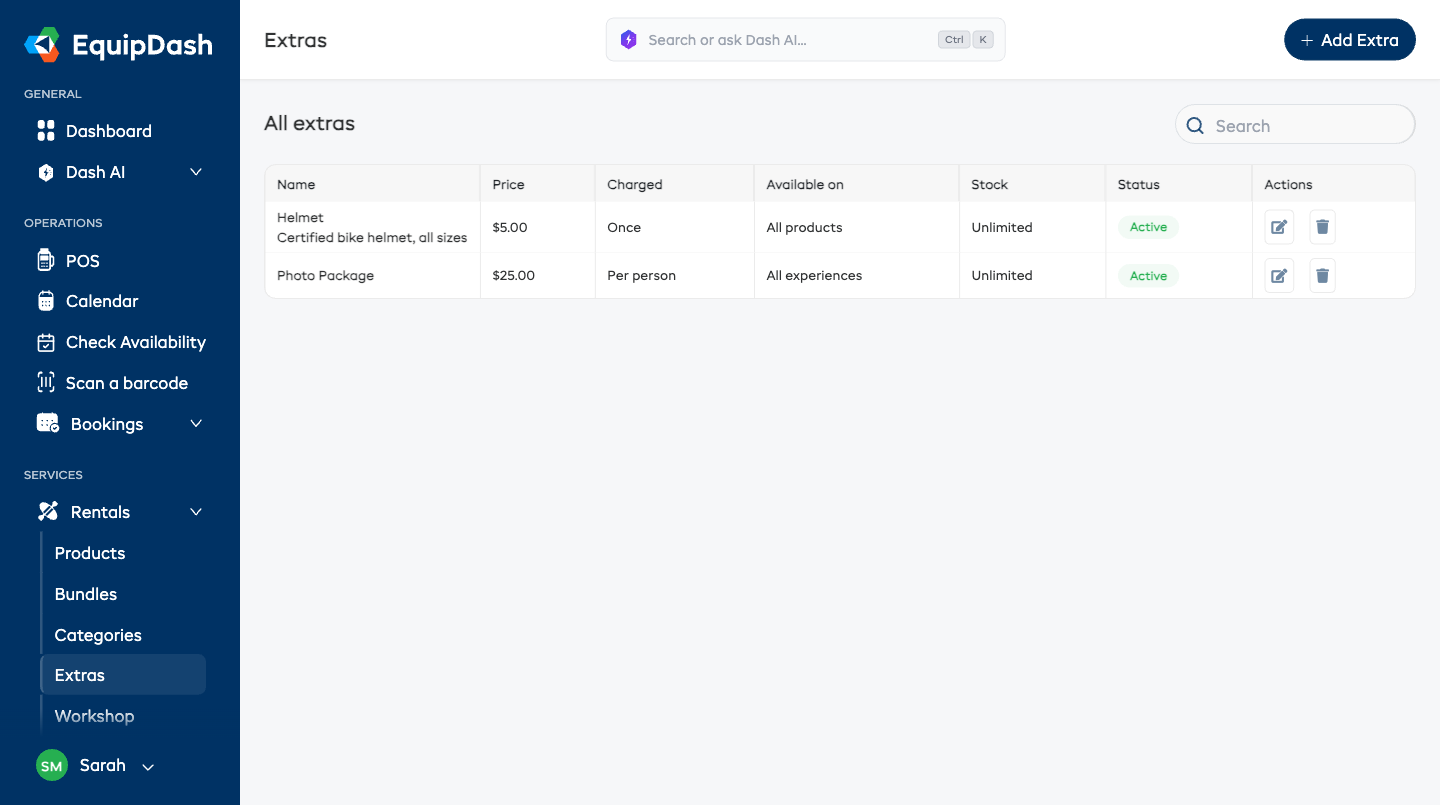
Go to Rentals → Extras (the same page is also under Experiences → Extras).
-
Click Add Extra.
-
Under What kind of extra is this?, choose one — this decides how it's priced and stocked:
Just a charge
A fee or service — nothing physical, so it's always unlimited.
- Under Price, choose Fixed price and enter it, or Set when booked when the price changes each time (see Extras with a price you set on each booking).
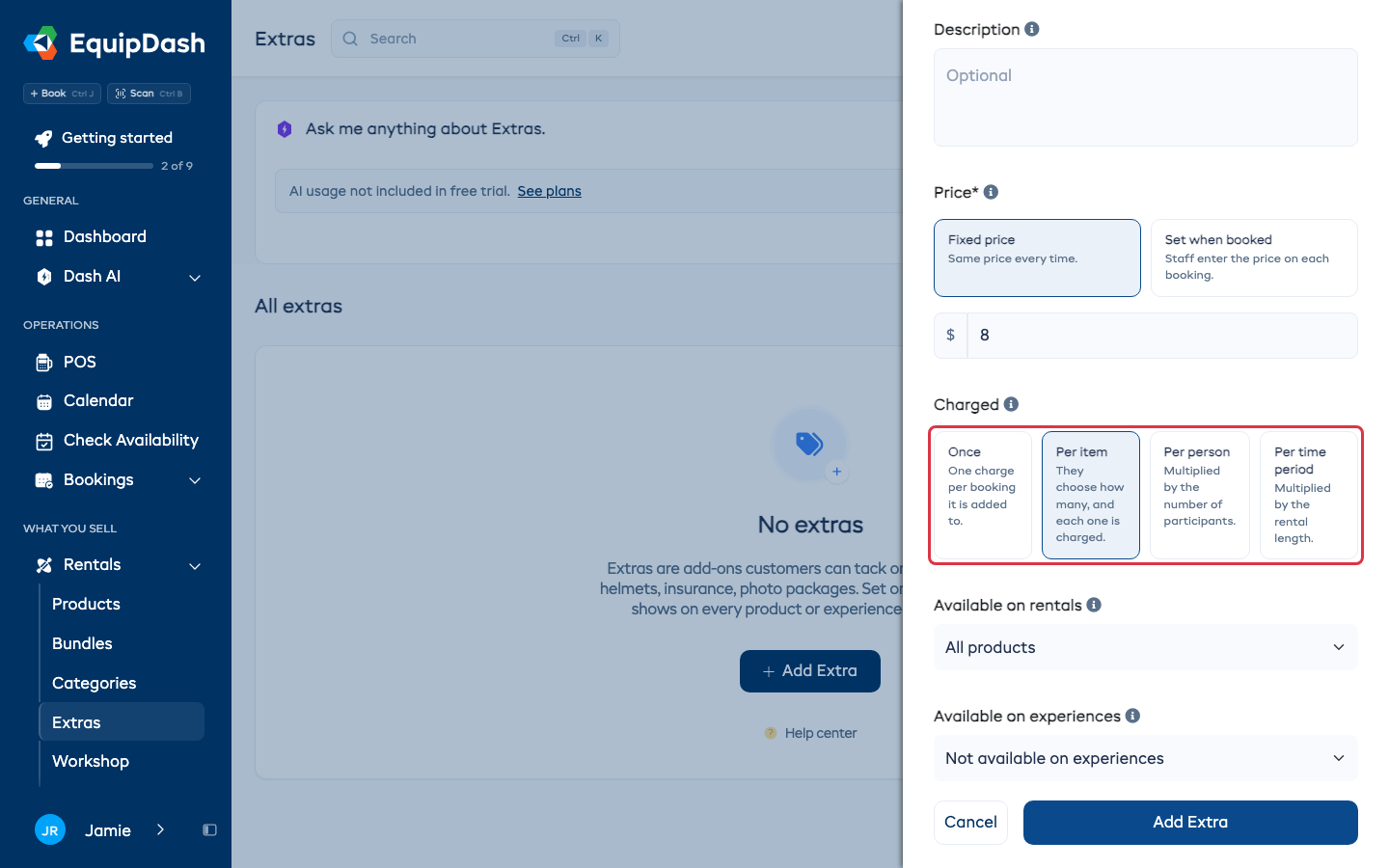
- Choose how it's Charged:
- Once - one charge per booking. Customers can add it or not, never two. Good for a cleaning fee or a photo package.
- Per item - customers choose how many, and each one is charged. Good for anything sold by the piece.
- Per person - multiplied by participants on experiences.
- Per time period - multiplied by the rental length. Pick day, hour, or week, e.g. a bike light at $2 / day.
Rental item
They borrow it and bring it back.
- Under Which rental item?, pick one of your existing rental products.
- Its price and stock come straight from that product — including any schedule or seasonal pricing you've set. There's no separate price to enter.
Store product
They buy it and keep it.
- Under Which store product?, pick one of your existing store products.
- Its price and stock come straight from that product.
-
Enter a Name customers will recognize, and optionally a short Description (shown under the name wherever it's offered).
-
Choose where it's offered — each is a dropdown with the same choices:
- Available on rentals — All products, Specific categories, Specific products, or Not available on rentals.
- Available on experiences — All experiences, Specific categories, Specific experiences, or Not available on experiences.
Picking a "Specific…" option reveals a picker to choose the exact categories, products, or experiences.
-
Click Add Extra.
An extra charged Once now goes on a booking once. If customers had already booked two or more of one of your Once extras, it was moved to Per item, so it keeps selling the way it did. Bookings already taken are unchanged.
A single extra can be offered on rentals and experiences at once — a helmet can appear on your bike rentals and your guided bike tours. Set both "Available on" sections and you're done.
Extras with a price you set on each booking
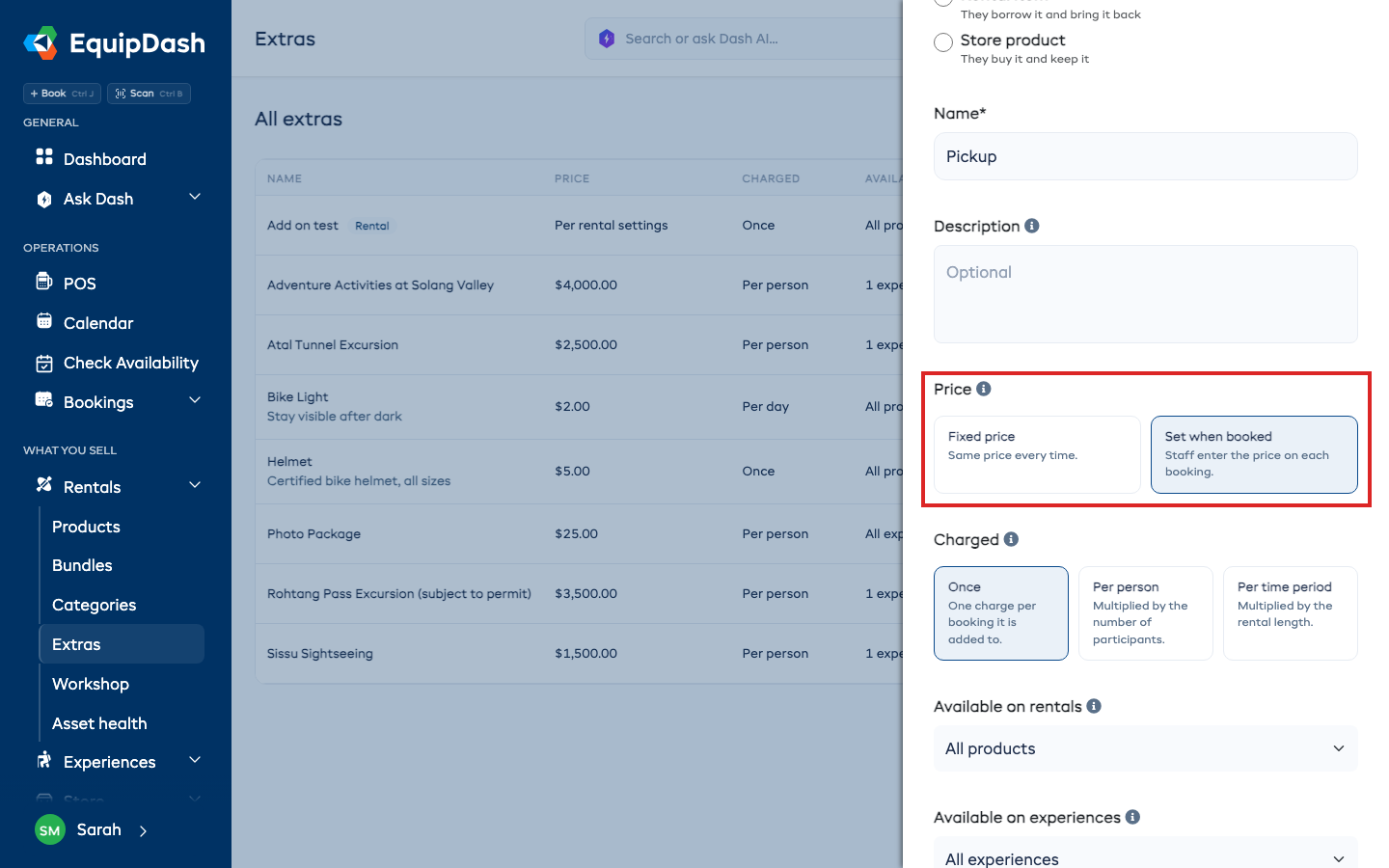
Some add-ons don't have one price: a pickup that costs more the further away it is, a venue fee, a custom cake. Choose Set when booked under Price and leave the price out. The extras list shows Set when booked where the price would be.
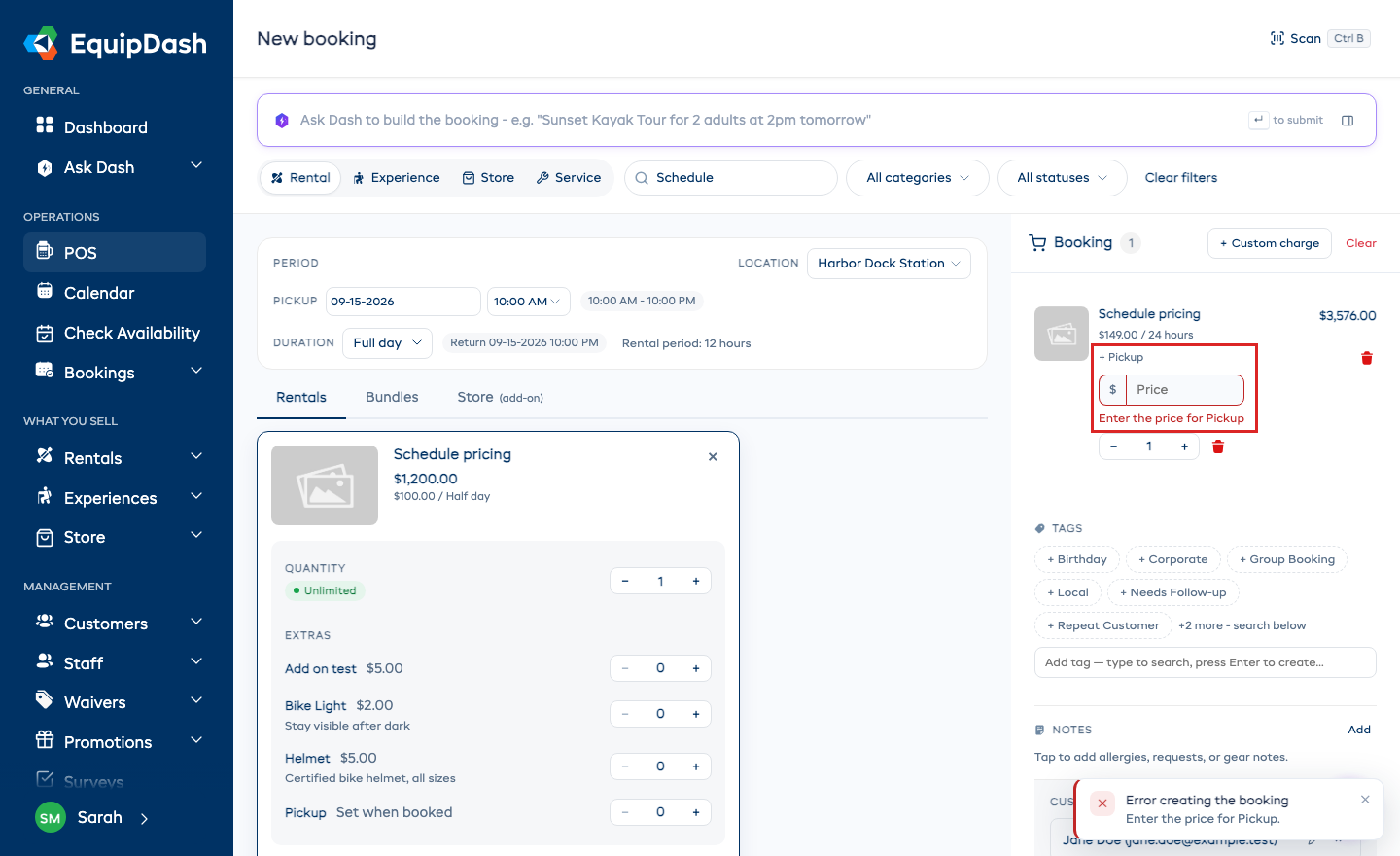
In the POS, adding one of these extras puts an empty price box on the cart line. Type the amount for this booking. Create booking won't go through until you do, and it tells you which extra still needs a price. Per person and per time period extras multiply the amount you type, the same as a fixed price.
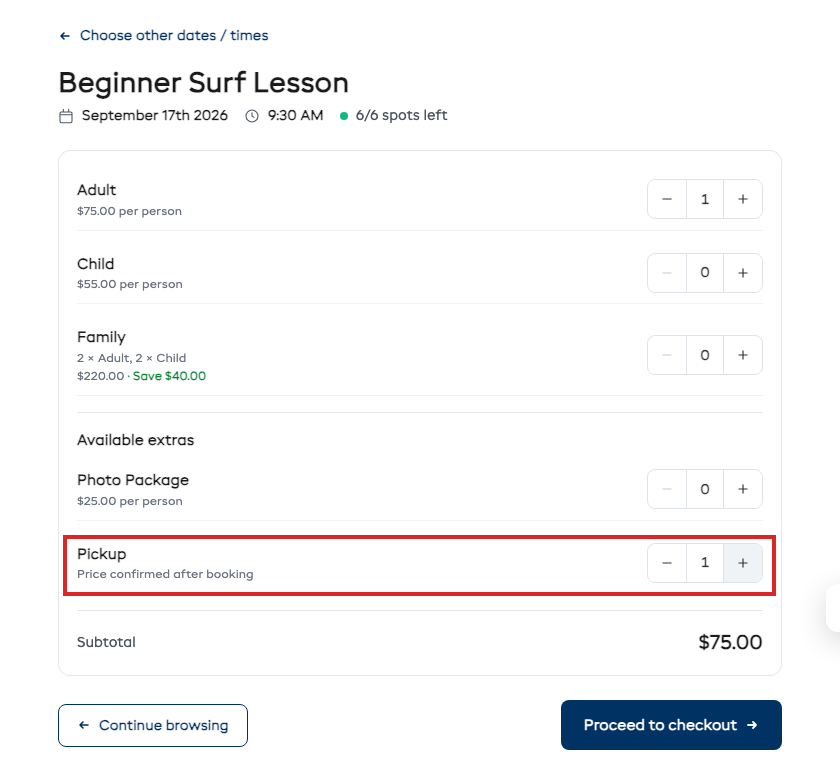
Online, customers see the extra with Price confirmed after booking. They can add it, it adds nothing to what they pay at checkout, and the booking confirms as normal. Their confirmation email lists it as Price to follow.
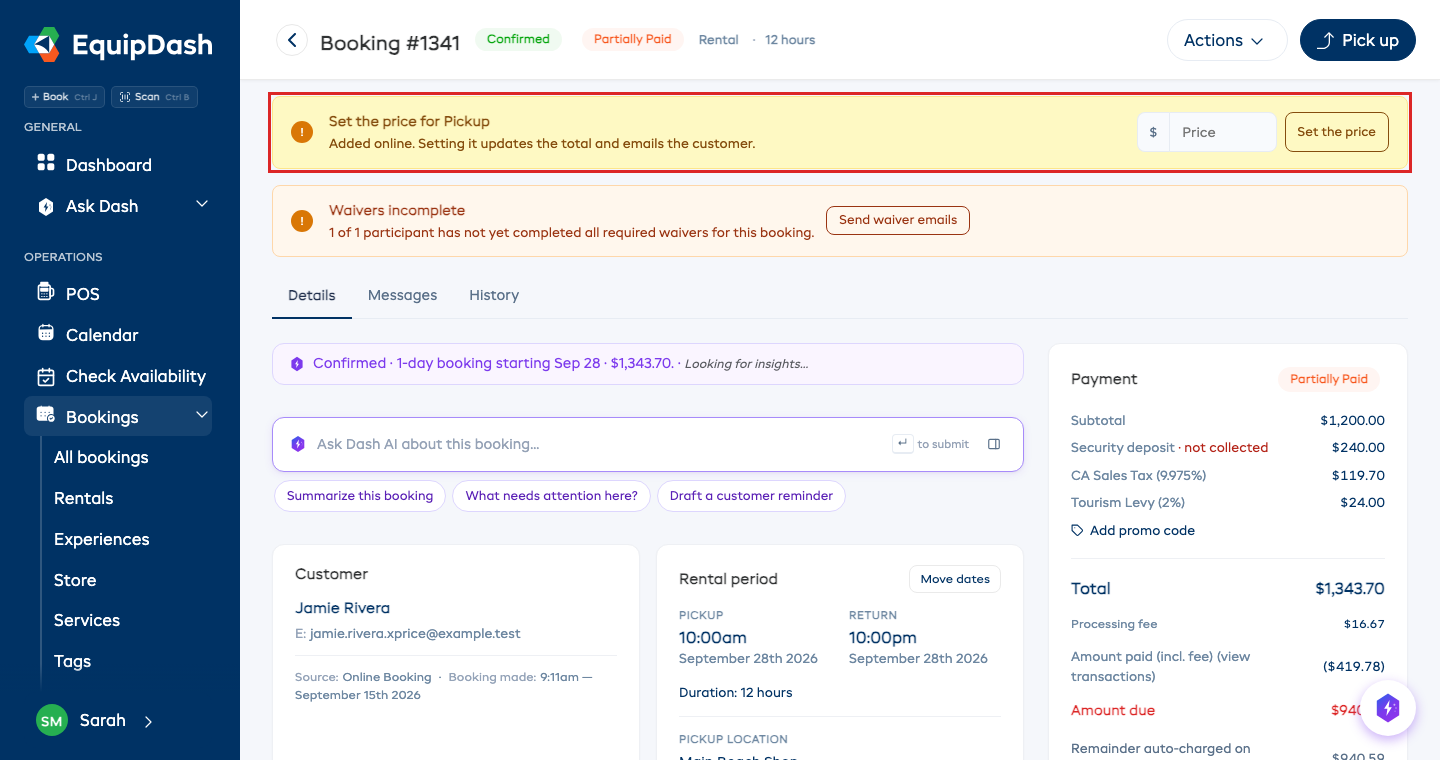
When a booking has one of these waiting, its page shows Set the price for the extra at the top. Type the amount and click Set the price. The booking total and amount due update, and the customer gets an email with the new total.
Editing the booking later, or moving its dates, keeps the price you set.
Rental & store extras: you link an item you already have
For a Rental item or Store product, you link an existing item rather than recreating it. Two things follow automatically:
- Pricing is always right. The extra charges exactly what the linked product charges — including schedule and seasonal rates on rentals. Change that product's price once and every extra linking it updates too. No stale prices.
- Stock is real. Booking a rental extra reserves a unit of the linked product for those dates and frees it on return; a store extra depletes the linked store product's stock. Customers can't over-book what you actually have.
Only available as this add-on
When you link an item you'll see an Only available as this add-on toggle:
- Off (the default) — the item stays in your normal rentals list / store and is offered as this add-on.
- On — the item is hidden from your rentals list, store, POS, mobile app, and online. It can only be booked as this extra, and it shows an Add-on only tag in your product/store list so you can spot it at a glance.
Turn it on for kit you never rent or sell on its own — a trail camera you only offer alongside a rental, say.
Where customers see extras
- Booking widget — available extras appear right under the quantity selector with their prices. A rental extra shows its linked product's rate; adding one updates the running total. On experiences, extras appear after the customer picks a time and participants.
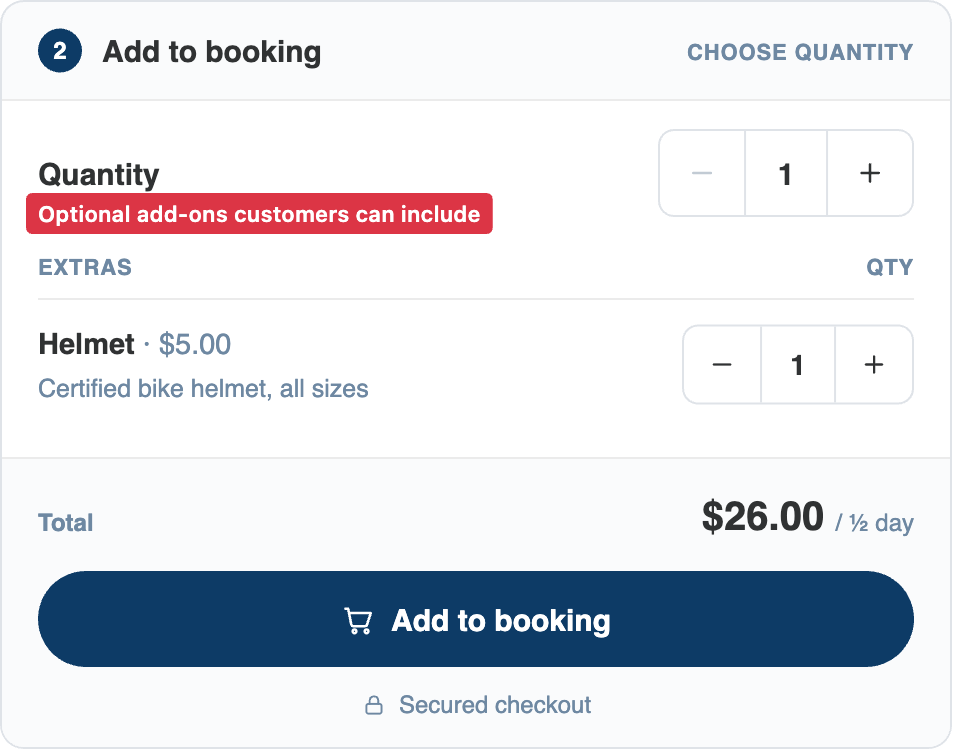
- POS — staff get the same one-tap steppers when they expand a product or experience card.
- Bundles — no extra setup needed. If an extra is offered on any item inside a bundle, it's automatically offered when a customer books that bundle, on the widget and the POS alike.
- Cart, checkout, and booking details — each added extra is listed under its item with its price, and the line total includes it.
Editing and deleting
- Edit an extra (pencil icon) to change its kind, its linked item, or where it's offered. For rental and store extras, price and stock always follow the linked item — edit that product to change them. Changes apply to new bookings only — existing bookings keep the price the customer was charged.
- On the edit form, toggle Active off to hide an extra everywhere without deleting it — handy for seasonal extras.
- Delete an extra (trash icon) to remove it from the catalog. Bookings that already include it keep their charges, and the linked product or store item is not deleted.