Setting Up Barcodes Growth+This feature requires the Growth+ plan or higher
A barcode connects a label to a product, a variation, or one numbered inventory item. Register the label in EquipDash so staff can use it for lookup, Calendar filtering, pickup, return, or Workshop.
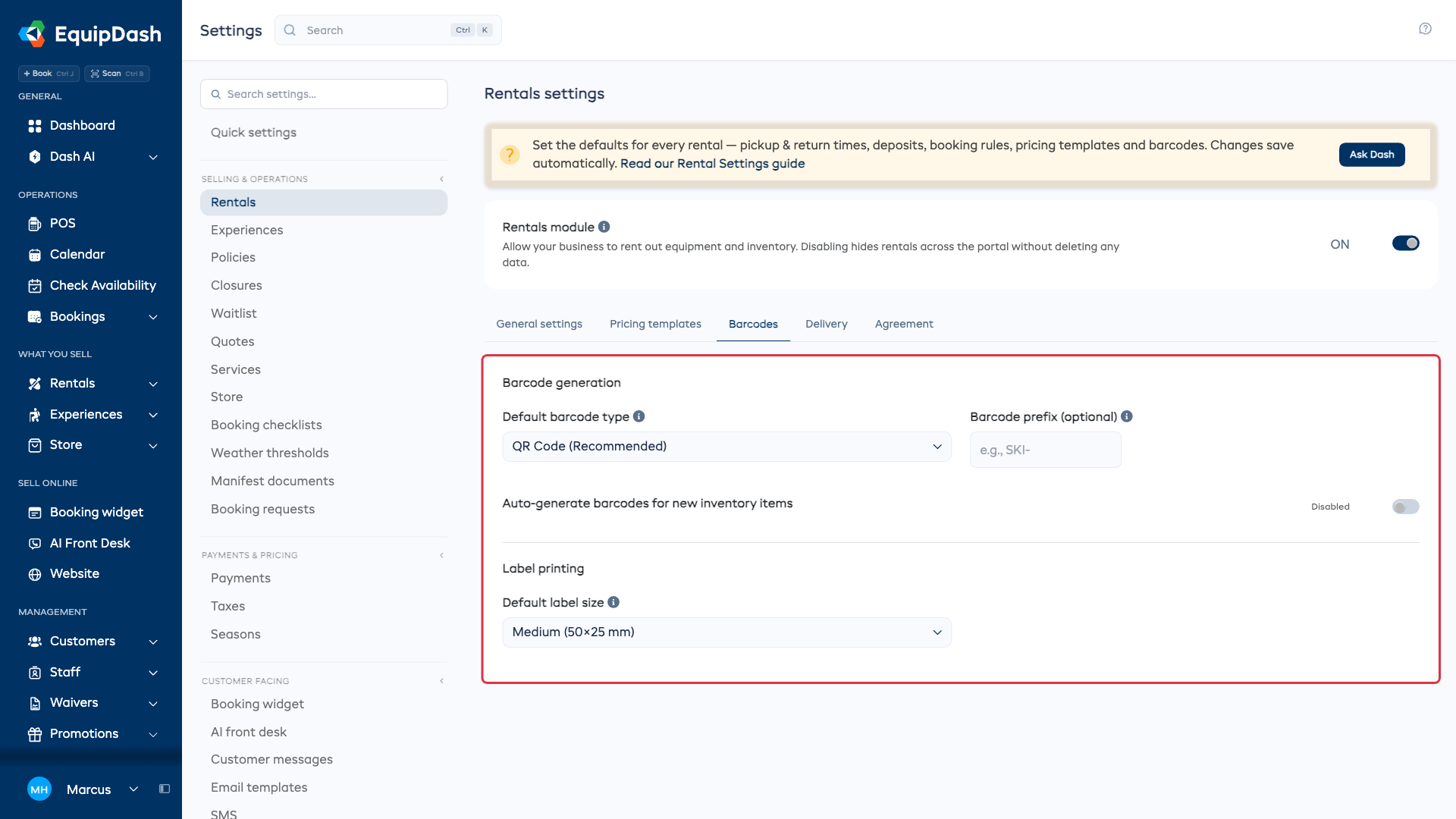
Barcode settings
- Open Settings > Rentals, then the Barcodes tab.
- Choose the Default barcode type. QR Code (Recommended) is the usual choice; other formats include Code 128, Code 39, Code 93, EAN-13, and EAN-8. Use a format your labels and reader support.
- Enter a Barcode prefix (optional) if you want a recognizable beginning for generated codes. Leaving it blank uses an automatically generated value; it does not copy the product SKU.
- Turn on Auto-generate barcodes for new inventory items if new stock should receive codes automatically. You can generate codes for existing stock from its Inventory tab.
- Choose your usual Default label size under Label printing. You can choose a size again on the print preview.
Changes save automatically. There is no separate Update button.
Choose what the label identifies
| Label level | What a scan identifies | Where to register it |
|---|---|---|
| Product | The product as a whole | Details > Barcodes |
| Variation on a group-tracked product | A quantity group, such as a size | The variation's Barcode action on Inventory |
| Numbered item | One physical unit | The item's barcode action on Inventory |
Use item labels when you need to know exactly which unit a customer received. A group label represents interchangeable stock; it does not identify a single physical unit. For a group-tracked product without variations, use its product label.
Register a product barcode
- Open Rentals > Products and select the product.
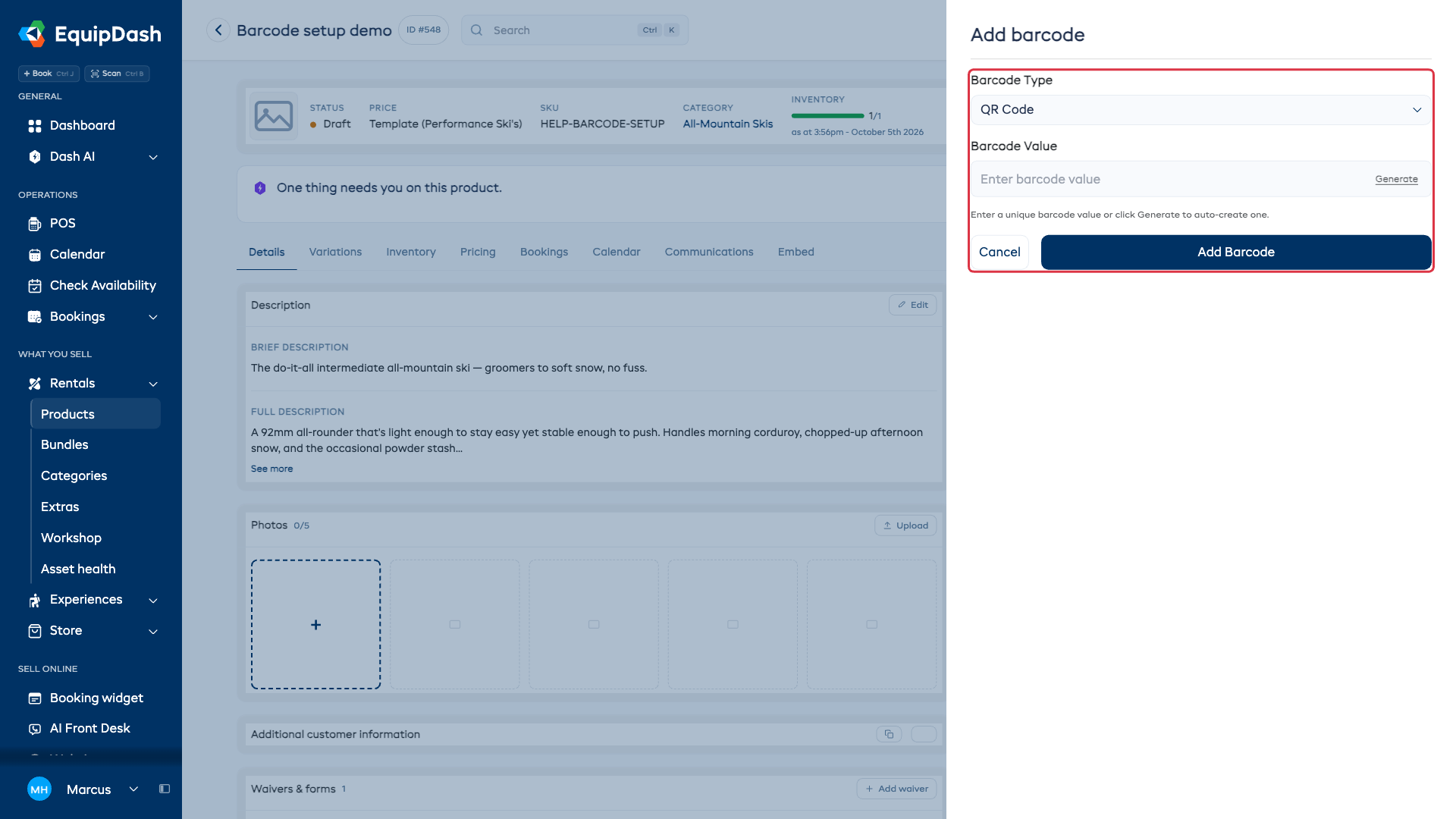
- On Details, find the Barcodes card and choose Add.
- Choose the Barcode Type that matches the label.
- Enter its Barcode Value, or choose Generate for a new unique value.
- Select Add Barcode to save it.
The card shows the saved value and format. Its actions let you reopen Edit, download an image, print the label, or delete the code. Auto generate is also available when the product has no code yet.
Each barcode value must be unique within your business. To reuse a manufacturer's label, register its value and a matching format first.
Label numbered inventory items
- Open the product's Inventory tab.
- Use the barcode action on an item row.
- Check the item identifier, then enter the label's value or choose Generate.
- Select Add Barcode.
To generate codes for several items, select their checkboxes and choose Actions > Generate barcodes. This adds missing codes and keeps existing ones. Generate barcodes above the table is also available for item-tracked products without variations when items still need labels. Products with item-tracked variations have a Barcodes action beside the variation.
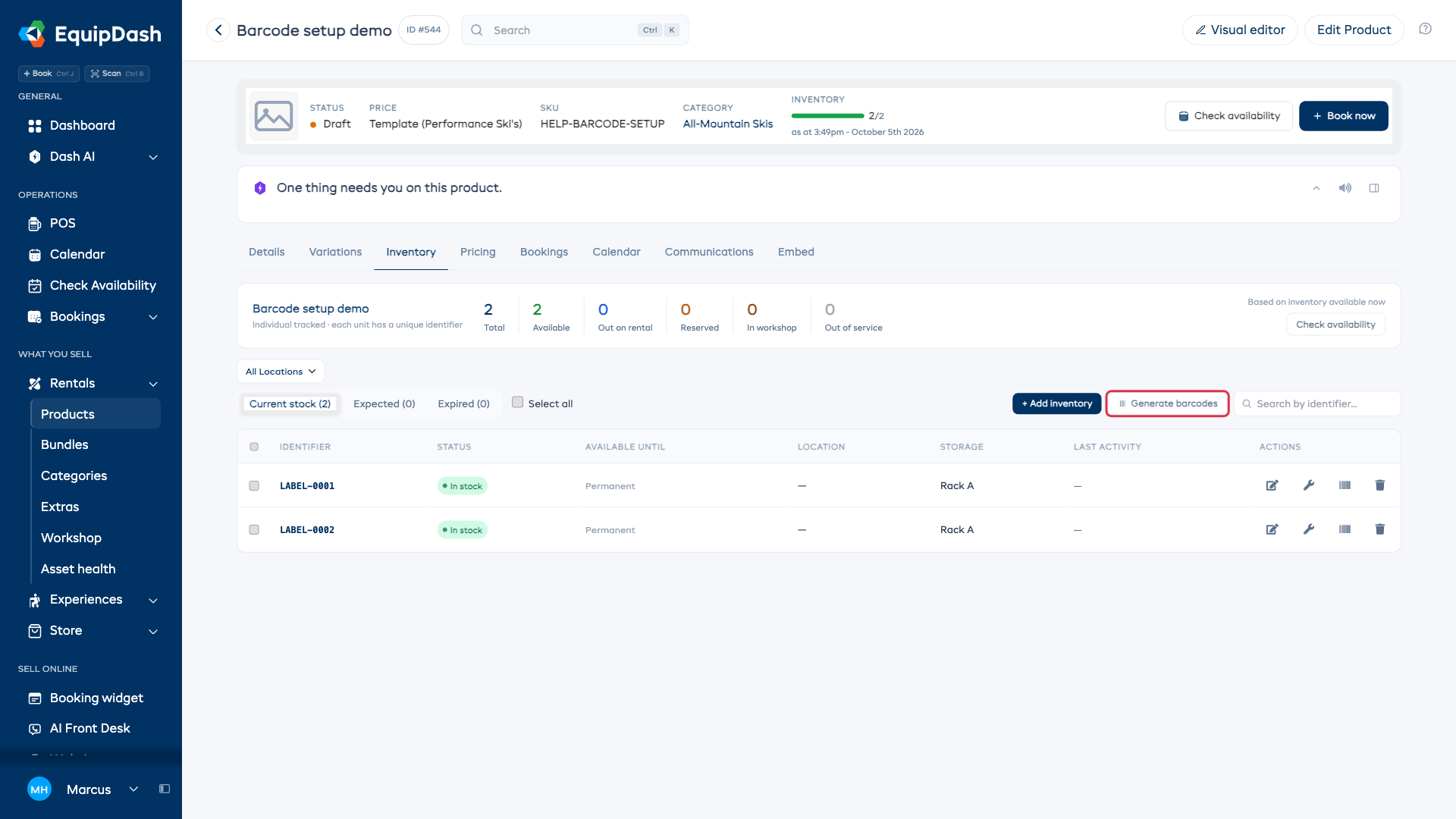
Use Print barcodes to review the saved labels together, or print one from its barcode form. Attach each label to its matching unit.
Label variation quantity groups
- Open a group-tracked product with variations and choose Inventory.
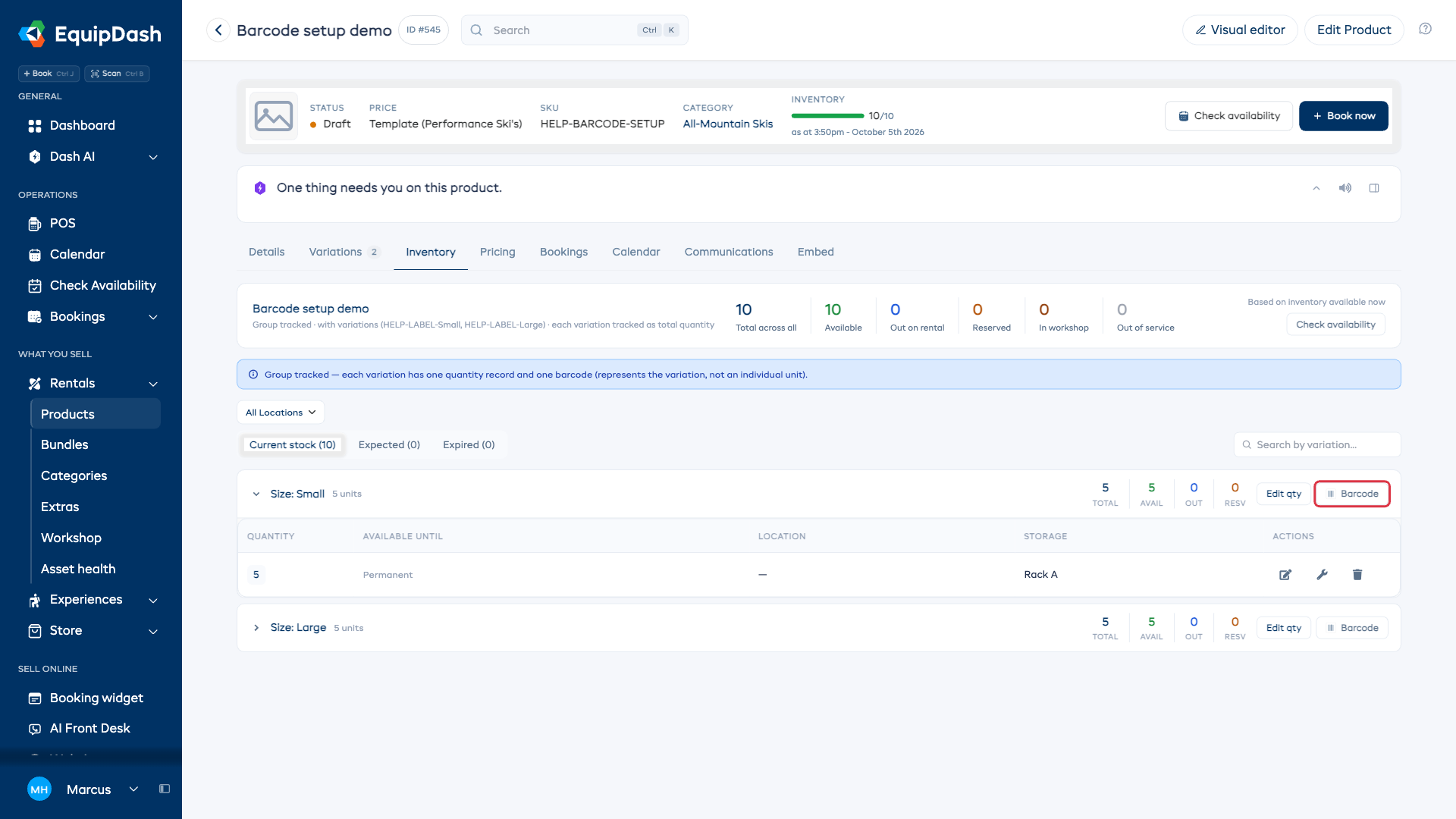
- Select Barcode beside the variation you want to label.
- Check the variation shown in the form.
- Enter an existing value or choose Generate, then select Add Barcode.
- Repeat for other variations as needed, then choose Print barcodes to review the labels.
Use the registered labels
| Page | Use |
|---|---|
| Sidebar Scan | Open a matching product or numbered item |
| Calendar | Filter to the matching product |
| Workshop | Send an item in or return it to available stock |
| Booking pickup and return | Identify and confirm the physical item |
See Scanning Barcodes for the steps and supported restrictions.