What Quotes Are ProThis feature requires the Pro plan
A quote is a priced proposal that isn't booked yet. You build it exactly like a booking — same items, same dates, same real prices — but instead of confirming it on the spot, you send it to the customer to think about. Because a quote is built by the same engine as a booking, the price the customer accepts is always the price they're booked at.
The customer gets an email with a private link where they can see what's included, sign any agreements you attach, and accept or decline. The moment they accept, the quote becomes a normal confirmed booking.
Quotes are made for group inquiries, corporate events, schools and clubs, event planners — any customer who asks "can you send me a price?"
The Life of a Quote
Every quote moves through a simple set of statuses, visible at a glance in Bookings → Quotes:
| Status | Meaning |
|---|---|
| Draft | Saved but not sent yet |
| Sent | Emailed to the customer, not opened yet |
| Viewed | The customer has opened their quote page |
| Accepted | The customer said yes — it's now a confirmed booking |
| Declined | The customer (or you) turned it down |
| Expired | Its valid-until date passed before a decision |
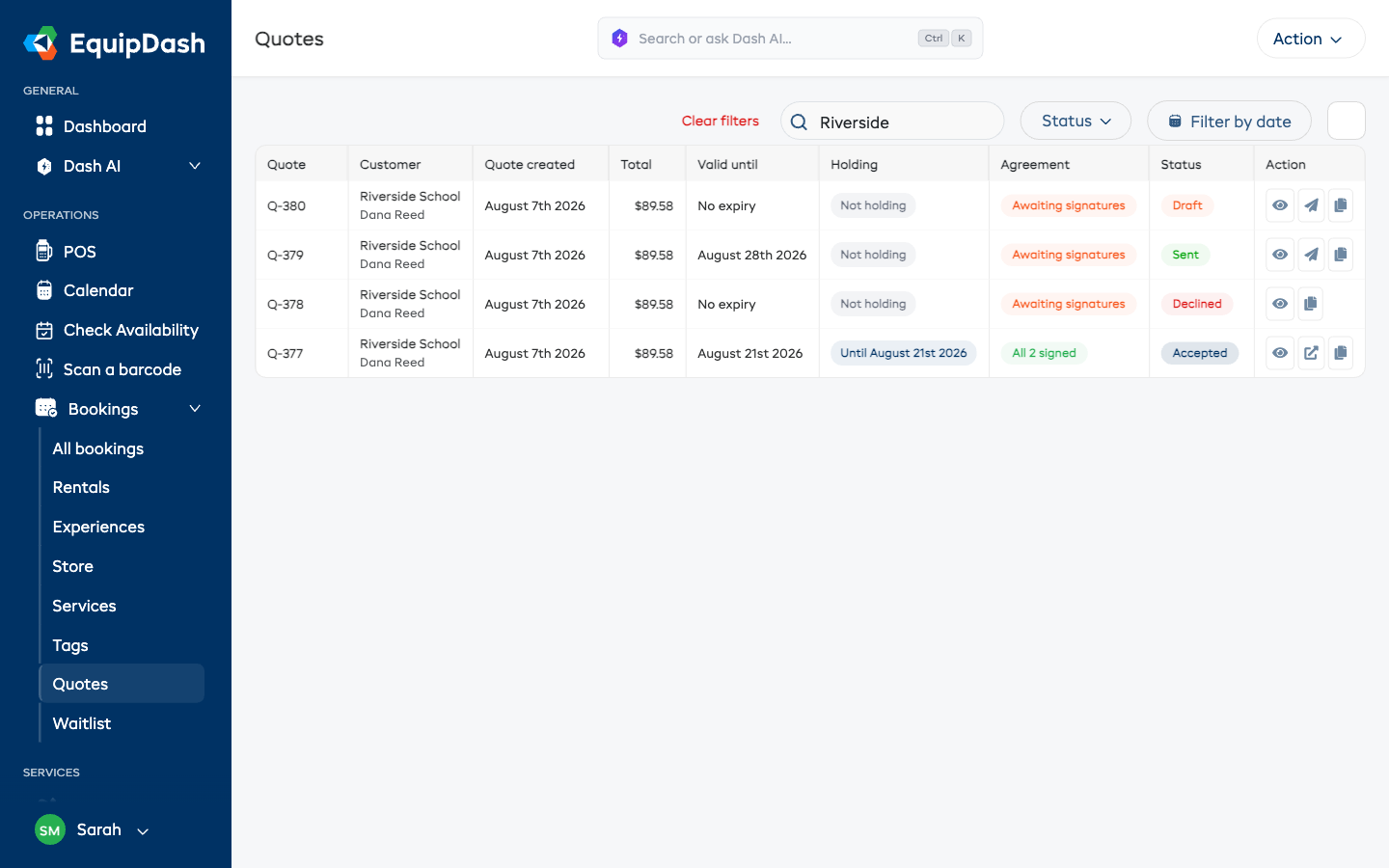
The list also shows whether each quote is holding its dates, whether its agreements are signed, the total, and how long it's valid — so your whole pipeline of open proposals fits on one screen.
Turning Quotes On
Quotes are part of the Pro plan and are off by default, so nothing changes until you want it to.
- Go to Settings → Selling & operations → Quotes.
- Switch on Quotes.
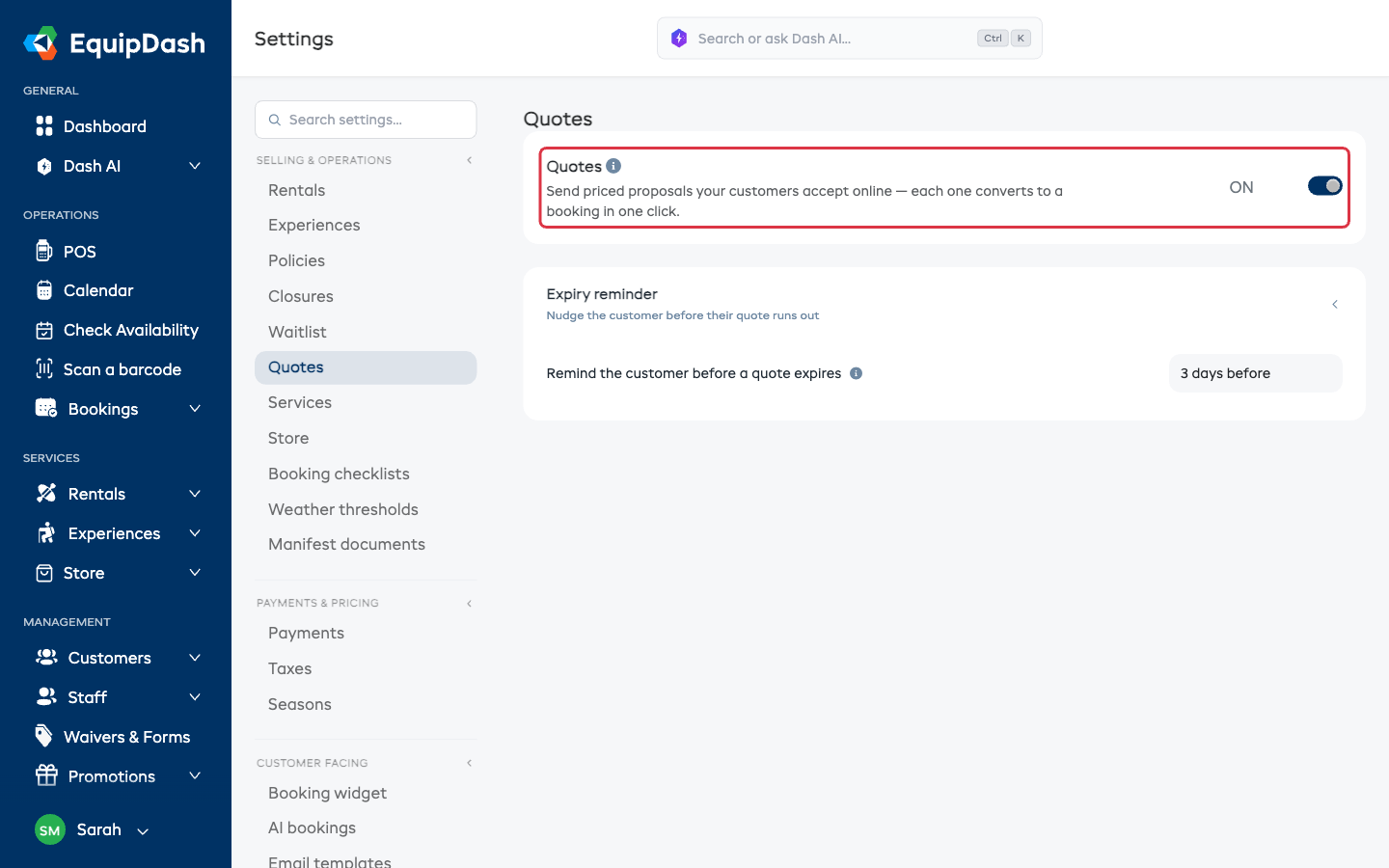
Once on, a Quotes page appears under Bookings in the sidebar, and the booking screen gains a Save as quote option.
On the same settings page you can set an expiry reminder — an automatic email nudging the customer a few days before their quote runs out. See Quote Emails.
Turning quotes off later just hides them — nothing is deleted, and you can switch them back on any time.
Taking Payment on Acceptance
Normally an accepted quote is paid later, per your payment settings. If you'd rather be paid as the customer says yes, switch on Require online payment when a quote is accepted on the same settings page — the customer then pays right on the quote page as they accept. The amount follows your booking widget's payment settings: a deposit if that's how you take bookings, otherwise the full amount.
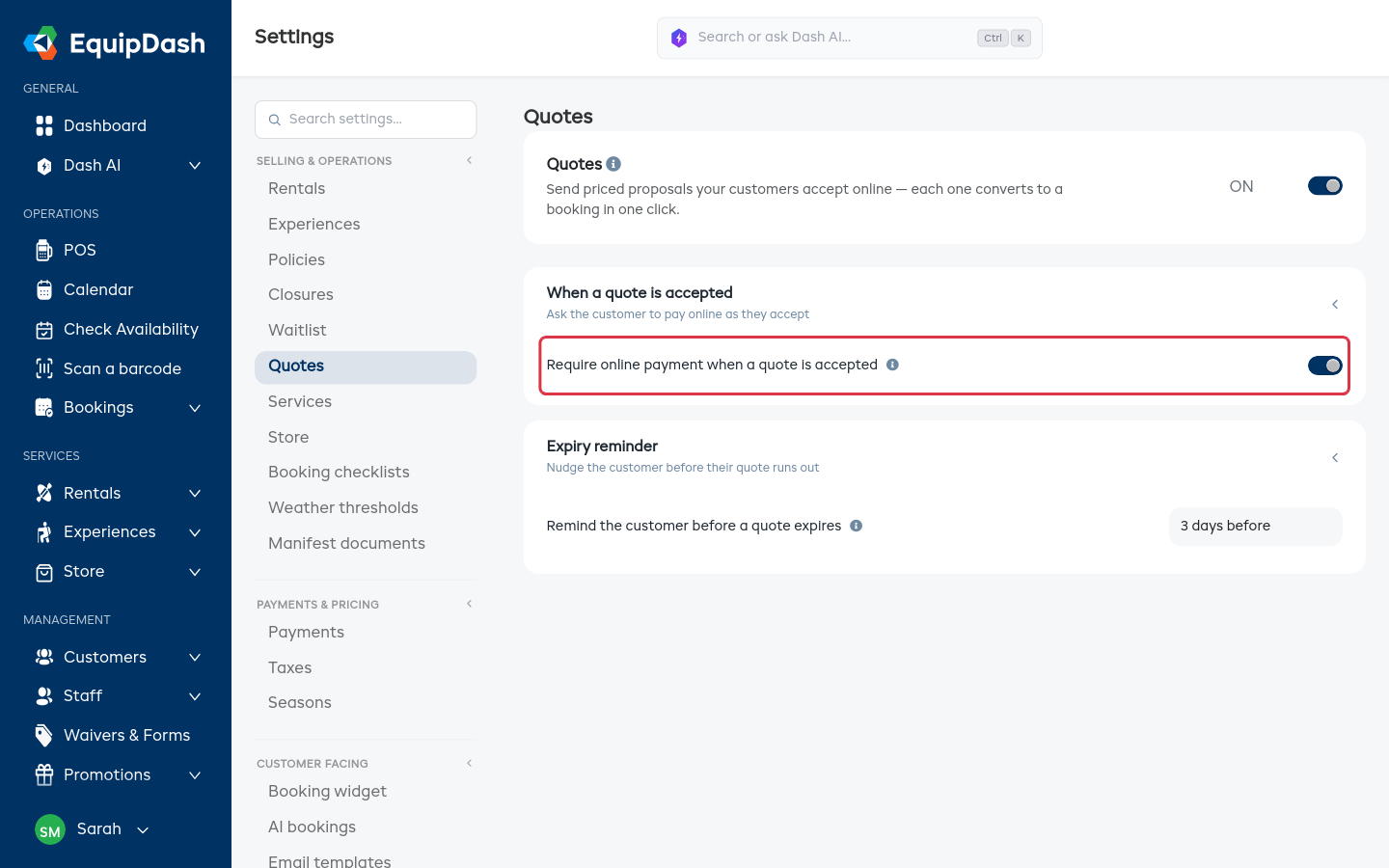
If a payment can't be taken online for any reason, the booking is still confirmed and the customer is emailed a payment link instead — a yes never gets lost over a card hiccup. See What the Customer Sees for the steps the customer walks through.
Who Can Work With Quotes
- Admins and Managers can create, send, edit, and decide quotes.
- Staff can view quotes but can't create or decide them.
You can fine-tune this per person under Settings → Team.