Taking a Service Booking
You can take a service booking two ways: in person at the point of sale, or online through your booking widget.
At the point of sale
- Go to POS and start a New booking.
- Choose the Service booking type.
- If you have more than one shop, pick the Location for this booking.
- Set the drop-off date (one date for all services on this booking).
- Each service shows its price, a quantity, and how much capacity is left that day (e.g. 6 left, or Unlimited). Adjust the price or quantity if you need to, then click Add.
- Add the customer, then take payment now or at pickup.
Only services offered at the selected location appear, and the remaining capacity updates as you add items.
Online (booking widget)
Customers booking online see a Book a service page:
- They pick a drop-off date.
- If you have more than one shop, they choose a Drop-off & pickup location.
- They pick a service, choose a quantity, and click Book this service.
- They check out — services are booked on their own (not mixed with rentals or store items).
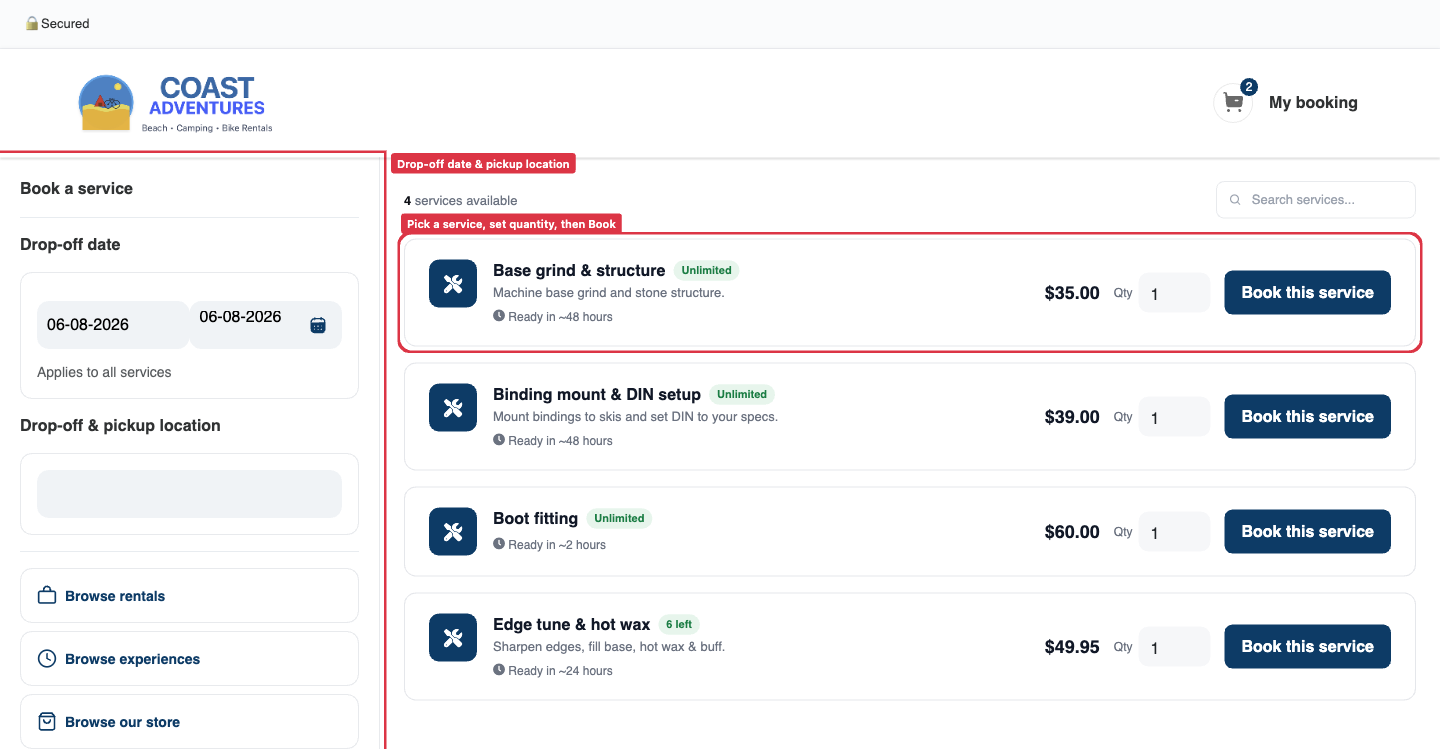
Each service shows its turnaround ("Ready in ~24 hours") and remaining capacity for the chosen day and location.
What the customer receives
After booking, the customer gets a confirmation email that lists each service, the drop-off date, the estimated ready-by time, and the drop-off/pickup location.