Setting Up Your Services
Turn on Services
- Go to Settings → Services.
- Switch the Services module on.
The Services item now appears in your left navigation and (if you use the booking widget) on your online booking page.
Add a service
- In Settings → Services, click New service type.
- Fill in:
- Service name — what the customer sees, e.g. Edge tune & hot wax.
- Description (optional) — a short line shown to staff and customers.
- Price — what you charge for the service.
- Turnaround (hours) — how long the job takes once dropped off. This drives the "ready by" time the customer sees.
- Daily cap (optional) — the most of this service you'll take per day, per location. Leave it blank for unlimited.
- Click Create.
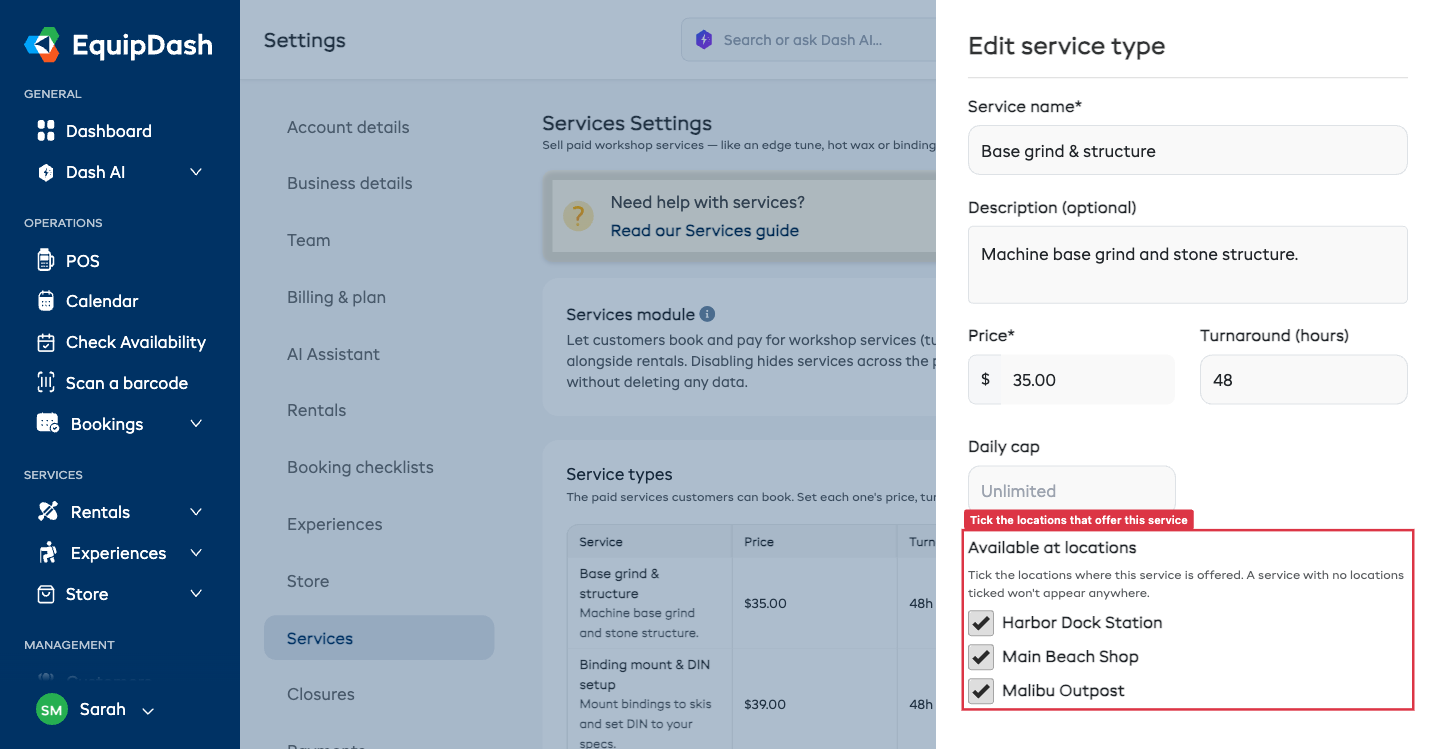
Choose which locations offer a service
If you have more than one location, each service shows an Available at locations section.
- Tick the locations where you offer the service.
- A service with no locations ticked won't appear anywhere — so tick at least one location for every service you want to sell.
Single-location shops don't see this section — all your services are simply available at your shop.
tip
Use locations to offer specialist services only where you have the right gear — e.g. Binding mount & DIN setup only at the shop with the mounting jig.
Editing and removing
- Click a service to edit its price, turnaround, daily cap or locations.
- Use the delete action to remove a service you no longer offer.