Add bookings to WordPress
The free EquipDash Bookings plugin adds bookings to any page of your WordPress site. It works with any theme, the block editor, Elementor and Divi.
Install the plugin
- In WordPress, go to Plugins > Add New.
- Search for EquipDash, then click Install Now and Activate on EquipDash Bookings.
Connect your business
- Go to Settings > EquipDash and click Connect EquipDash.
- Sign in to EquipDash, pick your business and click Authorize.
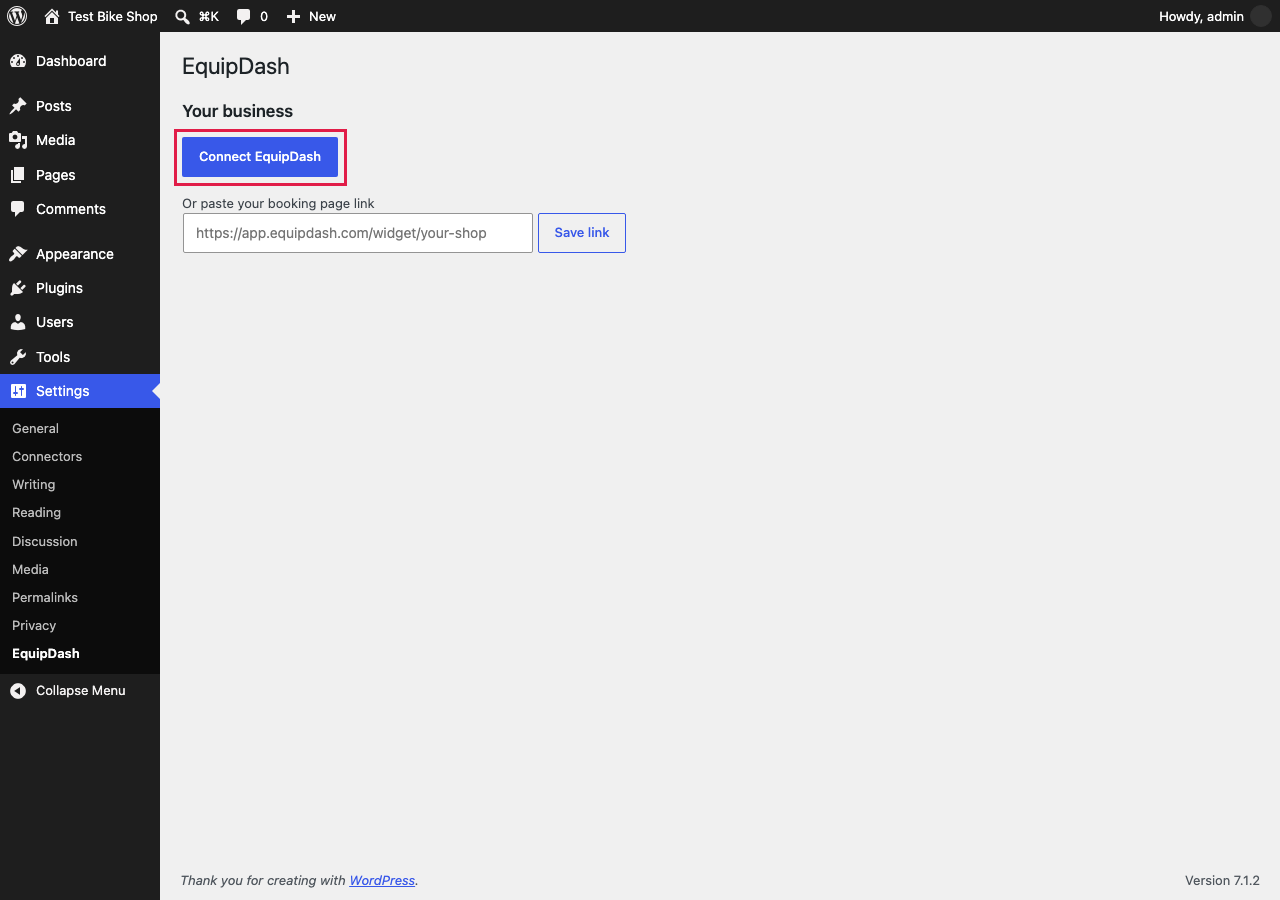
You come back to WordPress and it says Connected to your business.
Paste your booking page link under Or paste your booking page link instead. Copy it from Settings > Booking widget > Embed options > Share a link in EquipDash.
Add bookings to a page
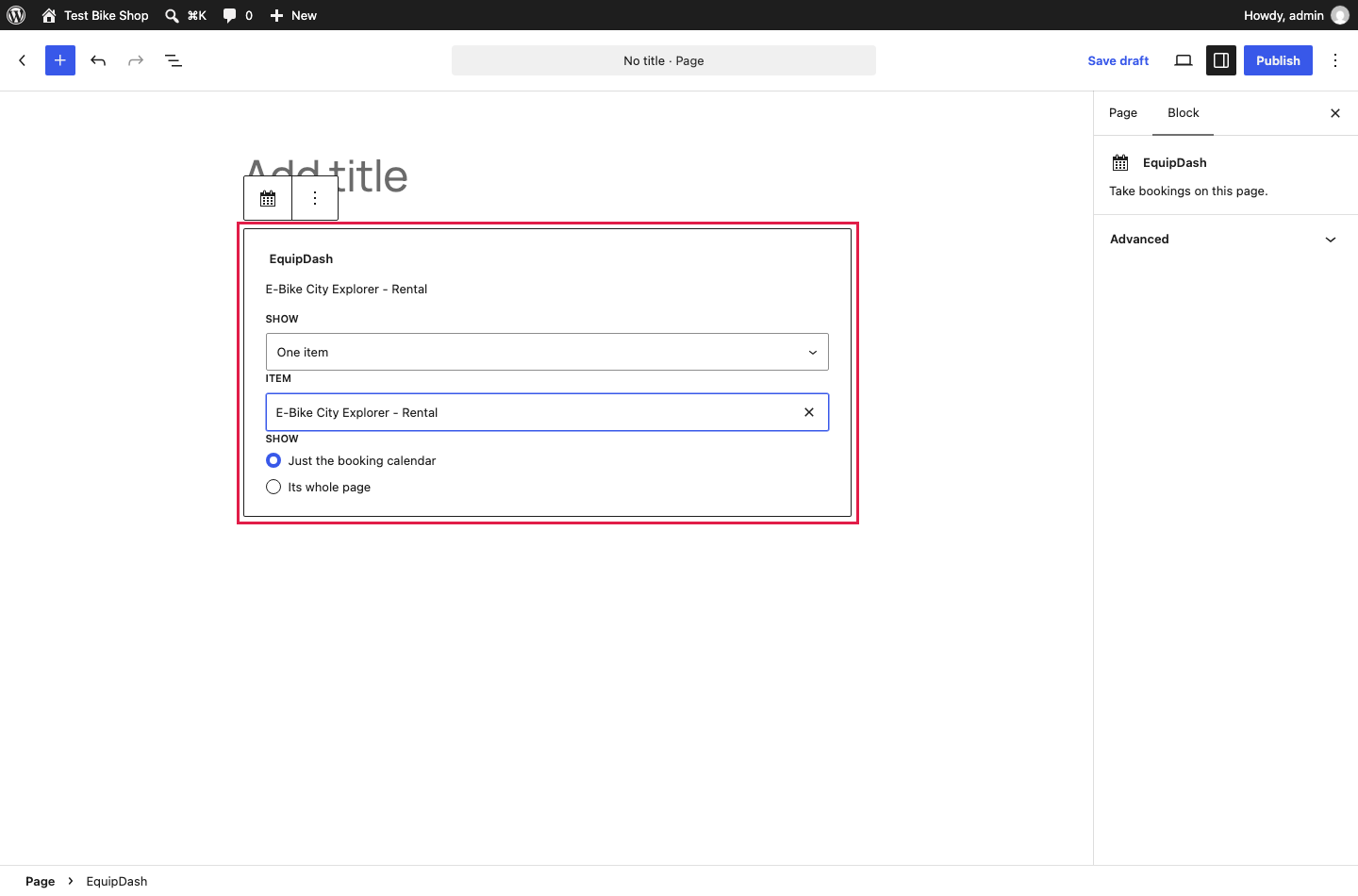
- Edit a page and add the EquipDash block.
- Under Show, pick Your booking page, One item, A collection or A Book now button.
- For One item, type the item's name and pick it from the list, then choose Just the booking calendar or Its whole page.
- Click Update or Publish.
A Book now button on every page
In Settings > EquipDash, tick In the corner of every page under Book now button on every page, then click Save Changes. Choose the button text and what it opens.
Elementor, Divi and the classic editor
- Elementor: drag in the EquipDash widget.
- Divi, the classic editor and other builders: paste a shortcode.
| Shortcode | Shows |
|---|---|
[equipdash] | Your whole booking page. Add module="rentals", "experiences" or "store" to open on one part |
[equipdash_item type="rental" id="12"] | One item's booking calendar. Use type="experience" for an experience, and style="full" for its whole page |
[equipdash_collection id="summer-picks"] | A collection |
[equipdash_button label="Book now"] | A Book now button |
The item number is in the item's Embed tab in EquipDash.
Without the plugin
Copy your code from Settings > Booking widget > Embed options and paste it into a Custom HTML block.
A Full widget embed scrolls inside its box, so make the box tall, at least 800px, or full screen. A Single product calendar sizes itself to fit.