Calendar Display Settings
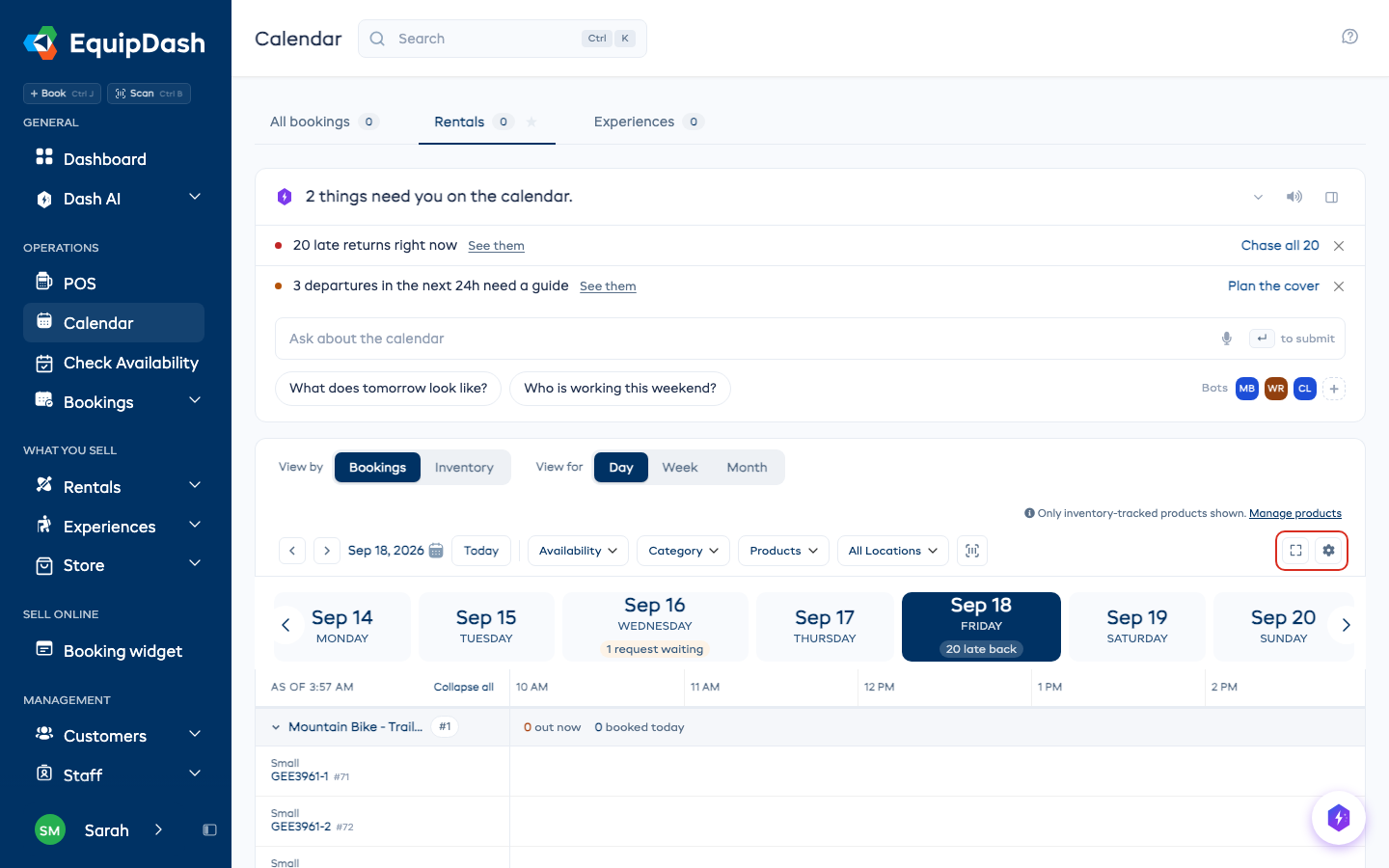
Two things live behind the gear at the end of the filter row: what the calendar draws, and whether it fills the screen.
What the calendar draws
Click the gear to open Calendar display.
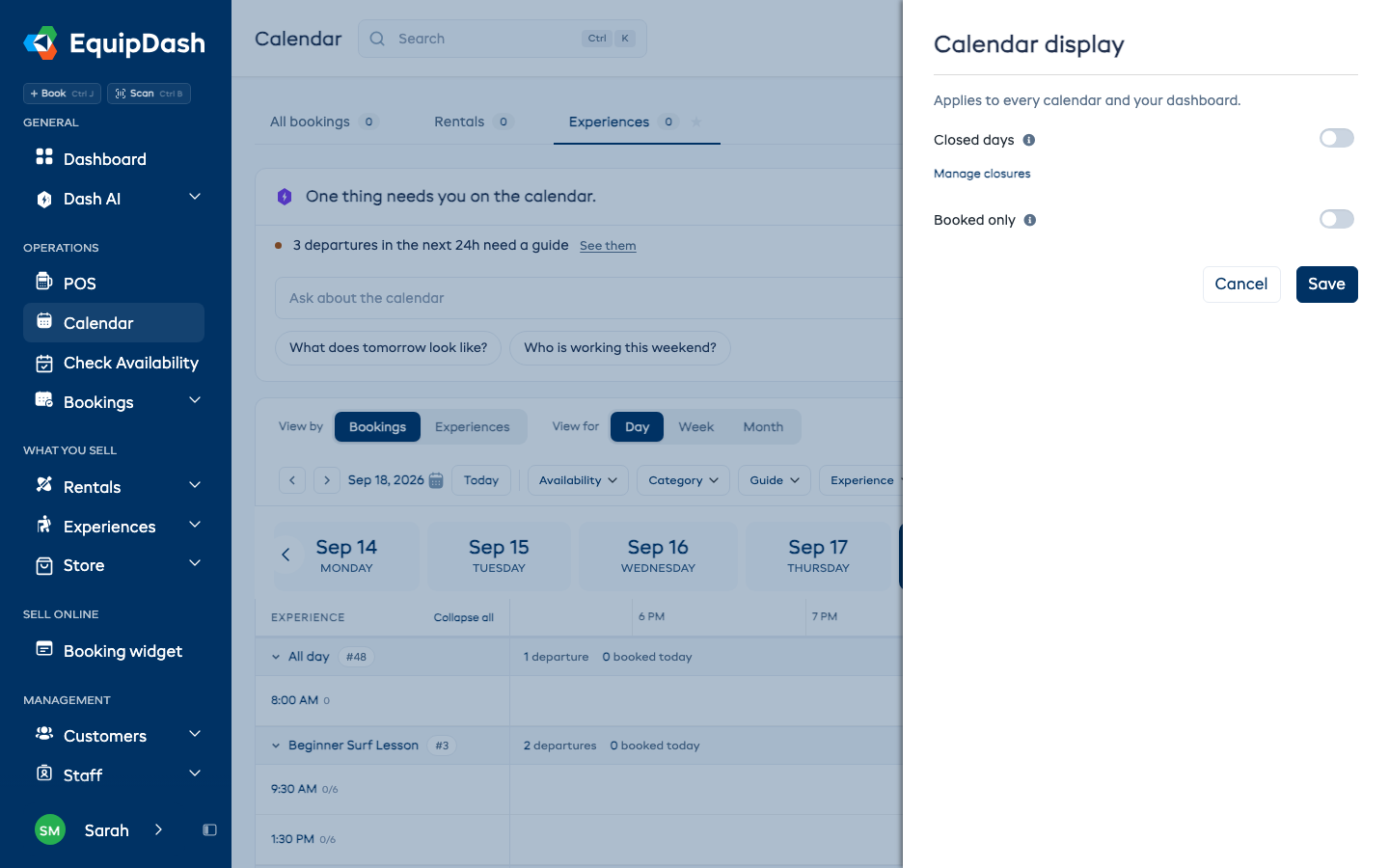
| Switch | What it does when it is on |
|---|---|
| Closed days | Shades the days you are shut, so a quiet day and a closed day stop looking the same. See Closed days. |
| Booked only | Hides the departures nobody has booked yet, so what is left is what is actually running. Experiences only - rentals have no departures to hide. |
Manage closures, under the switch, opens the page those shaded days come from.
Press Save. Cancel leaves everything as it was: nothing changes until you save.
It is one setting, everywhere
What you save applies to every calendar tab, to your dashboard, and to the app on your phone. You set it once rather than on each tab.
It is yours alone. Turning Closed days on does not change what anyone else on your team sees.
Full screen
The button beside the gear puts the calendar on the whole screen - no sidebar, no header, no tabs. It is for the screen behind the counter or in the workshop, where the calendar stays up all day.
Press it again, or press Esc, to come back.
Full screen is just a bigger view. Everything still works the same, and nothing about your bookings changes.